---
title: "What's new in 1.0.1"
description: "Every change in Chat to Markdown 1.0.1: Start over, Delete all saved chats, a table of contents you can name, fixes, and how to get the update."
url: https://chattomarkdown.com/docs/1.0.1/whats-new/
version: "1.0.1"
updated: 2026-11-04
---
# What's new in 1.0.1
> Version 1.0.1 adds Settings → Start over (delete what was saved and save it again, or delete it all) and a Note name for the Obsidian table of contents. The table of contents and the reader now keep up during a sync, Open in Obsidian works during a first sync, and saving on leave waits for Start saving.
Version 1.0.1 adds two ways to clear what the extension saved, lets you name the Obsidian table of contents, and fixes things that showed up during a long first sync. This page explains each change and where to find it. The full list of versions is on the [release notes](https://chattomarkdown.com/releases/) page.
## Get the update
Version 1.0.1 is in the Chrome Web Store since 4 November 2026. Chrome and Edge update extensions on their own, usually within a few hours, and a new install gets 1.0.1 straight away. Nothing needs to be set up again: your folder, services, settings and saved chats stay as they are. After the update, the extension checks your services and starts a sync.
To see which version you have, open the extension's **Settings** and look at the bottom of the page, next to the name: it reads `v1.0.1` once you have it. To get it sooner, open `chrome://extensions`, turn on **Developer mode** and click **Update**. More in [Install the extension](https://chattomarkdown.com/docs/1.0.1/install/#updates).
## New: Start over
**Where:** Settings → Start over
A new section at the bottom of Settings, **Start over**, with a row of the same name: "Delete every saved chat and its files, then save your chat history again from the beginning."
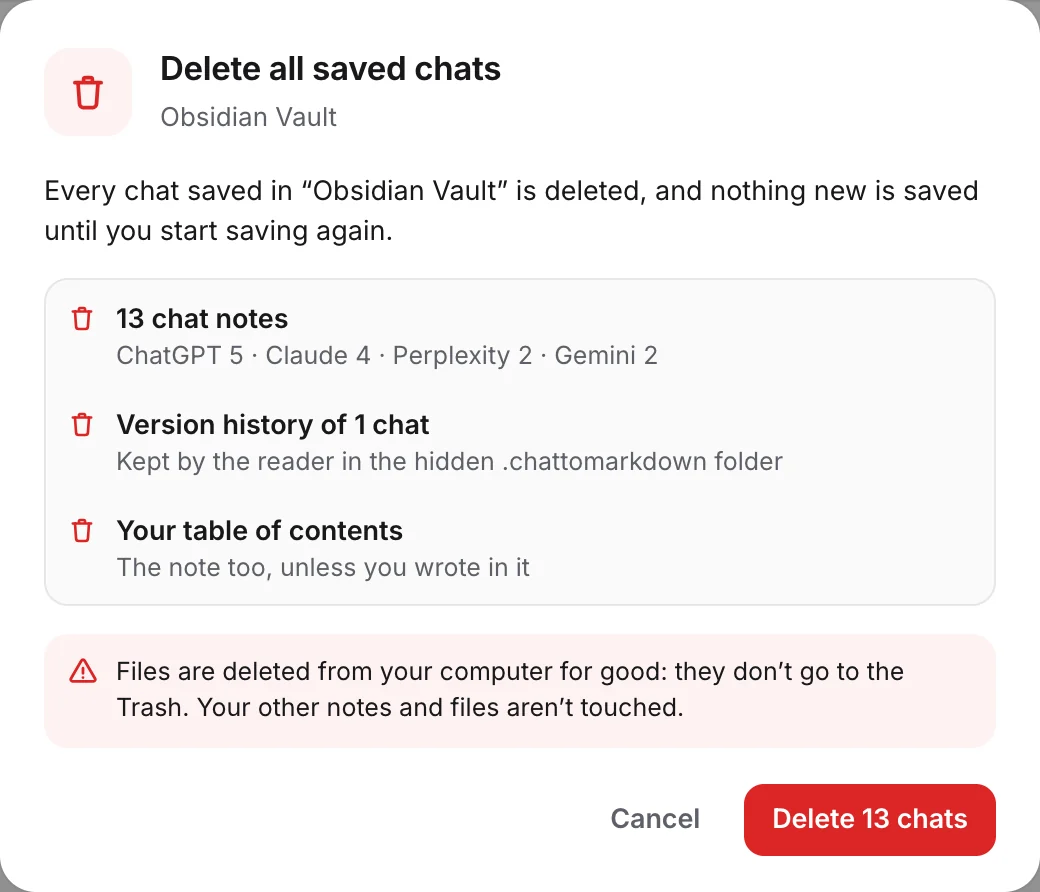
Use it when you want a clean folder, for example after changing how files are named or what is saved, and you'd rather have every chat written fresh. A window lists exactly what will be deleted before anything is: the chats, their pictures and files, and their earlier versions. Notes you wrote in yourself, and chats that were deleted on their site, are kept unless you tick them. If you also send chats to Notion, Google Drive or GitHub, you can choose to remove those copies too.
> [!WARNING]
> Deleted files don't go to the Trash: they are gone from your computer for good. Your other notes and files aren't touched.
When you confirm with **Delete and start over**, the files are deleted and saving starts again from the beginning. The popup shows how far it has got.
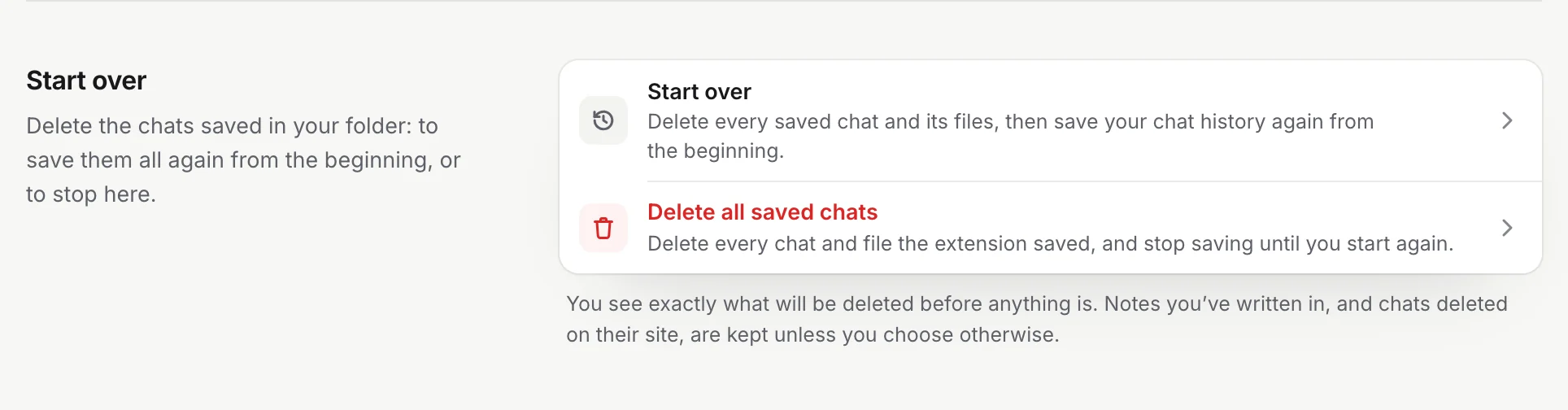
1. **Start over**: delete what was saved, then save it all again.
2. **Delete all saved chats**: delete what was saved and stop.
Step by step: [Start over or delete saved chats](https://chattomarkdown.com/docs/1.0.1/start-over/).
## New: Delete all saved chats
**Where:** Settings → Start over
The second row in the same section: "Delete every chat and file the extension saved, and stop saving until you start again."
It works like **Start over**, with the same window that shows what will be deleted, but nothing is saved again afterwards. Saving stays off until you press **Start saving**, in the popup or under **Auto-save** in Settings. Use it before you stop using the extension, or to begin with a different folder. See [Start over or delete saved chats](https://chattomarkdown.com/docs/1.0.1/start-over/).
## New: Name your table of contents
**Where:** Settings → Obsidian → Note name
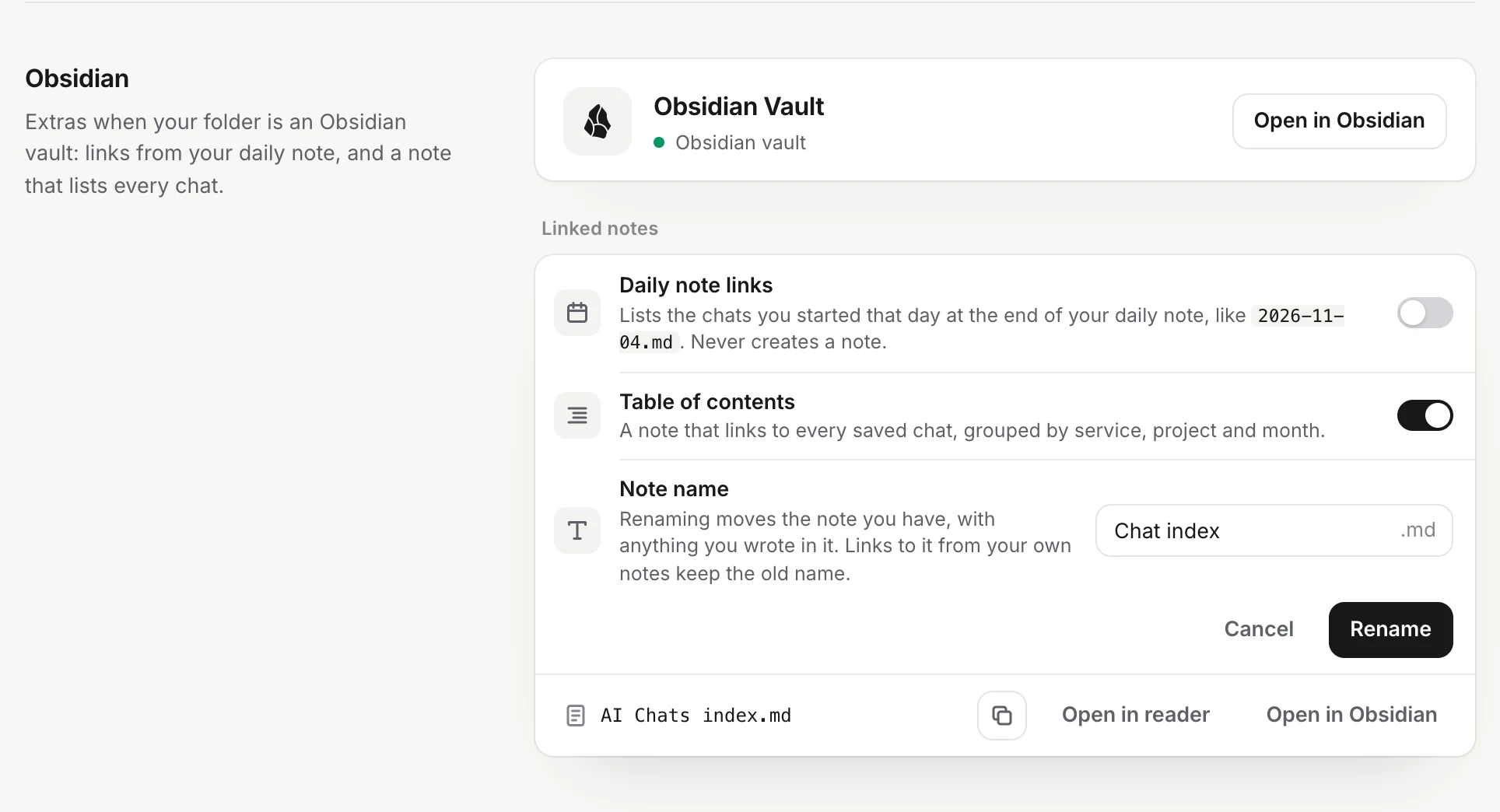
The table of contents is a note that links to every saved chat, grouped by service, project and month. It used to be called `AI Chats index.md`, with no way to change it. Now, while **Table of contents** is on, a **Note name** row shows its name in a text field, followed by `.md`.
1. **Open Settings → Obsidian** and make sure **Table of contents** is on.
2. **Type a new name** in the **Note name** field. **Cancel** and **Rename** appear next to it.
3. **Click Rename.** The note you have moves to the new name, with anything you wrote in it.
The extension moves only the note itself. Obsidian updates links automatically only for renames made inside Obsidian, so if you linked to the old name from other notes, update those links. See [Table of contents note](https://chattomarkdown.com/docs/1.0.1/table-of-contents/).
## Improved: The table of contents keeps up
The table of contents now updates within seconds of each saved chat. In 1.0.0 it only changed when a sync finished, so during a long first sync it could stay empty or out of date for a long time.
## Improved: The reader keeps up
Chats show up in [the reader](https://chattomarkdown.com/docs/1.0.1/reader/) as soon as they're saved, without reloading it. If you open the reader before anything is saved (for example right after **Start saving**), it opens the first chat as it arrives.
## Fixed: Open in Obsidian during a sync
**Where:** Settings → Obsidian
In 1.0.0, **Open in Obsidian** for the table of contents did nothing while a long first sync was running. It now opens the note straight away, and makes the note first if it isn't there yet. See [Use with Obsidian](https://chattomarkdown.com/docs/1.0.1/obsidian/).
## Fixed: Table of contents after a subfolder change
**Where:** Settings → Folders and filters → Subfolder
When you change the **Subfolder** your chats are saved in, the table of contents now moves into the new subfolder with them. In 1.0.0 it stayed behind in the old one.
## Changed: Saving when you leave a chat waits for Start saving
A chat is saved a few seconds after you leave it. Like every other kind of automatic saving, this now begins only after you press **Start saving**. In 1.0.0 it could save a chat you left before you had started, for example while you were still on the welcome page.
Saving a chat yourself with the **Save** button or Alt+Shift+S still works right away. See [How saving works](https://chattomarkdown.com/docs/1.0.1/how-saving-works/).
## Nothing else changed
Everything else works as in 1.0.0: the same services, permissions, file format, plans and settings. Files saved by 1.0.0 are kept and updated in place. If you are still on 1.0.0, its docs are at [/docs/1.0.0/](https://chattomarkdown.com/docs/1.0.0/).
## Questions
### How do I get 1.0.1?
It is in the Chrome Web Store since 4 November 2026, and Chrome and Edge install it on their own. To check, open Settings in the extension and look at the version at the bottom of the page.
### Do I have to set anything up again after updating?
No. Your folder, services, settings and saved chats stay as they are.
### Does Start over cost free chats?
No. Your free places stay with the same chats. Start over deletes files; it doesn't use or give back any of your 10 free chats.