---
title: "Choose your folder"
description: "Pick the folder or Obsidian vault where Chat to Markdown saves your chats, answer Chrome's prompts, restore access after a restart and change the folder safely."
url: https://chattomarkdown.com/docs/1.0.2/folder/
version: "1.0.2"
updated: 2026-11-04
---
# Choose your folder
> Open Settings, go to Folder and click Choose folder (or Change). Pick your Obsidian vault or any folder, then allow Chrome to edit files there and choose Allow on every visit so saving keeps working after a restart. If Chrome asks again later, click Allow access in Settings or the popup.
Chat to Markdown saves every chat as one Markdown file in a folder on your computer that you pick. This page covers choosing that folder, what Chrome asks you along the way, what to do when Chrome asks again after a restart, and how to switch to another folder without losing track of your files.
You choose the folder once, during setup on the welcome page. You can change it any time in **Settings → Folder**.
## Choose a folder
1. **Open Settings → Folder.** Click the extension icon in the toolbar, then the gear icon. **Folder** is near the top of the sidebar.
2. **Click Choose folder.** If a folder is already chosen, the button reads **Change**. Chrome opens your system's folder picker, starting in your Documents folder.
3. **Pick the folder and click Select (or Open).** For Obsidian, pick the vault folder itself. See [Choose an Obsidian vault](#choose-an-obsidian-vault).
4. **Allow Chrome to edit files there.** Chrome asks whether the extension may edit files in that folder (the dialog reads like **Let site edit files?**). Click the button that allows it. If Chrome also offers **Allow on every visit**, choose it.
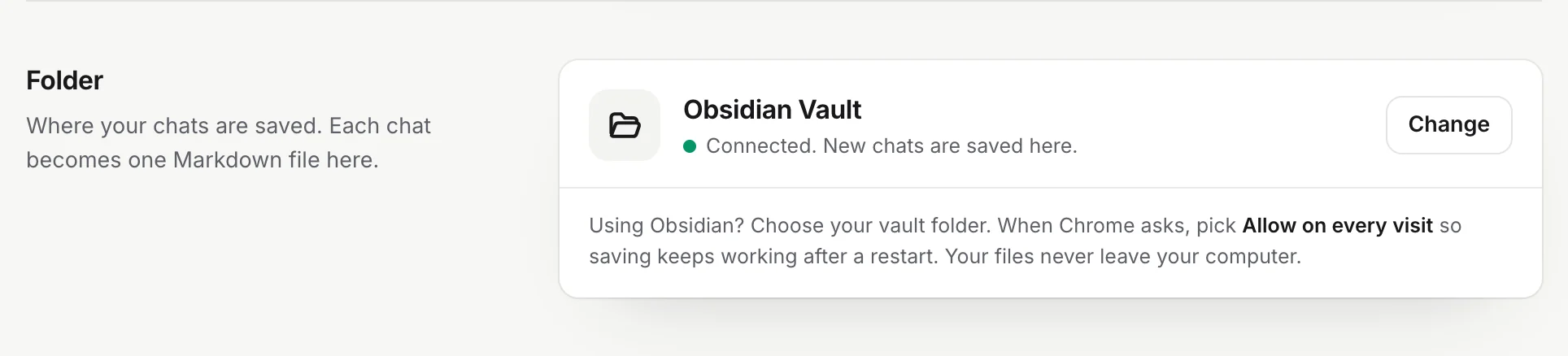
5. **Check the result.** The card shows the folder's name and **Connected. New chats are saved here.** A short message says **Saving to “Obsidian Vault”** (with your folder's name), and a sync starts.
During setup, the welcome page has the same **Choose folder** button. Once a folder is chosen, the chip next to it shows its name.
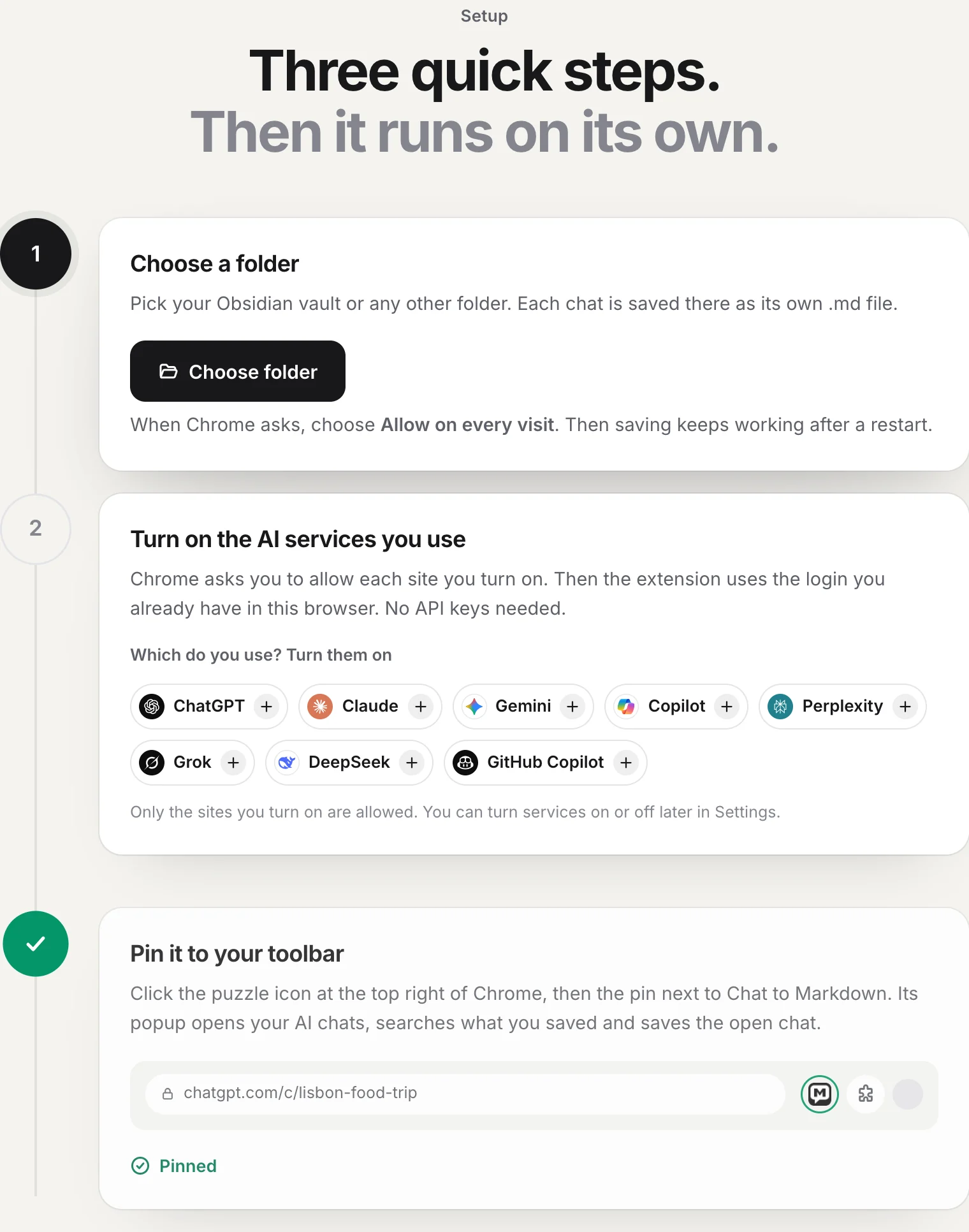
1. **Choose folder** opens the folder picker. The tip under it reminds you to choose **Allow on every visit**.
2. The chat services to turn on.
**Start saving**, on the card below the steps, begins saving once a folder is chosen and a service is on.
> [!NOTE]
> Your files never leave your computer. Chats go from each chat site straight into your folder, using the login you already have in this browser.
### What Chrome's prompt means
Chrome only lets an extension write to a folder you picked yourself, and asks you to confirm. The prompt about editing files means: the extension may create, change and delete files in this folder and the folders inside it. It cannot see anything outside that folder.
The exact wording depends on your Chrome or Edge version. When Chrome asks again later (after a restart), you choose between:
| Choice | What happens |
|---|---|
| **Allow on every visit** | The permission stays after you restart Chrome. Pick this one. |
| **Allow this time** | Saving works until you close Chrome. After a restart, Chrome asks again and nothing is saved until you allow it. |
| **Don't allow** | Nothing can be saved. Click **Allow access** in Settings to be asked again. |
If you closed the picker without choosing, nothing changes. Click **Choose folder** again.
## Choose an Obsidian vault
Choose the top folder of your vault, the one that contains the hidden `.obsidian` folder. Then:
- Your chats appear in Obsidian as notes, with properties, callouts and embedded pictures.
- **Open in Obsidian** shows up in the reader, in search results and in **Settings → Obsidian**.
- Daily note links work. See [Daily note links](https://chattomarkdown.com/docs/1.0.2/daily-notes/).
If you pick a folder inside a vault, chats still show up in Obsidian, but **Settings → Obsidian** says **Not the top folder of a vault**, and daily note links and the Open in Obsidian buttons stay off. To keep chats in their own folder inside the vault, choose the vault itself and set a **Subfolder** in **Settings → Folders and filters** instead. See [How your files are organised](https://chattomarkdown.com/docs/1.0.2/folder-structure/).
More on using the vault: [Use with Obsidian](https://chattomarkdown.com/docs/1.0.2/obsidian/).
## Allow access again after a restart
If you chose **Allow this time**, or your Chrome version doesn't keep the permission, Chrome forgets it when it closes. Auto-save then stops until you allow access again. You see it in several places:
- The extension icon shows a red mark, and the popup says **Chrome needs your OK to save** with an **Allow access** button.
- **Settings → Folder** says **Chrome needs your permission to keep saving here.** with an **Allow access** button.
- The reader shows **Allow access to your folder**.
- The Save button on a chat page says **Chrome needs your OK** with **Allow**.
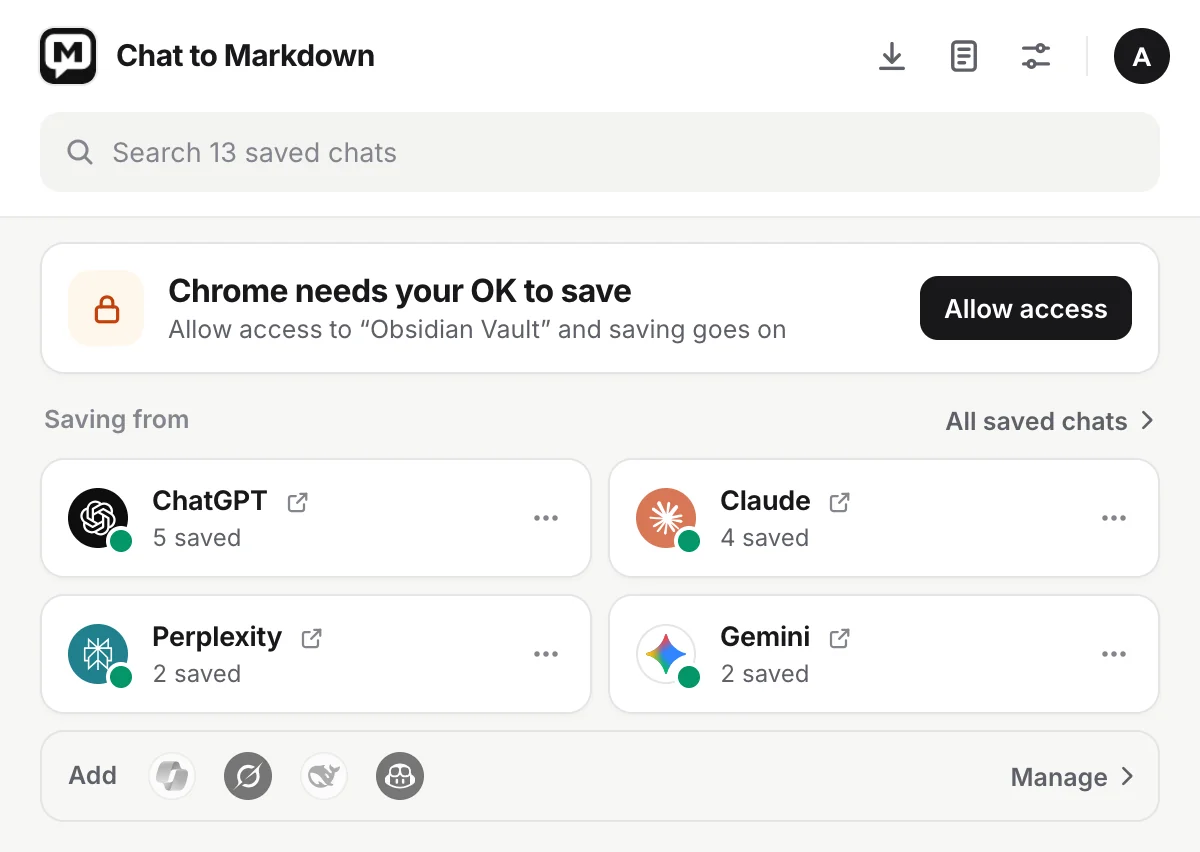
1. **Click Allow access in the popup.** It opens **Settings → Folder**, with the folder card highlighted.
2. **Click Allow access on the card.** Chrome asks about the same folder. You don't pick it again.
3. **Choose Allow on every visit.** The card turns back to **Connected**, a message says **Access restored**, and saving carries on where it stopped.
Nothing is lost while access is missing. Chats that changed in the meantime are saved at the next sync.
> [!TIP]
> If Chrome keeps asking after every restart, you most likely picked **Allow this time**. Click **Allow access** once more and pick **Allow on every visit**.
## The Images and files option
Pictures and files from your chats are saved too, in an `attachments` folder next to each chat's note. This is the **Images and files** switch in **Settings → What to save**, on by default. The welcome page shows the same option as **Save images and files** once you have chosen a folder.
Some services keep pictures on separate servers that Chrome has to allow first. Until you do, the popup says, for example, **Gemini pictures aren’t saved yet** with an **Allow** button. Allow it once and the missing pictures are added at the next sync. See [Choose what to save](https://chattomarkdown.com/docs/1.0.2/what-to-save/#images-and-files).
## Change the folder
1. **Open Settings → Folder and click Change.**
2. **Pick the new folder** and allow Chrome to edit files there, as above.
3. **Check the card.** It shows the new folder. New chats are saved there from now on.
Your existing files are not moved or copied. They stay in the old folder, untouched.
The extension remembers where each saved chat is as a path inside the folder, for example `ChatGPT/2026-10-17 Lisbon food trip.md`. After a change, it looks for that same path in the new folder. So:
- Chats saved before the change show **This file isn’t in your folder** in the reader until their file is in the new folder too.
- When such a chat changes on its site, it is saved again as a new file in the new folder.
### Move your chats along
To keep everything working, move your files before you switch.
1. **Copy the whole contents of the old folder into the new one,** keeping the same structure. Include the hidden `.chattomarkdown` folder (it holds the version history) and every `attachments` folder. In the macOS Finder, press Cmd+Shift+. to see hidden folders.
2. **Choose the new folder in Settings → Folder.**
3. **Open the reader** and open a few chats to check they show.
### Or start over in the new folder
If you would rather save everything again from scratch into the new folder, choose the new folder, then use **Settings → Start over**. It finds no saved chats in the new folder, so it deletes nothing there, and then saves your chat history again from the beginning. See [Start over or delete saved chats](https://chattomarkdown.com/docs/1.0.2/start-over/).
## Folders to avoid
**System folders.** Chrome refuses folders it considers sensitive, with a message that it can't open the folder because it contains system files. This includes the top of a drive, system folders, and on some versions your home folder or the Documents, Desktop and Downloads folders themselves. Make a new folder inside one of them, for example `Documents/AI Chats`, and choose that.
**Cloud-synced folders** (iCloud Drive, Dropbox, OneDrive, Google Drive for desktop, Obsidian vaults synced by these). They usually work, with two things to watch:
- Keep the folder downloaded on this computer. With iCloud's **Optimize Mac Storage**, OneDrive's **Files On-Demand** or Dropbox's online-only files, a file may be a placeholder. The extension reads each file before it updates it, so it needs the real file. Mark the folder **Keep Downloaded**, **Always keep on this device** or **Available offline**.
- If Chat to Markdown runs on two computers that save into the same synced folder, both can write the same file at about the same time, and your sync service may create a conflicted copy. A second computer that finds a file already holding the same chat (by its `id`) updates that file instead of making a new one, but it is simplest to let one computer do the saving.
**Folders you share with other apps that rename files.** The extension finds each file by its path. Tools that rename or move notes automatically break that link. See [How your files are organised](https://chattomarkdown.com/docs/1.0.2/folder-structure/#moving-and-renaming-files-yourself).
## Problems
**The picker doesn't open.** Click **Choose folder** again. Chrome only opens the picker straight after a click. If a picker window is already open behind Chrome, finish or cancel it first.
**“Couldn’t use that folder”.** Chrome refused the folder. Choose another one, or make a new folder inside it and choose that.
**Saved chats are missing after I chose a new folder.** Their files are still in the old folder. Move them as described in [Move your chats along](#move-your-chats-along).
**Settings says Not the top folder of a vault.** The folder you chose has no `.obsidian` folder in it. Choose the vault folder itself if you want daily note links. See [Choose an Obsidian vault](#choose-an-obsidian-vault).
For more, see [Troubleshooting](https://chattomarkdown.com/docs/1.0.2/troubleshooting/).
## Questions
### Do my chats leave my computer?
No. Chats go from each chat site straight into the folder you chose. They never pass through our servers. Only Notion, Google Drive or GitHub get a copy, and only if you connect them.
### Why does Chrome ask for access again after I restart it?
Chrome forgets a folder permission when it closes unless you chose Allow on every visit. Click Allow access in the popup or in Settings, then choose Allow on every visit.
### Can I use a folder inside my Obsidian vault instead of the vault itself?
Yes. Your chats still show up in Obsidian. Daily note links and the Open in Obsidian buttons need the top folder of the vault, the one that holds the hidden .obsidian folder.
### Does changing the folder move my saved chats?
No. Files you already have stay where they are. Move them yourself before you switch, as described on this page, so the reader and updates keep finding them.