---
title: "The Save button and shortcut"
description: "Save the open chat with the Save button or Alt+Shift+S, copy it as Markdown or for another AI, or save it as PDF, Word, HTML, text, JSON or CSV."
url: https://chattomarkdown.com/docs/1.0.3/save-button/
version: "1.0.3"
updated: 2026-11-07
---
# The Save button and shortcut
> On every chat page of a service you turned on, a Save button sits next to the site's Share button. Click it, or press Alt+Shift+S (Option+Shift+S on a Mac), to save the open chat to your folder at once. Its menu copies the chat as Markdown or for another AI and saves it as a PDF, Word document, HTML, text, JSON or CSV file.
The Save button saves the chat you have open, right away, whatever your schedule says. It also copies a chat as Markdown, packs it for another AI, or saves it as a file: PDF, Word, HTML, text, JSON or CSV.

1. **Save** saves this chat to your folder. The arrow next to it opens the menu.
## Where it appears
The button appears on chat pages of every service that is on and that Chrome allows. It sits directly to the left of the site's own **Share** button and takes on the site's look.
| Service | Where |
|---|---|
| ChatGPT | Left of **Share** in the chat header |
| Claude | Left of **Share** in the chat header |
| Gemini | Left of the chat's menu (**⋮**), as Gemini's header has no Share |
| Microsoft Copilot | Left of **Share** in the chat header |
| Perplexity | Left of **Share** in the thread header |
| Grok | Left of **Share** in the chat header |
| DeepSeek | Left of **Share** in the chat header |
| GitHub Copilot | Left of **Share chat**, only on github.com/copilot |
If a page has no Share button, the button floats at the top right of the page. It hides:
- on a page without a chat yet (a new chat gets its address after your first message),
- when the window is narrower than 640 pixels,
- while one of the site's own menus or dialogs covers it,
- when you turn it off in **Settings → Appearance**.
The shortcut still works in all of these cases.
## Save a chat
1. **Open the chat on its site.** Wait until the page has loaded.
2. **Click Save.** The button says **Saving**, then **Saved**.
3. **Check the message under the button.** It says where the file went, for example "Saved to ChatGPT" or "Updated in Claude/Travel". If Notion, Google Drive or GitHub are connected, it adds ", and on its way to Notion".
The chat is saved as one Markdown file, with its pictures and files, in the service's folder. If it was saved before, the same file is updated; nothing is doubled. See [How saving works](https://chattomarkdown.com/docs/1.0.3/how-saving-works/#when-a-chat-changes).
On Free, the message also says how many free chats are left, for example "Saved. 6 free chats left". See [Free and Pro](https://chattomarkdown.com/docs/1.0.3/free-and-pro/).
## What the button says
| Label | Meaning | A click |
|---|---|---|
| **Save** | Not saved yet. | Saves it. |
| **Saving** | Saving now. | |
| **Saved** | Saved and up to date. | Opens the menu. |
| **Update** | Saved, but the chat changed since: a new message, a reply, or a change made somewhere else. | Saves the new version. |
| **Retry** | The last save failed. Hover for the reason. | Tries again. |
| **Choose folder** | No folder is chosen yet. | Opens **Settings → Folder**. |
| **Allow access** | Chrome needs your OK for the folder again. | Opens **Settings → Folder**. |
The extension checks whether the saved file is behind the chat when you open it, when a message arrives and when you come back to the tab. That is when **Saved** can turn into **Update**.
Hover over the button for a short note, such as "Saved and up to date" with the file's path, or "Uses 1 of your 4 free chats left".
## The menu
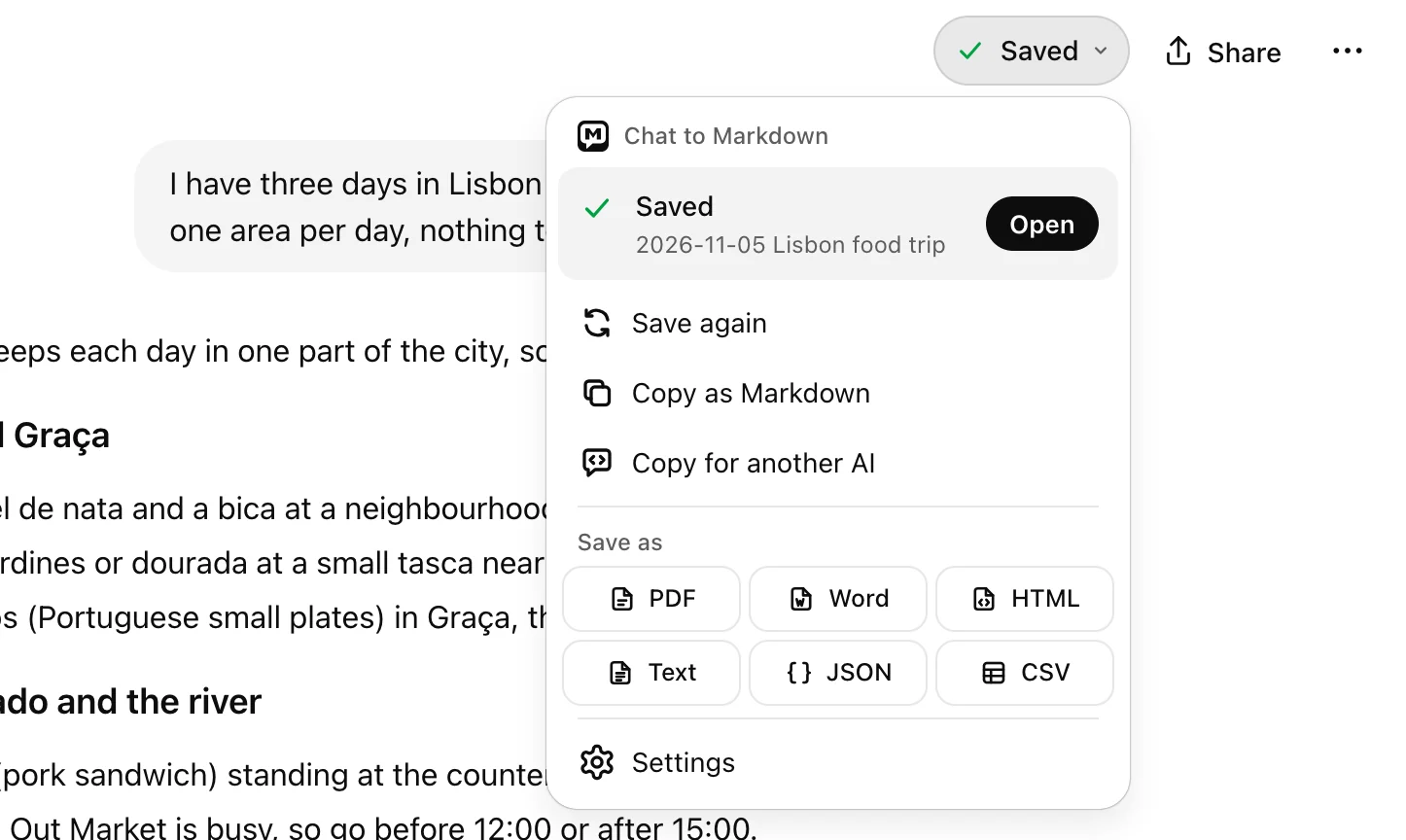
- **Saved** and **Save again**: when the chat is saved, the top of the menu shows **Saved** with the file name and **Open**, which opens the saved file in the reader. **Save again** saves it once more.
- **Copy as Markdown** copies the chat to the clipboard, as Markdown, without the properties at the top or the sync markers.
- **Copy for another AI** copies the chat packed as a prompt for another AI or a coding agent.
- **Save as**: six formats in a grid. **PDF** opens the chat in the reader and then Chrome's print preview; **Word**, **HTML**, **Text**, **JSON** and **CSV** download the file. Hover a format for its full name.
The menu also has **Settings**, which opens the extension's settings. On Free it shows a **Free chats** card with how many of the 10 are left and **Get Pro: save every chat**.
The menu opens from the arrow next to the button, or from **Saved** itself. Use ↓ to open it from the keyboard, ↑ and ↓ to move, ← and → to move across the formats, and Esc to close it.
### Copy as Markdown
The extension reads the chat from the site, so the copy is always the latest version, even if the saved file is behind. The message says "Copied 12 messages as Markdown". If **Hide secrets** is on, keys and passwords are hidden in the copy too.
### Copy for another AI
The copy starts with a line such as "Here is an earlier conversation I had with ChatGPT, for context." and puts the chat inside a `` tag with its title, service and date. Your messages start with "User:" and the answers with "Assistant:". Thinking is left out, and pictures and files become their names. Paste it into another AI or a coding agent such as Claude Code.
### Save as
Every format first saves the chat to your folder if it isn't saved or is out of date. The reader then opens in a new tab next to the chat and makes the file. Formulas, charts, diagrams and pictures come out as the reader shows them. In a Word document, formulas are equations you can edit, and charts and diagrams are images. See [Save as PDF, Word and other files](https://chattomarkdown.com/docs/1.0.3/export-pdf-html/).
On Free, copying or exporting a chat that isn't one of your 10 saves it first, so it uses one of them. When all 10 are used, the copy items and **Save as** show a **PRO** tag and open the plans instead.
## Keyboard shortcut
Press Alt+Shift+S on any chat page to save the chat. On a Mac, press Option+Shift+S.
- When the Save button is on screen, it shows the progress and the message, just as if you clicked it.
- When the button is hidden or turned off, the extension saves the chat anyway and shows a green ✓ on its toolbar icon for a moment.
- On Free with all 10 chats used, a chat that isn't one of them isn't saved, and the plans page opens.
### Change the shortcut
1. **Open the shortcuts page.** Go to **Settings → Appearance** and click **chrome://extensions/shortcuts** under the Save button row, or type `chrome://extensions/shortcuts` in the address bar.
2. **Find Chat to Markdown.** The command is "Save the open chat to your folder".
3. **Click the pencil and press the keys you want.** Chrome saves it at once.
**Settings → Appearance** then shows your new shortcut. If another extension already uses Alt+Shift+S, Chrome may leave the shortcut empty; set one here.
## Hide the button
Go to **Settings → Appearance** and turn off **Save button on chat pages**. The button disappears from every chat site at once. Auto-save, the popup and the shortcut keep working. See [Theme and Save button](https://chattomarkdown.com/docs/1.0.3/appearance/).
## When it can't save
| What you see | Why | What to do |
|---|---|---|
| A toast: "Choose a folder for your chats first." and the button says **Choose folder** | You haven't chosen a folder. | Click **Choose folder**. See [Choose your folder](https://chattomarkdown.com/docs/1.0.3/folder/). |
| "Chrome needs your permission to save to your folder again." and **Allow access** | Chrome restarted and wants your OK. | Click **Allow access**, then allow in Chrome's prompt. |
| A lock on the button and "No free chats left" in the menu | Free, all 10 chats used, and this chat isn't one of them. | Your 10 stay up to date. Pro saves every chat: **Get Pro**. |
| A warning icon and "Saving from ChatGPT stopped working" in the menu | The site changed something; automatic saving from it stopped. | You can still try **Save**. A fix comes in an update. |
| "Open chatgpt.com and sign in." (or "Sign in to chatgpt.com first." when copying) | You are signed out of the site in this browser. | Sign in, then save again. |
| "Chat to Markdown was updated. Reload this page to use it." | The extension updated while the page was open. | Reload the page. |
| "ChatGPT doesn't have this chat any more" | The chat was deleted on the site. | Its saved file, if any, stays. |
| No button at all | The service is off, Chrome doesn't allow its site, or the button is turned off. | Turn the service on in the popup or **Settings → Chat services**. See [Chat services](https://chattomarkdown.com/docs/1.0.3/services/). |
If you turn a service off but Chrome still allows its site, the Save button stays on that site and saving by hand still works. Only automatic saving stops.
## Temporary and incognito chats
A ChatGPT temporary chat or a Claude incognito chat is saved like any other when you click **Save**, and its file gets `private: true` in its properties. These chats usually aren't in the site's chat list, so only the Save button, the shortcut or leaving the chat saves them.
## Saving the chat you leave
You don't have to click Save for every chat. With **Save when you leave a chat** on (it is on by default), a chat that changed is saved a few seconds after you switch away from it. It begins only after you press **Start saving**, and not while auto-save is paused. See [Auto-save and schedule](https://chattomarkdown.com/docs/1.0.3/schedule/#save-when-you-leave-a-chat).
## Questions
### Why don't I see the Save button?
The service must be on and Chrome must allow its site. The button shows only on a chat page (a chat with its own address), and hides on narrow windows or under the site's own menus. It may also be turned off in Settings → Appearance. The shortcut works in all these cases while the service is on.
### Does the Save button work while auto-save is paused?
Yes. Pause stops only automatic saving. The Save button and the shortcut always work.
### Does saving a chat with the button count toward the 10 free chats?
Yes, the first time. A chat that is already one of your 10 can be saved again as often as you like.