---
title: "A quick tour"
description: "The four places you use Chat to Markdown from: the toolbar popup, the Save button on chat pages, the reader and Settings, plus the sync log and import."
url: https://chattomarkdown.com/docs/1.0.3/tour/
version: "1.0.3"
updated: 2026-11-07
---
# A quick tour
> You use Chat to Markdown from four places: the toolbar popup (status, services, search), the Save button on each chat page, the reader for your saved chats, and Settings. The sync log and the import page are one click away from them.
Once set up, Chat to Markdown runs on its own. When you want to check on it, save a chat right now or read what you saved, you use one of four places. This page shows each one briefly and links to its full page.
## 1. The toolbar popup
Click the Chat to Markdown icon in the toolbar (pin it first, see [Install](https://chattomarkdown.com/docs/1.0.3/install/#pin-it-to-the-toolbar)). The popup tells you whether saving works and gets you anywhere else in one click.
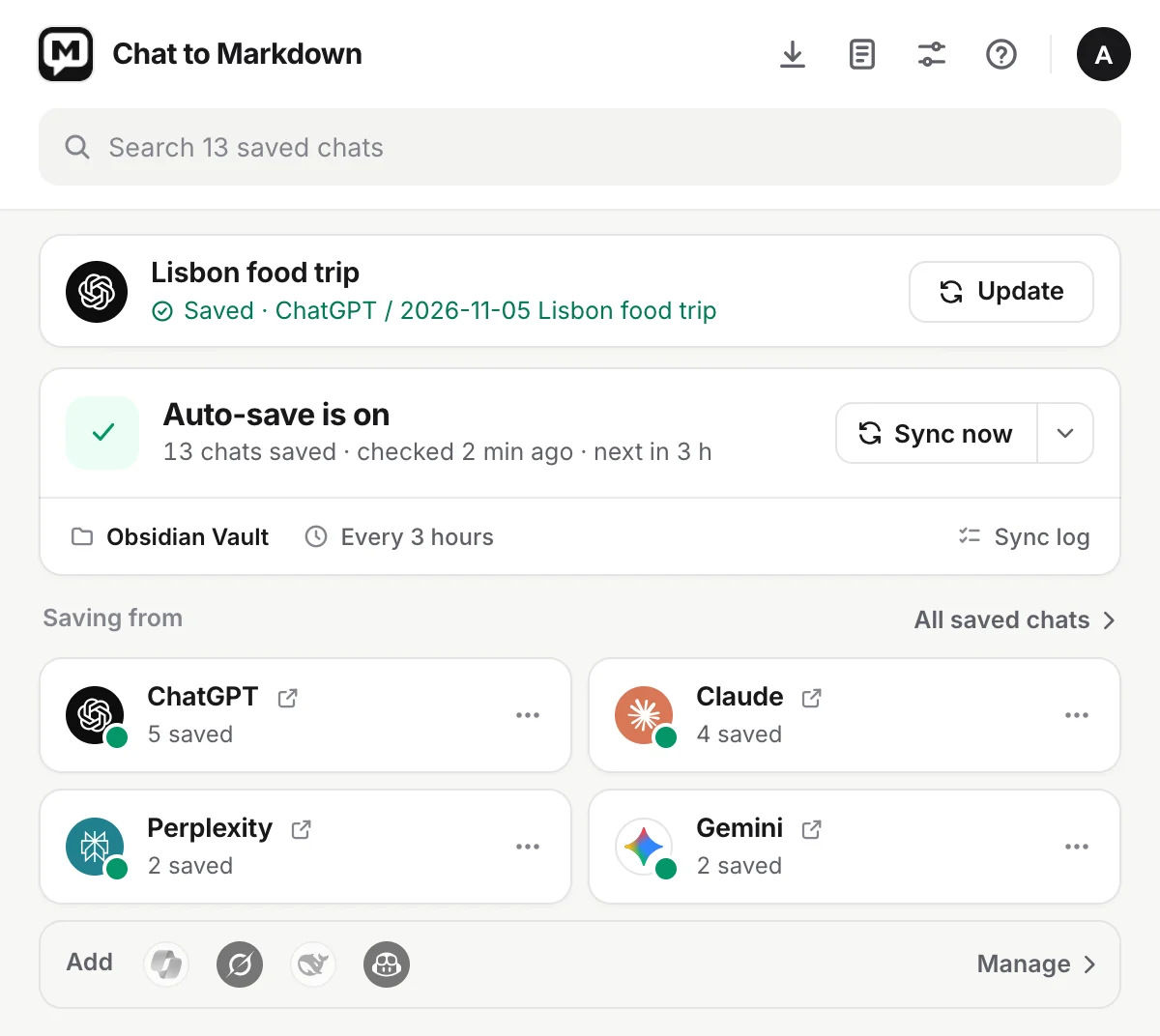
1. **Status**: whether auto-save is on, when it last checked, and **Sync now** with its menu (pause, schedule, sync log).
2. **This chat**: the chat open in your current tab, whether it's saved, and a button to save or update it.
3. **Saving from**: a card for each service that is on. Click one to open the service; its menu syncs it, shows its saved chats or changes what it saves.
Along the top: **Import past chats**, **Saved chats** (the reader), **Settings** and your account. Under them, **Search saved chats** finds any saved chat by title or text. At the bottom, **Add** turns on another service.
On Free, the bottom of the popup shows how many of your 10 free chats are used. Full details: [The toolbar popup](https://chattomarkdown.com/docs/1.0.3/popup/).
## 2. The Save button on chat pages
On every chat page of a service you turned on, a **Save** button sits next to the site's own Share button. Click it to save the chat now, or press Alt+Shift+S (Mac: Option+Shift+S).

1. **Save**: saves the chat to your folder. It then reads **Saved**; if the chat goes on and the file falls behind, it turns into **Update**.
The small arrow next to it opens a menu:
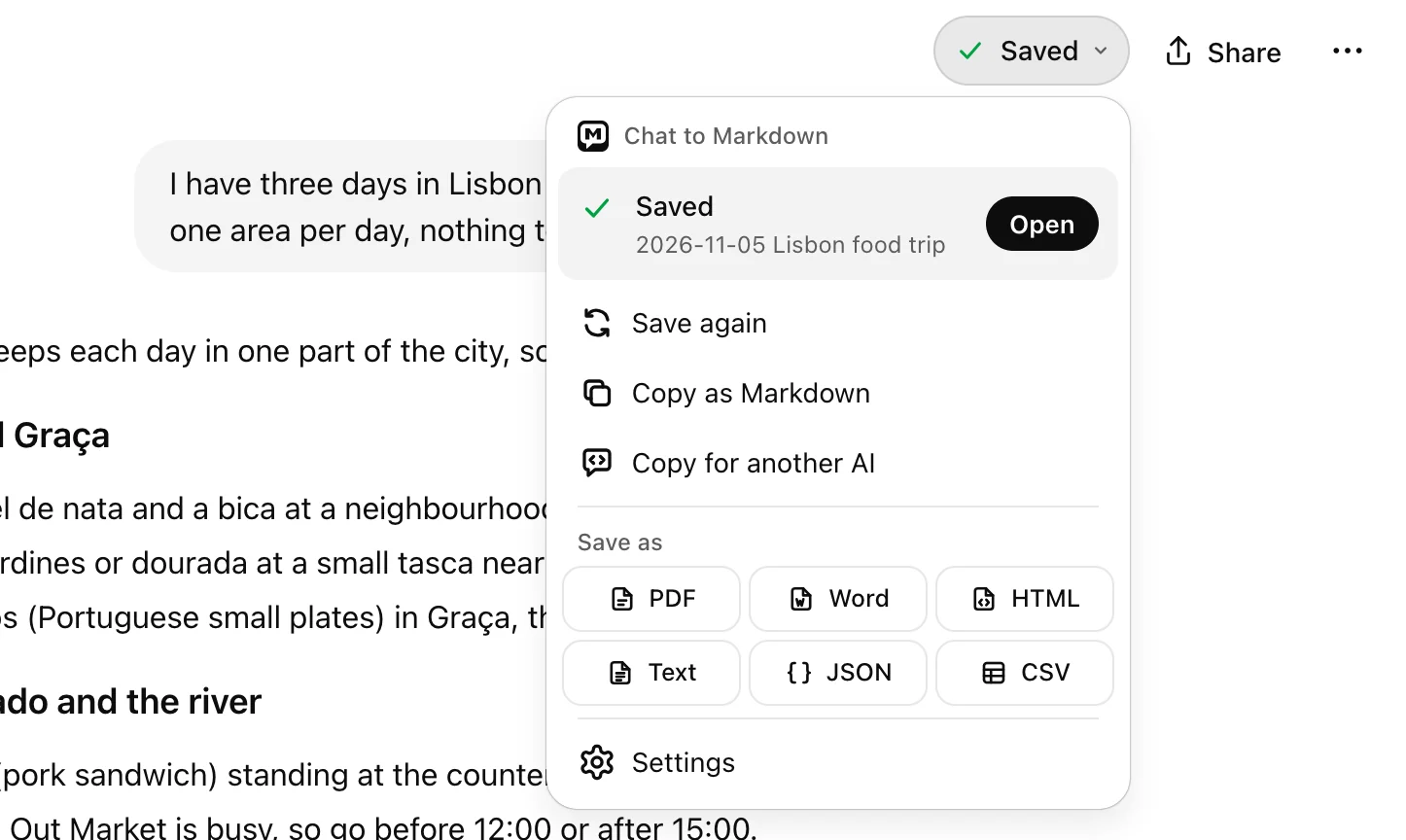
- **Saved**: the chat's state and its file, with **Open** and **Save again**.
- **Copy as Markdown**: the whole chat on your clipboard.
- **Copy for another AI**: the chat packed as a compact prompt for another AI or a coding agent.
- **Save as**: PDF, Word, HTML, Text, JSON or CSV. PDF opens the chat in the reader and Chrome's print preview; the others download the file.
The button only appears on the sites of services you turned on. You can hide it in **Settings → Appearance**. Full details: [The Save button and shortcut](https://chattomarkdown.com/docs/1.0.3/save-button/).
## 3. The reader
The reader is a page inside the extension for reading what you saved, without Obsidian. Open it with **Saved chats** in the popup, or **Open** in the Save menu of a saved chat.
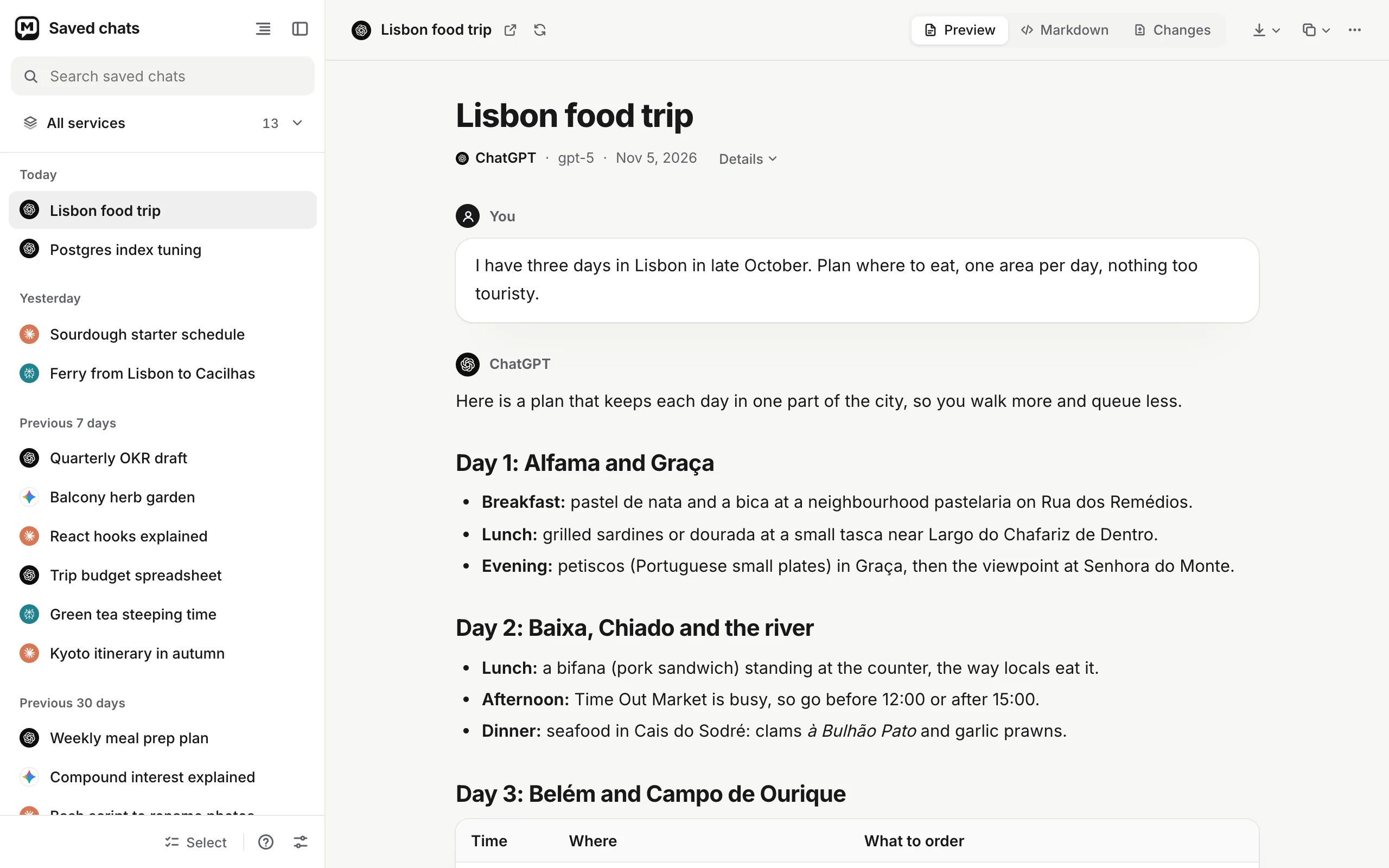
1. **Chat list**: your chats grouped by day, with search and a service filter above.
2. **Chat header**: the chat's title, service, and links back to the chat site.
3. **Actions**: copy, send, export, open in Obsidian and more.
Each chat shows as **Preview**, **Markdown** or **Changes** (its earlier versions). Chats appear in the reader as soon as they are saved. Press Ctrl+\\ (Mac: ⌘+\\) to hide the sidebar. Full details: [The reader](https://chattomarkdown.com/docs/1.0.3/reader/), [Version history](https://chattomarkdown.com/docs/1.0.3/version-history/) and [Save as PDF, Word and other files](https://chattomarkdown.com/docs/1.0.3/export-pdf-html/).
## 4. Settings
Settings has every option, in sections listed in the sidebar. Open it with the gear in the popup.
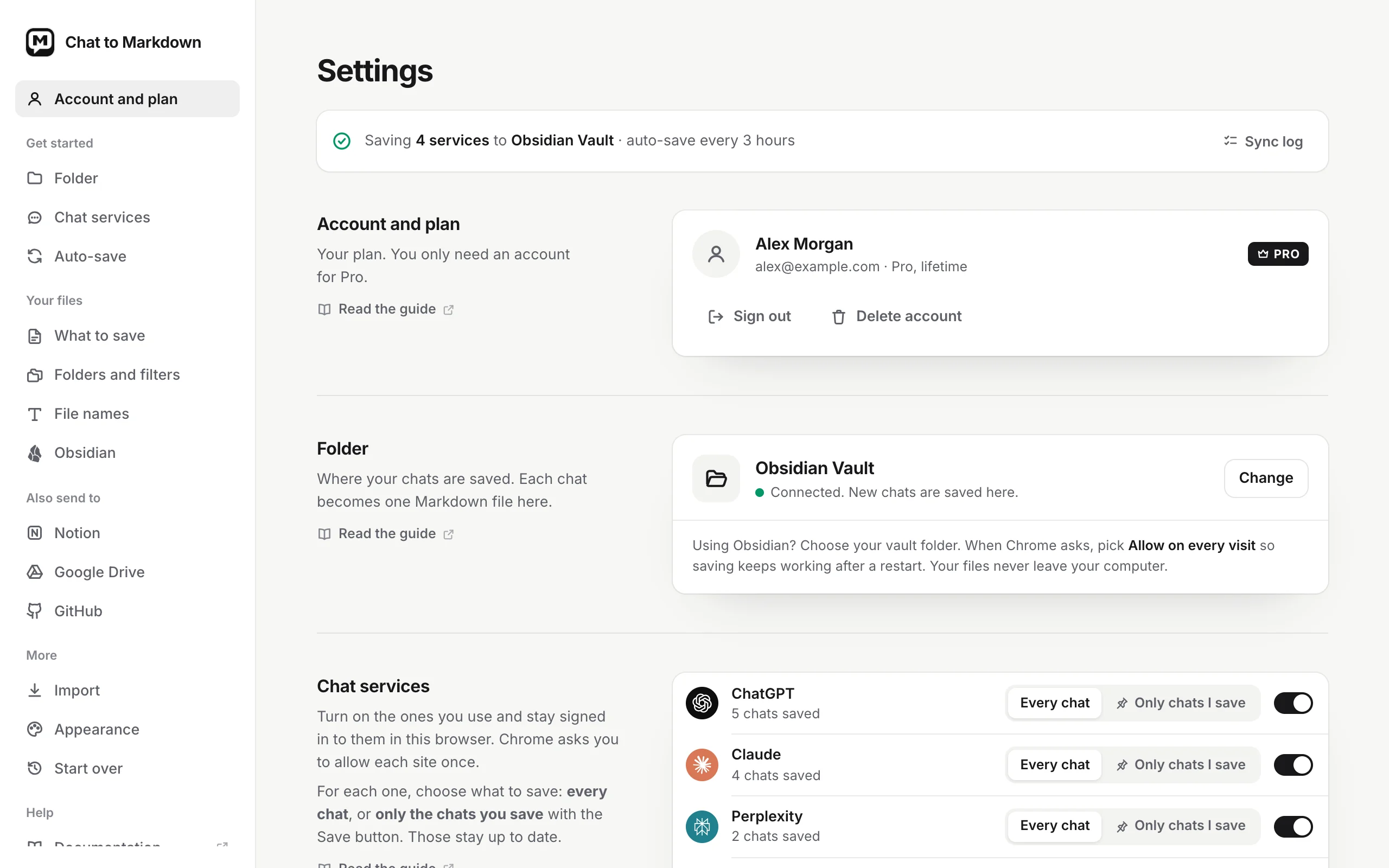
1. **Sidebar**: jumps to each section: **Account and plan**, then **Folder**, **Chat services**, **Auto-save**, **What to save**, **Folders and filters**, **File names**, **Obsidian**, **Notion**, **Google Drive**, **GitHub**, **Import**, **Appearance** and **Start over**.
2. **Summary**: whether saving works, in one line, or the step that's left.
3. **Account and plan**: your plan, and on Free how many of your 10 chats are used.
At the bottom of the page: the version number, **Contact support**, **Welcome tour** (the setup page again), and links to the privacy policy and terms. Full details: [Settings reference](https://chattomarkdown.com/docs/1.0.3/settings/).
## Also one click away
### Sync log
The sync log lists every sync: what it saved, what it skipped and what went wrong, with a chart of the last 14 days. Open it from the **Sync log** link under the status in the popup, or from the menu next to **Sync now**.
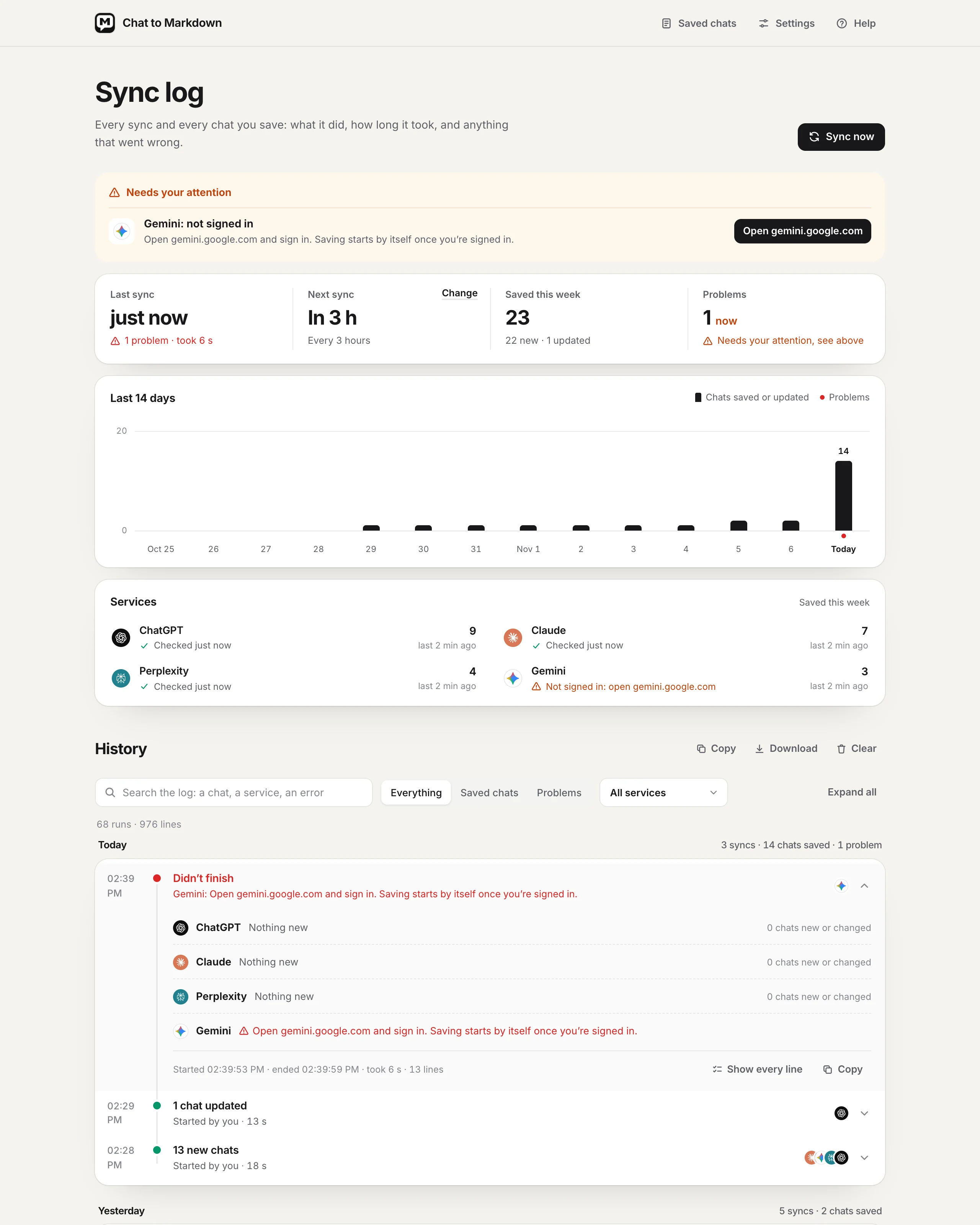
1. **Sync now**: run a sync from here.
2. **History**: each run, with the chats it saved.
See [Sync log](https://chattomarkdown.com/docs/1.0.3/sync-log/).
### Import
Every service lets you download all your chats as a data export. The import page turns that file into notes in your folder. Open it with **Import past chats** (the download icon) in the popup, or **Settings → Import**.
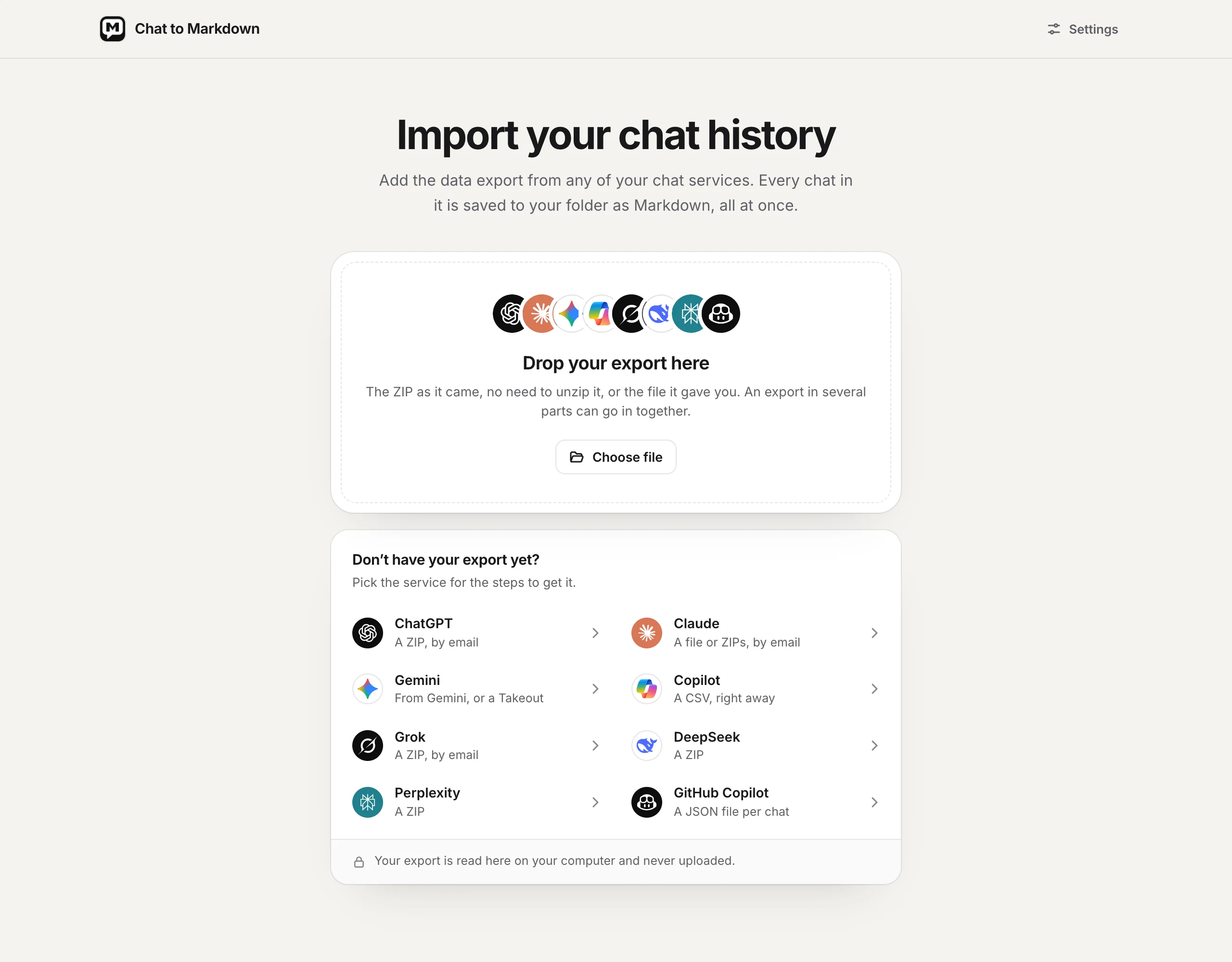
The file is read on your computer and never uploaded. On Free, an import fills your 10 free chats; Pro imports every chat in it. See [Import a data export](https://chattomarkdown.com/docs/1.0.3/import/).
## Where to next
- New here? [Set up in two minutes](https://chattomarkdown.com/docs/1.0.3/setup/).
- Want to know when things are saved? [How saving works](https://chattomarkdown.com/docs/1.0.3/how-saving-works/).
- Using Obsidian? [Use with Obsidian](https://chattomarkdown.com/docs/1.0.3/obsidian/).
- Something not working? [Troubleshooting](https://chattomarkdown.com/docs/1.0.3/troubleshooting/).
## Questions
### Where do I find Settings?
Click the extension's icon in the toolbar, then the gear at the top of the popup. You can also open it from the Save button's menu on a chat page, or from chrome://extensions under Details, Extension options.
### How do I open my saved chats?
Click the note icon (Saved chats) at the top of the popup, or All saved chats above the service cards. The reader opens in a new tab.