---
title: "Version history"
description: "How up to 100 earlier versions of each chat file are kept, how to read the git-style log and diff in the reader, copy an old version, or turn history off."
url: https://chattomarkdown.com/docs/1.0.3/version-history/
version: "1.0.3"
updated: 2026-11-04
---
# Version history
> Each time a chat's file changes, the version before is kept, up to 100 per chat, in the hidden .chattomarkdown/history folder. In the reader, a changed chat has a Changes view: a log of versions on the side and a line-by-line diff with changed words highlighted. You can copy any version as Markdown. It is on by default.
Chats change: you continue them, the site renames them, you delete them, or you edit the file yourself. With version history, the extension keeps what each file looked like before every change, and the reader shows exactly what changed, like a git log of the file.
## How versions are kept
**Keep a history of changes** is on by default, in **Settings → What to save**, on every plan.
- **A chat that never changes has no history.** Its file is its only version, and there is nothing to compare.
- **The first time the file changes**, two versions are kept: what the file held before (**First version**) and the new one.
- **Each later change** adds a version on top.
- **Up to 100 versions per chat** are kept. Past that, or past about 4 million characters for one chat, the oldest versions are dropped.
What makes a new version:
| Change | Shown as | Kind |
|---|---|---|
| The chat changed on its site and was saved again | For example **2 messages added**, **Title changed**, **Messages changed** | **Sync** |
| The chat was deleted on its site and marked `deleted: true` | **Marked deleted on the service** | **Sync** |
| **Apply to saved files** renamed it or rebuilt its properties | **File format applied** | **File format** |
| You edited the file between two saves | **Edited in the file** | **Your edit** |
Your own edits are noticed when the file is next written: the extension sees that the file differs from the last version it saved, and keeps your edit as a version of its own before writing the new one. So even an edit inside the synced block, which a sync overwrites, can be found again.
## Open the history
1. **Open the chat in the reader.**
2. **Click Changes** in the switch next to **Preview** and **Markdown**. It appears only once the file has changed at least once.
3. **Read the log** in the **History** panel on the right, and the diff of the newest change in the middle.
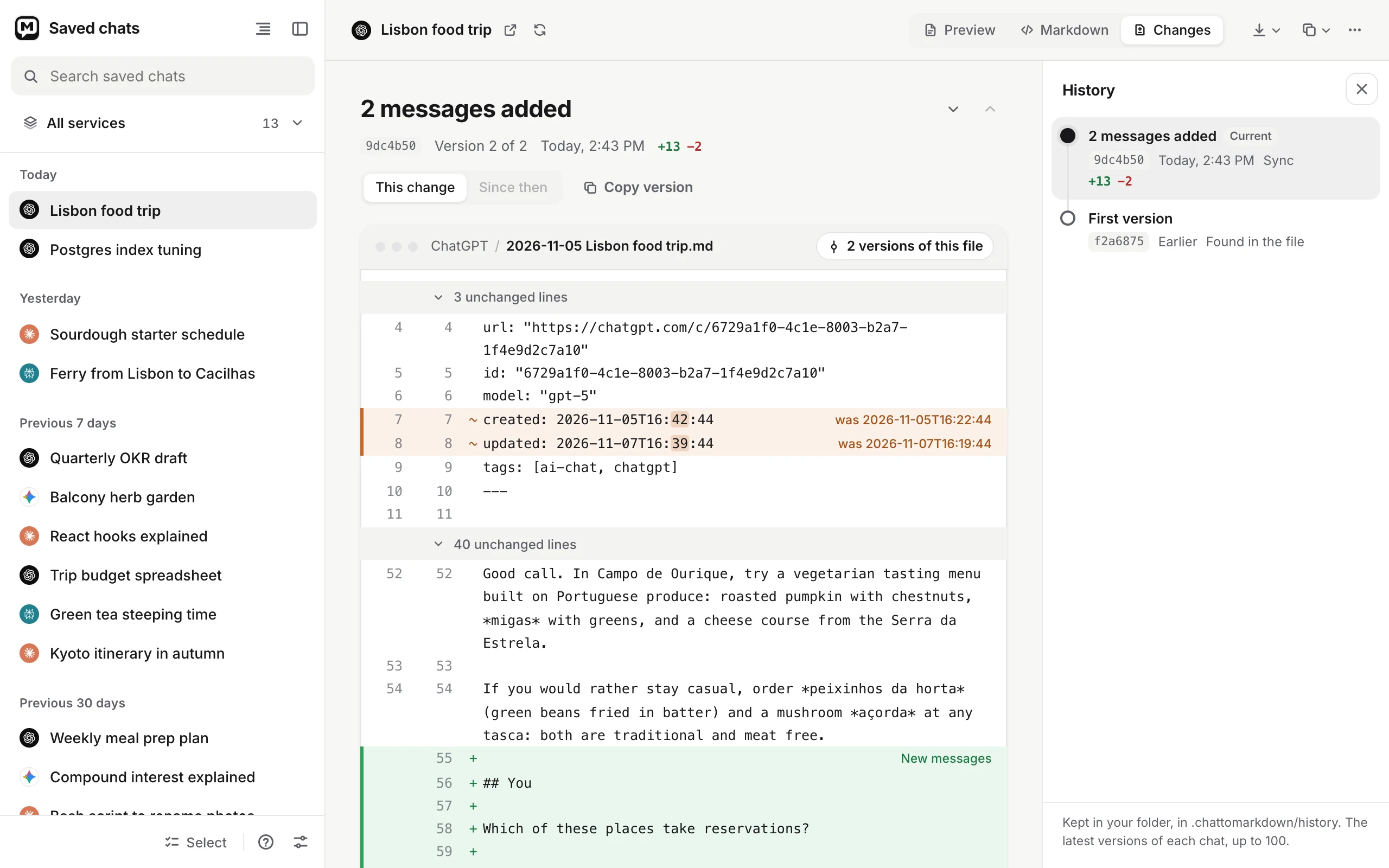
Close the panel with its **×**; click **Changes** again to bring it back. On a narrow window the panel slides over the chat.
## The log
The **History** panel lists every version, newest first, like `git log`:
- **A short title** saying what changed: **First saved**, **First version**, **2 messages added**, **Title changed**, **Messages changed**, **Marked deleted on the service**, **File format applied** or **Edited in the file**. When only properties changed, it names them, for example **model changed**, or just says **Updated**.
- **Current** on the newest version, which is the file as it is now.
- **A short code** such as `a1b2c3d`, which identifies that version's exact text, like a commit hash.
- **When**: **Today, 10:05**, **Yesterday, 18:40**, **17 Oct, 09:41**, or a full date for earlier years. **Earlier** means the version was found in the file before history started; **Between saves** marks your own edits, whose exact time isn't known.
- **The kind**: **Saved**, **Sync**, **Your edit**, **File format** or **Found in the file**.
- **Lines added and removed**, in green and red, like `+24 −3`.
At the bottom: **Kept in your folder, in .chattomarkdown/history. The latest versions of each chat, up to 100.**
Click a version to see its changes.
## Reading the diff
The middle shows one version's changes as a unified diff of the whole file, properties included:
- **Line numbers** before and after, then `+` for an added line and `−` for a removed one.
- **Changed words are highlighted** within a changed line, so you see exactly which words differ.
- **A changed property** shows as one line with its new value and what it **was**, for example `updated: 2026-10-17T11:05:12` with **was 2026-10-17T10:41:00**.
- **New messages** label a run of added lines that brings new `## You` or answer headings.
- **Unchanged stretches** fold into a row like **42 unchanged lines**. Click it to show them.
- **No differences.** means the version's text is the same as the one compared with.
The header above the diff shows the version's title, its code, **Version 5 of 7**, when it was made, and the lines added and removed.
### Compare with
| Choice | Shows |
|---|---|
| **This change** | What this version changed from the one before. For the oldest version it reads **This version** and shows all of it as added. |
| **Since then** | Everything that changed from this version until now. Not available on the newest version. |
The arrows next to the title step to the **Older version** and **Newer version**. The file's path is shown above the diff with how many versions it has.
## Copy an old version
There is no button to restore a version, on purpose: the chat's block is rewritten from the site at the next save anyway. To get old text back:
1. **Open the version** in **Changes**.
2. **Click Copy version.** That version's whole file is copied as Markdown, and a message says **This version copied as Markdown**.
3. **Paste it where it should live**: into a new note, or above or below the chat's block in its file, where it is kept.
## Where it is stored
Each chat's history is one file in a hidden folder at the top of the folder you chose:
```tree
Obsidian Vault/
.chattomarkdown/
history/
chatgpt/
68f1c2a0-5b7e-8003-9a41-2c6d0e7f1a93.json
claude/
4b1d6a0e-2f3c-4e5d-9a8b-7c6d5e4f3a2b.json
```
- The file is named by the service and the chat's id, so the history stays with the chat when its file is renamed or moved to another project folder.
- Only the newest version is stored in full. Older ones are stored as the differences from the next, so a long chat continued many times takes little more room than its last copy.
- Obsidian and the macOS Finder don't show folders whose name starts with a dot. In the Finder, press Cmd+Shift+. to see it.
- It is in your folder, so it is backed up and synced with it.
## Turn history off
Turn off **Keep a history of changes** in **Settings → What to save**. From then on no new versions are kept. Versions already kept stay, and the reader still shows them.
To delete history, delete `.chattomarkdown/history` (all chats) or one chat's file in it. Your chats are not affected.
When history is off and a chat has none, **Changes** isn't shown.
## Problems
**There's no Changes button.** The chat's file hasn't changed since it was first saved, so there is nothing to compare. It appears after the first change.
**A version I expected is missing.** History only records changes made while it was on. Changes made while it was off, and versions older than the 100 newest, aren't there.
**The history shows a secret I hid.** Versions from before you turned on **Hide secrets** keep the text as it was. Delete that chat's file in `.chattomarkdown/history` to remove them.
**The history folder is missing.** It is hidden. Show hidden files, or check you are looking at the top of the folder you chose, not a subfolder.
## Questions
### Is there a restore button?
No. Open the version in Changes, click Copy version, and paste it where you want it, such as a new note or above or below the chat in its file.
### Does version history take a lot of space?
Little. Only the newest version is stored in full; older ones are stored as the differences between them. Past about 4 million characters for one chat, the oldest versions go.
### Are my own edits kept in the history?
Yes. When you edit a chat's file and it is later saved again, your edit is kept as a version of its own, marked Your edit.