
After a year or three of ChatGPT, the model is the easy part to replace. The hard part is everything it learned about you: saved memories, custom instructions, Projects, a few Custom GPTs, and hundreds of chats you still look things up in.
Claude moves some of that for you and none of the rest. This guide covers each piece in the order that saves the most time. Every menu path was checked against OpenAI’s and Anthropic’s help pages in November 2026.
What moves, and how
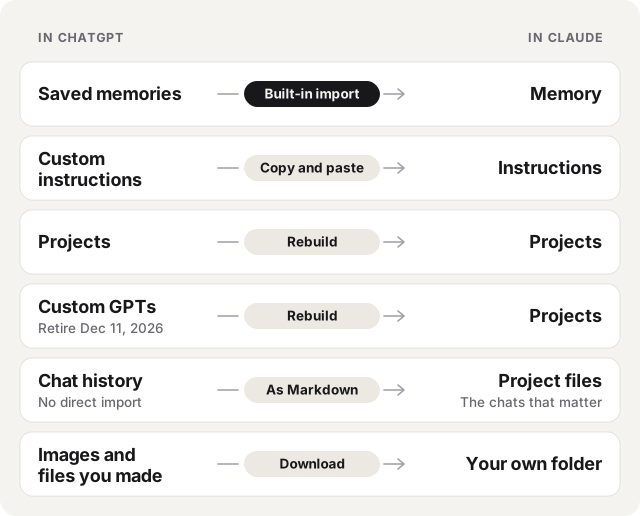
| In ChatGPT | In Claude | How it moves | Time |
|---|---|---|---|
| Saved memories | Memory | Claude’s built-in import | 5 minutes |
| Custom instructions | Settings → Your Claude → Instructions | Copy and paste | 2 minutes |
| Projects | Projects | Rebuild: instructions and files | 5 minutes each |
| Custom GPTs | Projects (or Skills) | Rebuild before December 11, 2026 | 5 minutes each |
| Chat history | Files in a Project | Export, convert to Markdown, pick | 30 minutes or more |
| Images and files | Your own folder | Download | Varies |
The one thing that doesn’t move at all: your chats as chats. Anthropic’s help center says plainly that “it’s not possible to import conversation history from another AI provider into Claude at this time” (Get started with Claude (opens in a new tab)). Your old chats can become reference files Claude reads, but they won’t appear in Claude’s sidebar.
First: request your ChatGPT export
Do this before anything else, because it can take a while. In ChatGPT, open Settings → Data controls → Export data and click Confirm export. OpenAI says it can take up to 7 days, and the emailed download link stops working 24 hours after it arrives (OpenAI (opens in a new tab)). Business and Enterprise workspaces can’t export on their own; ask your workspace owner.
While you wait, do steps 1 to 3. If the email never comes, see ChatGPT export not arriving?.
Step 1: Import your memory
This is the one built-in transfer, and it works on every Claude plan, Free included (Anthropic (opens in a new tab)).
- Open the import in Claude. Go to Settings → Your Claude and click Start import. On the older settings layout it is under Settings → Capabilities → Memory. You can also start from Anthropic’s page claude.com/import-memory (opens in a new tab).
- Copy Claude’s prompt. It begins “I’m moving to another service and need to export my data.”
- Run it in ChatGPT. Paste it into a new ChatGPT chat. ChatGPT writes out what it remembers about you.
- Read the answer before you paste it. Delete anything wrong, out of date or private. This is your one chance to clean it up.
- Paste it into Claude and click Add to memory. Then click See what Claude learned about you to check the result.
Three guides that rank for this give three different menu paths. They’re all right for some point in time: Claude moved its memory settings in 2026. If you can’t find Your Claude, look for Memory in Settings → Capabilities.
Note
Anthropic calls the import experimental. Claude’s memory leans towards work, so personal details may be dropped, and imported entries aren’t always used. Anything that must always apply belongs in Instructions (step 2), not memory.
Step 2: Copy your custom instructions
In ChatGPT, open Settings → Personalization and copy what you wrote under Custom instructions and the “about you” fields (OpenAI (opens in a new tab)). Paste it into Claude under Settings → Your Claude → Instructions, which applies to every chat (Anthropic (opens in a new tab)).
Read it once more as you paste. Lines like “don’t be so verbose” or “stop apologising” were often fixes for ChatGPT’s habits, and Claude may not need them.
Step 3: Rebuild your Projects and Custom GPTs
OpenAI retires custom GPTs on December 11, 2026 and replaces them with plugins (OpenAI (opens in a new tab)). Even if you stay with ChatGPT, copy your GPTs out before then. In Claude, the closest match to both a GPT and a ChatGPT Project is a Project (opens in a new tab): a workspace with its own instructions, files and memory. Free accounts can make up to five.
| From your GPT or Project | Goes to |
|---|---|
| Instructions (GPT editor → Configure) | The Project’s instructions |
| Knowledge files | The Project’s files, up to 30 MB each |
| Project files in ChatGPT | Download each from the project’s sources, then add to the Project |
| Actions that call an API | Don’t move. Look at Claude’s connectors or Skills for the same job |
| Sharing with a team | Share the Project on Team or Enterprise, with Can view or Can edit |
We found no way to download a GPT’s knowledge files back from the editor, so use your original copies. If a GPT is mostly a long, reusable procedure (“format this report like so”), a Claude Skill may suit it better than a Project.
Step 4: Bring your chat history
When the export arrives, you’ll see why it can’t go into Claude in one piece. Every chat is in one JSON file, conversations.json (large exports split it into conversations-000.json, -001 and so on), with a chat.html or index.html to read it in a browser. For a long history that file is huge: one Reddit user who moved three years of chats found the HTML alone was over 100 MB (r/claude (opens in a new tab)).
A Claude Project takes files of up to 30 MB, and everything in it has to fit Claude’s context window. On paid plans, Claude switches to searching the files once they outgrow it, which holds up to about 10 times more (Anthropic (opens in a new tab)). That is still a fraction of most histories, and it doesn’t need to be more.
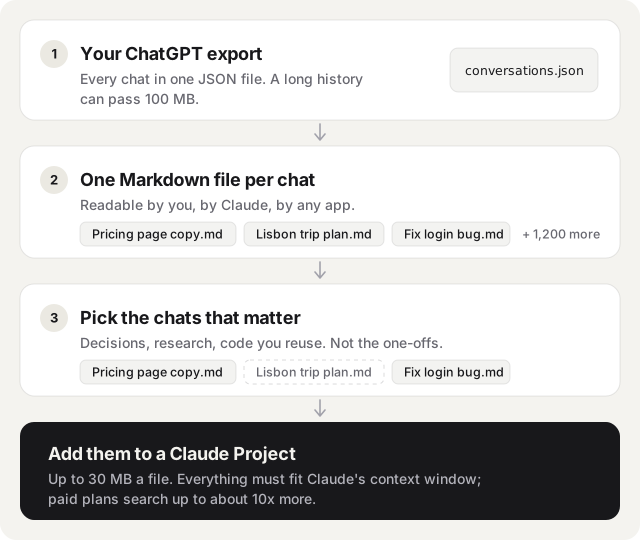
The approach that works:
- Turn the export into one file per chat. Markdown is best: it’s plain text with headings, so Claude reads the turns clearly and you can open it anywhere. For a handful of chats, open each on chatgpt.com and copy it, or use the free, open-source ChatGPT Exporter (opens in a new tab) script.
- Pick the chats that matter. Decisions and their reasons, research with sources, code you’ll reuse, long-running work. Skip the one-off rewrites and test prompts.
- Group them by topic and add each group to its Project. Chats about your product go in the product Project, and so on.
- Ask Claude for a brief. In the new Project, ask: “Read these chats and write a one-page summary of the decisions, open questions and my preferences.” Check it, and paste the good parts into the Project’s instructions. It is shorter for Claude to read than 40 chats.
Tip
Claude’s upload list names TXT, not MD (Anthropic (opens in a new tab)). If a .md file is ever refused, rename it to .txt. The text inside is the same.
For one chat you’re still working on, skip the files: copy the whole chat, paste it into a new Claude chat, and say “Here is an earlier conversation for context. Continue from where it ends.”
If you use Claude Code
A folder of Markdown chats is something Claude Code reads with no setup. Put the folder inside a project, or start Claude Code in it, and ask “What did I decide about the pricing page, and why?”. It searches the files itself. Put lasting preferences in that project’s CLAUDE.md, the way you would in Instructions.
Going the other way: Claude to ChatGPT
Almost no guide covers the reverse, and it’s harder. ChatGPT has no memory or chat import. Export your Claude data in Settings → Privacy → Export data (the link works for 24 hours and may work only once, Anthropic (opens in a new tab)), paste your Claude instructions into ChatGPT’s custom instructions, and add the chats you need to a ChatGPT Project (opens in a new tab) as files. To seed ChatGPT’s memory, tell it the facts directly: “Remember that I write in British English.”
Considering Gemini instead? Google added an import in March 2026 that takes another app’s export ZIP and a memory prompt (Google (opens in a new tab)).
Before you cancel ChatGPT
- The export ZIP is downloaded and opens, and you’ve kept a copy somewhere other than your Downloads folder.
- Memory, instructions and every GPT you care about are copied out.
- Project files and images you made are downloaded.
- You’ve used Claude for a week or two with your Projects set up.
If you only want to stop paying, cancel the plan. Deleting the account is permanent: OpenAI erases the data within 30 days, and a new account with the same email starts empty (OpenAI (opens in a new tab)).
The automatic way
We make Chat to Markdown, a Chrome extension that saves chats from ChatGPT, Claude and six other services as Markdown files in a folder you choose. For a move like this, it covers the slow part, step 4.
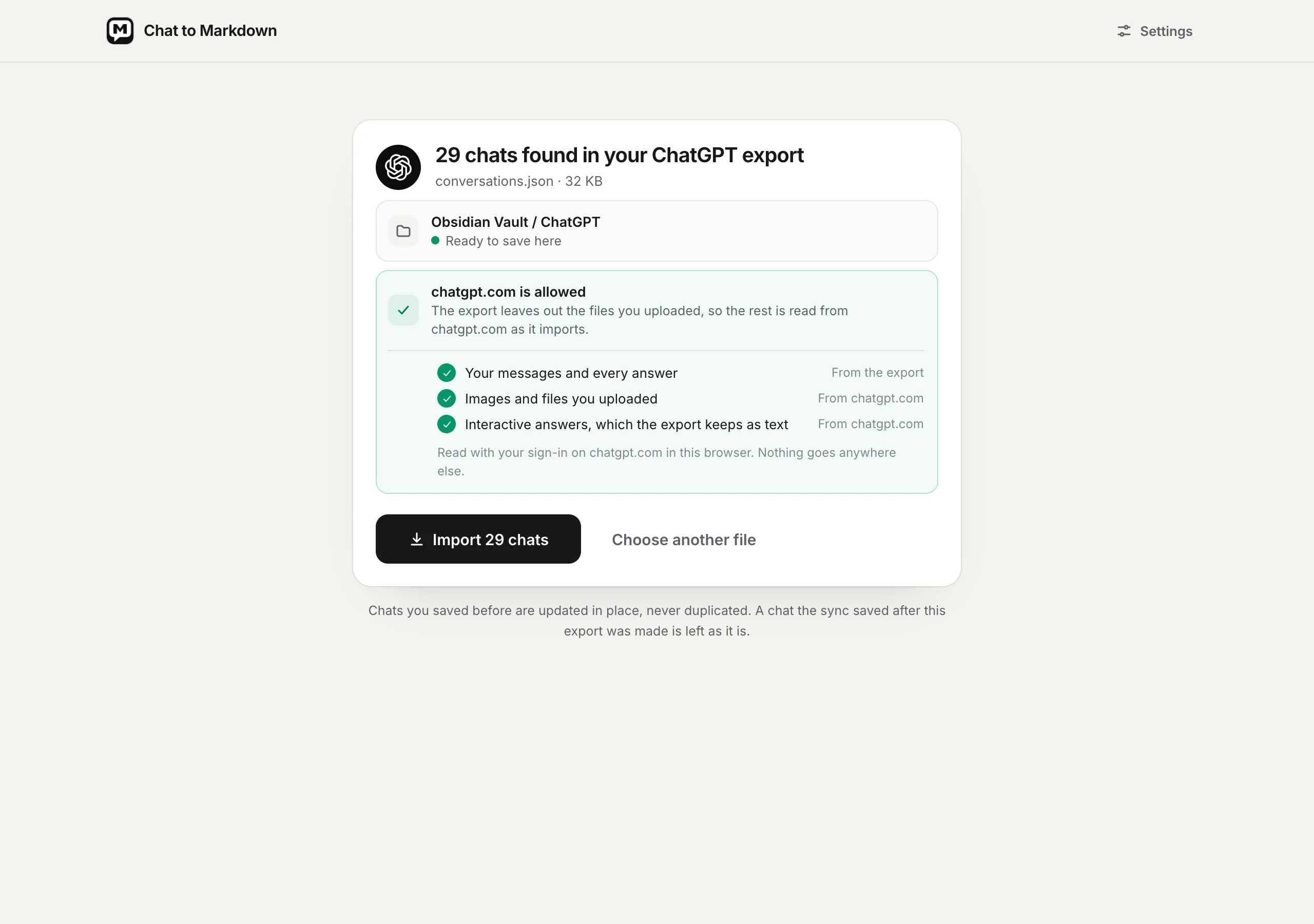
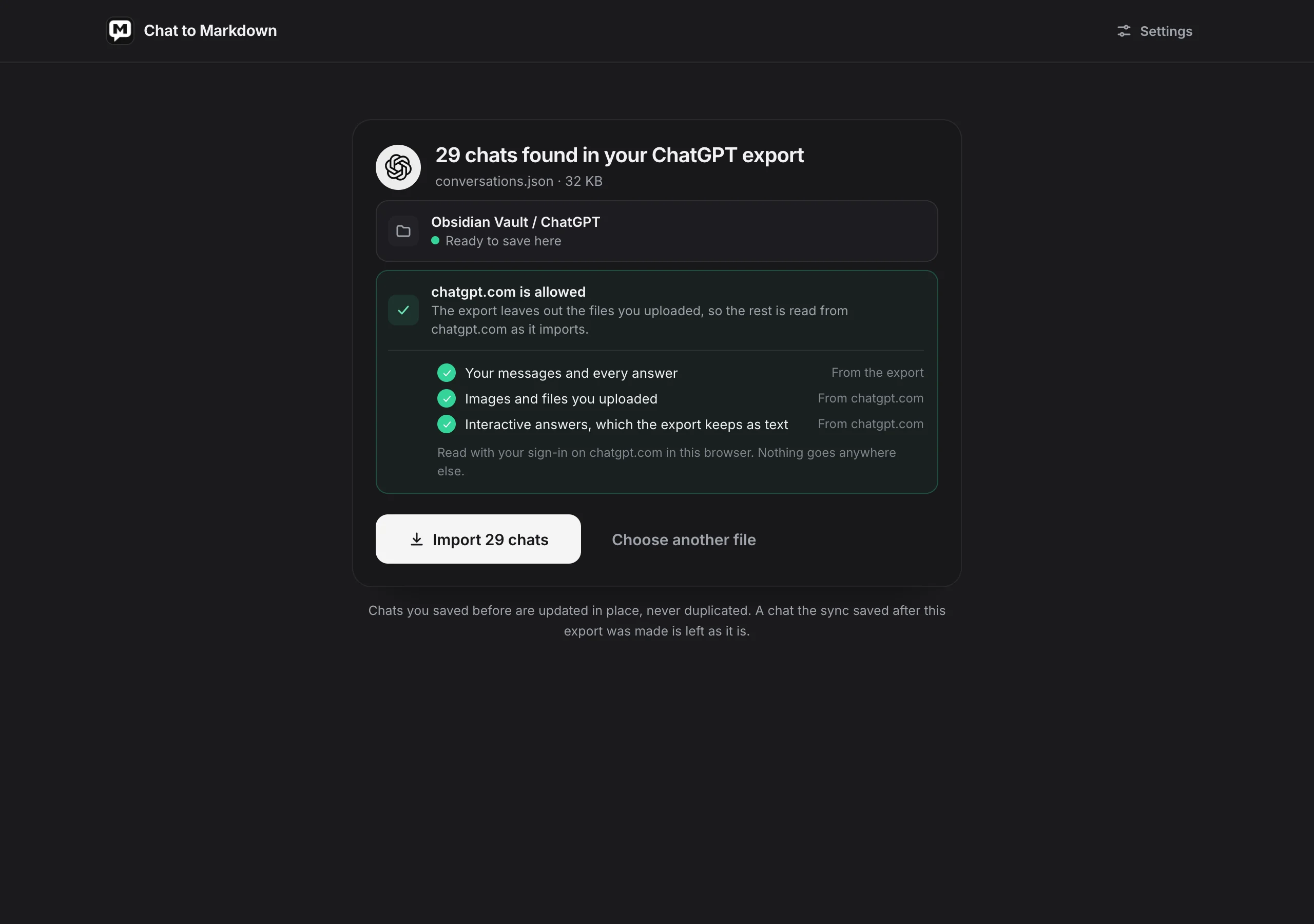
Your whole ChatGPT history as files. Drop the export ZIP on its import page, as it came. Every chat becomes its own Markdown file, named by date and title, with its pictures. The export is read on your computer and never uploaded, so a 100 MB history is no problem.

One chat, ready to paste. On any ChatGPT chat, the Save button’s menu has Copy for another AI. It copies the chat wrapped as context, starting “Here is an earlier conversation I had with ChatGPT, for context.”, ready to paste into Claude or Claude Code (the Save button).
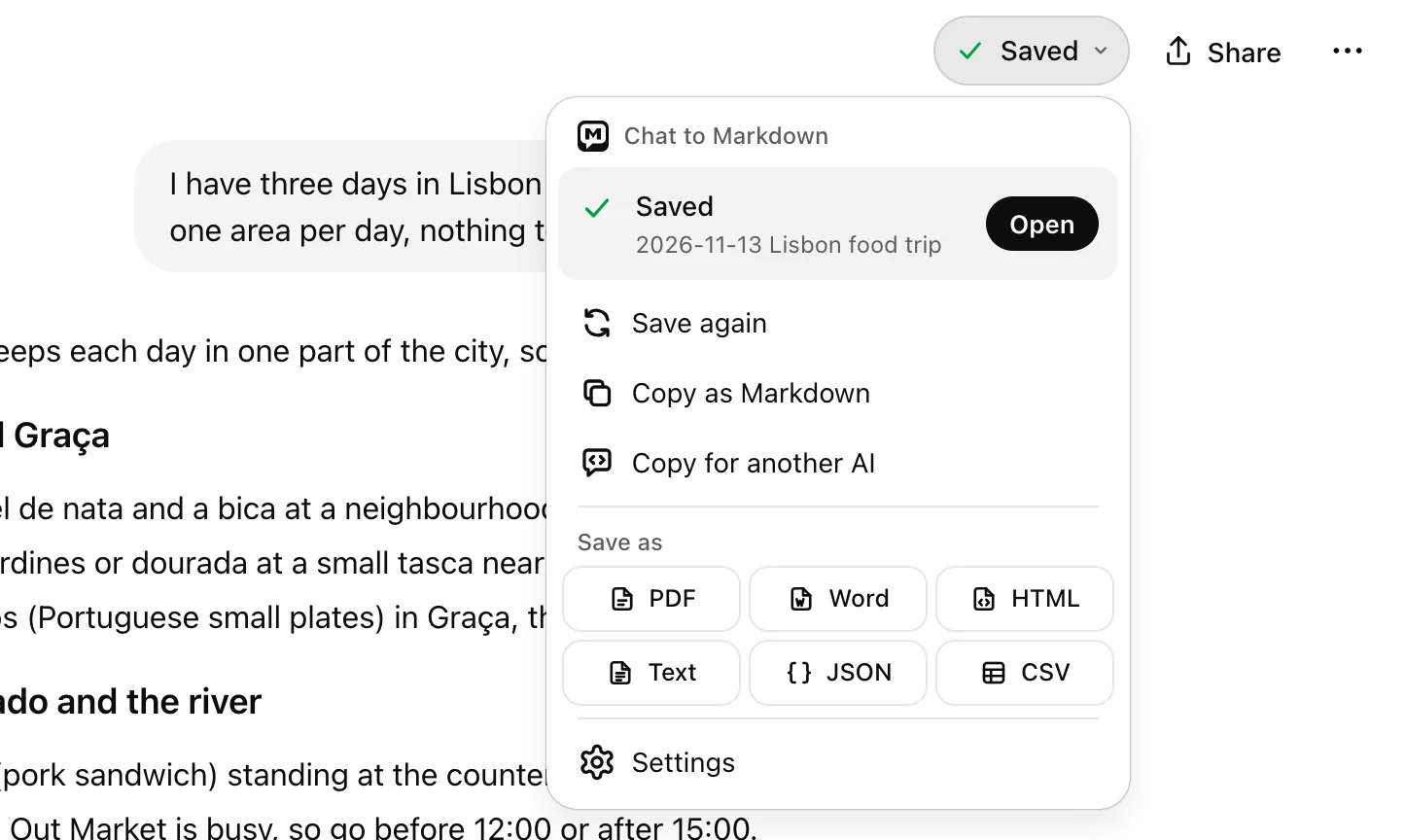
- Copy for another AI packs the chat as a prompt for Claude.
Both histories in one place. Turn Claude on too, and the chats you have there are saved to the same folder and kept up to date. A Claude Project or Claude Code can then read one folder with everything you’ve asked either AI.
What it doesn’t do: it doesn’t move your memory, instructions or GPTs, and it doesn’t upload anything to Claude for you. You choose which files go into a Project.
It’s free for 10 chats, no account. Pro imports your whole export and saves every chat from then on.