
You clicked Export data in ChatGPT, got the “your export is being prepared” message, and then nothing. Or the email came, but the link says “Not Found”. Or you have the ZIP and can’t find your chats in it.
This post covers all three: what OpenAI promises, the checks to run in order, what is inside the ZIP in 2026, and how to turn it into files you can read.
How the export is meant to work
The steps, from OpenAI’s help page (opens in a new tab) as of November 2026:
- Open Settings. Click your profile picture, then Settings.
- Go to Data controls. Next to Export data, click Export.
- Click Confirm export. OpenAI emails you a link to a ZIP. Accounts made with only a phone number get a text instead.
| What OpenAI says | |
|---|---|
| How long it takes | Up to 7 days |
| How long the link works | 24 hours after the email arrives |
| Who can download it | Only the account that asked, signed in |
| What you get | Your whole account. You can’t pick one chat or project |
| Who can’t export | Business, Enterprise and ChatGPT for Healthcare workspaces |
| Deleted chats | Not included, and the export can’t bring them back |
The 7 days is a ceiling, not the norm. Most exports arrive in minutes. But “up to 7 days” is the answer OpenAI’s support team gives on its forum, most recently in September (opens in a new tab) and October 2026 (opens in a new tab).
Export not arriving? Check these in order
- Look in every folder. Spam, junk, and in Gmail the Promotions and Updates tabs. Search for “OpenAI” and “export”. OpenAI support suggests this first on its forum.
- Check the right inbox. The email goes to the address on the ChatGPT account you were signed in to. If you sign in with Google, Apple or Microsoft, check that account’s inbox. Phone-only accounts get a text.
- Check a work address. Company mail filters sometimes hold automated mail with download links. Ask IT, or look in your quarantine folder.
- Don’t click Export again. In September 2026 (opens in a new tab), OpenAI support wrote that “it’s best to wait for the current request before starting another.” A new request restarts the wait.
- Count 7 days from your last request. Not from the first one.
- Open the link signed in. A “Not Found” page usually means the browser that opened the link isn’t signed in to the account that asked. Sign in to chatgpt.com in that browser, then open the link again.
- Check the clock. After 24 hours the link is dead. There is nothing to fix; request a new export.
- After 7 days, ask OpenAI. Use the chat in the help center (opens in a new tab), or a data request on OpenAI’s privacy portal (opens in a new tab). Expect a wait: one user’s portal request from October 18, 2026 was still “1 Active Request” ten days later (opens in a new tab).
None of this is new. A 2024 forum thread (opens in a new tab) about the email never arriving ran for weeks. In April 2026, one user (opens in a new tab) reported getting the confirmation email but never the download link, and another (opens in a new tab) waited almost two weeks without even the “export started” email.
What the problem looks like, and the fix
| What you see | Most likely cause | What to do |
|---|---|---|
| No email after an hour | Normal delay, or a mail filter | Check every folder, then wait up to 7 days |
| No email after 7 days | Stuck on OpenAI’s side | Ask in the help center chat; don’t keep clicking Export |
| “Not Found” when you open the link | Signed out, or signed in to another account | Sign in to the account that asked, in the same browser |
| The link doesn’t work a day later | It expired after 24 hours | Request a new export |
| No Export data in Data controls | A Business or Enterprise workspace | Ask your workspace owner |
| The ZIP won’t open, or is tiny | The download was cut short | Download it again while the link still works |
| The ZIP opens, but chats seem missing | Your chats are split over several files | Read every conversations-*.json (see below) |
What’s in the ChatGPT export ZIP in 2026
This is what our extension’s importer reads in ChatGPT exports as of November 2026. Smaller exports have a single conversations.json. Larger ones split it, and some wrap the chats and files in ZIPs inside the ZIP.
- chatgpt-exportthe ZIP, opened
- conversations.jsonsmall exports: every chat
- conversations-000.jsonlarge exports: chats in parts
- conversations-001.json
- sectioned_conversations.jsonnot your chats (often just [])
- shared_conversations.jsonyour share links, no messages
- chat.htmlevery chat on one web page
- user.json
- message_feedback.json
- model_comparisons.json
- dalle-generationspictures ChatGPT made
- file-….pngsome pictures and uploads
| File | What it holds |
|---|---|
conversations.json, conversations-000.json… | Your chats, as JSON. Each chat has a title, dates, and a mapping of messages |
chat.html | The same chats on one page. Fine to read in a browser; slow to open if your history is long |
shared_conversations.json | The share links you made, without their messages |
sectioned_conversations.json | Not the chat list. In exports a developer looked at in October 2026, it was [] |
user.json | Your account details |
message_feedback.json | Thumbs up and down you gave |
dalle-generations/, file-… | Pictures and some uploaded files, named by their file id |
What you won’t get: chats deleted before the export, and every file you uploaded. Uploads are named in the chats, but many aren’t in the ZIP. OpenAI’s own page on moving chats between accounts (opens in a new tab) also mentions the numbered files, so expect them from now on.
Reading the export: three changes that break old scripts
Many “ChatGPT JSON to Markdown” scripts on GitHub were written before 2026. Three things changed since, and each one can make a script return fewer chats, or none, without an error.
- The chats are split. A script that opens only
conversations.jsonfinds nothing in a large export. Read everyconversations-NNN.json, in order. - A file name looks right but isn’t.
sectioned_conversations.jsonalso ends inconversations.json. A developer’s importer (opens in a new tab) picked it first, read an empty list, and reported no chats at all. Match the exact name, not the ending. - Messages no longer list their replies. Each message used to have
childrenids and aparentid. The same PR found that exports since October 2026 keep onlyparent. Scripts that walk from the first message down throughchildrenstop at once. Start from the chat’scurrent_nodeand walk up throughparentinstead. That also gives you the version of the chat you saw on screen, not a branch you edited away.
To count the chats in your export (with jq (opens in a new tab) installed), run this in the unzipped folder:
jq -s 'map(length) | add' conversations*.jsonconversations*.json matches conversations.json and the numbered files, but not sectioned_conversations.json, which starts with “sectioned”.
And a short Python script that writes one Markdown file per chat, using the newer format. Save it as export_to_md.py in the unzipped folder and run python3 export_to_md.py:
import glob, json, re
from datetime import datetime, timezone

for path in sorted(glob.glob("conversations*.json")):
    for chat in json.load(open(path, encoding="utf-8")):
        lines, node = [], chat.get("current_node")
        while node:                                   # walk up, newest first
            item = chat["mapping"][node]
            msg = item.get("message") or {}
            role = (msg.get("author") or {}).get("role")
            parts = (msg.get("content") or {}).get("parts") or []
            text = "\n".join(p for p in parts if isinstance(p, str)).strip()
            if role in ("user", "assistant") and text:
                lines.append(f"## {'You' if role == 'user' else 'ChatGPT'}\n\n{text}\n")
            node = item.get("parent")
        title = chat.get("title") or "Untitled"
        day = datetime.fromtimestamp(chat.get("create_time") or 0, timezone.utc).date()
        name = re.sub(r'[\\/:*?"<>|]', "-", f"{day} {title}")[:120]
        with open(f"{name}.md", "w", encoding="utf-8") as f:
            f.write(f"# {title}\n\n" + "\n".join(reversed(lines)))
It keeps text only. Pictures, code run output, canvases and files stay behind, and two chats with the same date and title overwrite each other. For a quick read, that’s enough.
The export is a snapshot, not a backup
Even when it works, the export is a copy of one moment. Chats you continue tomorrow aren’t in it. If a chat disappears next month, last month’s ZIP has the old version, and you only have it if you downloaded it within 24 hours. To keep a copy that stays current, see how to back up your ChatGPT history.
The automatic way
We make Chat to Markdown, a Chrome extension that saves your ChatGPT and Claude chats as Markdown files in a folder you pick, such as an Obsidian vault. It does two things for this problem: it reads the export for you, files and all, and it can skip the export entirely.
Tip 1: import the ZIP as it came
Don’t unzip it, and don’t care which format it is. The importer knows the split files, the ZIPs inside the ZIP, and the sectioned_conversations.json trap. In the popup, click the download icon at the top.

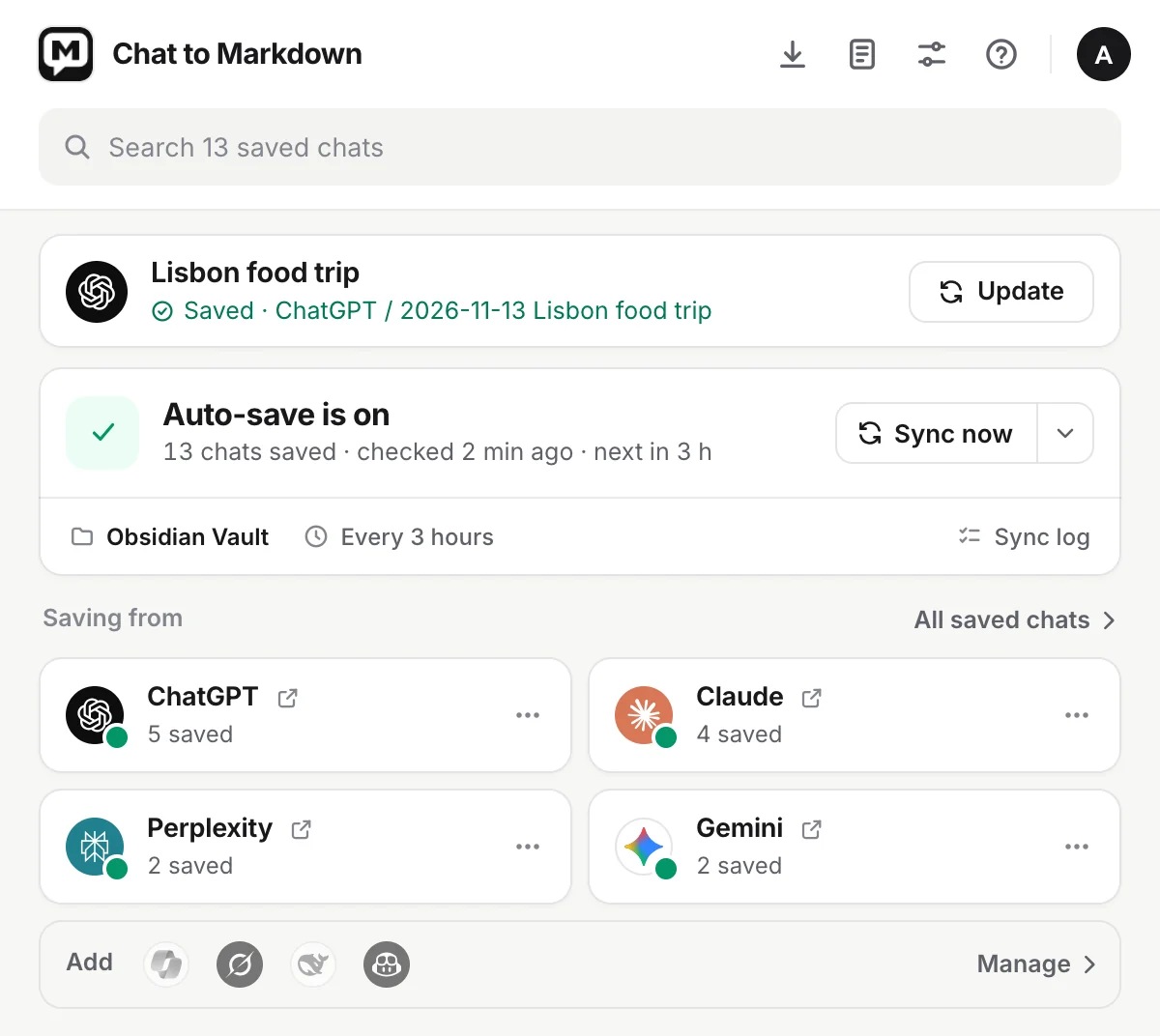
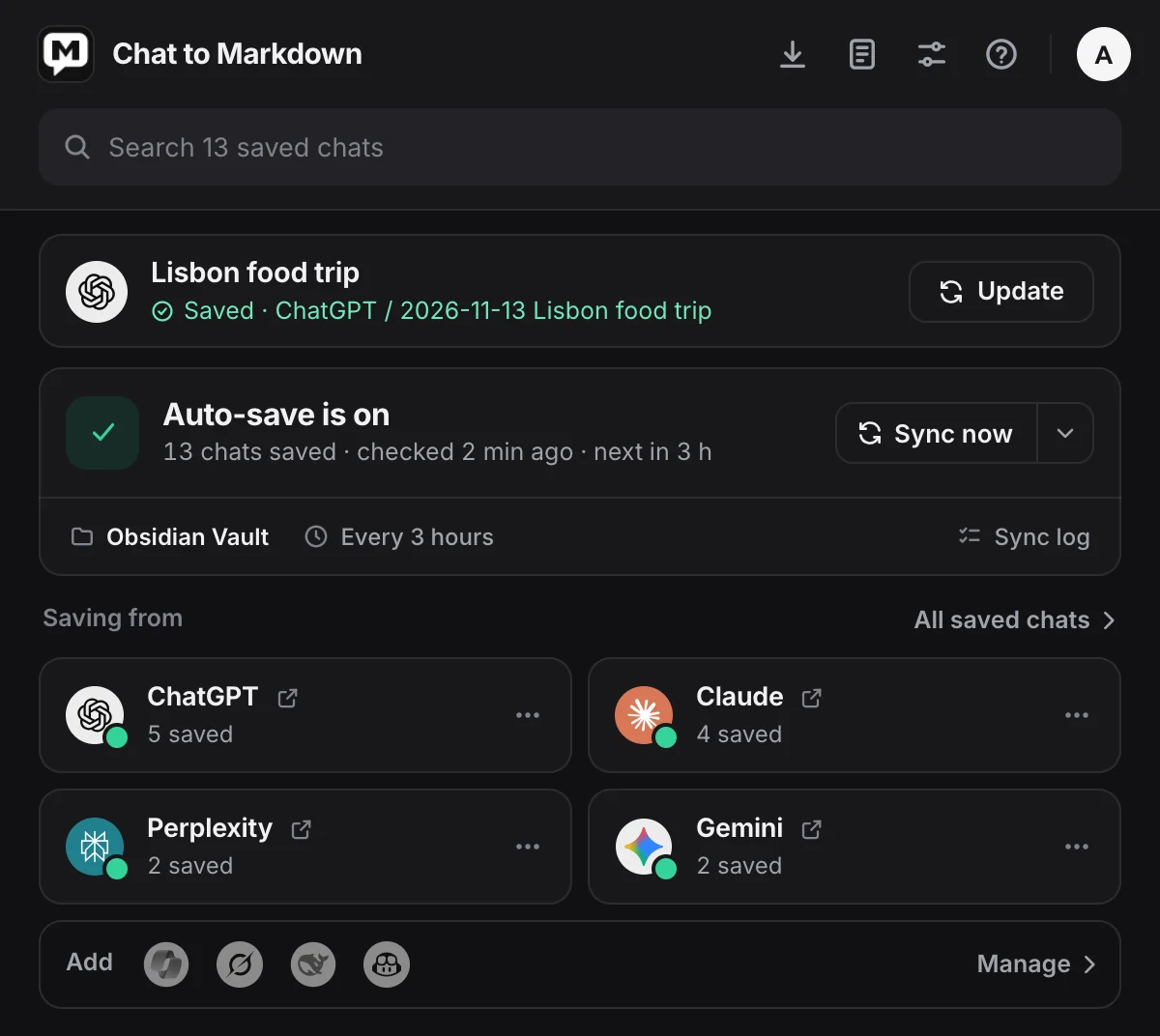
- Import past chats opens the import page. It’s also in Settings → Import.
Still waiting for the email? Click ChatGPT on the import page for the steps, with a button that opens ChatGPT’s data controls.
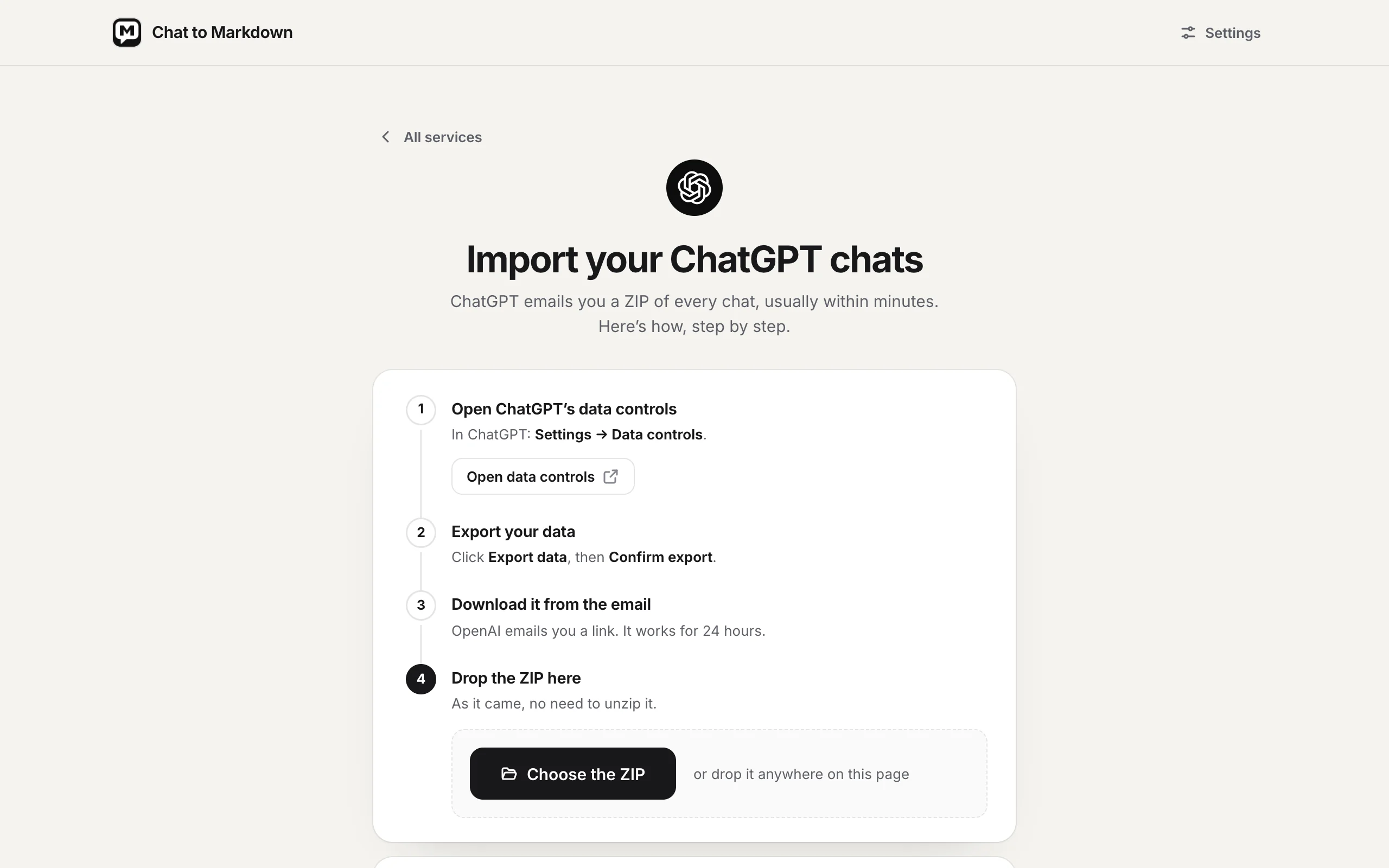
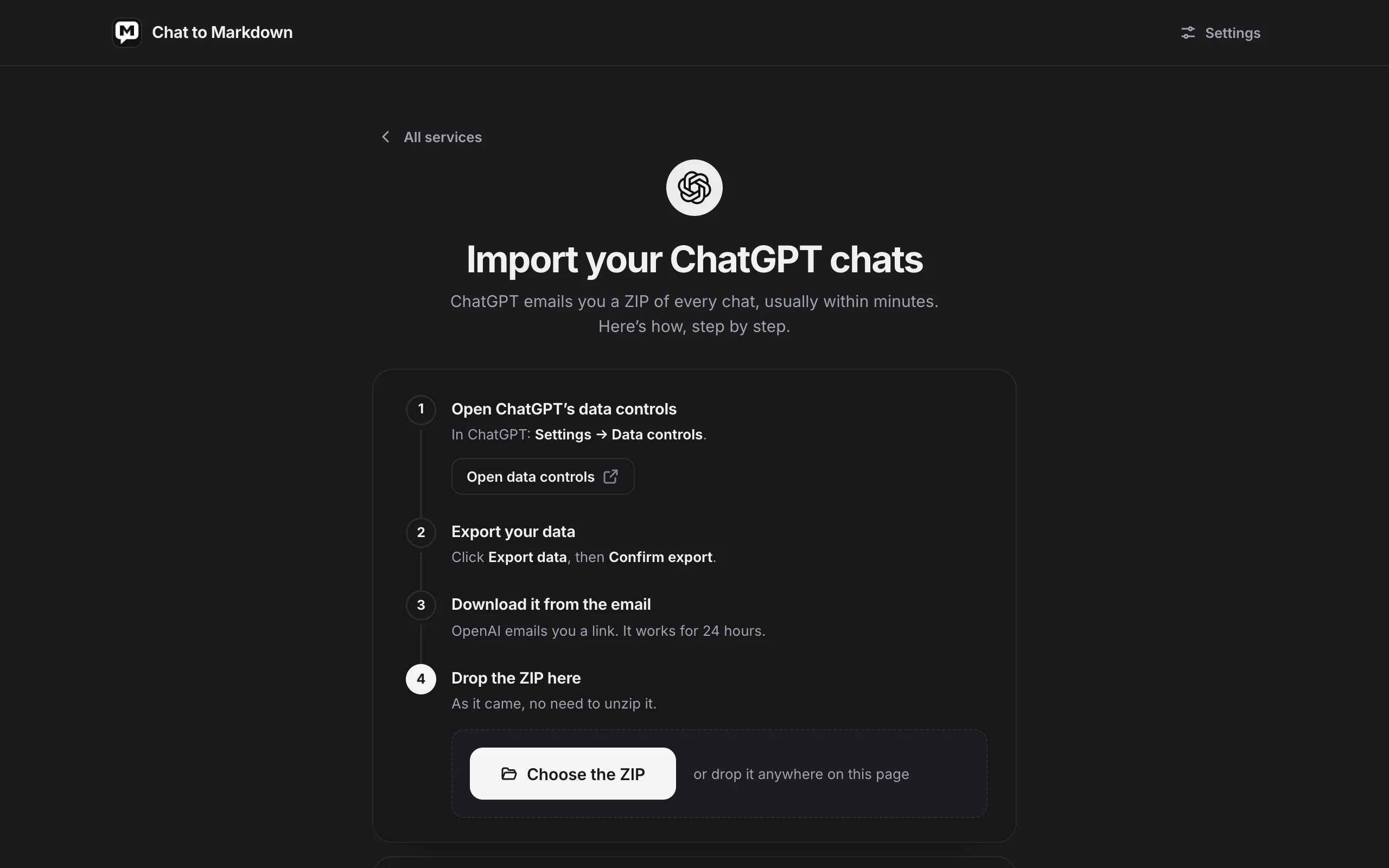
- Open data controls takes you straight to the right page on chatgpt.com.
- Drop the ZIP here when it arrives, as it came.
Tip 2: allow chatgpt.com to fill the gaps
The export leaves out many of the files you uploaded, and keeps interactive answers as plain text. With chatgpt.com allowed, the importer reads those from the site, signed in as you are in this browser. Nothing goes anywhere else: your export is read on your computer and never uploaded.
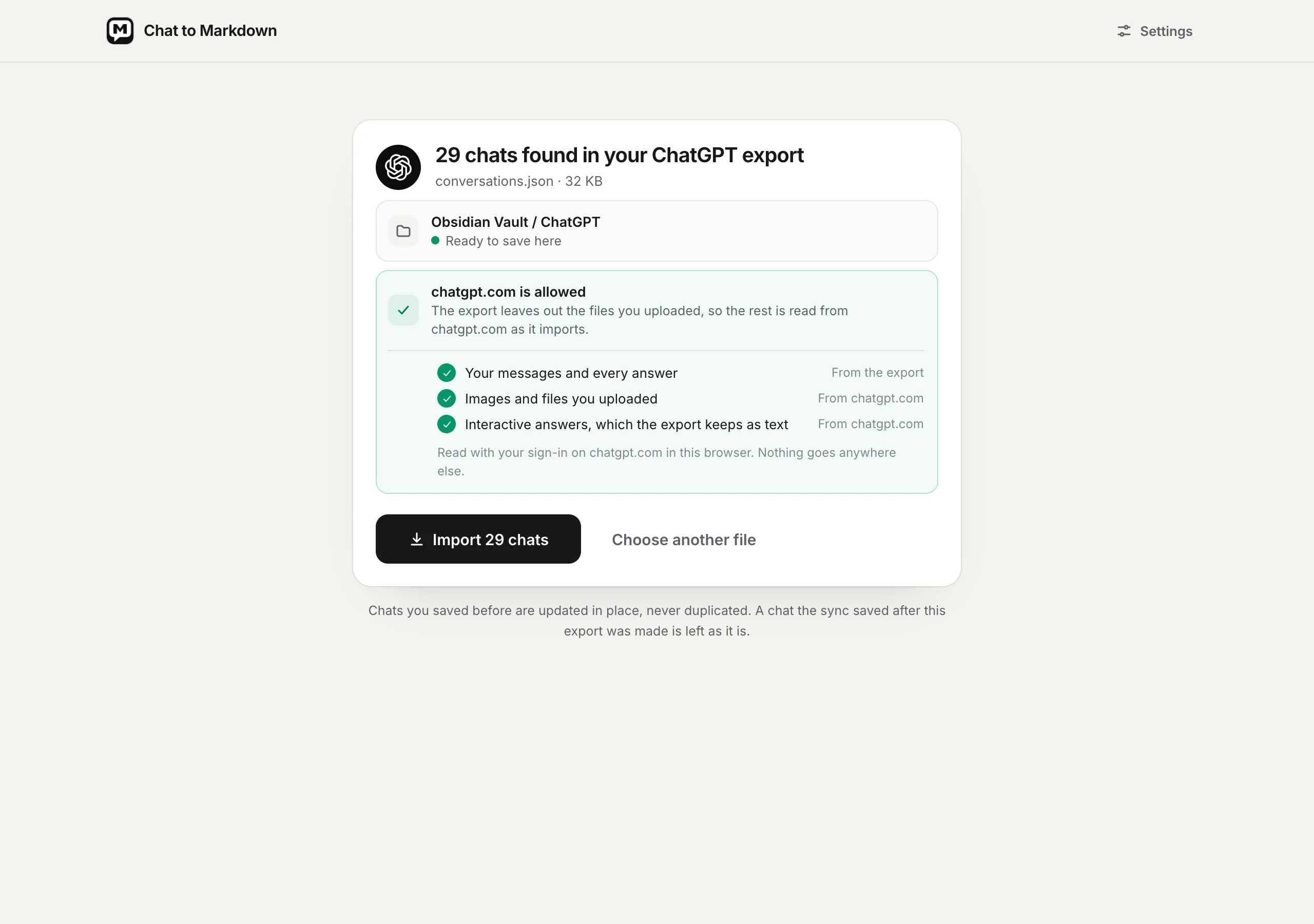
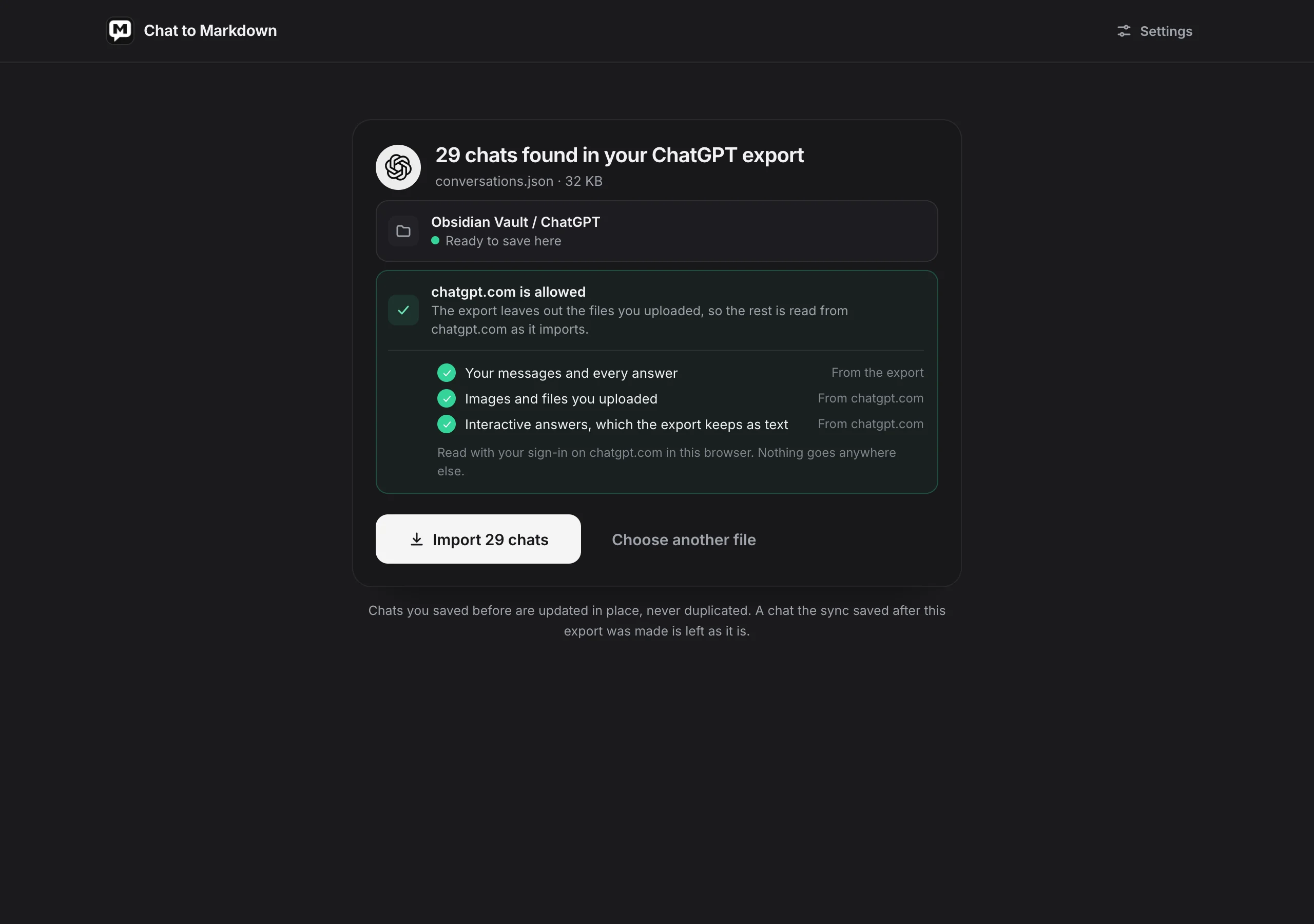
- Where they go: the ChatGPT folder inside your vault.
- What comes from where: your messages from the export, uploads and interactive answers from chatgpt.com.
- Import writes every chat as its own
.mdfile.
Tip 3: import more than once, safely
Chats you saved before are updated in place, never doubled. A chat the extension saved after the export was made is left as it is, because your copy is newer. So you can import a new export every few months, and only real changes land.
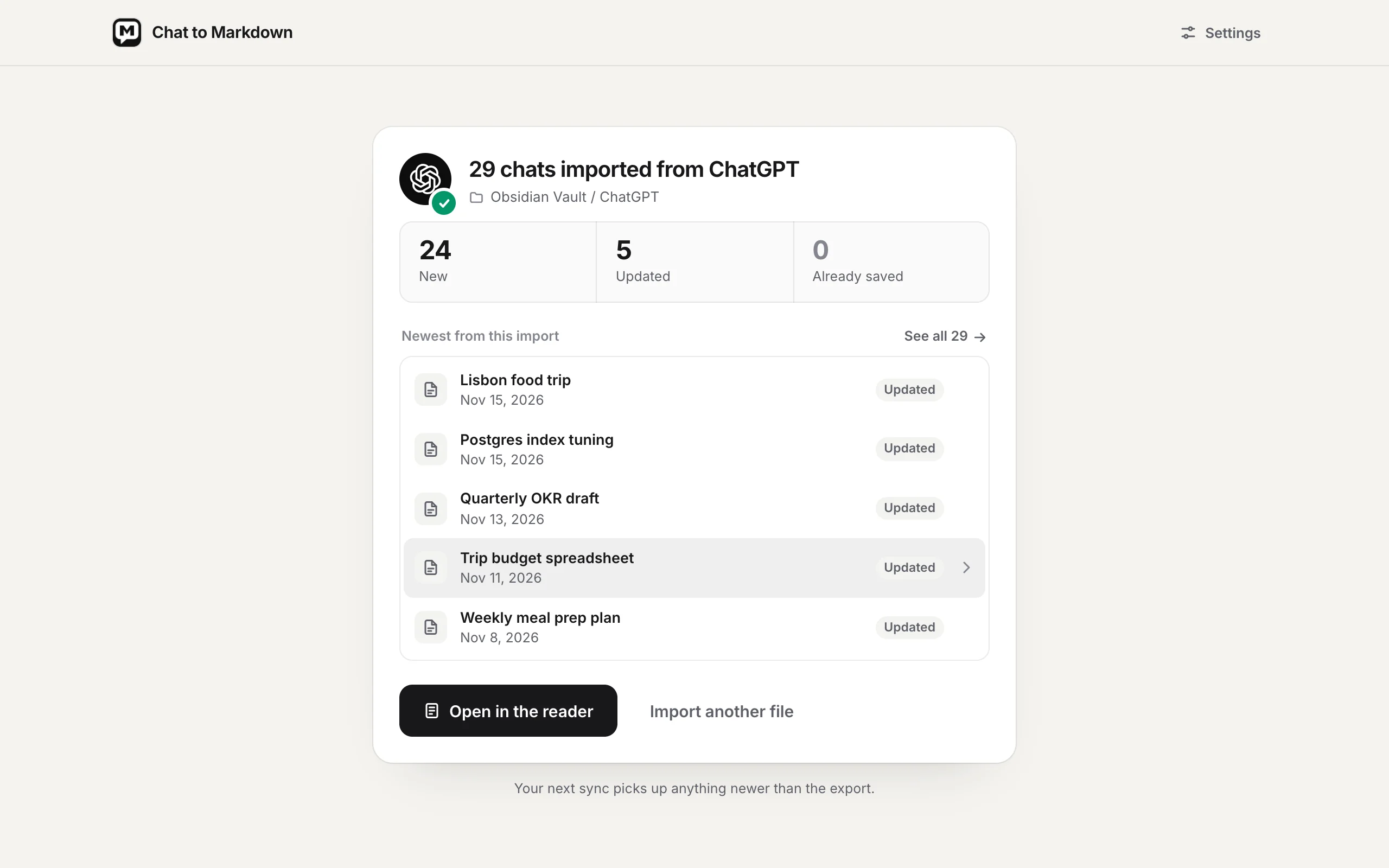
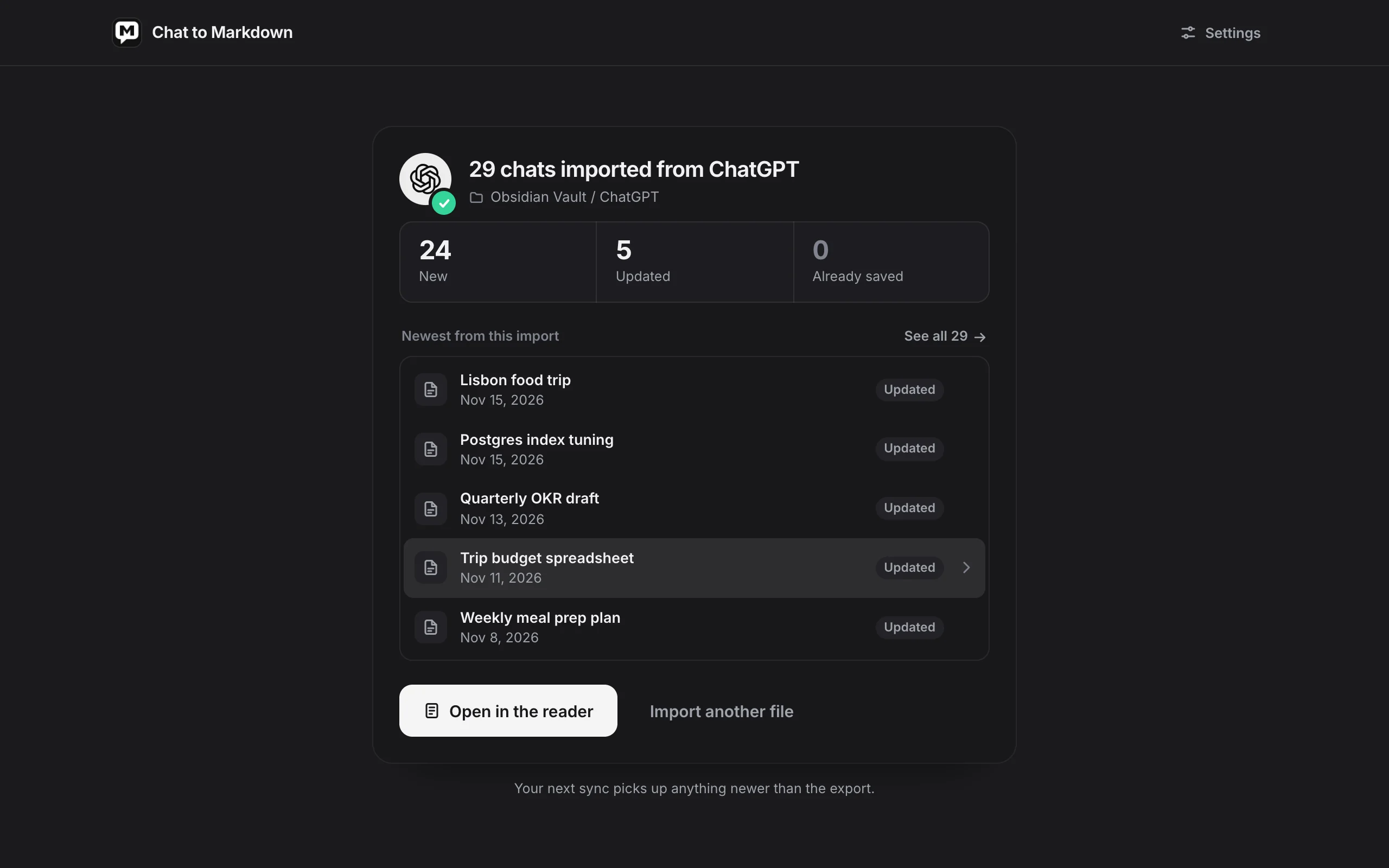
- New, Updated and Already saved tell you what the import changed.
- The newest chats from the import, each one a click away.
- Open in the reader shows them with formulas, tables and pictures drawn, and a search over every saved chat.
Or skip the export entirely
With ChatGPT turned on, the extension saves your chats straight from chatgpt.com and keeps them up to date. There’s no email, no 24-hour link and no ZIP. The export is only worth it for a very long history, where importing is faster than waiting for the first sync. For one chat right now, the Save button next to Share is quicker still; see how to export one ChatGPT chat.
Note
Free for 10 chats, no account. On Free, an import saves the export’s newest chats until your 10 free chats are used, and keeps those 10 up to date. Pro imports every chat in the export. See the plans.
What it doesn’t do: it can’t bring back a chat that was deleted before the export, and it runs in Chrome on a computer, not in the ChatGPT phone apps. Step-by-step help is in Import a data export.
For every way to get ChatGPT chats out as Markdown, read how to export ChatGPT chats to Markdown. If you want them printed instead, see saving a ChatGPT chat as a PDF.