
You want one ChatGPT chat as a PDF: to print it, attach it to an email, or keep it with your project files. ChatGPT doesn’t make that easy. Here is the free way, what goes wrong with it, and a way that keeps formulas, tables and diagrams.
Is there a “Save as PDF” button in ChatGPT?
No, not for a chat. As of November 2026, ChatGPT offers PDF downloads only for some kinds of output, such as deep research reports (opens in a new tab). A normal conversation has no Download as PDF in its menu.
People have asked for one. In a feature request on the OpenAI forum (opens in a new tab), OpenAI’s support team replied in September 2026 that one-click PDF export for a single chat is a separate request, with no timeline to share. They pointed to the account data export instead, which gives you every chat as a ZIP, not a PDF of the one you want.
So the free route is your browser’s print dialog.
The free way: Print, then Save as PDF
These steps are for Chrome. Google’s help page on printing from Chrome (opens in a new tab) gives the shortcut.
- Open the chat on chatgpt.com.
- Press Ctrl+P on Windows or Linux, or Cmd+P on a Mac.
- Set Destination to Save as PDF.
- Check the page count in the preview on the left. If it looks too short for your chat, see the next section.
- Click Save and choose where to put the file.
For a short chat, this is all you need. It costs nothing and needs no extension.
Tip
Under More settings in Chrome’s print dialog, turn off Headers and footers to drop the date and the page address from every page, and use Scale to fit something wide.
Why print gets only the start and the end of a long chat
The free route breaks on long chats, and the forum threads show it is not a one-off.
- Pages go missing. In July 2026, a user reported (opens in a new tab) that Chrome and Edge printed only parts of a session, with blank pages, and another user reproduced it: “the beginning of the session was missing from the generated PDF.”
- The preview shows one page. In September 2026, a user wrote (opens in a new tab) that for longer chats “the browser print preview may detect only a single page even when the conversation is several pages long”, in Firefox and Edge.
- Full-page capture tools stop early. An October 2026 bug report (opens in a new tab) says messages disappear while you scroll a long chat and white gaps appear. A reply explains that the page keeps only the messages near your screen loaded, and there is no setting to turn that off.
That is the likely cause. Print copies the page as it is at that moment. If the page holds only part of the chat, the PDF holds only part of the chat.
One more thing to watch for:
Wide code. Long lines in a code block scroll sideways on screen. On paper there is no scroll bar, so they can be cut off. The fix people share in the Print entire conversation (opens in a new tab) thread is a bookmarklet that wraps code and long lines and removes the height limits that cut content off.
The usual workaround, as the feature request above puts it, is “manually copying dozens of messages into Word or Google Docs” and printing from there.
The automatic way: Save as PDF from the Save button
We make Chat to Markdown. It’s a Chrome extension that saves your AI chats as Markdown files in a folder you choose, such as an Obsidian vault. It also turns any saved chat into a PDF.
The difference from printing chatgpt.com: it doesn’t print the live page. It reads the whole chat in the background with your own session, saves it as a file, and prints that file. So the length of the chat doesn’t matter, and nothing depends on what was loaded on screen.
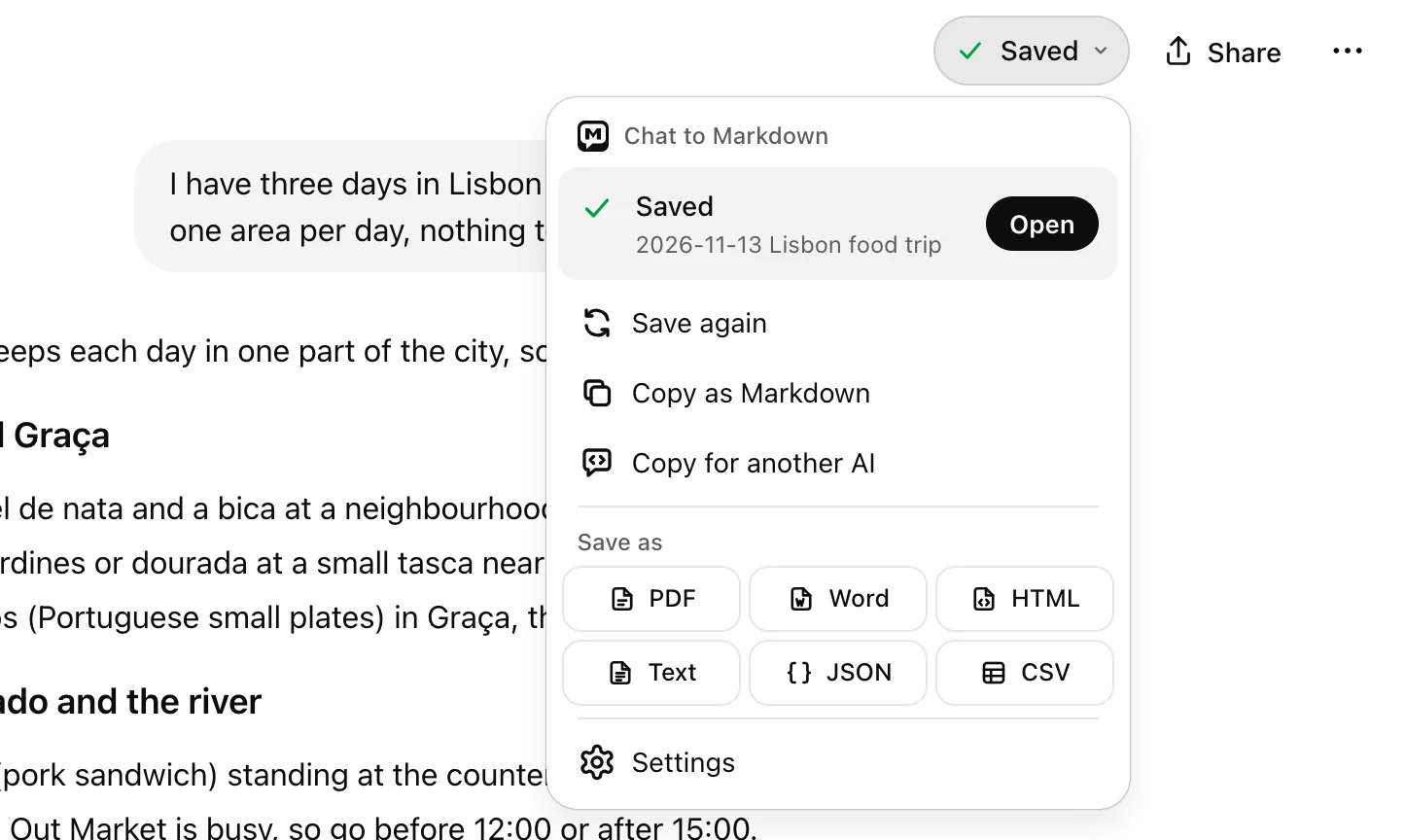
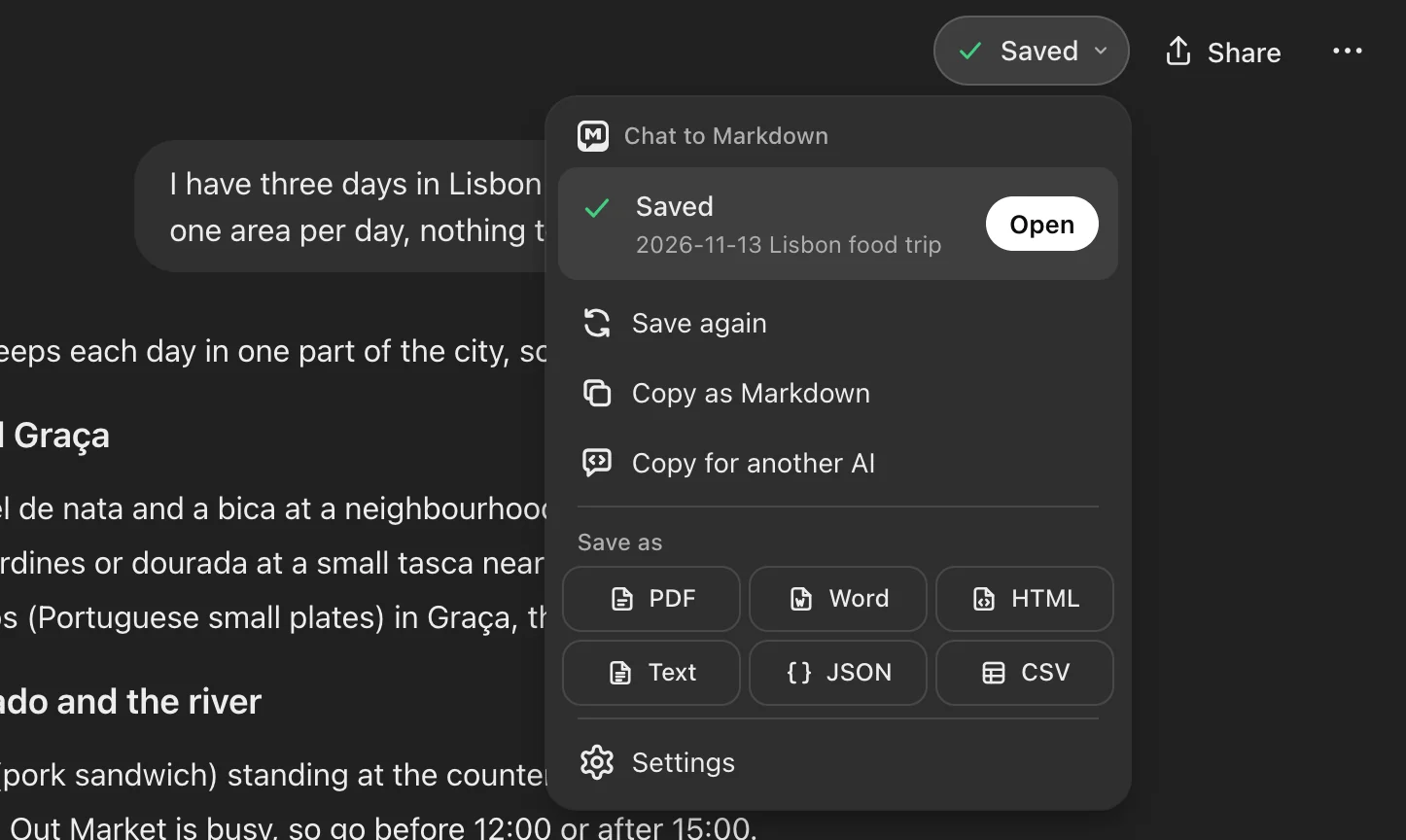
- PDF under Save as: saves the chat if needed, then opens the print preview.
- Open the chat on chatgpt.com. The Save button sits to the left of ChatGPT’s Share button.
- Click the arrow next to Save and, under Save as, choose PDF. The chat is saved first if it isn’t saved yet or the file is behind the page.
- Wait for the reader to open in a new tab. A small window, Preparing your PDF, shows the steps. Long chats take a few seconds.
- Set Destination to Save as PDF in Chrome’s print dialog and click Save. The name Chrome suggests is the chat’s title.
The Save button and the same Save as formats are on Claude too, and on the other chat sites the extension supports. The steps are the same.
What ends up in the PDF
The PDF is drawn the way the reader shows the chat:
- Formulas drawn with KaTeX, the way ChatGPT draws them, not as raw LaTeX.
- Mermaid diagrams drawn as diagrams.
- Tables as tables. Use Scale under More settings if a wide one doesn’t fit.
- Pictures from the chat, from your folder.
- Charts and interactive answers as a still copy. A chart taller than a page continues on the next one.
- Code that wraps instead of scrolling, so long lines are not cut off.
- The chat only. No sidebar, no chat bar, always in the light theme, with the title and a line of details at the top.
Note
Folded parts, such as Thinking or Other versions, print folded. Open them in the reader before you print if you want them on paper. A picture that isn’t in your folder yet shows Not in your folder yet: use Re-sync on the chat, then export again.
Save as PDF from the reader
Every chat you saved is also in the reader, the extension’s Saved chats page. You can print from there at any time, even when you’re offline, because it reads the files in your folder.
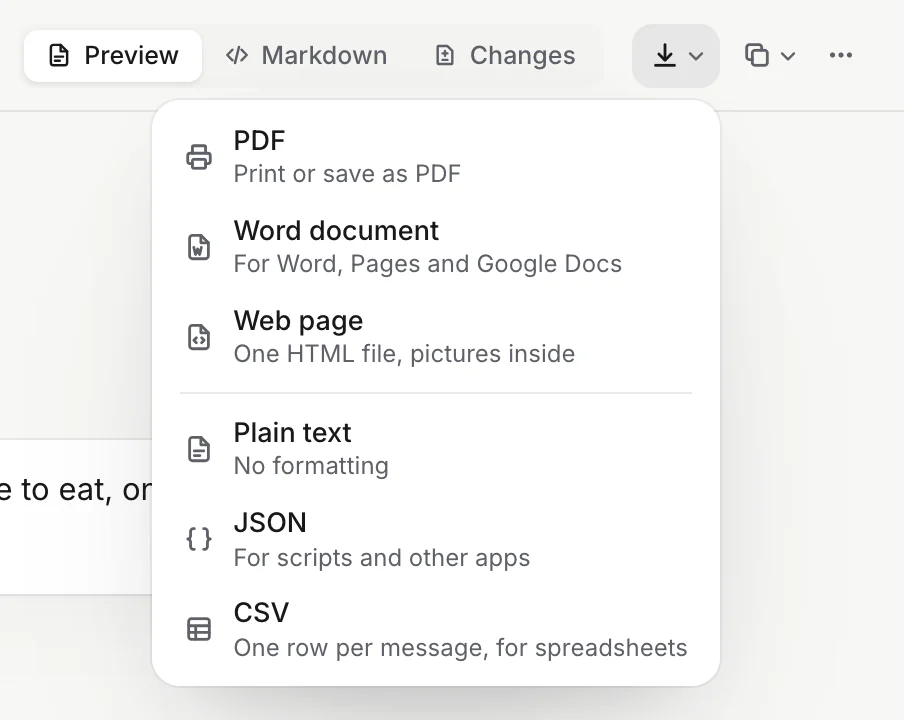
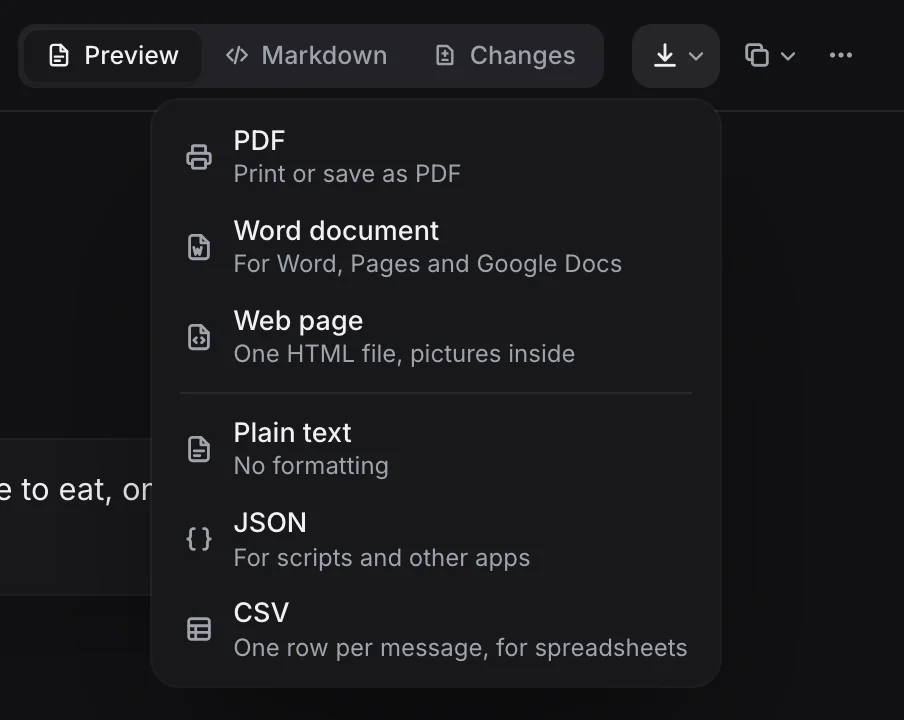
- Export: the download icon in the chat’s bar.
- The Export menu: PDF is the first of its six formats.
- Open the chat in the reader.
- Click Export (the download icon) in the chat’s bar.
- Choose PDF. You can also press Cmd+P (Mac) or Ctrl+P.
The same menu makes a Word document to edit, or a Web page: one HTML file, pictures inside, that opens in any browser. See Save as PDF, Word and other files.
What it doesn’t do: it makes one PDF per chat, so there is no way to export many chats as PDFs in one go. It also needs Chrome on a computer.
Save as PDF works on the Free plan for your 10 free chats. Exporting a chat that isn’t one of them saves it first and uses one. See the plans for more. Free for 10 chats, no account.
Print vs the extension
| Print on chatgpt.com | Chat to Markdown | |
|---|---|---|
| Cost | Free | Free for 10 chats |
| Long chats | Often cut off or one page | The whole chat |
| Formulas | As the page shows them | Drawn with KaTeX |
| Wide code | Can run past the edge | Wraps |
| Also keeps the chat as Markdown | No | Yes |
| Many chats at once | No | No |
If you also want the chat as text you can search and edit, the PDF is the second step. The first is the Markdown file. Our guide on exporting ChatGPT to Markdown covers that, exporting one ChatGPT chat shows the quickest way for a single conversation, and organising AI chats in Obsidian shows what to do with them once they’re saved.