
You want one chat out of ChatGPT. A trip plan, a code fix, a long research thread. Not your whole history, and not a ZIP that takes days to arrive.
ChatGPT’s own export covers the whole account. But there are free ways to get a single chat out today, each with a catch. Here they are, then the one-click way we built.
The free ways to export a single chat, compared
| Way | What you get | Where it lives | The catch |
|---|---|---|---|
| Copy icon | One answer on your clipboard | Wherever you paste it | One answer per click; the format has changed over time |
| Share link | A read-only page of the chat | On chatgpt.com | A snapshot, and not a file you keep |
| Print to PDF | The chat as a PDF | Your computer | Hard to edit or search as notes |
| Data export | Every chat in your account | A ZIP, by email | Up to 7 days, and the link lasts 24 hours |
| Chat to Markdown | The whole chat as Markdown | Your clipboard or a .md file | Free for 10 chats, Chrome on a computer only |
Copy one message at a time
Under each ChatGPT answer there is a copy icon.
- Hover the answer you want and click the copy icon under it.
- Paste it into a note, a document or a
.mdfile. - Repeat for every answer you want to keep.
What lands on your clipboard is less clear than it looks. OpenAI’s help center doesn’t say which format the copy icon uses. Users on OpenAI’s community forum report that it has changed: a post from October 2026 (opens in a new tab) says an update that month stopped bold and italics from copying as Markdown. Paste into a plain-text editor first if the format matters to you.
This is fine for one answer. For a whole chat, it means many trips between two windows, and you lose the chat’s title and date on the way.
Share link: a snapshot, not a file
ChatGPT can turn a chat into a link anyone can open. As of November 2026, OpenAI’s shared links FAQ (opens in a new tab) describes it like this:
- Open the chat and click Share at the top.
- Review what will be shared.
- Click Create link or Copy link. On a phone, your device’s share sheet may open instead.
Know what a share link is before you rely on it:
- It’s a snapshot. On a personal account, the link holds the chat as it was when you made or updated it. Messages you add later aren’t included on their own. Links from Business, Enterprise and Edu workspaces can include later messages, and only members of that workspace can open them.
- Anyone with the link can see it. There are no finer permissions on personal links.
- It’s anonymous by default, but OpenAI notes that some older sharing views may show your name. Check the preview before you send it.
- It doesn’t expire. You remove it yourself in Settings → Data controls → Shared links → Manage.
Supported pictures and uploaded files can show in the shared page. Still, the chat stays on OpenAI’s servers. A share link is a way to show someone a chat, not a way to keep a copy.
Print the chat to PDF
Your browser’s print dialog can save any page as a PDF, a ChatGPT chat included. In Chrome, per Google’s help page (opens in a new tab):
- Open the chat in Chrome.
- Press Ctrl+P (⌘+P on a Mac), or choose File → Print.
- Set Destination to Save as PDF and click Save.
Look through the preview before you save. Check that the whole chat is there and that wide tables and code aren’t cut off at the edge. Under More settings, turning off Headers and footers removes the date and page address from each page, and Scale can fit wide content.
A PDF is good for reading, printing or sending to someone. It’s a poor fit if you want the chat as a note you can edit, link and search in an app like Obsidian. For formulas, tables and diagrams in a PDF, see how to save a ChatGPT chat as a PDF.
Why the data export is overkill for one chat
The official export is the one most guides point to. Here is how it works, from OpenAI’s help page (opens in a new tab) as of November 2026:
- Open your profile menu and choose Settings.
- Go to Data controls. Under Export data, choose Export.
- Click Confirm export. Then wait for an email (or a text, for phone-only accounts).
For one chat, this is a lot of waiting and digging:
- It can take up to 7 days to arrive.
- The download link expires 24 hours after you receive it, and you have to be signed in to the same account to download it.
- You get everything: a ZIP with your whole chat history and other account data. You then have to find your one chat inside it.
- It isn’t Markdown. You’d still need to convert it.
- It isn’t open to everyone. Self-service export isn’t available in Business, Enterprise or ChatGPT for Healthcare workspaces; OpenAI says to ask your workspace owner.
- It can’t bring back deleted chats.
The export is the right tool when you want everything, for example before closing an account. Our guide to backing up your ChatGPT history covers that case.
The automatic way
We make Chat to Markdown. It’s a Chrome extension that saves AI chats as Markdown files in a folder you choose, such as an Obsidian vault. It also adds a Save button to every ChatGPT chat, right next to Share.


- Save saves this chat to your folder. The arrow next to it opens the menu.
Save one chat
- Add Chat to Markdown to Chrome. See Install.
- Choose a folder on the welcome page and allow access when Chrome asks. Turn on ChatGPT and allow chatgpt.com.
- Open the chat and click Save (or press Alt+Shift+S, Option+Shift+S on a Mac). The button says Saving, then Saved, and a message says where the file went.
You don’t need to press Start saving for this. That button turns on automatic saving; the Save button works on its own. The chat becomes one .md file in a ChatGPT folder, with properties at the top (title, link, model, dates), each message under a ## You or ## ChatGPT heading, and its pictures in an attachments folder. See what’s in a saved file.
Copy it as Markdown instead
If you only want the chat on your clipboard, open the menu with the arrow next to Save.
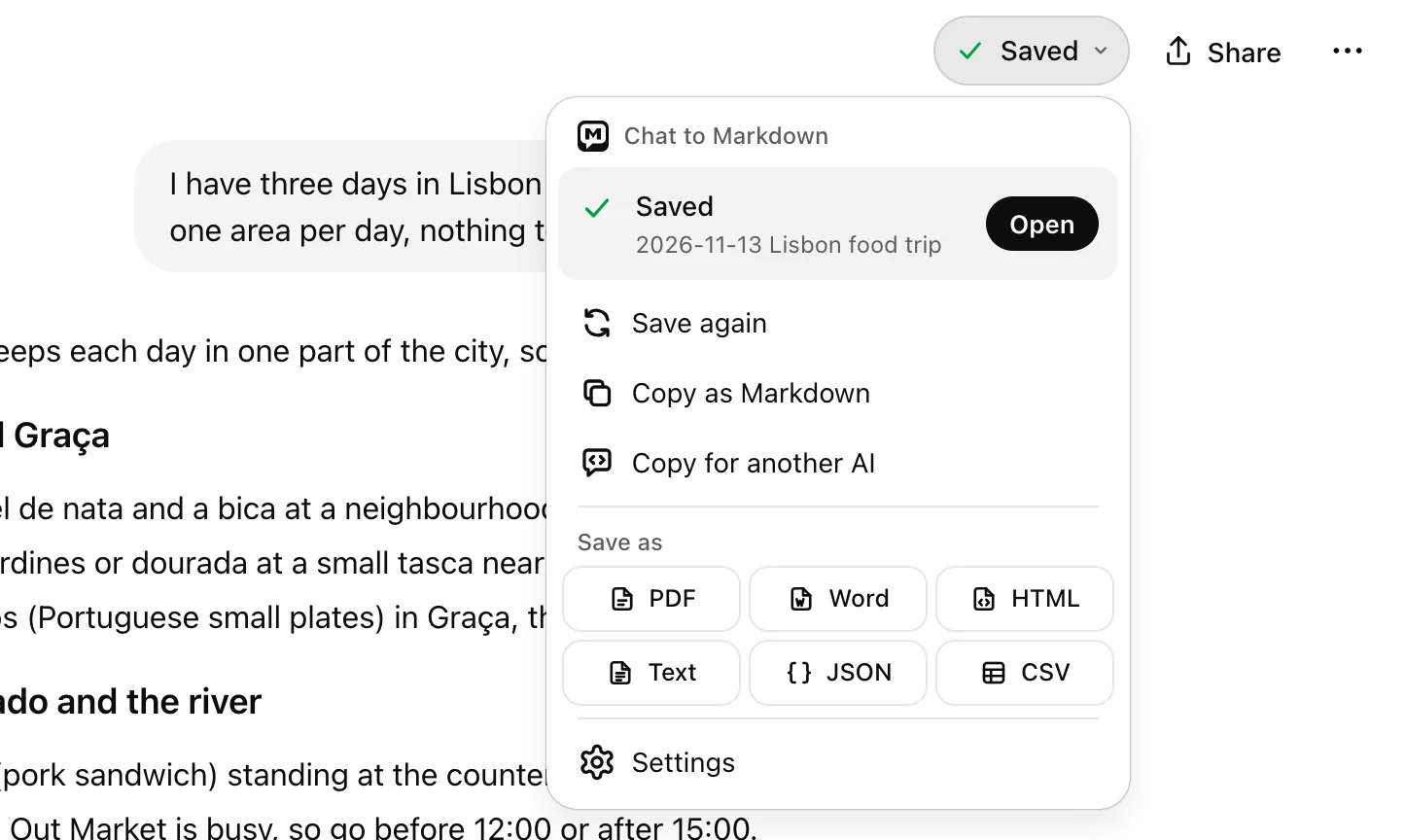
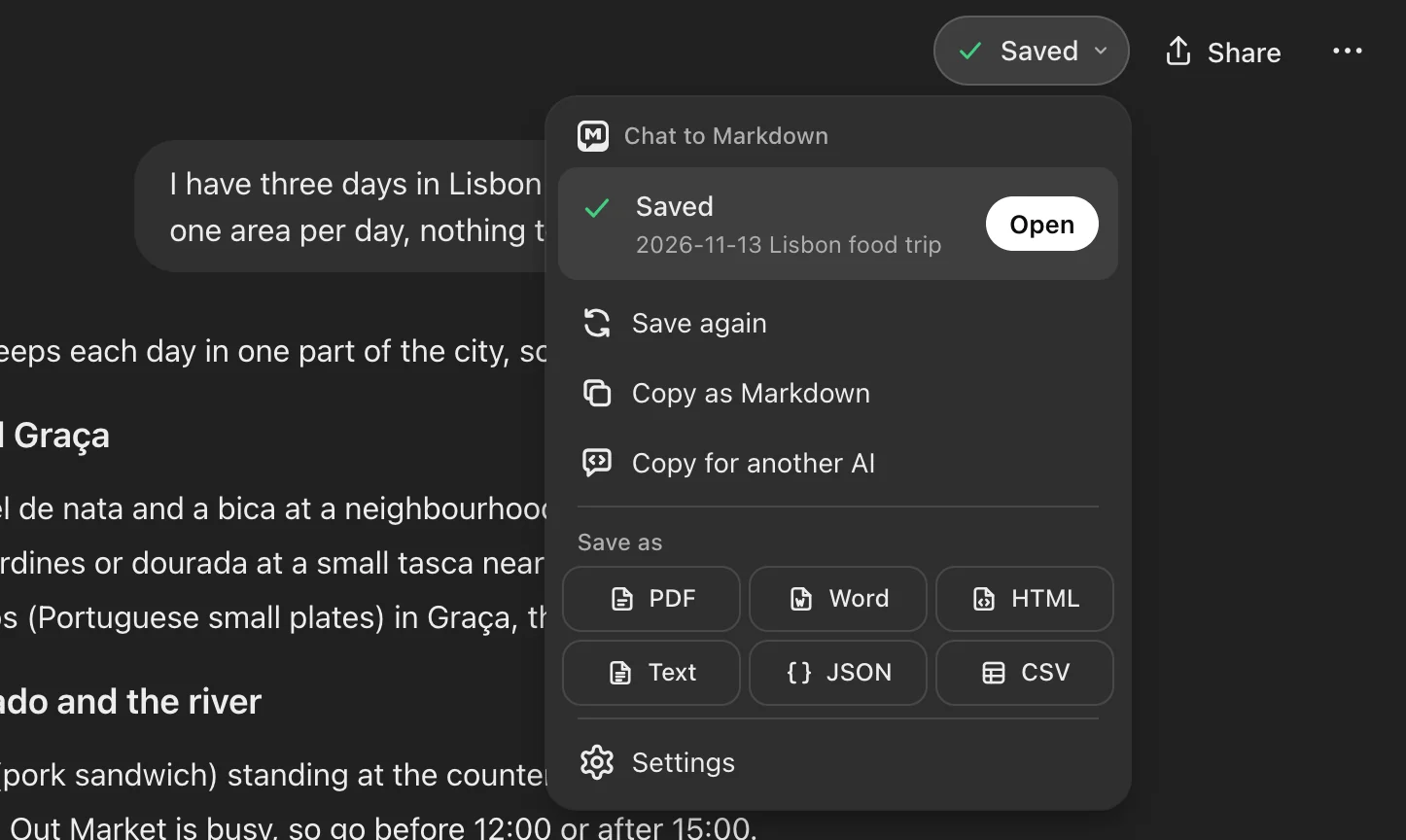
- Copy as Markdown copies the whole chat, every message, as Markdown, without the properties or sync markers. It reads the chat from ChatGPT, so you always get the latest version.
- PDF, under Save as, opens the chat in the extension’s reader, then Chrome’s print preview, with formulas, diagrams and pictures drawn.
- The other formats download the chat as a file: a Word document, one HTML file with its pictures inside, plain Text, JSON or CSV.
A message confirms the copy, for example “Copied 12 messages as Markdown”. Paste it anywhere. See the Save button for every item in the menu.
Note
Does Copy as Markdown count toward the 10 free chats? Yes, the first time. The docs say: “On Free, copying or exporting a chat that isn’t one of your 10 saves it first, so it uses one of them.” Copying, exporting or saving again a chat that is already one of your 10 doesn’t count again. When all 10 are used, Copy and Save as show a PRO tag on other chats. See Free and Pro.
Tip
To pick your 10 chats yourself, set ChatGPT to Only chats I save in Settings → Chat services before you press Start saving. Then only chats you save with the button take a place.
Free has no account, no card and no end date. Pro saves every chat you have ever had; see the plans.
Your chats are read in your browser and written to your folder. They never reach our server.
What it doesn’t do: it runs in Chrome on a computer only, not in the ChatGPT phone apps, and it can’t save a chat you already deleted on ChatGPT.
Which way to pick
- One answer to quote: the copy icon.
- Show a chat to someone: a share link.
- A chat to print or send as a file: print to PDF.
- Your whole account: the data export.
- One chat as a Markdown note: the Save button, or Copy as Markdown from its menu.
If you want every chat as its own Markdown file and not just one, read how to export ChatGPT chats to Markdown. Once they are in your vault, organising AI chats in Obsidian shows what to do with them.