The reader
Read saved chats inside the extension: the chat list, service filter, table of contents, formulas, diagrams, charts, pictures, Re-sync, copying and sending.
In short
The reader (Saved chats) shows every saved chat as it looks in your folder, drawn like a chat: formulas, diagrams, Claude's charts and pictures included. Open it from the popup with the Saved chats icon or All saved chats. Pick a chat on the left; at the top you can open it on its site, re-sync it, copy it, export it or send it on.
On this page
- Open the reader
- The parts of the reader
- The top of the sidebar
- The list
- The chat’s bar
- Reading a chat
- Math and diagrams
- Tables
- Charts, diagrams and widgets
- Pictures
- Files and links
- Re-sync a chat
- Copy, export and send
- Select several chats
- Table of contents view
- The sidebar
- Keyboard
- While chats are saving
- Problems
- Questions
The reader is a page inside the extension, titled Saved chats, that shows your saved chats the way a chat site would: with formulas, diagrams, charts and pictures. It reads the Markdown files in your folder, so what you see is exactly what is saved.
Open the reader
- From the popup: click the Saved chats icon at the top, or All saved chats above the service cards. A service card’s menu has Saved chats too, which opens the list filtered to that service.
- From a chat page: once a chat is saved, open the Save button’s menu and click Open next to Saved.
- From popup search: hover a result and click Read the saved file, or click Show all … in Saved chats to carry the search over.
- From Settings: Settings → Obsidian → Open in reader opens the table of contents.
The reader opens in a new tab. You can keep it open: the list follows new saves.
The parts of the reader

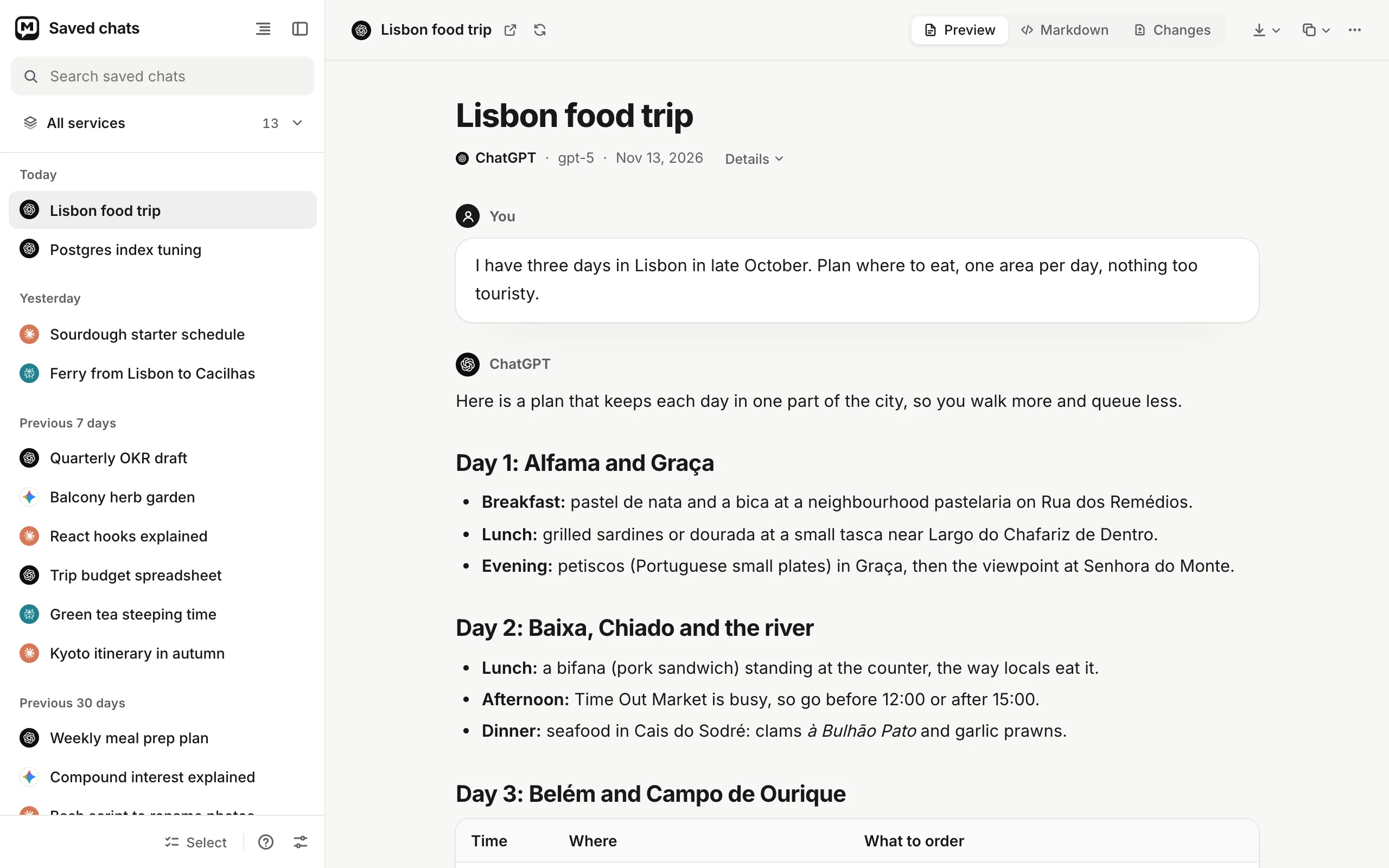
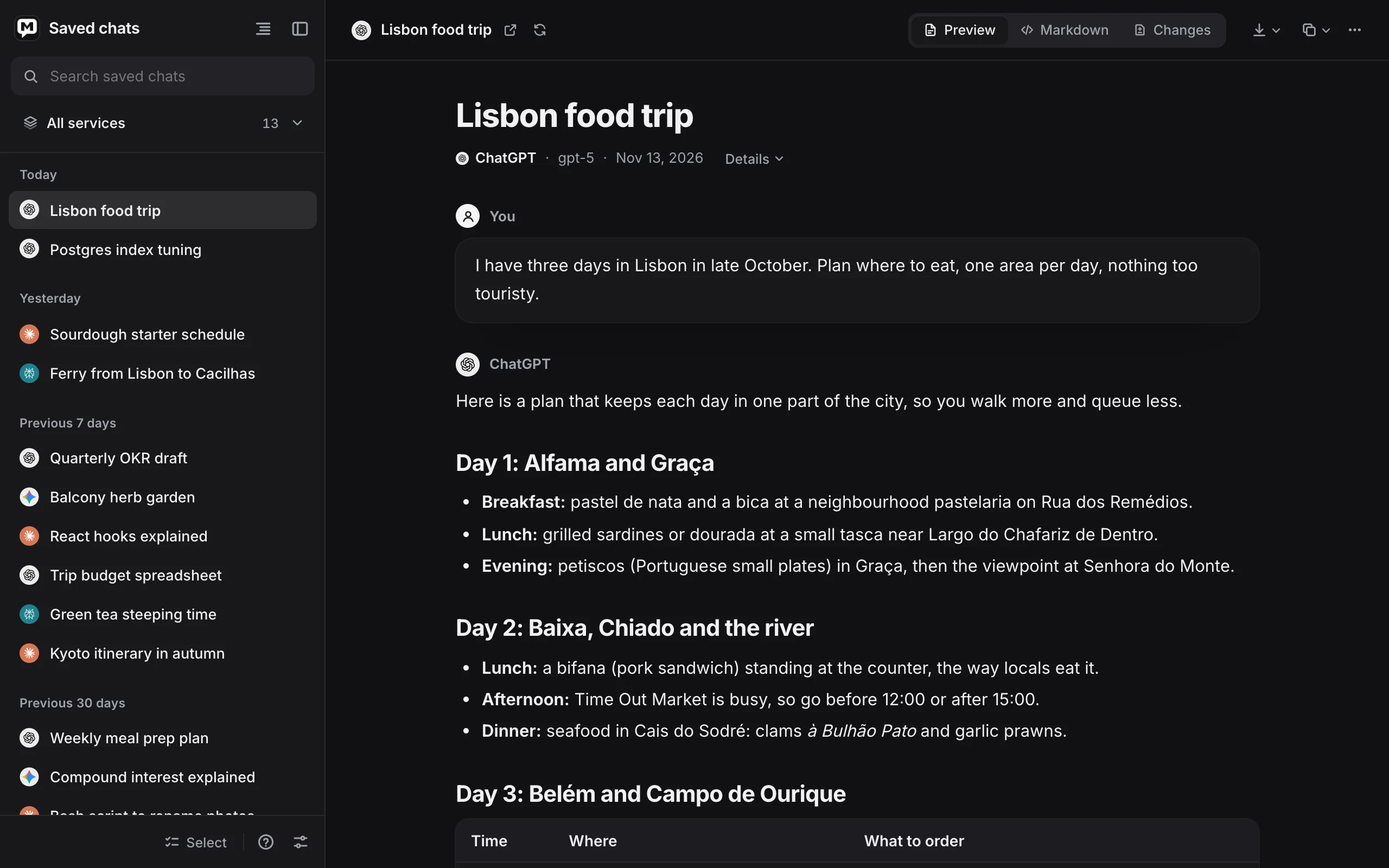
- The list of your saved chats, newest first.
- The chat’s bar: the open chat’s service and title.
- Actions for the open chat: files and links, Copy and More. See Copy, export and send.
The top of the sidebar
- Search finds chats by title and by words inside them. See Search your chats.
- Show chats from narrows the list to one service, with the number of chats for each. It is hidden when all your chats come from one service.
- Table of contents (the list icon) shows every saved chat grouped by service, project and month. See Table of contents view.
The list
The list shows your chats, newest first, under Today, Yesterday, Previous 7 days, Previous 30 days, then by month. The order follows when each chat last changed. Point at a chat for a moment to see its full title, service and project, when it was last updated, and where else it is saved.
The chat’s bar
- The title shows the service’s mark and the chat’s title. Point at it to see the file’s path.
- Open in ChatGPT (or the chat’s service) opens the chat on its site in a new tab. Not shown for a deleted, temporary or incognito chat.
- Re-sync fetches the chat from its site again. See Re-sync a chat.
- Preview, Markdown and Changes switch the view. See Reading a chat.
- Actions: the files and links panel, Copy and More. See Copy, export and send.
At the bottom of the sidebar: how many chats a filter leaves, an icon for each of Notion, Google Drive and GitHub once you connect them, Select, Help (the question mark, which opens this page), and Settings.
Reading a chat
Below the bar, the chat starts with its title and a short line of details: service, model, the date it started, its project and any extra tags. Click Details to see every property of the file. The reader remembers whether Details is open.
The switch in the bar changes the view:
| View | Shows |
|---|---|
| Preview | The chat, drawn. Your messages and the answers are set apart, each with its avatar or the service’s mark. |
| Markdown | The file exactly as it is on disk, with line numbers. |
| Changes | What changed in the file, version by version. Only there once the file has changed. See Version history. |
In Preview:
- Code blocks show their language and a Copy button.
- Thinking and other callouts are folded; click one to open it.
- Simple HTML formatting looks as it does in Obsidian:
<kbd>,<sub>,<sup>,<mark>,<u>,<ins>,<small>,<b>,<i>,<s>,<code>, and<details>with<summary>, which shows as a folded block. Other tags are shown as plain text. - Sources are listed under the message that cited them. Click a number in the text to jump to its source, and the arrow to jump back.
- Links to other saved chats (
[[...]]) open that chat in the reader. - A deleted chat shows This chat was deleted in ChatGPT. Your saved file is all that’s left of it.
- A temporary or incognito chat has a ghost next to its title: it isn’t in your history on the site, so this file is the only copy.
Math and diagrams
Formulas are drawn with KaTeX, as the chat sites draw them. A formula the reader can’t read shows its source in red. \( … \) and \[ … \] are shown as formulas only when they contain one. Words in escaped brackets, like \[brackets\], stay words.
Mermaid diagrams are drawn as diagrams. Their source is folded under them as Mermaid source. A diagram with a mistake in it says This diagram has a mistake in it and opens its source.
Tables
A table wider than the page scrolls sideways, with a shadow on the side where more columns are. Columns of long text keep a comfortable width instead of a few words per line.
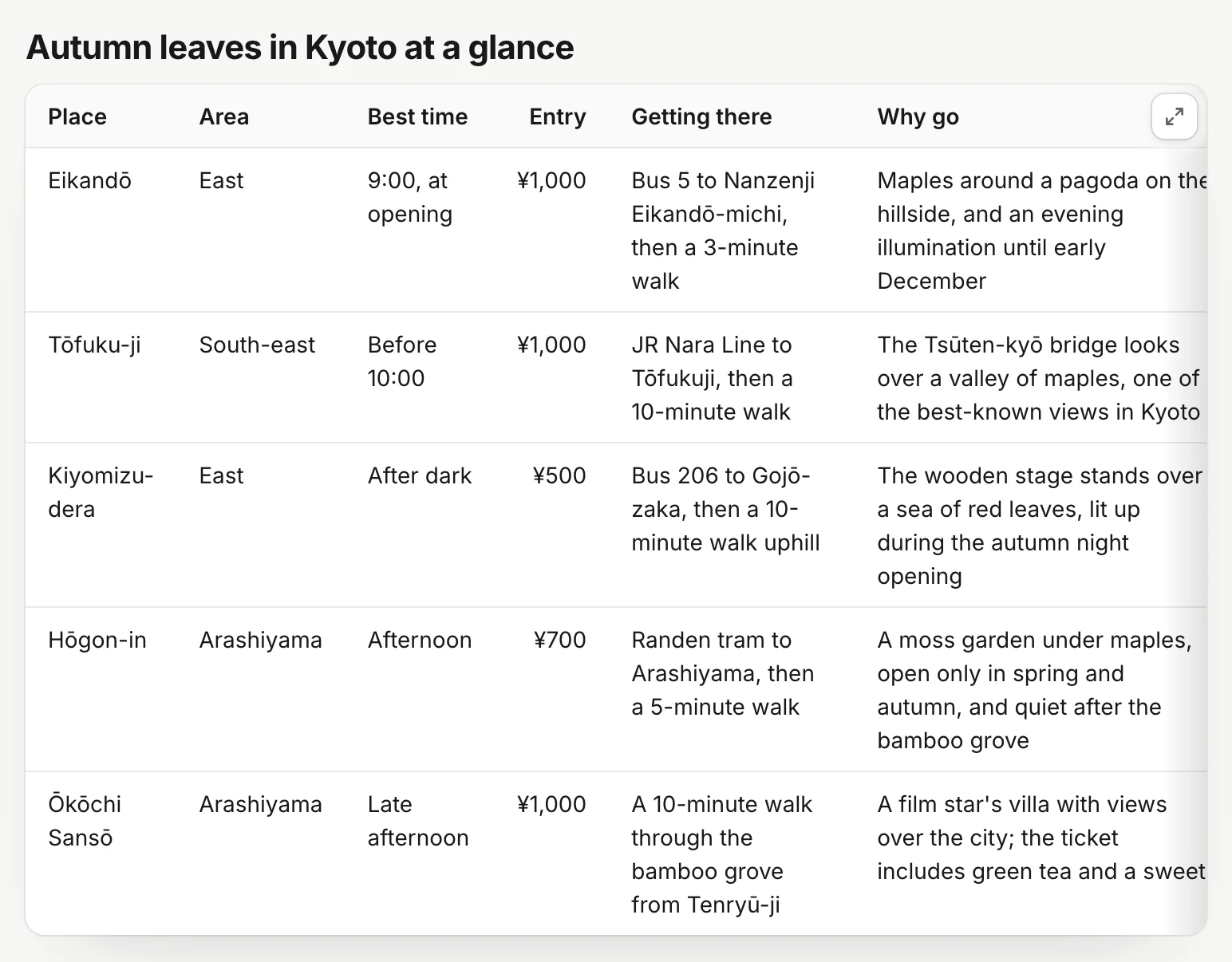
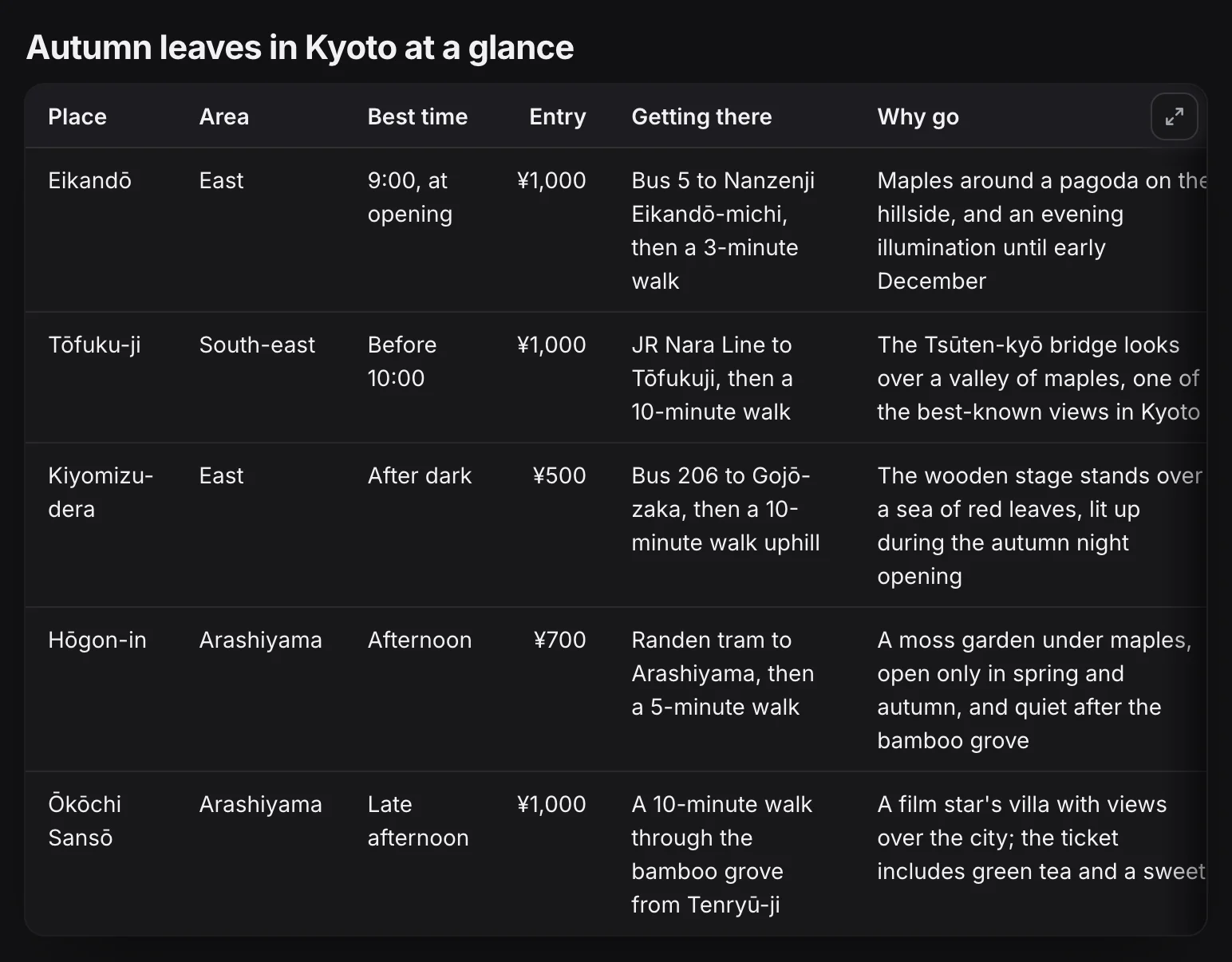
- Open the full table, in the table’s corner, stays in view as you scroll down a long table.
It shows the whole table in a large window, with the heading above the table as its title and the number of columns and rows:
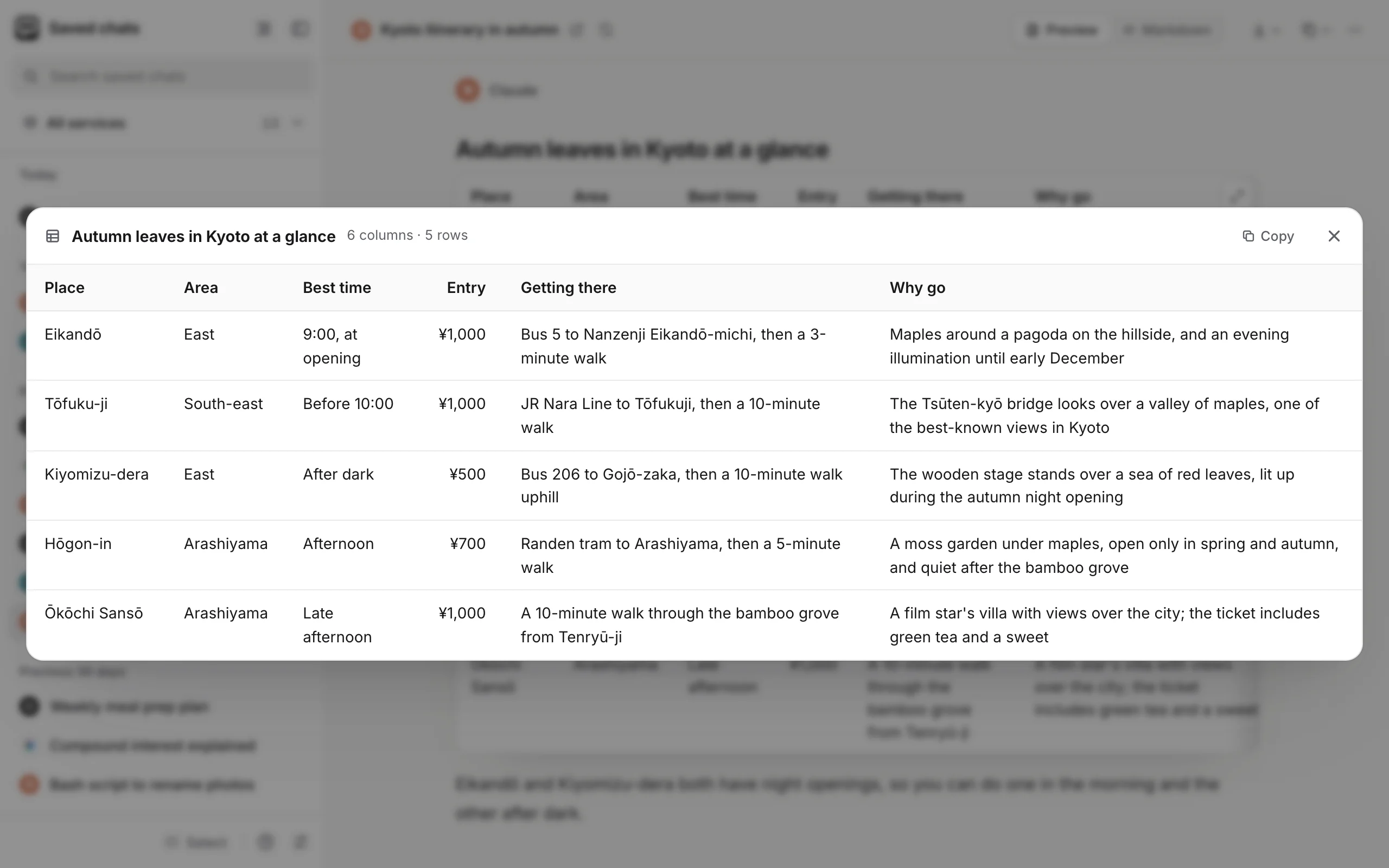
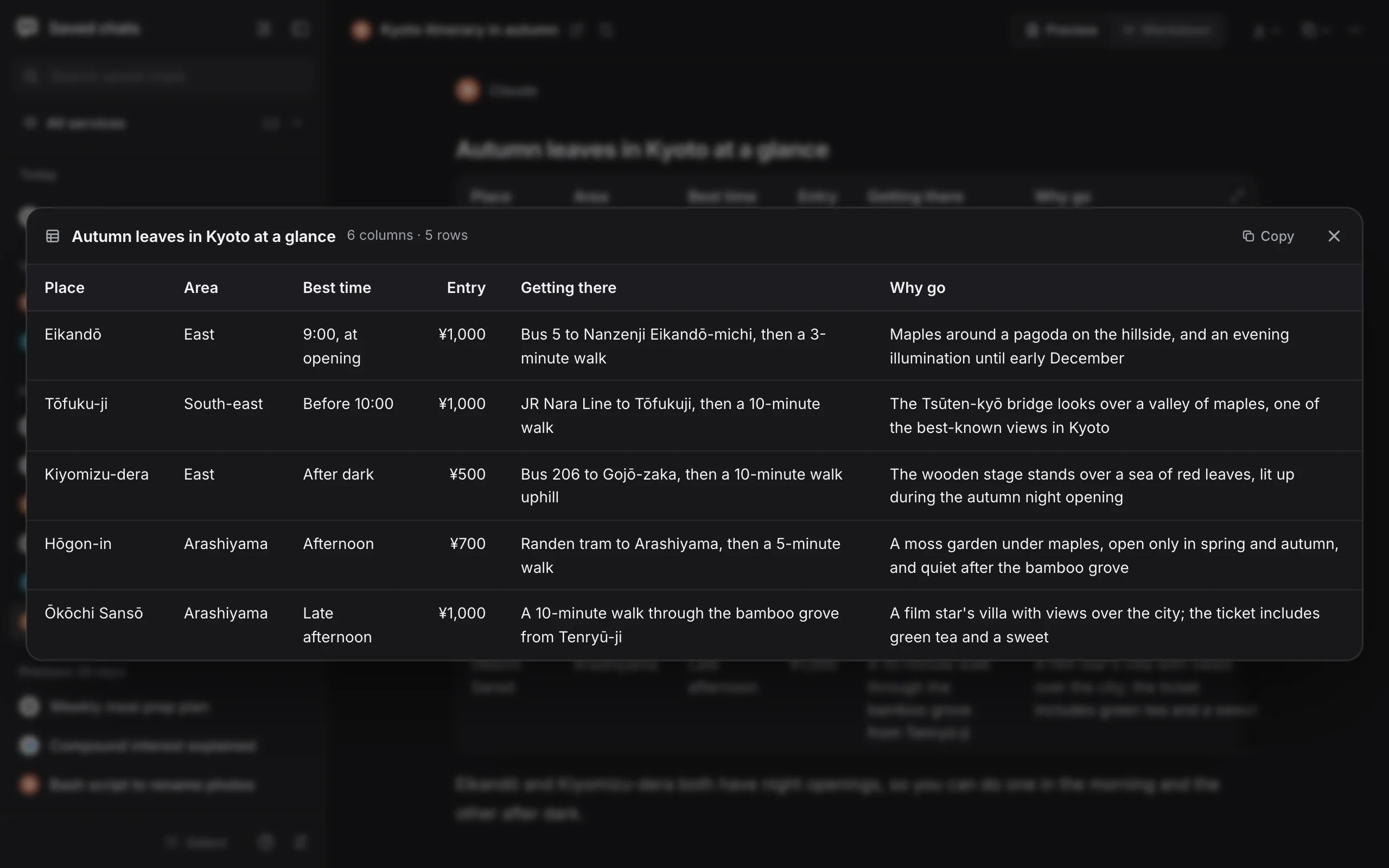
- Copy puts the table on the clipboard, ready to paste into a spreadsheet or a document.
- Close the window, or press Esc, or click outside it.
In the window, the header row and the first column stay in place as you scroll. You can also scroll with the arrow keys and Page Down. Clicking a source number closes the window and jumps to the source. Exports and printouts don’t include the button.
Charts, diagrams and widgets
Charts and diagrams Claude draws, web apps Claude publishes, ChatGPT’s interactive answers, apps built in Gemini’s Canvas and pages Copilot makes are saved as pages in attachments. The reader runs each one in a sealed-off frame that can’t reach the extension, your files or the web. Anything a page needs, such as React, Chart.js or Tailwind, is built into the extension:
- While it draws, you see a placeholder such as Drawing the chart…. If it takes long: Taking longer than usual… and Start again.
- Open opens it full size in a new tab.
- It follows the reader’s light or dark theme.
- A button that would ask Claude a follow-up shows In Claude this asks: “…” with Copy, so you can paste the question into Claude.
- A widget doesn’t scroll the chat or take over the keyboard until you click it, so a chat always opens at the top.
- If something it uses didn’t load: Some of it didn’t load, with Try again. If it can’t run at all: This couldn’t be drawn here.
Pictures
Click a picture, or press Enter on it, to open the picture viewer. Every picture of the chat is a swipe or arrow key away.
| Do this | To |
|---|---|
| ← → or swipe | Go to the previous or next picture |
| Scroll, pinch, + − | Zoom |
| 0 / 1 | Fit to the screen / actual size |
| Click the picture | Zoom in there, or back to fit |
| Drag | Move a zoomed picture |
| Esc or click beside it | Close |
The viewer also has Download and Open in a new tab. A picture that isn’t in your folder yet shows Not in your folder yet with Look again.
Files and links
The paperclip button in the bar, with a number, opens a panel of every file and link in the chat. Files are grouped by kind (Images, Documents, Code, Data, Audio and video, Archives, Other files), links by role (Sources, Links, Web images). Click a row to jump to where it is in the chat, or its arrow button to open it. Files marked Not saved weren’t downloaded. With ten or more rows, a Filter field appears.
On a wide window the panel sits beside the chat; on a narrow one it slides over it, and Esc closes it.
Re-sync a chat
Re-sync (the circling arrows next to the title) fetches the chat from its site again. It brings in what changed since it was saved and the pictures and files still missing, using your current What to save options. The chat reloads, wherever its file now is.
| Message | Meaning |
|---|---|
| Updated from ChatGPT | The file changed. |
| Already up to date with ChatGPT | Nothing new on the site. |
| Deleted on ChatGPT: there’s nothing to fetch | The chat is gone from the site. Your file stays. |
| Turn on ChatGPT in Chat to Markdown settings first | The service is off. Click Settings in the message. |
You need to be signed in to the site in this browser. On the Free plan, re-syncing a chat outside your 10 free chats opens the upgrade page. Temporary and incognito chats have no Re-sync button: the site doesn’t keep them.
Copy, export and send
Copy menu:
- Copy as Markdown: the whole file.
- Copy as context (for another AI): the chat as a compact prompt to paste into another assistant.
- Select messages: pick single messages, then copy them as Markdown or as context, or save them as a file with Export in the bar at the bottom. Click a message’s name, or its checkbox; Shift-click selects a range. Done or Esc ends it.
Export menu (the download icon): PDF, Word document, Web page (HTML), Plain text, JSON and CSV. See Save as PDF, Word and other files.
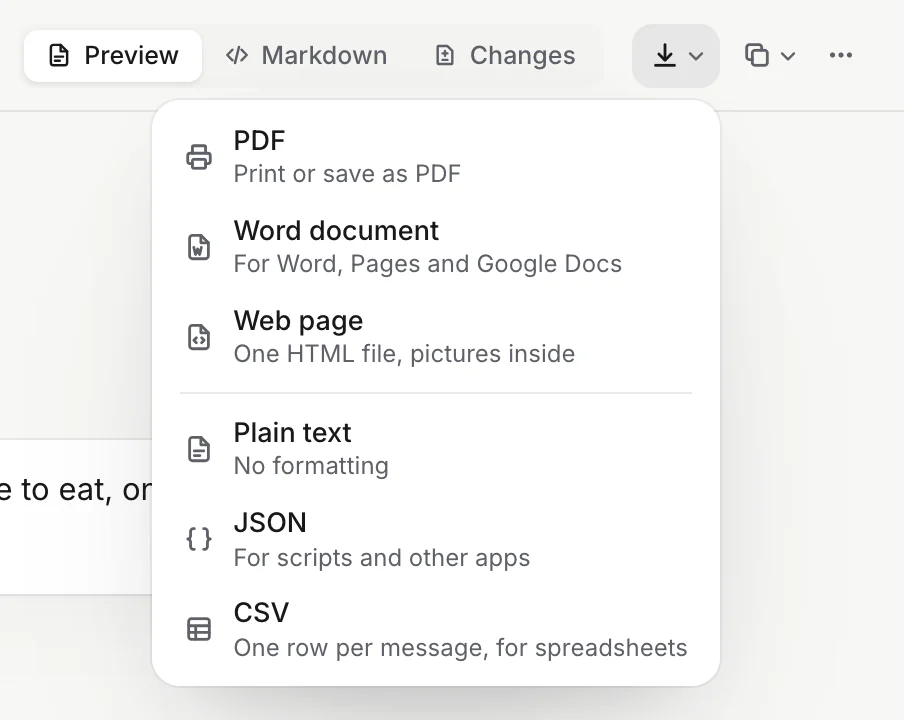
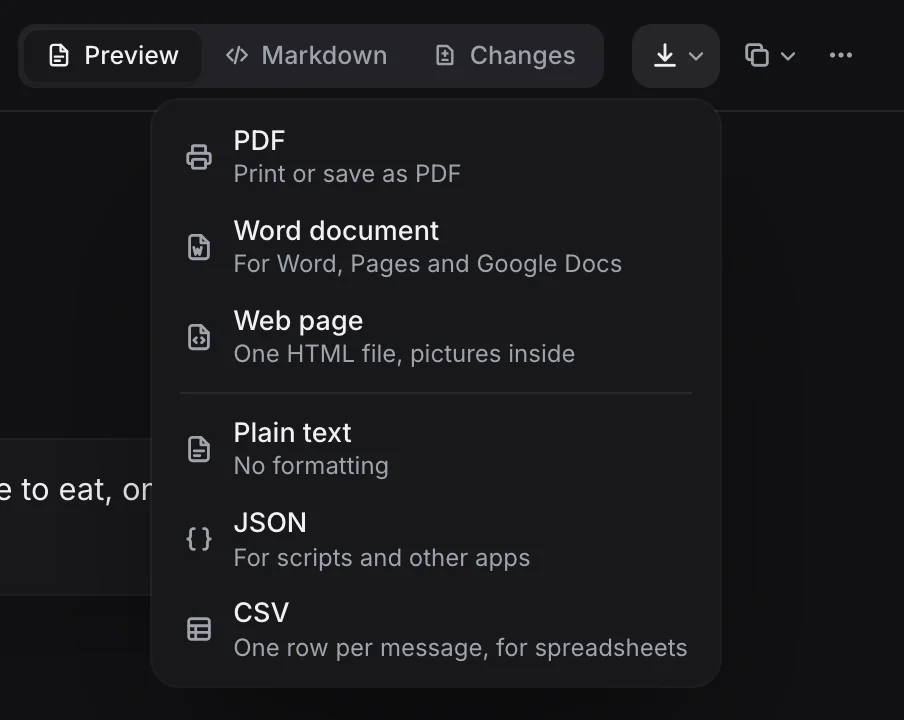
More menu (•••), shown when it has something to offer:
- Open in Obsidian, when your folder is an Obsidian vault.
- For each of Notion, Google Drive and GitHub you have connected: Send to Notion (or Update in Notion once sent), Open in Notion, and Remove from Notion. See Send chats to Notion, Google Drive and GitHub.
Select several chats
Click Select at the bottom of the sidebar. Each chat gets a checkbox:
- Select all ticks every chat shown (a search or service filter narrows it). Done ends selecting.
- With Notion, Google Drive or GitHub connected, quick picks such as Not in Notion and Out of date select the chats missing there.
- The bar at the bottom says how many are selected, with Send … to Notion (or Send to… with several destinations), Copy as context, and Remove from … in its menu.
Without Select: Cmd-click (Mac) or Ctrl-click a chat, or click its service mark, to tick it; Shift-click selects a range. Esc clears the selection.
Table of contents view
The table of contents button at the top of the sidebar shows every saved chat in one page: a count, a chip for each service to jump to it, then each service folded open to its projects (Other chats for chats outside one) and months. Click a title to open the chat. Deleted chats are tagged Deleted.
If the table of contents note is on in Settings → Obsidian, you can switch to Markdown to see the note as it is on disk, and Open in Obsidian opens it there. See Table of contents note.
The sidebar
- Hide it with the sidebar button at its top, or Cmd+\ (Mac) / Ctrl+\. The same keys, or the Show sidebar button that takes its place, bring it back.
- Resize it by dragging its right edge, between 240 and 440 pixels. Double-click the edge to reset it. With the edge focused, the arrow keys resize it too.
The reader remembers the width, whether the sidebar is open, and Preview or Markdown.
Keyboard
Press / to search, ↑ and ↓ in the list to open the previous or next chat, Space to select one, and Esc to close a menu or end selecting. All shortcuts are in Keyboard shortcuts.
While chats are saving
The reader keeps up with saving. Each chat shows up in the list as soon as it is saved, so during a long first sync you can watch the list grow. If you open the reader before anything is saved, it shows No saved chats yet and opens the first chat as soon as it arrives.
A chat you have open reloads when its file changes, unless you are in Markdown view or selecting messages. If Apply to saved files renames it, the reader follows it to its new name.
Problems
“Choose a folder first”. No folder is chosen. Click Choose a folder. See Choose your folder.
“Allow access to your folder”. Chrome forgot the folder permission after a restart. Click Allow access and choose Allow on every visit.
“This file isn’t in your folder”. The file was moved, renamed or deleted. See Moving and renaming files yourself.
A chart shows “This couldn’t be drawn here”. Click Try again. If it still fails, click Open to run it in a tab of its own.
Re-sync says to sign in. Open the chat’s site in this browser, sign in, and try again.
Questions
Does the reader need an internet connection?
No. It reads the files in your folder. Only Re-sync, opening a chat on its site, pictures linked from the web and sending to Notion, Google Drive or GitHub need a connection.
Can I edit a chat in the reader?
No, the reader only shows files. Edit them in Obsidian or any editor; the reader shows your changes the next time you open the chat.
Why does a chat say "This file isn't in your folder"?
Its file was moved, renamed or deleted outside the extension. See How your files are organised.