Auto-save and schedule
Set when Chat to Markdown checks for new chats: every 15 minutes to once a day, a custom interval, set times, certain hours or days, and saving on leave.
In short
In Settings → Auto-save, choose how often the extension checks for new and changed chats. The default is every 3 hours; you can pick anything from every 15 minutes to once a day, your own interval, or set times, and limit checks to certain hours and days. Checks run while Chrome is open.
Auto-save checks your chat services for new and changed chats on a schedule, and saves a chat when you leave it. This page covers every option in Settings → Auto-save.
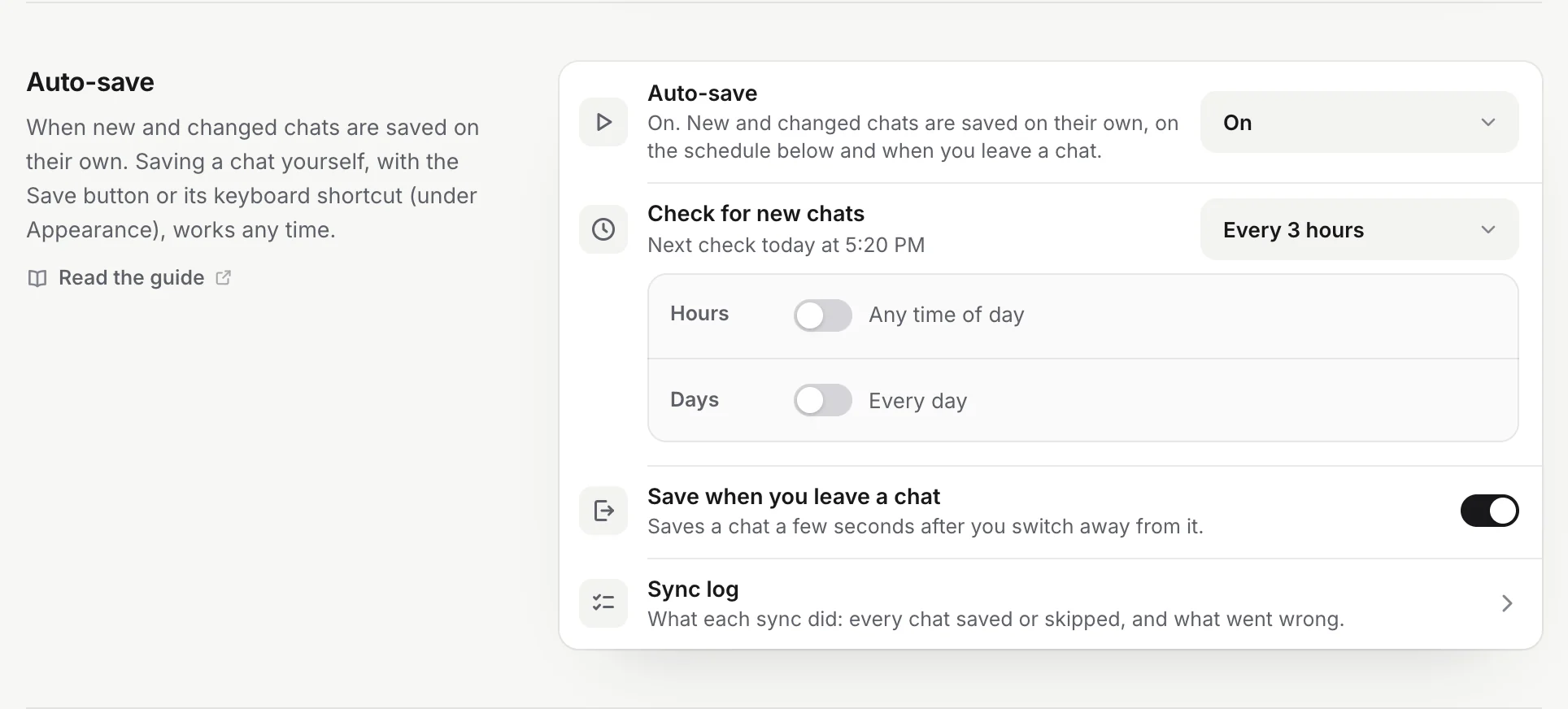
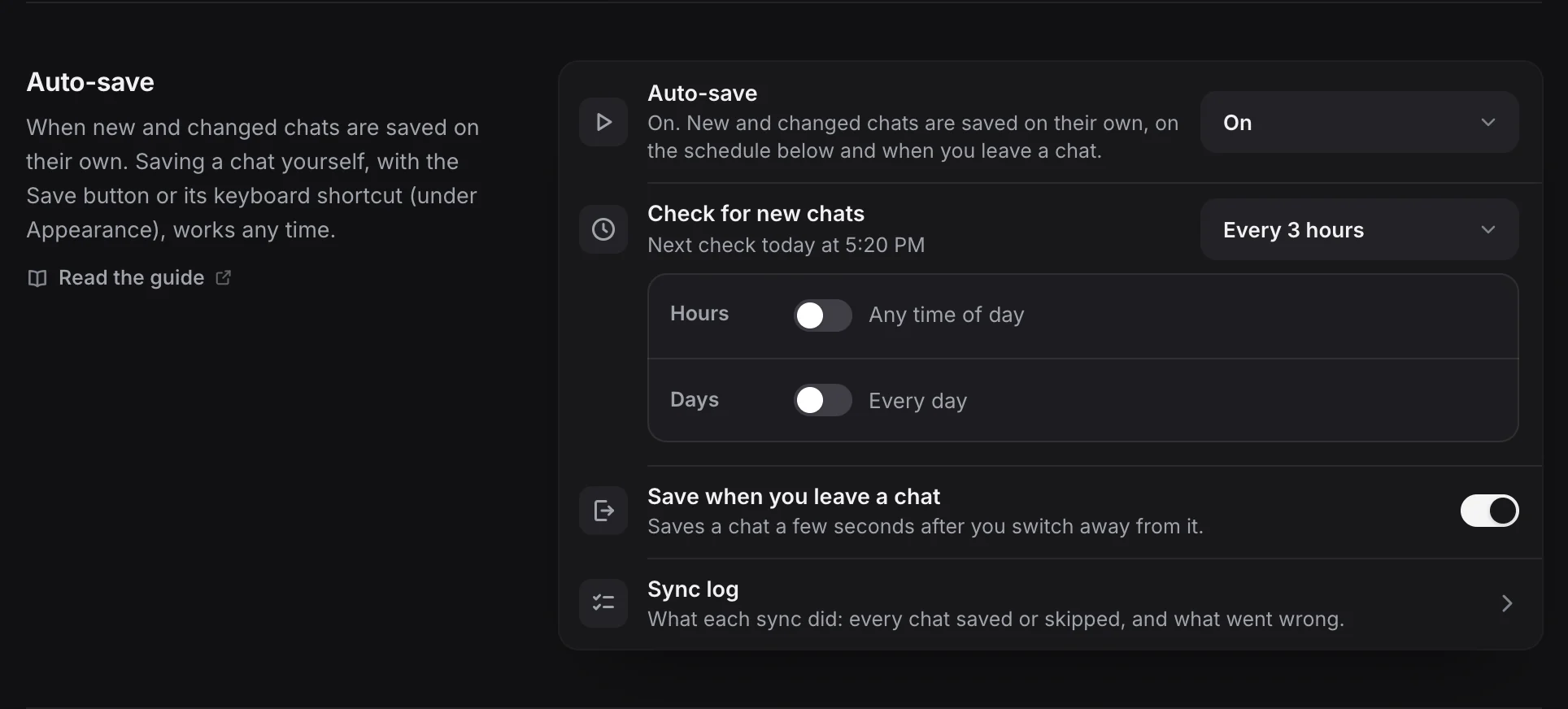
To open it, click Settings in the popup and choose Auto-save in the sidebar, or open the menu next to Sync now in the popup and click Change the schedule.
Auto-save on or paused
The first row, Auto-save, says whether anything is saved on its own. Its menu has:
- On: new and changed chats are saved on their own, on your schedule and when you leave a chat.
- Pause: For 1 hour, Until tomorrow (9:00 the next morning) or Until I resume.
While paused, the row says “Paused until you resume” (or until the time you chose) and “Nothing is saved on its own; Sync now and Save in a chat still work.” Set it back to On to resume; it looks for new chats straight away. You can do the same from the menu next to Sync now in the popup.
Note
There is no separate “off” switch. Until I resume keeps auto-save off for as long as you like. To stop saving one service’s chats on their own but keep the ones you save by hand, set that service to Only chats I save in Settings → Chat services. See Chat services.
Check for new chats
The Check for new chats row sets how often the extension looks. Its second line says when the next check is, for example “Next check today at 18:40” or “Next check tomorrow at 9:00”.
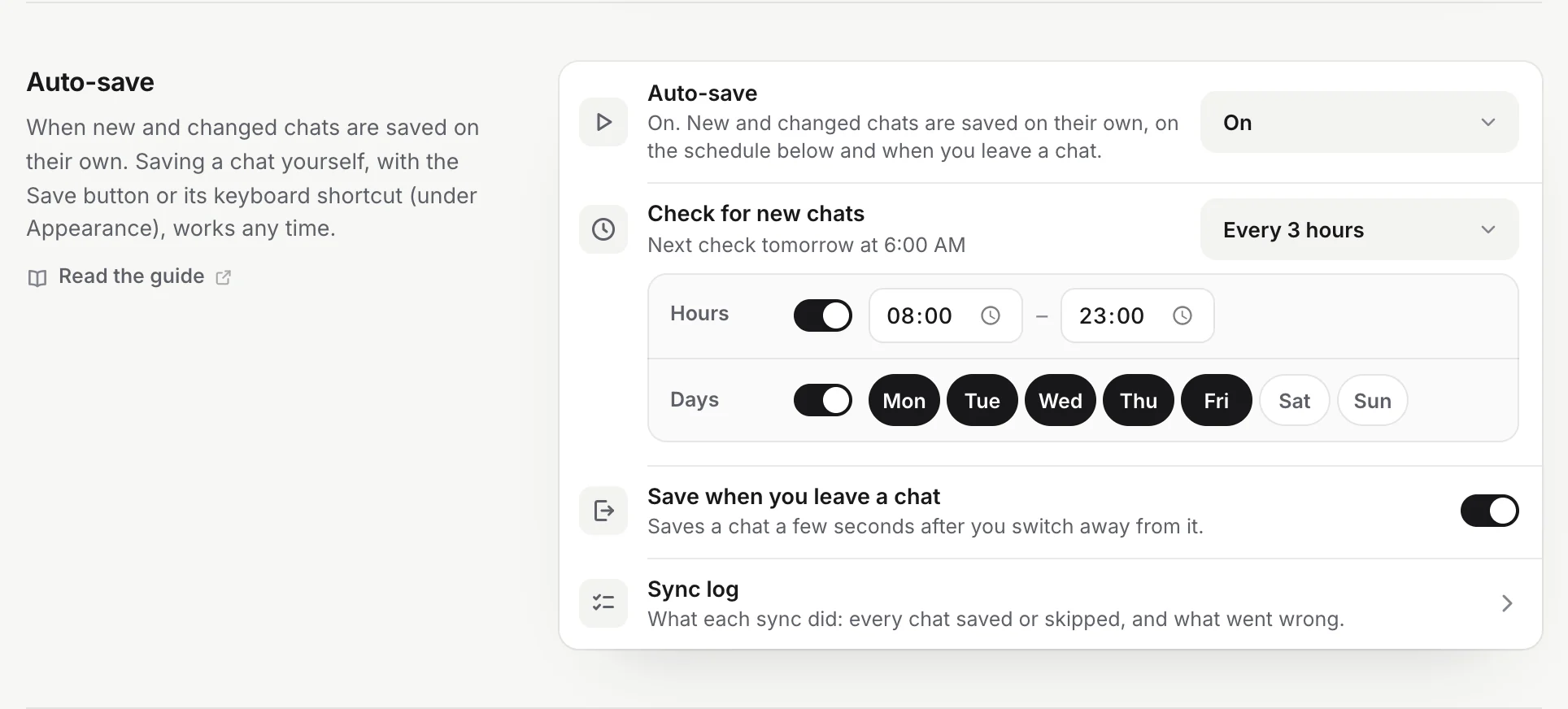
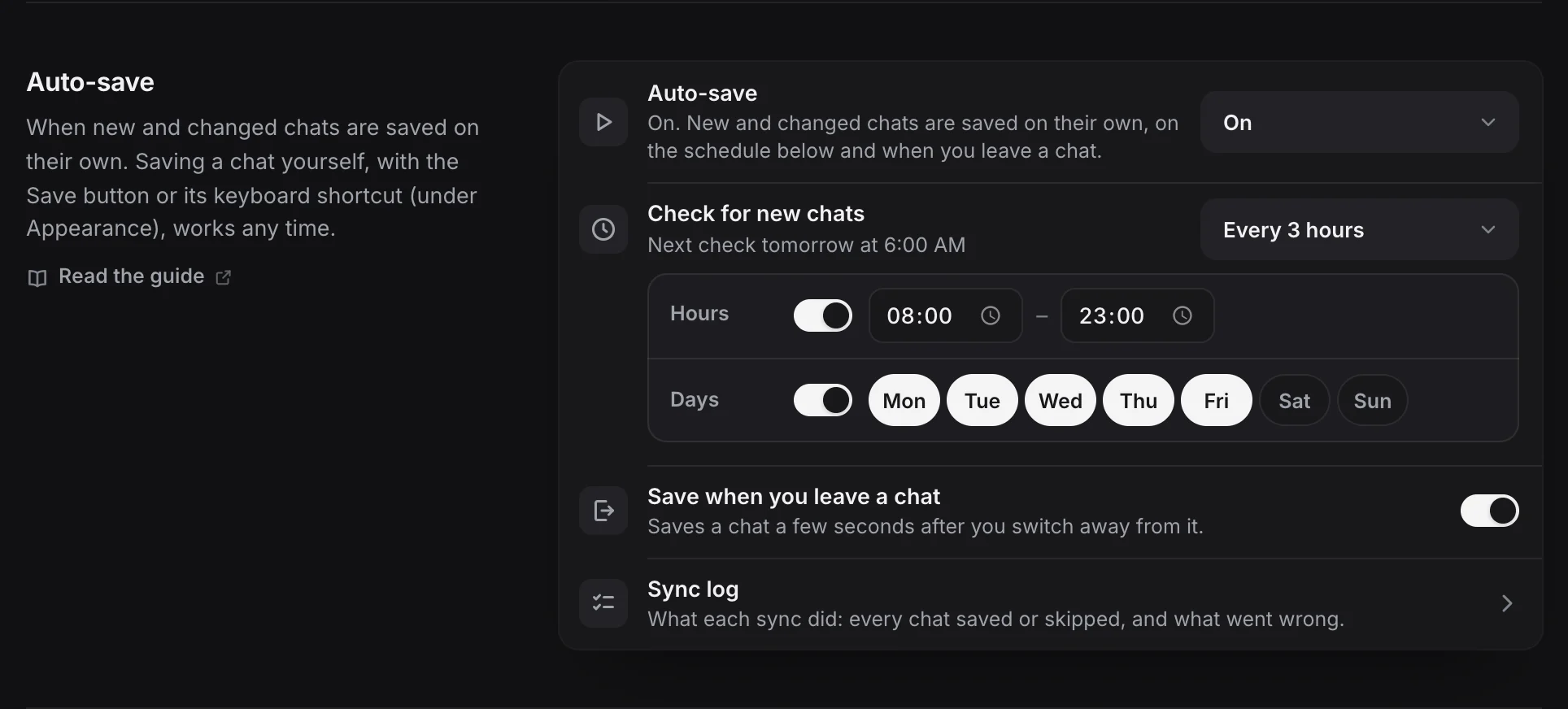
Pick one of these:
| Choice | When it checks |
|---|---|
| Every 15 minutes | Every 15 minutes |
| Every 30 minutes | Every 30 minutes |
| Every hour | Every hour |
| Every 3 hours | Every 3 hours (the default) |
| Every 6 hours | Every 6 hours |
| Every 12 hours | Every 12 hours |
| Once a day | Every 24 hours |
| Custom interval | Any interval from 15 minutes up to 7 days |
| At set times | At the times of day you add, such as 9:00 and 18:00 |
Every change is saved at once and moves the next check. An interval counts from the last check.
Custom interval
Choose Custom interval, type a number next to Every, and pick minutes or hours. The hint says “15 min or more”: a shorter interval is raised to 15 minutes, and the longest is 7 days.
At set times
Choose At set times. Under Times, each time shows as a chip:
- To add a time, set it in the time field and click + (or press Enter).
- To remove one, click the × on its chip. One time always stays.
- You can add up to 12 times.
Times use your computer’s clock and time zone.
Only at certain hours
For an interval (not for set times), turn on the Hours switch. It changes from “Any time of day” to two time fields, From and Until, set to 8:00 and 23:00 at first. Checks then run only between those times.
If Until is earlier than From, for example 22:00 to 7:00, the range goes over midnight and the editor says “over midnight”. Such a range belongs to the day it starts on.
Only on certain days
Turn on the Days switch. It changes from “Every day” to a button for each day, Monday first, with Monday to Friday picked. Click a day to add or remove it. At least one day stays picked; picking all seven is the same as every day.
Days work with intervals and with set times.
What the schedule looks like elsewhere
The popup shows your schedule under the status, for example “Every 3 hours” or “At 9:00 AM and 6:00 PM”, and the Sync log shows it under Next sync. Click it in the popup to come back here.
Save when you leave a chat
The Save when you leave a chat switch is on by default. “Saves a chat a few seconds after you switch away from it.”
You leave a chat when you:
- close its tab,
- open another chat or another page in that tab,
- switch to another tab, or
- switch to another app and Chrome stays out of focus for about five seconds.
Only a chat that changed while you had it open is saved, once it has been quiet for a few seconds. A reply that is still being written isn’t cut off.
Before you press Start saving, leaving a chat updates it only if you saved it yourself with the Save button or the shortcut. No other chat is saved until you start. A service set to Only chats I save works the same way. Nothing is saved on leave while auto-save is paused.
On Free, a chat you leave counts as one of your 10 free chats the first time it is saved. Once all 10 are used, leaving a chat that isn’t one of them saves nothing.
Sync log
The last row opens the Sync log: every sync and every chat you saved, with what went wrong.
When checks run
- Only while Chrome is open. Nothing runs when Chrome is closed. If a check was due while Chrome was closed or your computer was asleep, it runs soon after Chrome is open again.
- Not while you are offline. A check waits and starts within a minute of the connection coming back.
- After you press Stop. A check due in the next 15 minutes moves to the slot after it, so a sync you stopped doesn’t start again right away.
- While a long history is saved. The schedule keeps its times; older chats are saved in batches in between, as fast as each site allows.
The Save button, the shortcut and Sync now work any time, whatever the schedule, even while auto-save is paused.
Common questions
It says “While Chrome is open” instead of a next check. No next check is set at this moment. It is set again when Chrome starts and whenever you change the schedule.
My chats saved later than my schedule says. A check finds new and changed chats; a long history or a site that limits requests can take longer to save them all. See How saving works.
Questions
How do I turn auto-save off?
In Settings → Auto-save, set Auto-save to Until I resume. Nothing is saved on its own until you set it back to On. The Save button and Sync now still work.
Can it check more often than every 15 minutes?
No. 15 minutes is the shortest interval, so the chat sites are asked politely. To save a chat at once, use the Save button or Alt+Shift+S.
Do checks run when Chrome is closed?
No. They run only while Chrome is open. A check that was due while it was closed runs soon after you open Chrome again.
Which time zone do set times use?
Your computer's local time.