Start over or delete saved chats
New in 1.0.1
Delete every chat Chat to Markdown saved, then save your history again from the start, or stop saving. What is deleted, what is kept, step by step.
In short
Settings → Start over has two buttons. Start over deletes every saved chat and its files, then saves your chat history again from the beginning. Delete all saved chats deletes them and stops saving until you press Start saving. Notes you wrote in, and chats deleted on their site, are kept unless you tick them.
Sometimes you want a clean slate: you changed how files are named or organised and want everything saved again in the new way, or you want the extension’s files out of your vault. The Start over section of Settings does both, and shows you exactly what will be deleted before anything is.
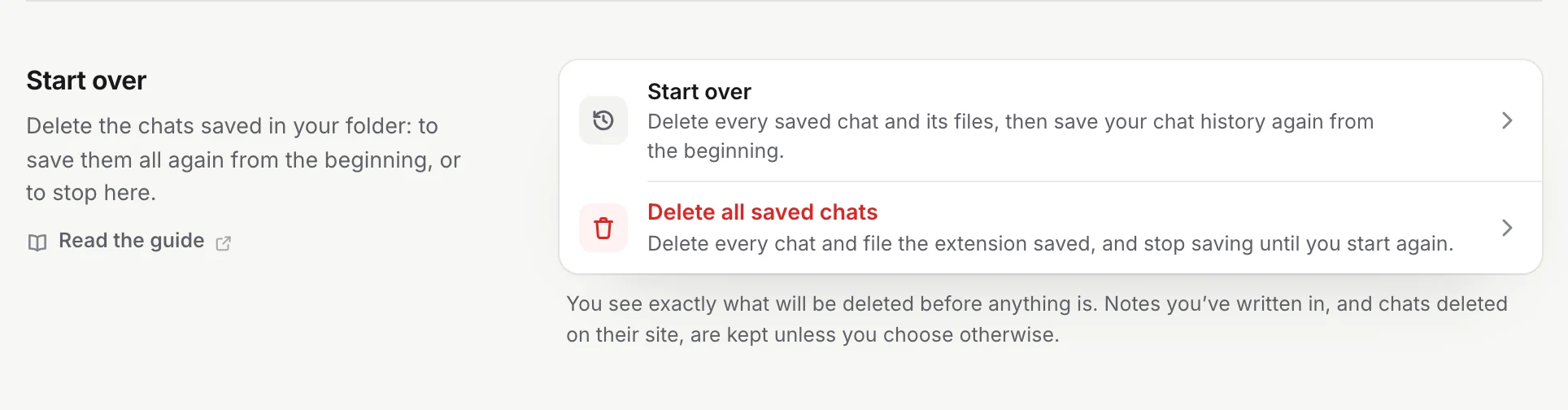
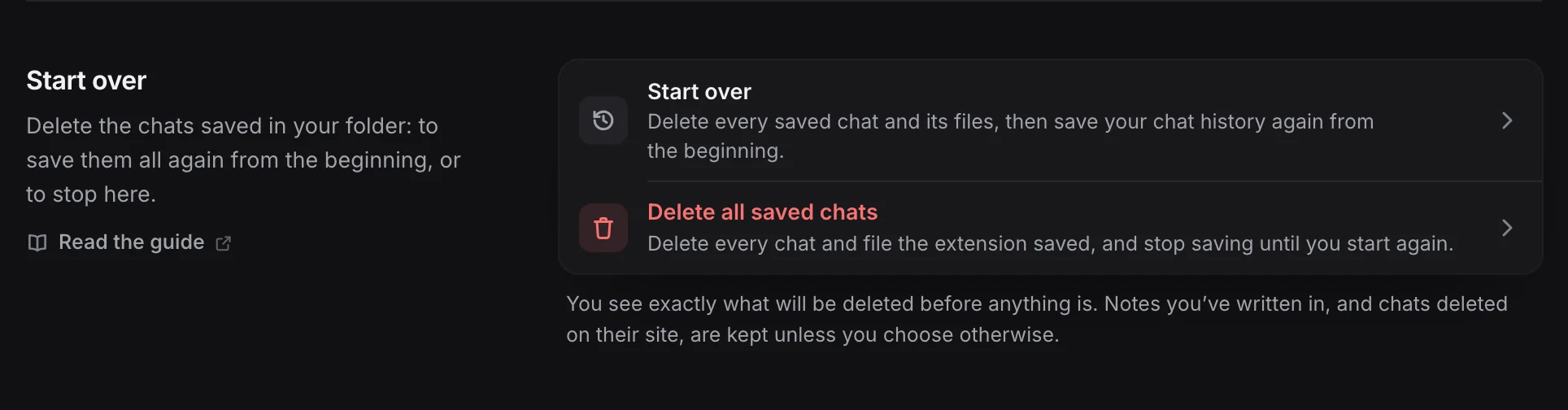
- Start over: delete, then save everything again from the beginning.
- Delete all saved chats: delete, then stop saving.
Which one to use
| Start over | Delete all saved chats | |
|---|---|---|
| Deletes the chats saved in your folder | Yes | Yes |
| Then | Saves your chat history again from the beginning, at once | Saves nothing new until you press Start saving |
| Use it when | You want every chat saved again, for example in a new layout | You want the files gone and saving stopped |
Both delete the same things and keep the same things. The only difference is what happens after.
Tip
To rename the files you have or update their properties, you don’t need to start over. Settings → File names → Apply to saved files does it in place. See File names and properties.
What is deleted
Only what the extension made. The dialog lists each item with a count before you confirm:
- Chat notes. Each saved chat’s Markdown file, with a count per service (for example “ChatGPT 120 · Claude 34”).
- Images and files. The pictures and uploads saved with those chats in their
attachmentsfolders. Files named the way the extension names them that no kept note links to are deleted too; they are left over from a sync that was stopped. Files that your own notes in the same folder link to are kept. - Version history. The earlier versions the reader keeps in the hidden
.chattomarkdownfolder. - Your table of contents. Its list of chats is removed. The note itself is deleted only if there is nothing else in it; if you wrote in it, your text stays.
- Chat links in your daily notes. Shown when Daily note links is on. The links block is removed; the daily notes themselves stay.
- Records of chats with no file. Chats the extension remembers as saved whose files are already gone.
- Empty folders left behind, including the
.chattomarkdownfolder once it is empty.
Your other notes and files are never touched.
Warning
Files are deleted from your computer for good: they don’t go to the Trash. If you want a copy, back up the folder first.
What is kept, unless you tick it
Two kinds of notes stay by default. The dialog shows a tick box for each, but only when you have some:
- Also delete N notes you’ve written in. A note counts as yours when it has your own text above or below the chat, or when you removed the extension’s start and end markers. Changes you made only to its properties (frontmatter) don’t count. Left unticked, these notes stay as they are, with their pictures and version history.
- Also delete N chats deleted on their site. These are chats you deleted on ChatGPT, Claude or another service while Keep chats you delete was on. Your file is the only copy left. If you tick this, they are gone for good and can’t be saved again.
A note that is kept keeps everything that belongs to it, so the extension still knows it and keeps it up to date.
Copies in Notion, Google Drive and GitHub
If you connected Notion, Google Drive or GitHub and chats were sent there, the dialog adds one tick box for each, unticked by default:
| Tick box | What happens |
|---|---|
| Also remove N chats from Notion | Their pages go to Notion’s Trash, where you can restore them for 30 days. |
| Also remove N chats from Google Drive | The folder goes to Drive’s Trash, where you can restore it for 30 days. |
| Also remove N chats from GitHub | They are deleted from the repository in one commit. Its history still has them. |
Left unticked, the copies stay where they are. The connections themselves stay either way.
Step by step
- Open Settings → Start over. Click Start over or Delete all saved chats. If Chrome needs your permission for the folder, it asks now; choose Allow.
- Wait while it looks through your folder. The dialog shows the folder’s name and counts the saved chats as it reads them (“Reading your saved chats…”). Nothing is changed yet. You can Cancel at any time.
- Read the list. The dialog says what happens, for example: Every chat saved in “Obsidian Vault” is deleted, then your chat history is saved again from the beginning. Below that is the list of what will be deleted.
- Tick what else to delete, if anything. The tick boxes for notes you wrote in, chats deleted on their site, and copies in Notion, Google Drive or GitHub. The list updates as you tick.
- Confirm. Click Delete and start over, or for Delete all saved chats, Delete N chats. Or Cancel to leave everything as it is.
- Keep the tab open while it works. The dialog shows each step with a check mark as it finishes: Stopping saving and checking your folder again, Deleting chat notes, Deleting images and files, Deleting version history, Updating your table of contents and daily notes, Removing empty folders, then any Removing from Notion (or Drive, GitHub) steps, and for Start over, Starting to save again.
- Read the result and click Close. It says Done, then for example “Deleted 154 chats and 212 images and files.”
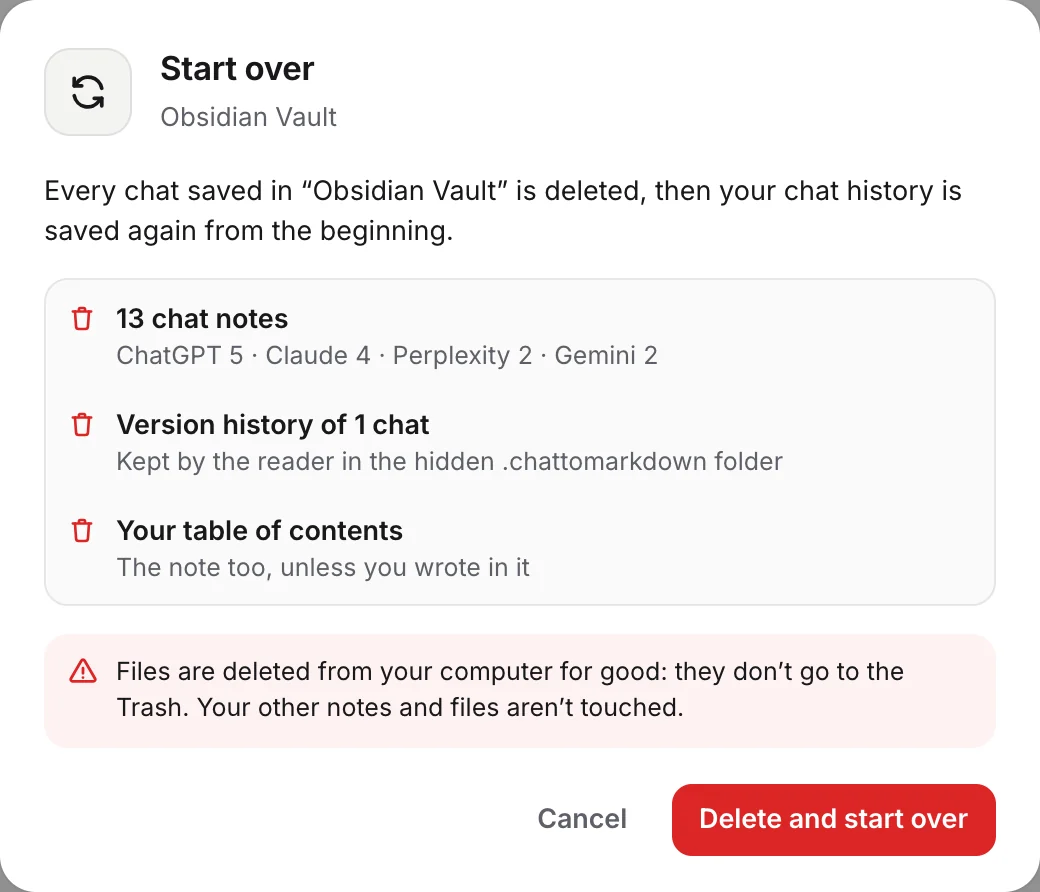
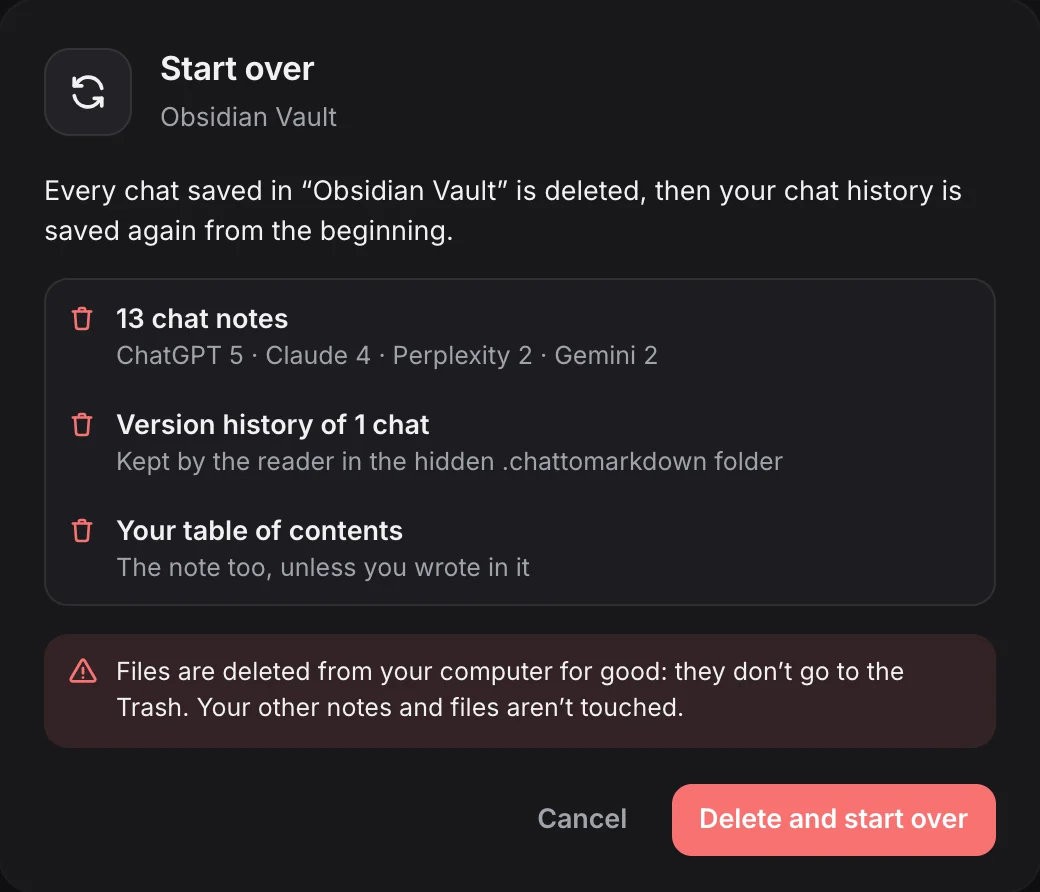
The Delete all saved chats dialog has the same list and tick boxes. Only its first line and its button differ.
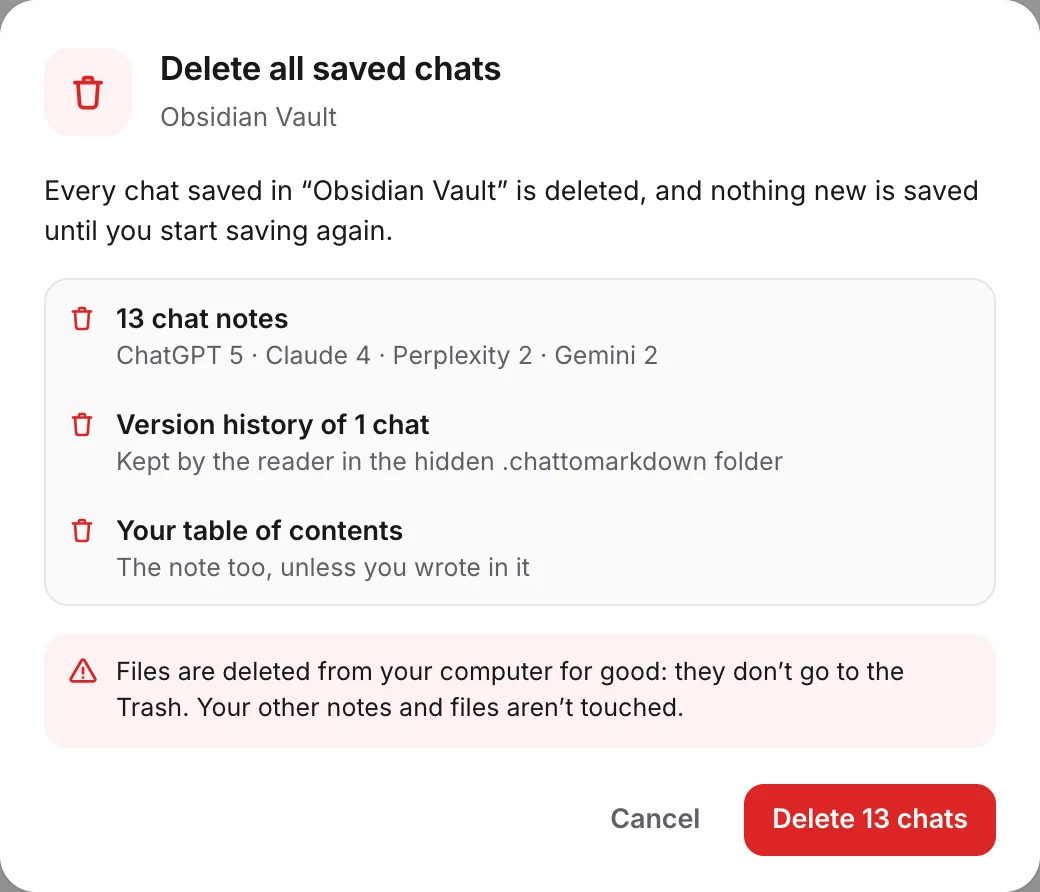
While it deletes, every other save waits, so nothing is written to the folder in between. Pressing Esc stops it, like the Stop button, and closing the tab asks you first.
Stopping halfway
Click Stop while it deletes. It finishes the item in hand and stops (“Stopping…”). The table of contents and daily notes are still updated so they don’t link to deleted notes. The result says Stopped: “Stopped before the end, as you asked. Run it again to delete the rest. Until then nothing new is saved, unless you press Start saving.”
What happens after
After Start over
The extension starts saving at once, from the beginning. “Your history is being saved again from the beginning. The popup shows how far it has got.” It is the same as your first sync: on Pro, your whole history; on Free, your free chats. A long history takes time, because each chat site limits how fast one account can read its chats. See How saving works.
Tip
For a long history, an import is often faster than waiting: load the data export from ChatGPT, Claude or another service. See Import a data export.
After Delete all saved chats
Nothing new is saved on its own. “Nothing new is saved until you press Start saving, in the popup or under Auto-save.” The popup shows the setup steps again with a Start saving button, and in Settings → Chat services the Sync now button reads Start saving. Scheduled checks wait for it, and leaving a chat only updates chats you saved yourself after that. A chat you save yourself with the Save button or the shortcut is still saved.
When you press Start saving, saving begins again from the beginning, as after Start over.
The Free limit
Start over and Delete all saved chats don’t reset the Free plan’s count. The chats that count toward your 10 stay the same, and Start over saves those same chats again. See Free and Pro.
What else stays the same
Your settings, your folder choice, the services you turned on, your account and plan, your Notion, Google Drive and GitHub connections, and the sync log. The log gets one line that says what was deleted, for example “Started over: 154 chats and 212 files deleted”.
If something goes wrong
- “Choose a folder first, under Folder. There’s nothing to delete yet.” No folder is chosen. Nothing was saved, so there is nothing to delete.
- “Chrome needs your permission to change files in…” You dismissed Chrome’s prompt. Click the button again and choose Allow.
- “No saved chats are in this folder, so nothing is deleted.” The folder has none of the extension’s chats. With Start over you can still click Start saving again.
- “N items couldn’t be deleted: … Close any app using them and run it again.” Another app (often a sync client or an editor) held those files. Close it and run the same button again; it picks up what is left.
- “It stopped with an error…” What was deleted is gone. Run it again to finish.
- Files are still in Obsidian. Obsidian may show them until it notices the change. If they are notes you wrote in or chats deleted on their site, they were kept on purpose.
To keep a copy of everything before you start, copy your folder somewhere else first. Related: Version history, Uninstall and remove your data.
Questions
Does Start over give me 10 new free chats?
No. On the Free plan, the chats that count toward your 10 stay the same. Start over saves those same chats again.
Are deleted files moved to the Trash?
No. Files are deleted from your computer for good. Copies in Notion and Google Drive go to their Trash only if you tick them.
Does it change my settings?
No. Your folder, services, schedule and every other setting stay as they are. So do your account, your plan and your Notion, Google Drive and GitHub connections.