Send chats to GitHub
Commit your saved chats to a GitHub repository with a fine-grained token: the exact permissions, the repository, branch and folder, both formats, and fixes.
In short
In Settings → GitHub, create a fine-grained personal access token that can reach one repository with Contents set to Read and write, and paste it. Saved chats are then committed to that repository as Markdown files, a few chats to a commit, so every change is kept in its history. Keep the repository private.
Chat to Markdown can commit every chat it saves to a GitHub repository of your own. Each chat is a Markdown file, laid out as in your folder, and every change to it is kept in the repository’s history. Your folder stays the source; the repository is a versioned copy that follows it.
The extension connects with a token you make on GitHub. It can reach only the repository you give it, and it stays in your browser.
Connect GitHub
It takes about two minutes. Keep the extension’s Settings open in one tab and GitHub in another.
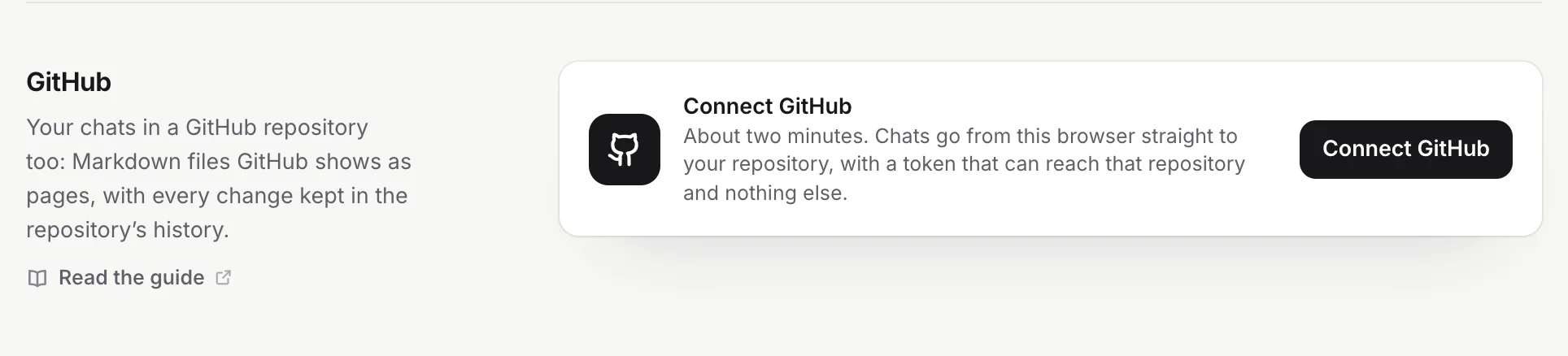
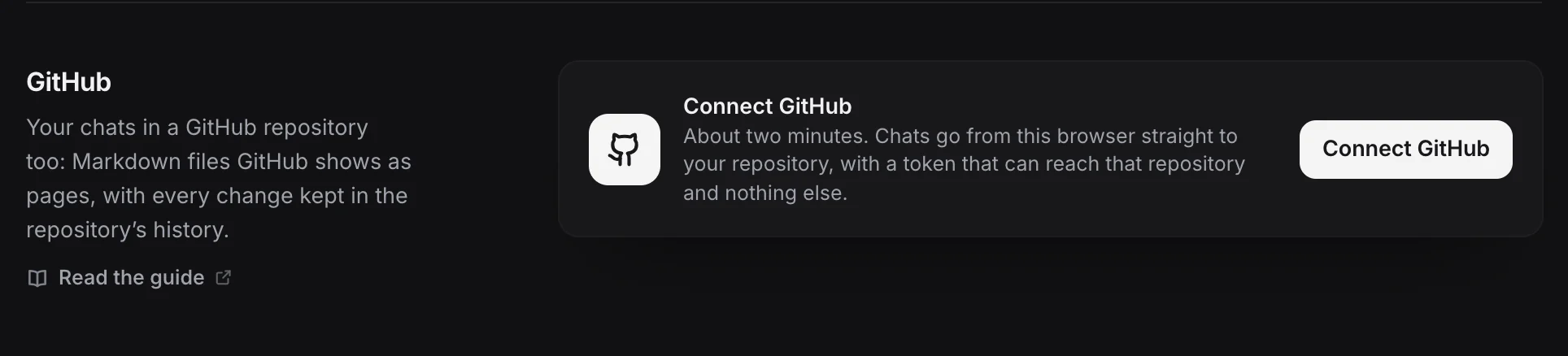
- Open Settings → GitHub and click Connect GitHub. Four steps appear in Settings.
- Make a repository for your chats. Click Create a new repository in Settings. GitHub’s form opens with the name ai-chats and Private already set. Click Create repository. A repository you already have works too, such as your Obsidian vault’s.
- Create a token. Click Settings → Fine-grained tokens → Generate new token in Settings. GitHub’s form opens, with the name Chat to Markdown and a description filled in by the link. Check the name, and choose how long the token lasts under Expiration.
- Give it the repository. Under Repository access, choose Only select repositories and select ai-chats (or your repository). Under Permissions, check that Contents is set to Read and write. Leave the other permissions as they are: Metadata is read-only by itself. Click Generate token.
- Copy the token. GitHub shows it once, starting with
github_pat_. Copy it with the copy button next to it. - Paste it in Settings and click Connect. Chrome asks whether the extension may reach api.github.com. Click Allow.
- Check the result. Your GitHub account appears at the top of the section with “Connected to GitHub as @…”. If the token can reach one repository, it is chosen for you under Where chats go.
- Send the chats you already have. New chats go to GitHub as they are saved. To send the ones saved before, click Send all saved chats (it shows how many, such as Send 120 saved chats to GitHub).
Note
If the repository belongs to an organization, choose that organization as the token’s resource owner on GitHub’s form. The organization may have to approve the token before it works.
A classic token (starting with ghp_) with the repo scope works too, but it can reach every repository you have. A fine-grained token given one repository is safer.
Where chats go
Under Where chats go:
- Repository: the repositories your token can reach, with Private or Public: anyone can read it next to each. Pick the one for your chats. Under it, Settings says “Private. Only you and the people you add can see it.” or, in amber, “Public. Anyone on the internet can read your chats in it.”
- Branch: leave it empty to use the repository’s default branch. A branch that doesn’t exist yet is made from the default branch.
- Folder: leave it empty to put chats at the top of the repository, or type a folder, such as
AI Chats. Inside it, chats are arranged as in your folder.
- ai-chats
- README.md
- ChatGPT
- Travel
- 2026-10-17 Lisbon food trip.md
- attachments
- pasteis 3fa81c2e.jpg
- Travel
- Claude
- 2026-10-20 Postgres index tuning.md
A Subfolder you set in Settings → Folders and filters isn’t repeated in the repository. A new, empty repository gets a first commit with a short README.md (“Start the AI chats repository”), because GitHub can’t add files to a repository with no commits any other way.
If you change the repository, branch or folder later, chats already sent move along when they are sent again. Settings offers Send now to do it at once. If you rename or transfer the repository on GitHub, or rename its default branch, the extension follows.
Format
| Readable on GitHub (default) | Exactly as in your folder |
|---|---|
| Pictures show and Thinking folds when you open a chat on github.com | Each file byte for byte, with Obsidian’s embeds and callouts |
| Still plain Markdown, so a clone opens in Obsidian too | For a vault you clone and open in Obsidian |
With Readable on GitHub, only what GitHub wouldn’t show changes. The properties stay as they are (GitHub shows them as a table at the top), and so do math, footnotes and code. For example, this part of a note:
> [!abstract]- Thinking
> Mix classic tascas with a market visit.

![[pasteis 3fa81c2e.jpg]]
is committed as:
<details>
<summary>Thinking</summary>
Mix classic tascas with a market visit.
</details>
Other callouts such as [!warning] become GitHub’s own alerts, files like PDFs become links, and links to other notes become plain text. Links are relative to the note, so they work on github.com and in a clone.
You can switch format at any time. Chats already in the repository change format when they are sent again; Settings offers Send now.
The options
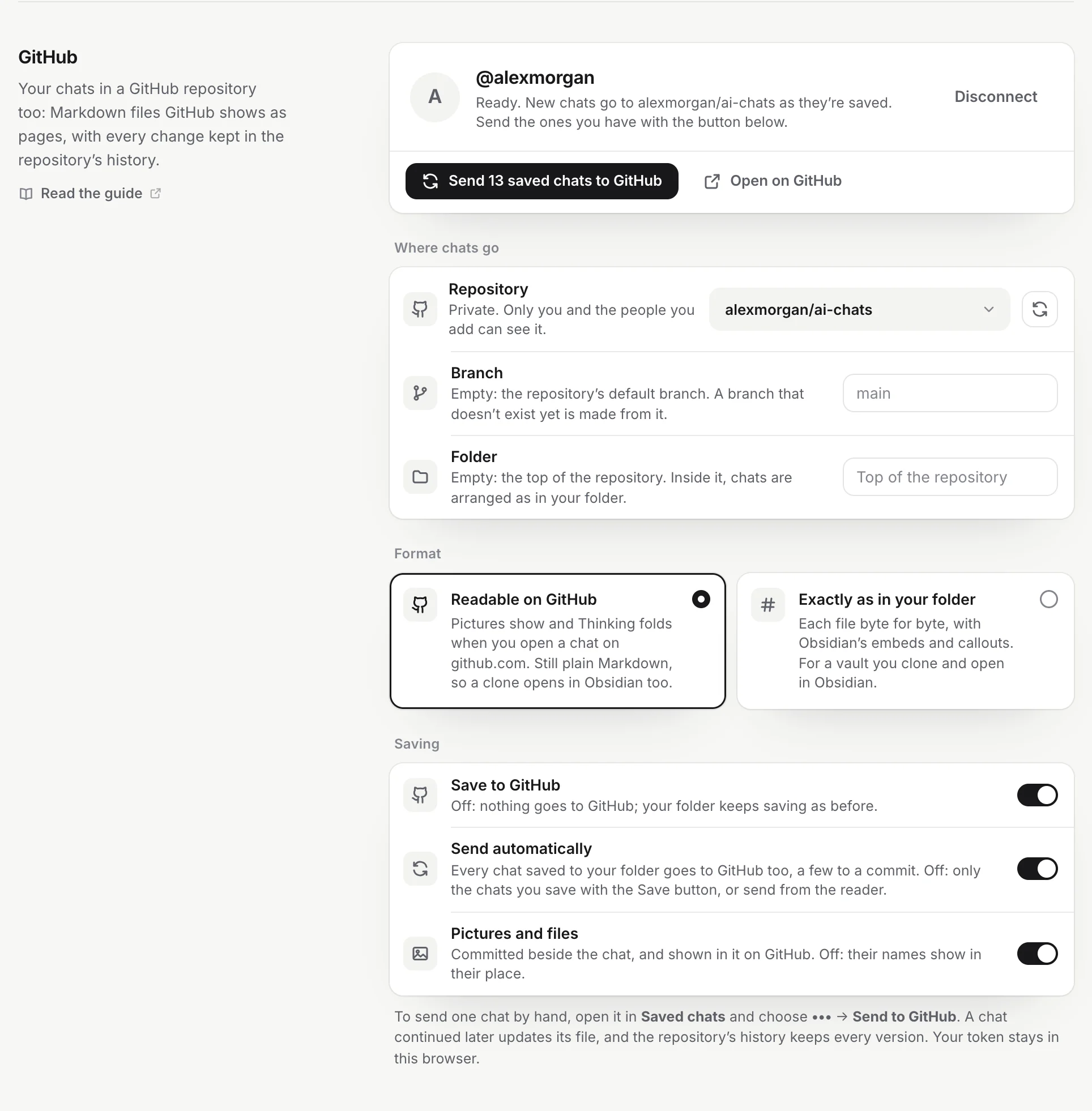
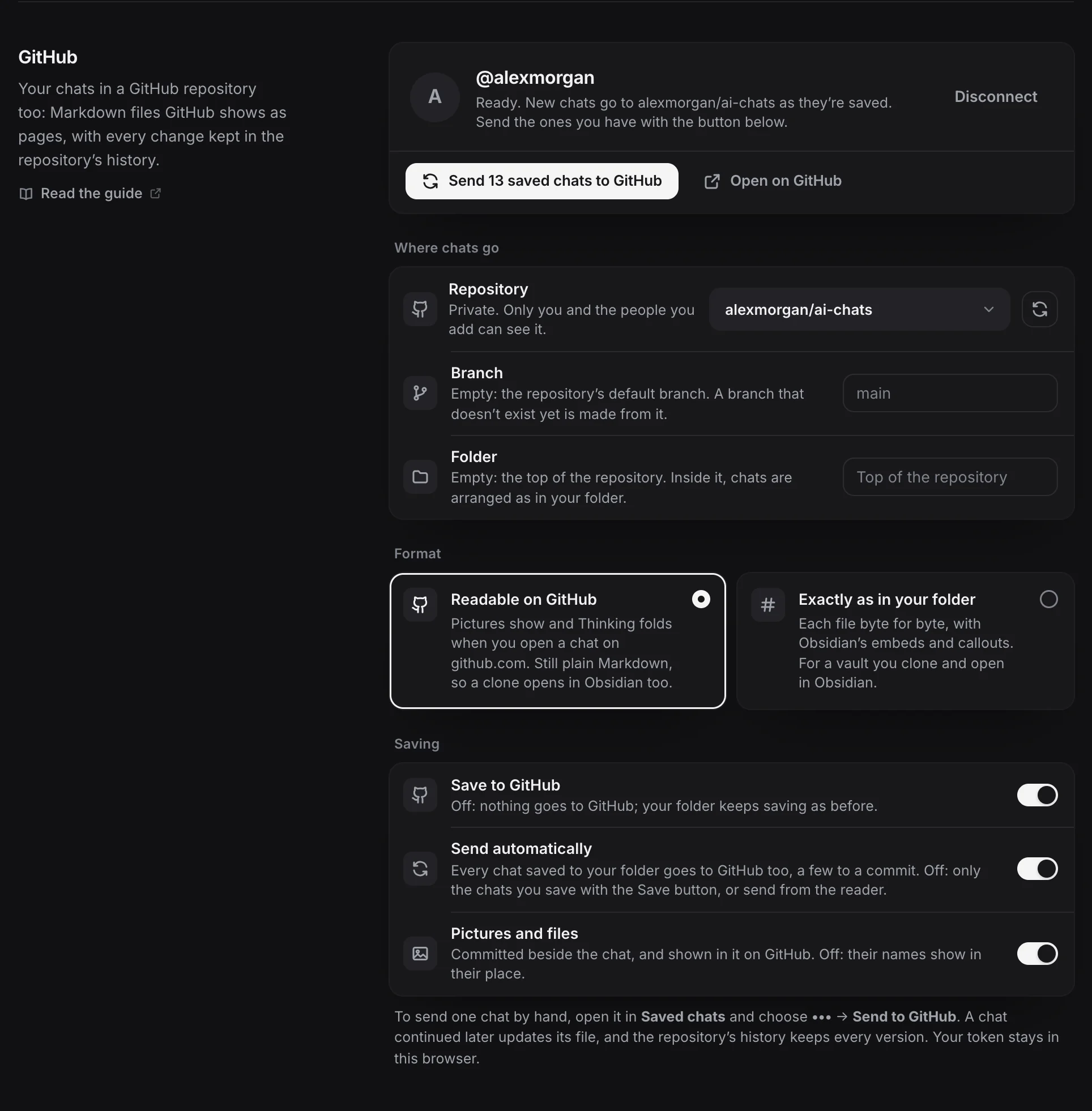
| Option | On | Off |
|---|---|---|
| Save to GitHub | Chats go to GitHub as set below. Turned on when you connect. | Nothing goes to GitHub by itself; your folder keeps saving as before. You can still send a chat by hand from the reader. |
| Send automatically | Every chat saved to your folder goes to GitHub too, a few to a commit. On by default. | Only the chats you save with the Save button on a chat site, or send from the reader. |
| Pictures and files | Committed beside the chat (and shown in it on GitHub, in the readable format). On by default. | Their names show in their place. |
Files over 50 MB aren’t committed (GitHub refuses large files); their names show instead.
The line under your account tells you how sending stands, for example “120 chats in you/ai-chats · last sent 2 min ago”. While chats go, a progress bar shows how far it is, with Pause and Stop. Sending goes on in the background if you close Settings. Open on GitHub opens the repository (at the branch and folder you chose, once chats are there).
Commits
Chats go in groups: up to 40 chats in one commit. A Send all of a long history is a handful of commits, not thousands, and stays within GitHub’s limits. Files GitHub already has with the same content are never sent again. The extension makes about one write request a second, as GitHub asks.
The commit messages say what changed:
Add chat: Lisbon food trip (ChatGPT)Save 3 chats
- Update: Lisbon food trip (ChatGPT)
- Add: Postgres index tuning (Claude)
- Move: Quarterly OKR draft (ChatGPT)“Move” means the chat’s file was renamed or moved in your folder (for example into a project folder); its pictures move with it. Removing chats makes a commit such as Remove chat: Lisbon food trip (ChatGPT).
Commits are made with your token, so they appear as yours. If you push to the same branch from somewhere else (another computer, a phone app), the extension puts its commit on top of yours.
Send or remove one chat
- From the reader: open the chat, click More (the three dots) and choose Send to GitHub. A chat already there shows Open on GitHub and Update on GitHub, and an On GitHub label next to its name.
- From a chat site: with Save to GitHub on, clicking Save on the chat (see The Save button) sends it to GitHub too.
- To take one out: in the reader, choose More → Remove from GitHub. Its file is deleted in a commit (the history keeps it), and it is no longer sent by itself. Sending it by hand brings it back.
Remove all chats from the repository
Click Remove all in Settings → GitHub and confirm. The chats are deleted from the branch in one commit and stay in the repository’s history, so you can bring them back. Other files in the repository aren’t touched. Saving to GitHub stays on: new and changed chats keep going there. Your folder isn’t touched.
To remove the chats from the history too, delete the repository on GitHub.
When the token runs out
Fine-grained tokens expire. Two weeks before, the line under your account says “Your token expires in … days, on …. Make a new one so chats keep going.” and a New token button appears. After it runs out, chats wait until you replace it.
- Click New token. A field opens.
- Make a new token on GitHub. Use the Generate new token link (same repository, Contents set to Read and write), or open the old token on GitHub and click Regenerate token.
- Paste it and click Use this token. The repository, settings and everything sent stay as they are. The token must be for the same GitHub account; to switch accounts, disconnect first.
Disconnect
Click Disconnect in Settings → GitHub. The token is removed from your browser and Save to GitHub is turned off. You see “GitHub disconnected. Files already in the repository stay.” with a Delete the token button. GitHub doesn’t let apps delete personal tokens, so click it (or go to Settings → Developer settings → Personal access tokens on GitHub) and delete the token there.
The extension remembers what it sent, so connecting again carries on where it stopped.
Problems
“One more step: give the token a repository”. The token works but can’t see any repository. On GitHub, open Settings → Fine-grained tokens, click Chat to Markdown, then Edit. Under Repository access, choose Only select repositories and select your repository, check that Contents is Read and write, and click Update. Come back to Settings: the repository shows up by itself. If not, click Check again, or paste the repository’s address (or owner/name) and click Use this repository.
“Your token can’t write to you/ai-chats.” The token can see the repository but not change it. Edit the token on GitHub and set Contents to Read and write.
“GitHub didn’t accept that token.” or “GitHub refused the token: it has expired or was deleted.” Copy the token again, or make a new one. When you are already connected, click New token and paste it there.
“This classic token can’t write to repositories.” Your classic token lacks the repo scope. Make a fine-grained token as above, or give the classic one the repo scope.
“That token is for @…, not @….” The new token belongs to another GitHub account. Use a token from the connected account, or disconnect first to switch.
“Chrome needs your OK to reach api.github.com.” You clicked Deny when Chrome asked. Click Connect again and choose Allow. If access was removed later, Settings shows Allow access.
“GitHub asked to slow down. It goes on at …” GitHub’s rate limit was reached. Nothing is lost: sending carries on by itself at that time.
“3 chats couldn’t be sent. They’re tried again when they change.” GitHub refused those chats, for example because of a rule on the branch. The rest went on. If your branch is protected (required reviews or checks), choose another Branch for the chats.
The repository isn’t in the list. The token can’t reach it yet: edit the token on GitHub as above to add it, then click Refresh the list (the circular arrow next to Repository). Archived repositories aren’t listed, and the list shows up to 300.
For anything else, see Troubleshooting. What GitHub receives is described in Privacy and permissions.
Questions
Which permissions does the token need?
Repository access to the one repository for your chats (Only select repositories), and Contents set to Read and write. Metadata is read-only and added by GitHub itself. Nothing else.
Should the repository be private?
Yes, unless you want everyone to read your chats. Anyone on the internet can read a public repository. Settings marks a public one in amber.
Can I use my Obsidian vault's repository?
Yes. Pick it, and type a folder for the chats under Folder. Choose Exactly as in your folder if you clone the repository and open it in Obsidian.
Can the extension delete a chat from the repository's history?
No. Removing chats deletes their files in a new commit; the history still has them. To remove them from the history too, delete the repository on GitHub.