File names and properties
Set how saved chat files are named with tokens like {date} and {title}, pick a date format, choose the properties and tags, and rename files you already have.
In short
In Settings → File names, build the file name from parts such as {date}, {time}, {title}, {service}, {project} and {id}, pick how the date is written, choose which properties go at the top of each file and add your own tags. New chats use it at once; Apply to saved files renames and updates the files you already have.
Each saved chat’s file name, and the details at its top, follow the settings in Settings → File names. This page explains every option, shows what each part of a name turns into, and how to bring your existing files in line after a change.
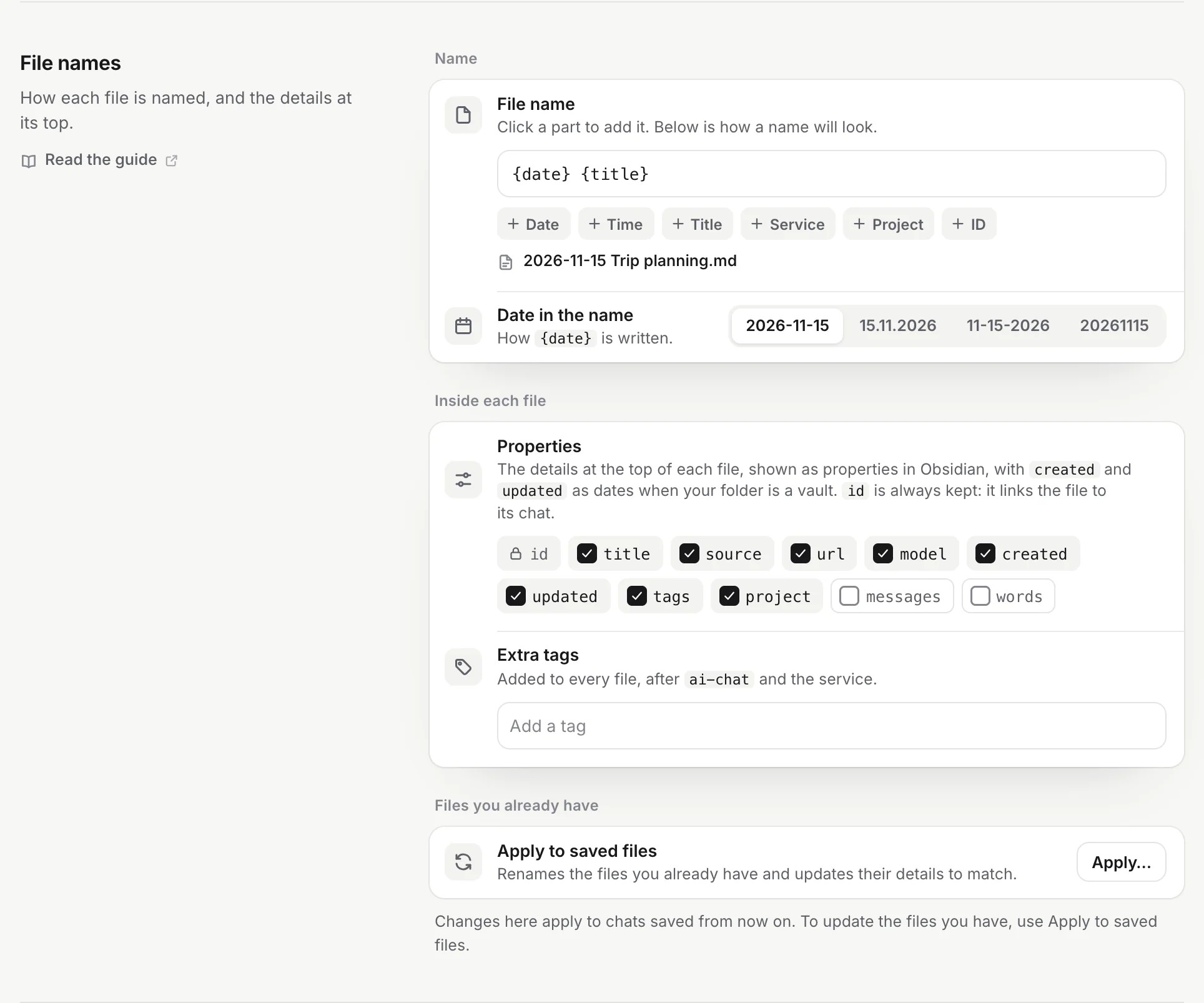
The file name
The File name field holds a pattern, {date} {title} by default. Parts in braces are replaced for each chat; everything else is kept as you typed it.
- Open Settings → File names.
- Edit the pattern. Type in the field, or click a part under it (Date, Time, Title, Service, Project, ID) to add it where the cursor is.
- Check the preview under the parts. It shows how a name will look, for a sample chat called “Trip planning” in a project called “Travel”.
- Press Enter or click elsewhere. The pattern is saved. New chats use it from now on.
The parts
| Part | Turns into | Example |
|---|---|---|
{date} | The day the chat started, in your local time, written as chosen under Date in the name | 2026-10-17 |
{time} | The time the chat started, as hours and minutes | 09.41 |
{title} | The chat’s title, at most 80 characters | Lisbon food trip 3 days |
{service} | The service | ChatGPT |
{project} | The project or Perplexity Space, or nothing | Travel |
{id} | The chat’s id on its site | 68f1c2a0-5b7e-8003-9a41-2c6d0e7f1a93 |
Real results for a ChatGPT chat titled “Lisbon food trip: 3 days?”, started on 17 October 2026 at 9:41 in the Travel project:
| Pattern | File name |
|---|---|
{date} {title} | 2026-10-17 Lisbon food trip 3 days.md |
{date} {time} {title} | 2026-10-17 09.41 Lisbon food trip 3 days.md |
{service} - {title} | ChatGPT - Lisbon food trip 3 days.md |
{project} - {title} | Travel - Lisbon food trip 3 days.md |
{title} ({id}) | Lisbon food trip 3 days (68f1c2a0-5b7e-8003-9a41-2c6d0e7f1a93).md |
Rules that apply to every name:
- Characters that can’t be in a file name or that break Obsidian links (
\ / : * ? " < > | # ^ [ ] ~) become spaces, and repeated spaces become one. That is why “Lisbon food trip: 3 days?” became “Lisbon food trip 3 days”. - An empty part takes its separator with it. With
{project} - {title}, a chat outside any project is named justQuarterly OKR draft.md, not- Quarterly OKR draft.md. - Every name names the chat. A pattern without
{title}or{id}gets{title}added at the end, so{date}alone becomes{date} {title}. A pattern without any part, or an empty one, goes back to{date} {title}. - Names are at most 120 characters (less for scripts such as Chinese or Japanese, which take more room on disk).
- Clashes get a number. A second chat with the same name in the same folder gets
(2), and so on. {time}uses a dot,09.41, because a colon can’t be in a file name.
Date in the name
Date in the name sets how {date} is written. The four buttons show today’s date in each format:
| Format | Example |
|---|---|
| Year-month-day (default) | 2026-10-17 |
| Day.month.year | 17.10.2026 |
| Month-day-year | 10-17-2026 |
| Year month day, no separators | 20261017 |
Year first sorts your files by date in any file list.
When a file is renamed
A file keeps its name, so links to it from your own notes keep working. There are two cases:
- A chat renamed on its site keeps its file name. The
titleproperty and the heading inside change at the next save. To rename files to match their new titles, use Apply to saved files. - A chat saved before it had a title is renamed once. A brand-new chat, or a temporary, incognito or private one, is saved under your first words or “New chat”. When the site gives it a title, the file is renamed to that title the next time the chat is saved. This happens only once; after that, the rule above applies.
With Hide secrets on, the new name has its secrets hidden too.
Properties
Properties lists the details written at the top of each file. Click a property to turn it on or off. id has a lock: it is always written, because it links the file to its chat.
| Property | Default |
|---|---|
title, source, url, model, created, updated, tags, project | On |
messages (number of messages), words (number of words) | Off |
messages and words are numbers, so Obsidian’s Dataview plugin can sort and add them up. What each property holds is described in What’s in a saved file.
Turning a property off affects new files. In files you already have, it stays until you use Apply to saved files, which removes it.
Extra tags
Every file gets the tags ai-chat and the service’s id (chatgpt, claude and so on). Extra tags adds your own after them, for example inbox or ai/chats.
Type a tag and press Enter or a comma. Tags are cleaned the way Obsidian expects: a leading # is dropped, spaces become -, and only letters, digits, _, - and / are kept. A tag made only of digits is dropped, because Obsidian doesn’t accept it.
Tags are written when a file is created. Tags you change in a file yourself stay as you left them.
Apply to saved files
Changes on this page apply to chats saved from now on. Apply to saved files brings the files you already have in line.
- Click Apply… under Files you already have.
- Read the question. It says how many files there are, for example Rename 1,204 files and bring their properties and text in line with how chats are saved now? Links to them from your own notes won’t change. When the names already match, it asks Bring the properties and text of 1,204 files in line with how chats are saved now? Their names already match.
- Click Rename 1,204 files (or Update 1,204 files). Click Cancel to stop here. If Chrome needs your permission for the folder, it asks now.
- Wait for it to finish. A bar shows Updating files… 300 of 1,204. Keep the Settings tab open; Chrome warns you if you try to close it.
- Read the result. For example Done. 1,180 files renamed, 24 files already matched. If it updated interactive answers saved as pages, it says how many, for example 3 interactive answers saved as pages were renewed: they run with this version’s fixes wherever you open them.
When a sync is running
Apply can’t change your files while a sync is saving chats, which can take a while for many chats. If a sync is running, Apply waits for it and says Waiting for the sync that is running…. Keep the page open: your files are updated as soon as the sync ends.
If you don’t want to wait, click Don’t wait. Files already updated stay updated, and the rest stay as they were. Run Apply again after the sync; it picks up where it stopped.
What it changes
- File names, from the current pattern. Each file stays in its folder, so its
attachmentskeep working. - Properties, rebuilt for the ones that are on. Values already in a file stay as they are; missing ones are filled in; properties you turned off are removed.
idis always kept, and aprojectyou set yourself is never removed. - Tags: your extra tags are added; extra tags you removed from the list since the last Apply are taken out. Tags you added by hand stay.
- Thinking, switched to the current How thinking looks style.
- Messages, the way new chats are saved now: headings under the speaker’s heading, no stray tags from “#words”, and prices that aren’t shown as formulas. See What’s in a saved file.
- ChatGPT interactive answers saved as pages, so they get this version’s fixes when you open them in a browser or in Obsidian. Other pages and files are left alone.
- Secrets, hidden in the chat when Hide secrets is on.
It also updates the extension’s records (so the reader and search find the renamed files), the table of contents note, daily note links and, in an Obsidian vault, the date type of created and updated.
What it doesn’t change
- Text you wrote above or below the chat, and properties you added.
- Files whose start and end markers you removed. The result says how many were left as they are.
- Which folder a file is in. Folder settings apply to new chats only.
- What the chat contains: options in What to save such as Model thinking or Tool calls need the chat read from its site again. Use Re-sync on a chat in the reader for that.
- Links to the files from your own notes.
Is it safe?
It works on your computer only, without contacting any chat site, in small batches so a sync never sees a half-renamed folder. It never writes over another chat’s file: when a name is taken, the file gets (2). With Keep a history of changes on, each changed file keeps its previous version as File format applied in its version history.
If something goes wrong (Chrome takes back folder access, for example), it stops and says Stopped early, with what was done so far. Run it again: files that already match are counted as such.
Problems
The preview shows a different name than I typed. The pattern was missing {title} or {id}, or had characters that can’t be in a file name. The preview shows what will really be used.
“1 file wasn’t found”. Its file was moved, renamed or deleted outside the extension. It comes back at the next sync if its chat changes. See Moving and renaming files yourself.
“Chrome needs your permission to change files in …”. Click Apply… again and allow access when Chrome asks. See Choose your folder.
Links in my own notes broke after renaming. Apply doesn’t rewrite links in your own notes, and Obsidian only updates links for renames made inside Obsidian. Update those links by hand, or settle on a pattern before you start linking to chats.
Questions
Why does my pattern get {title} added to it?
Every file name has to name the chat, or all chats from one day would clash. A pattern with neither {title} nor {id} gets {title} added at the end.
Does Apply to saved files change the chat text?
No. It renames files and rebuilds the properties. Inside the chat, it only switches the thinking style and hides secrets when that option is on.
Will renaming break links in my own notes?
Links from your own notes to a renamed file are not updated. The table of contents and daily note links made by the extension are.