The toolbar popup
Every part of the Chat to Markdown popup: auto-save status, Sync now and Pause, the chat in this tab, service cards, search, and what each state means.
In short
Click the Chat to Markdown icon in the toolbar to open the popup. It shows whether auto-save is on, lets you sync or pause, saves the chat open in the tab, has a card for each service you turned on, and searches every saved chat.
The popup opens when you click the Chat to Markdown icon in Chrome’s toolbar. It is the quickest way to see whether saving works, start a sync, save the chat you have open, and find a saved chat.
Tip
If the icon isn’t in the toolbar, click the puzzle piece icon and pin Chat to Markdown. See Install the extension.
The parts of the popup

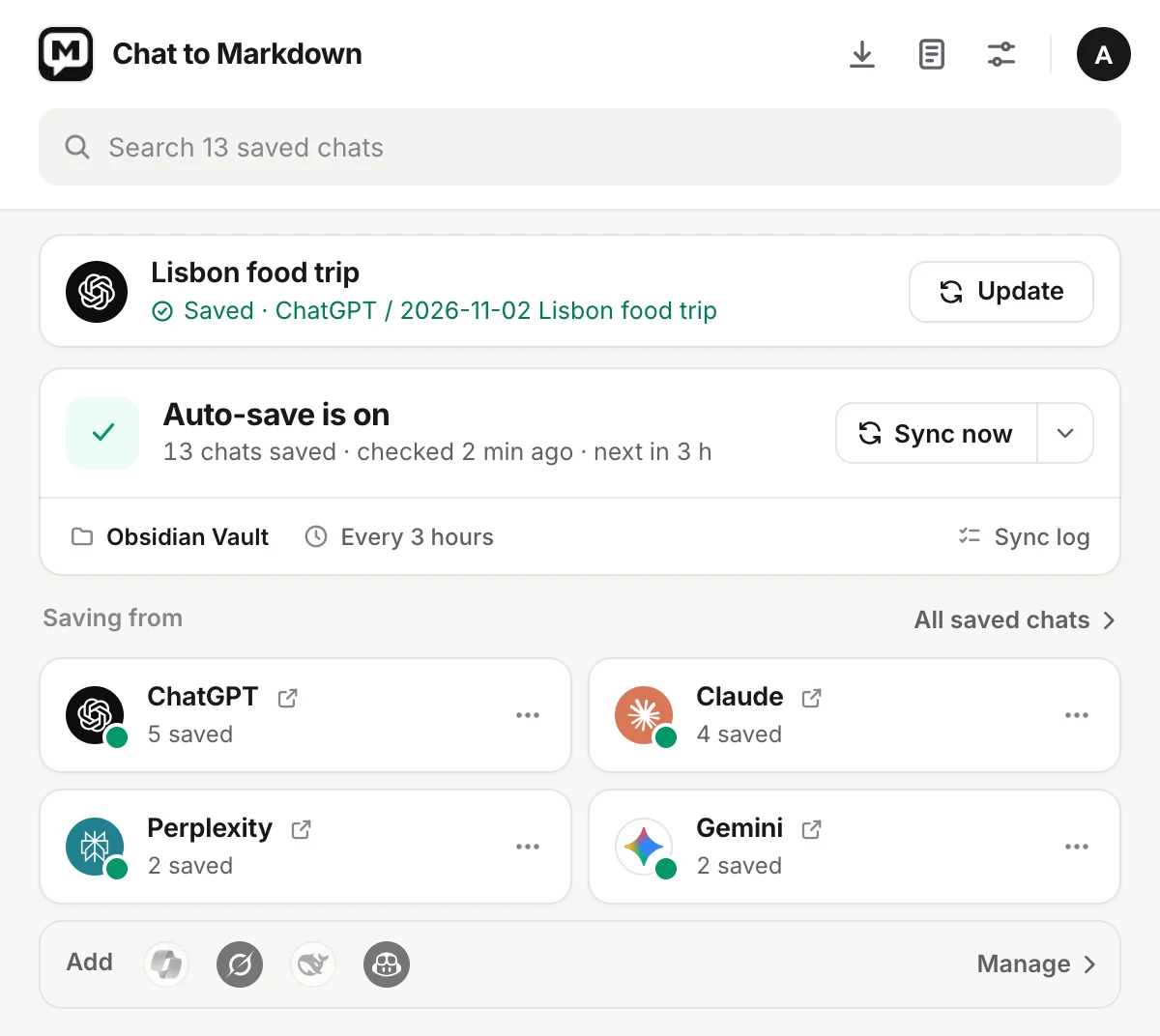
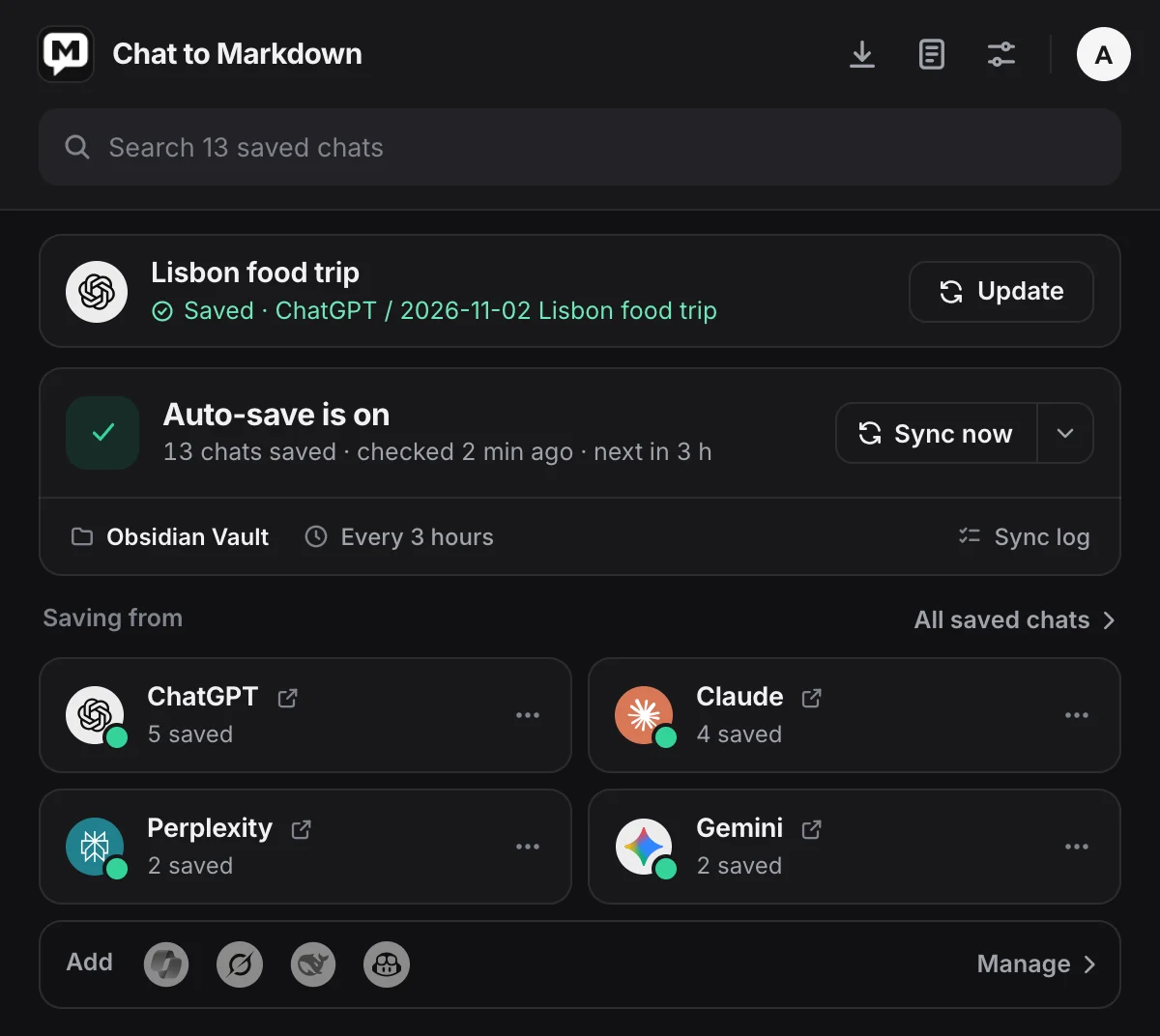
- Status: whether auto-save is on, with Sync now. See Status line and Sync now.
- This chat: the chat open in the current tab. See The chat in this tab.
- Saving from: a card for each service you turned on. See Service cards.
The top row
- Import past chats (the arrow) opens the import page, to save the chats in a service’s data export. See Import a data export.
- Saved chats opens the reader with every saved chat. See The reader.
- Settings opens the settings page. See Settings reference.
- Account shows your picture once you are signed in, with your plan, Account and billing and Sign out. Not signed in, it says “Saving works without an account. You only need one for Pro.” with Sign in and Get Pro.
Under the top row, Search finds any saved chat by its title or by words inside it. See Search from the popup.
The Add row
Add shows the services that are off. Click one to turn it on; Chrome asks to allow its site. Manage opens Settings → Chat services. All saved chats, above the service cards, opens the reader.
On the Free plan, a footer at the bottom shows your 10 free chats. See Free plan footer.
The popup never scrolls: Chrome limits it to 600 pixels high, so when there is a lot to show, the service cards get more compact.
Status line and Sync now
The status line changes with what is going on:
| Status | What it means |
|---|---|
| Auto-save is on | Everything works. The second line says how many chats are saved, when it last checked and when the next check is, for example “1,204 chats saved · checked 12 min ago · next in 2 h”. |
| Saving your chats | A sync is running. The line says the service and the chat it is on. With several services at once: Saving from 3 services. |
| Saving your chat history | Your older chats are saved in batches. It says how many are left and when the next batch starts. |
| ChatGPT allows only about 1 chat a minute | That site limits how fast one account can open chats, so older chats are saved a few at a time. Nothing is lost. |
| Claude asked to slow down | The site said “too many requests”. Saving carries on by itself at the time shown. |
| Auto-save is paused | Nothing is saved on its own until the time shown, or until you resume. |
| The last sync didn’t finish | The line says why. Try again runs it again. |
| Your 10 free chats are saved | Free, all 10 used. They stay up to date; new chats need Pro. |
| Saving only the chats you pick | Every service that is on saves only the chats you save with the Save button. |
| No service is on | Turn one on in the Add row or with Services. |
| Chrome needs your OK to save | After a restart, Chrome wants you to allow the folder again. Click Allow access. |
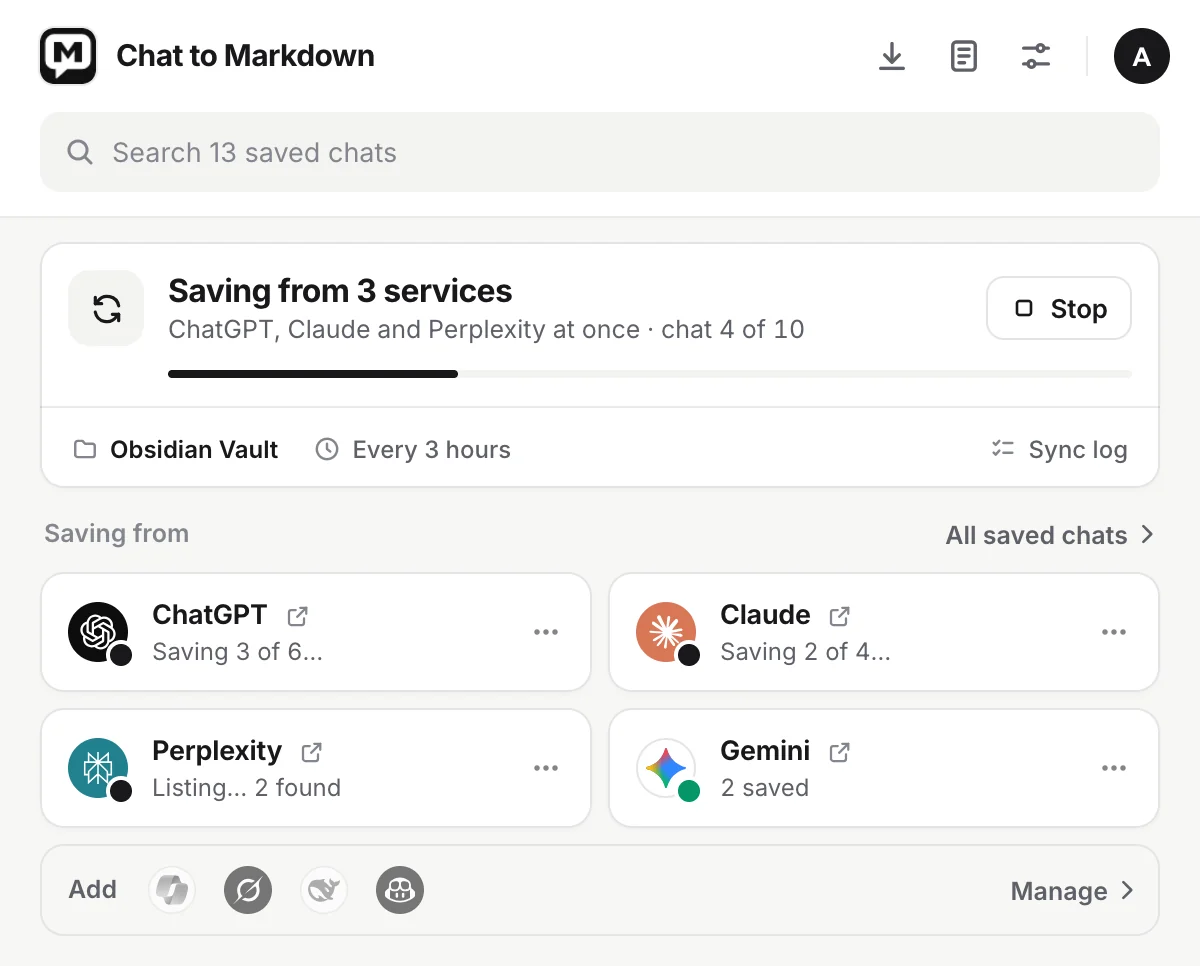
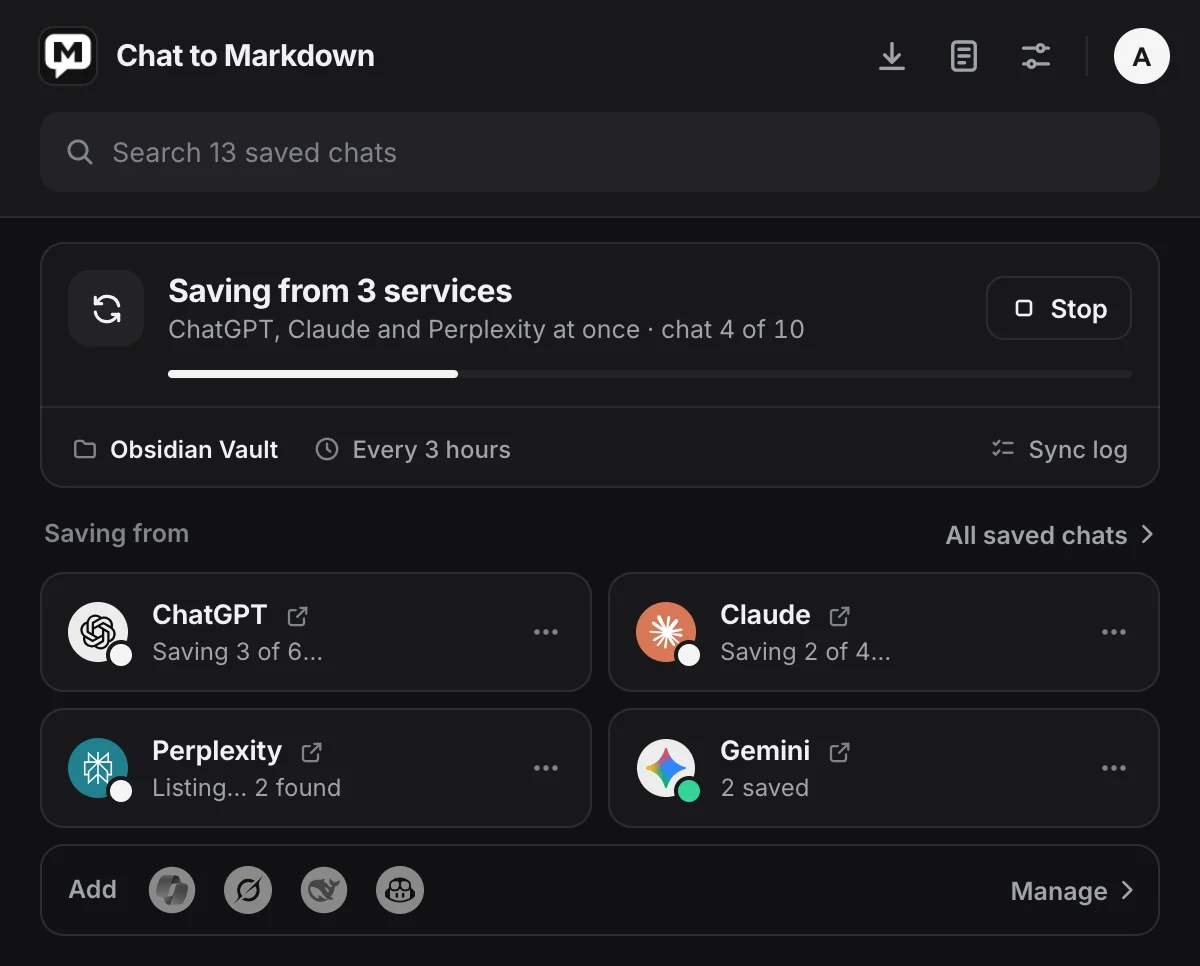
While a sync runs, Stop replaces Sync now. Stop ends this sync after the chat being saved. Auto-save stays on, and the next check carries on where it stopped.
Sync now looks for new and changed chats on every service right away. If a site’s limit is holding a service back, a small note under the button says when that service goes on, and the others are checked now.
When a service waits for its site’s limit, the popup may also show Import instead or “Don’t want to wait? Import every chat from a ChatGPT export”. Both open the import steps for that service.
Pause auto-save
Click the arrow next to Sync now to open its menu:
- Pause auto-save: For 1 hour, Until tomorrow (9:00 the next morning) or Until I resume.
- Change the schedule opens Settings → Auto-save.
- Sync log opens the Sync log.
While auto-save is paused, the status says Auto-save is paused with Resume next to Sync now. Nothing is saved on its own: no scheduled checks and no saving when you leave a chat. Sync now, the Save button and the shortcut still work. When it is already paused, the menu’s first group is called Keep it paused and changes how long.
The chat in this tab
When the current tab shows a chat, the popup shows it between the status and the service cards:
| What it says | The button |
|---|---|
| “This ChatGPT chat · not saved yet” | Save chat saves it now. |
| “Saved · ChatGPT / 2026-10-17 Lisbon food trip” | Update saves the latest version. Click the line to read the saved file. |
| “Out of date · 2 new messages not saved” | Update adds what’s new. |
| “Not saved · uses 1 of 4 free chats left” | Free: saving it uses one of your 10. |
| “Not saved · all 10 free chats are used” | Get Pro opens the plans. |
| “ChatGPT is off · turn it on to save this chat” | Turn on ChatGPT turns the service on; Chrome asks to allow its site. |
After a save, a line under the card says what happened, for example “Saved. It’s one of your free chats now, 3 of 10 left.”
Service cards
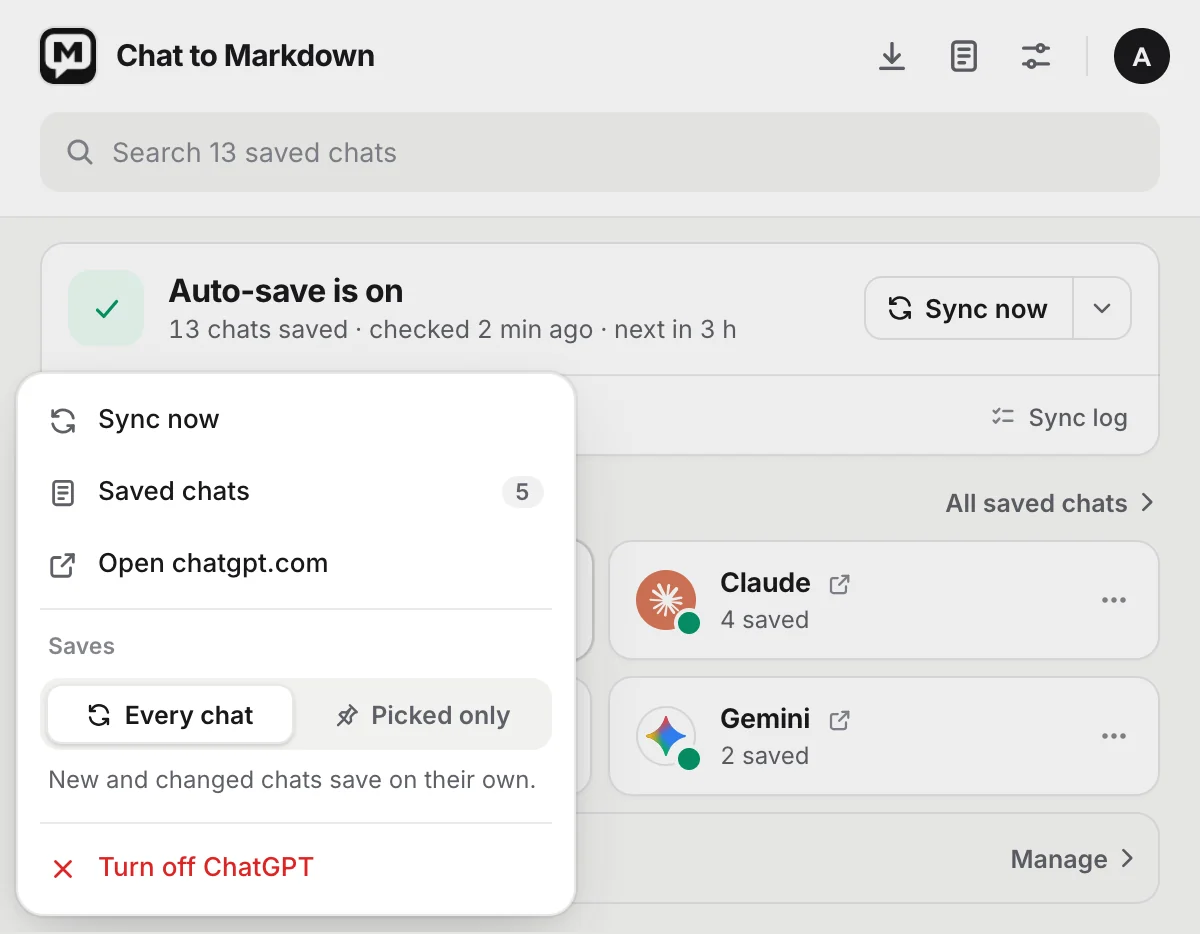
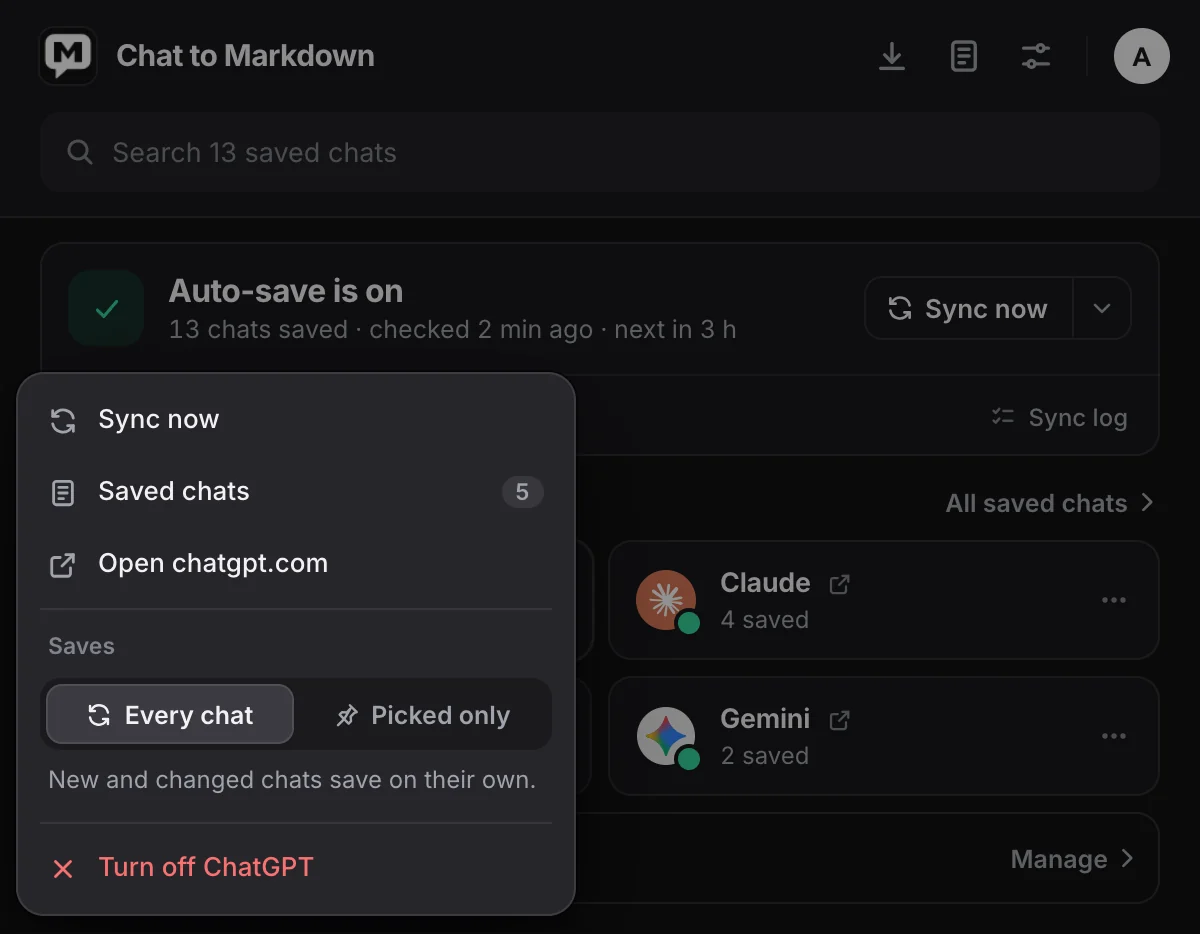
- Sync now in the card’s menu (the ⋯ button) checks only this service.
- Saves in the same menu switches between Every chat and Picked only. Picked only saves just the chats you save with the Save button, and keeps those up to date.
- The small arrow next to the service’s name opens its site in a new tab. Hold Ctrl (⌘ on a Mac) to open it in the background.
The menu also has Saved chats (the reader, showing only this service, once it has saved chats), Open (the site), and Turn off (the service’s name). Turning a service off keeps its saved chats in your folder.
Each card has a coloured dot and a short line about the service:
| Line | Meaning | Button |
|---|---|---|
| “1,204 saved” | Up to date. | |
| “Ready to save” or “Waiting for the first sync” | On, nothing saved yet. | |
| “Saving 3 of 40…”, “Listing… 820 found”, “Downloading files 2 of 5…” | Saving now. | |
| “Waiting · back in 12 min” | Waiting for the site’s limit while the others save. | |
| “540 left · ChatGPT limit” or “1,204 saved · 300 to go” | Older chats still being saved. | |
| “Asked to slow down · again in 15 min” | The site said “too many requests”. | |
| “Not signed in” | You are signed out of the site. | Sign in |
| “Open Perplexity once” | The site wants a quick check in a tab. | Open |
| “Needs its page open” | GitHub Copilot needs github.com/copilot open in a tab. | Open |
| “Needs your permission” | Chrome doesn’t allow the site any more. | Allow |
| “No internet” or “Couldn’t connect” | It tries again in a few minutes. | Retry |
| “Last sync failed” | Hover the line for the reason. | Retry |
| “1,204 saved · pictures wait” | Chrome needs to allow the service’s image servers. | |
| “4 picked · kept up to date” or “Only chats you save” | The service is set to Picked only. | |
| “Stopped working” | The site changed something. A fix comes in an update. |
When no service is on yet, the popup shows a tile for each of the eight services under “Turn on the AI services you use”. Click one to turn it on.
Notices at the top
Two notices can appear above the status:
- Saving from ChatGPT stopped working: the site changed something on its side. Click Check for an update; if one is ready, click Restart. Report a problem copies details (never your chats or their titles) and opens an email to us.
- Gemini pictures aren’t saved yet: Chrome needs to allow the servers where that service keeps pictures and uploads. Click Allow, and the pictures in your saved chats are added.
Either one also shows a red ! on the toolbar icon. So does a folder that needs Chrome’s permission again.
Before setup is finished
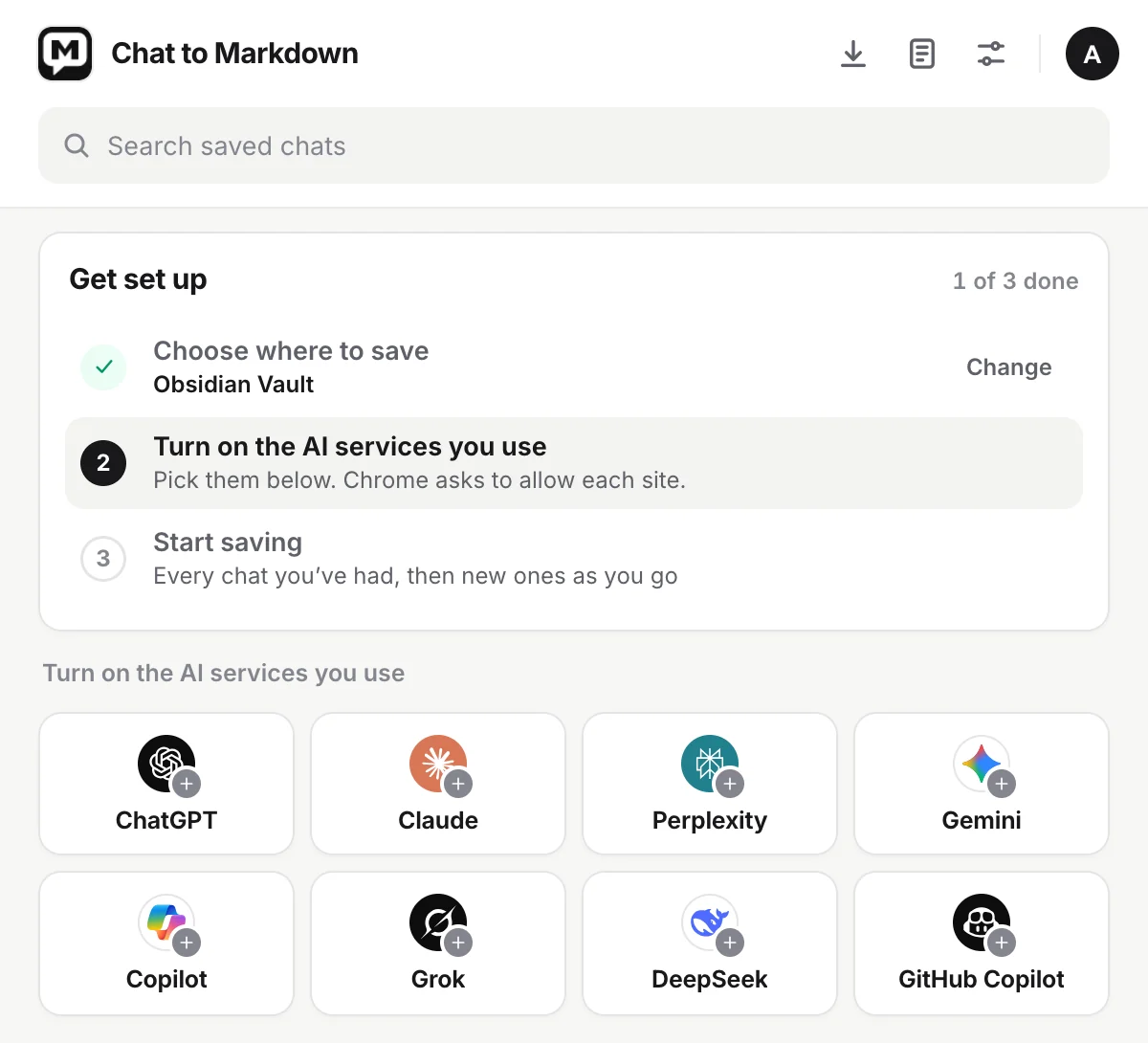
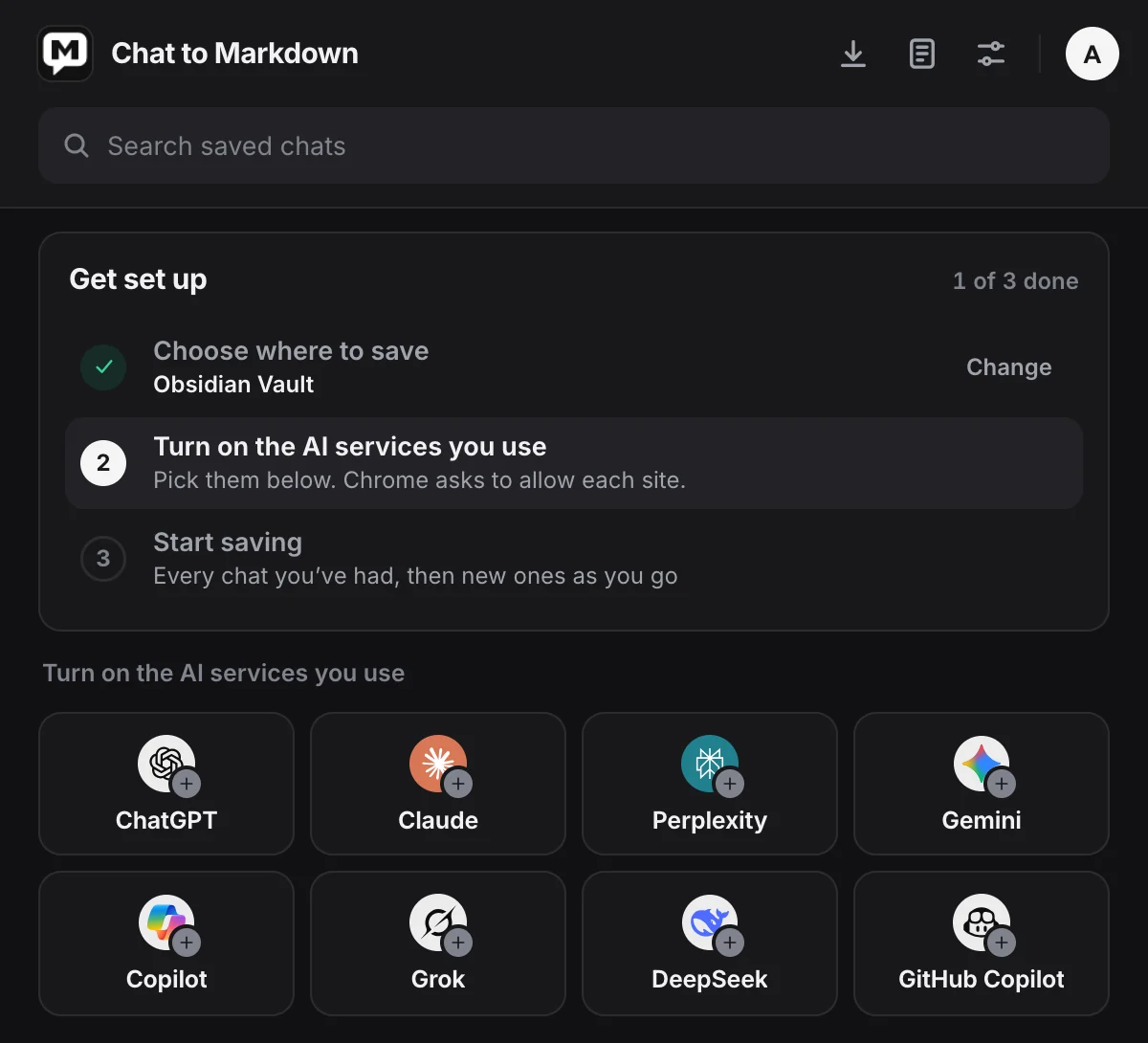
Until saving can run, the popup shows Get set up with three steps and how many are done:
- Choose where to save, with Choose folder.
- Turn on the AI services you use: pick them in the list below. Chrome asks to allow each site.
- Start saving, with Start saving. On Free it saves “Your latest chats, up to 10 on the Free plan”; on Pro “Every chat you’ve had, then new ones as you go”.
When Chrome needs your OK for the folder
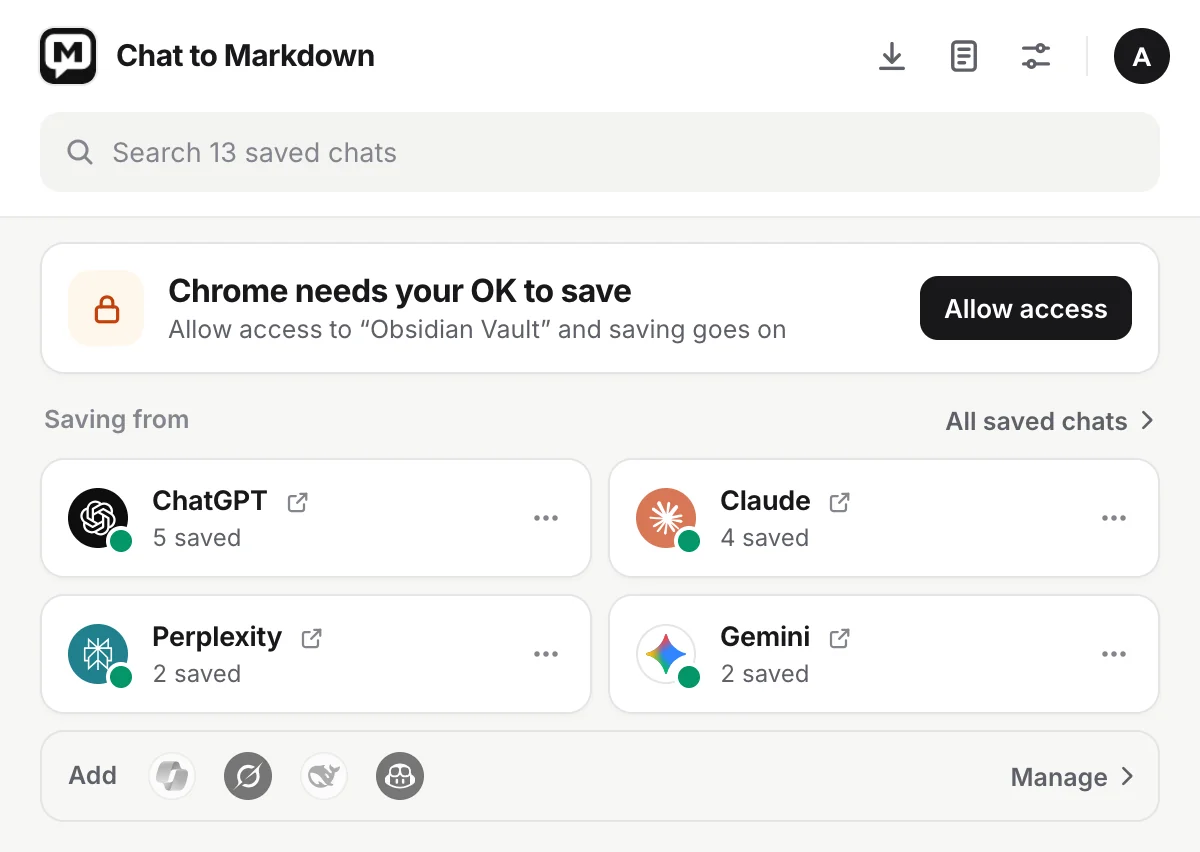
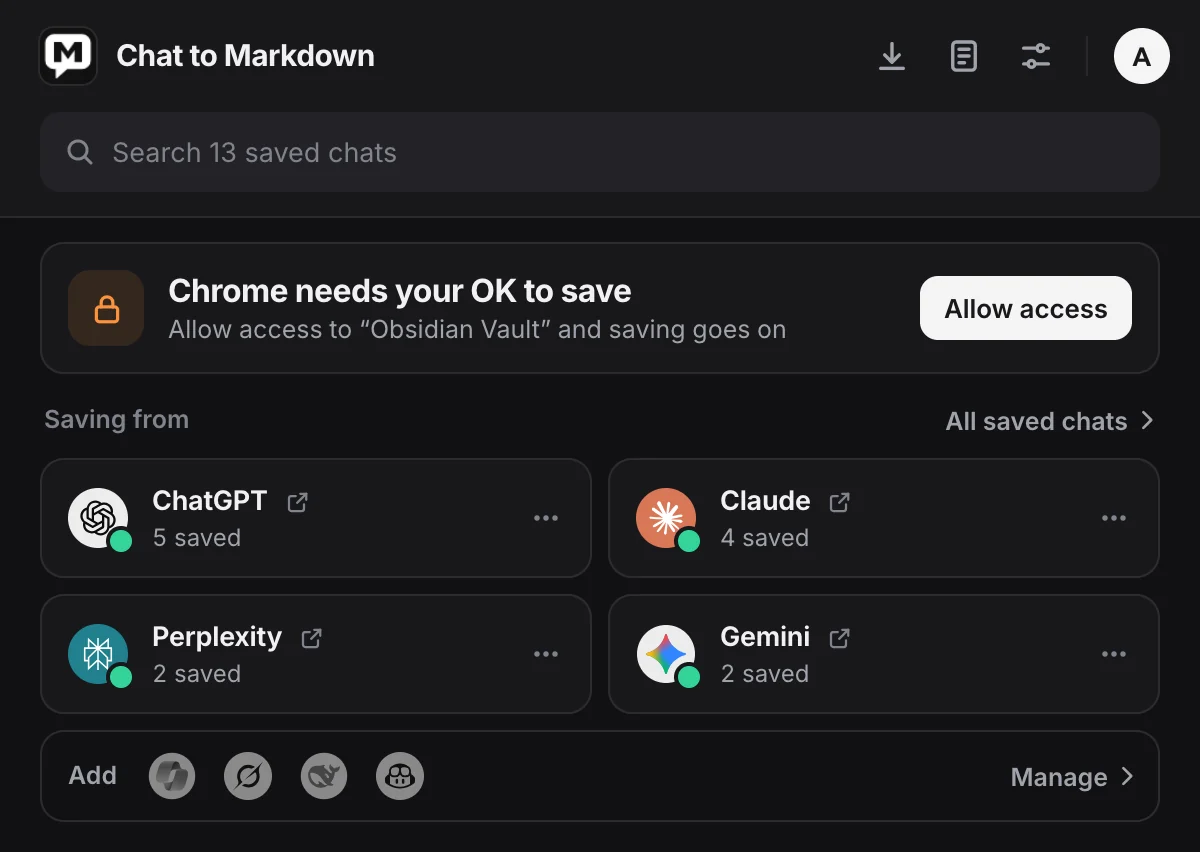
After Chrome restarts, it can ask you to allow the folder again. The status says Chrome needs your OK to save: “Allow access to “Obsidian Vault” and saving goes on”. Click Allow access, then Allow in Chrome’s prompt. See Choose your folder.
Free plan footer
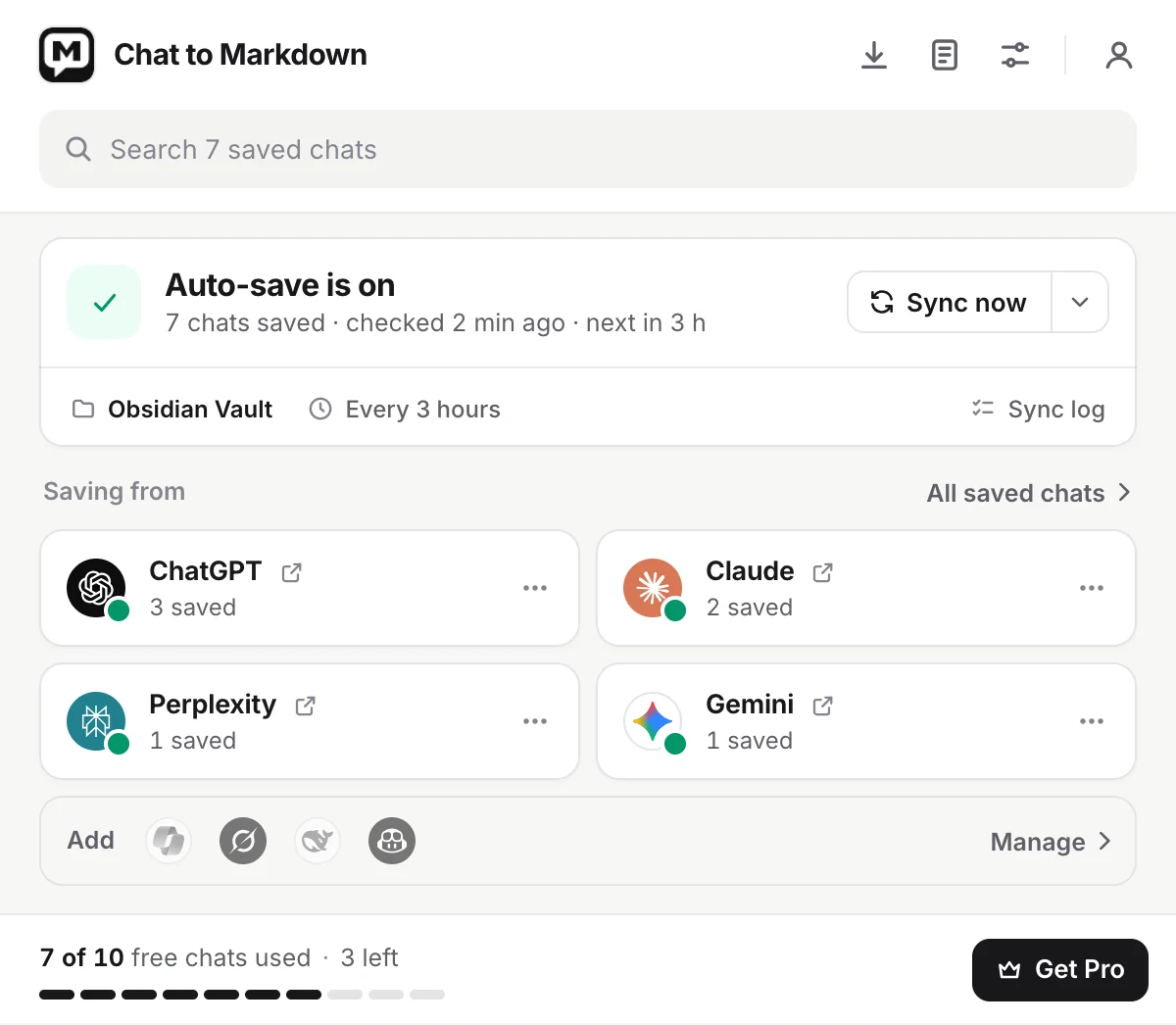
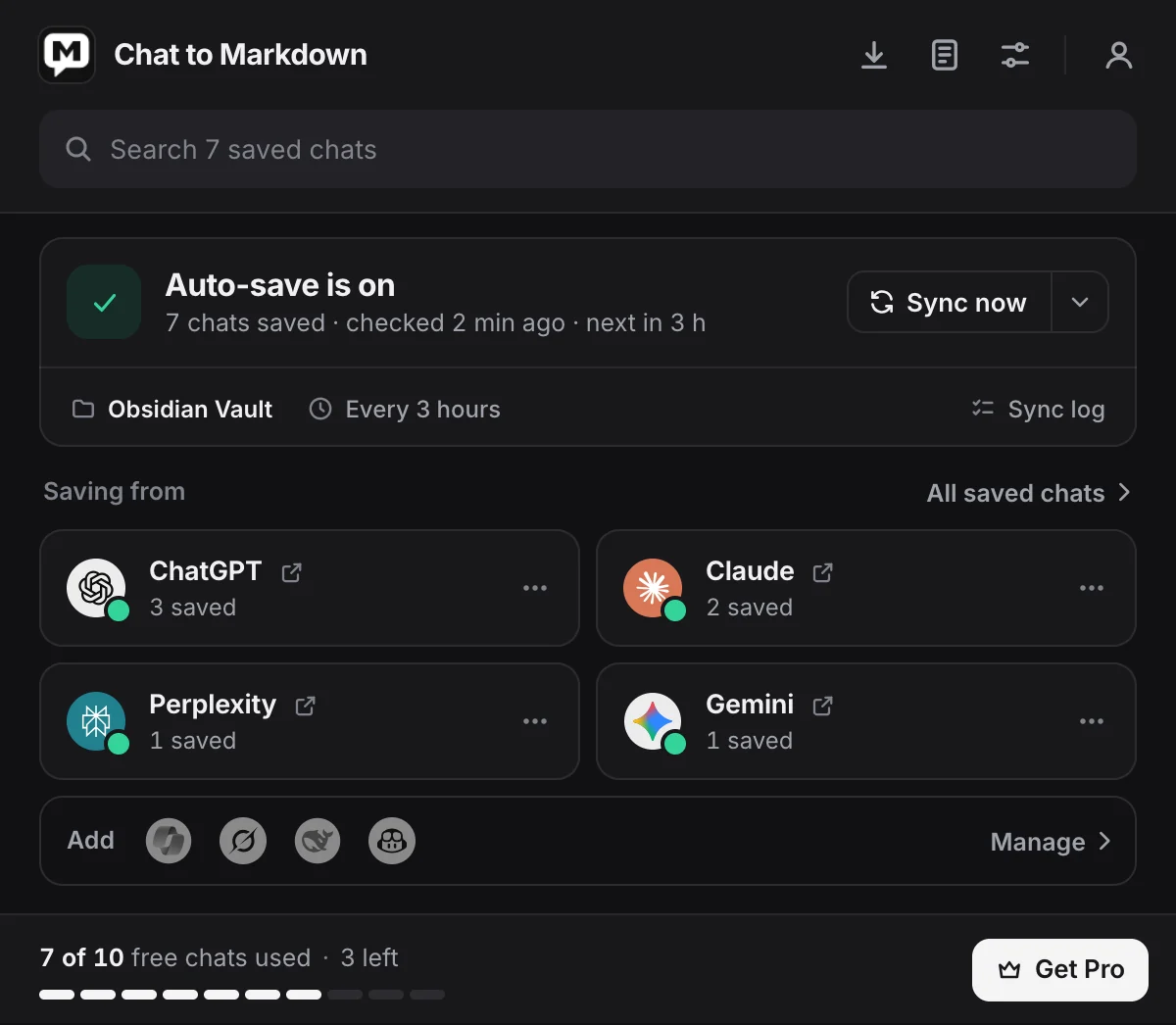
- Account: not signed in. Saving works without an account; you only need one for Pro.
- Status: auto-save is on and your latest chats fill your 10.
At the bottom, ten small segments fill as your free chats are used, with a line such as “4 of 10 free chats used · 6 left” and Get Pro. Before any is used it says “10 free chats · your latest chats fill them”.
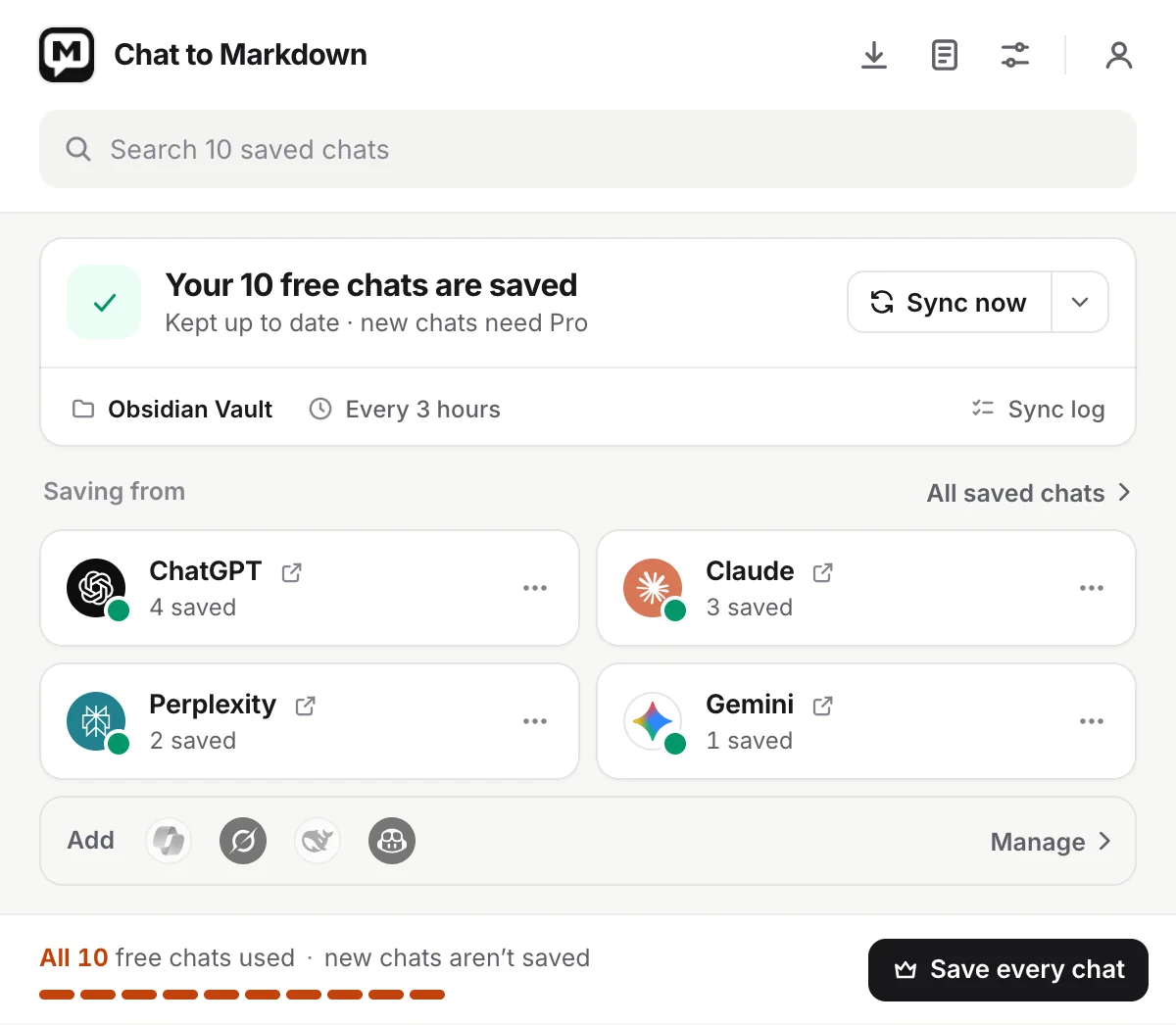
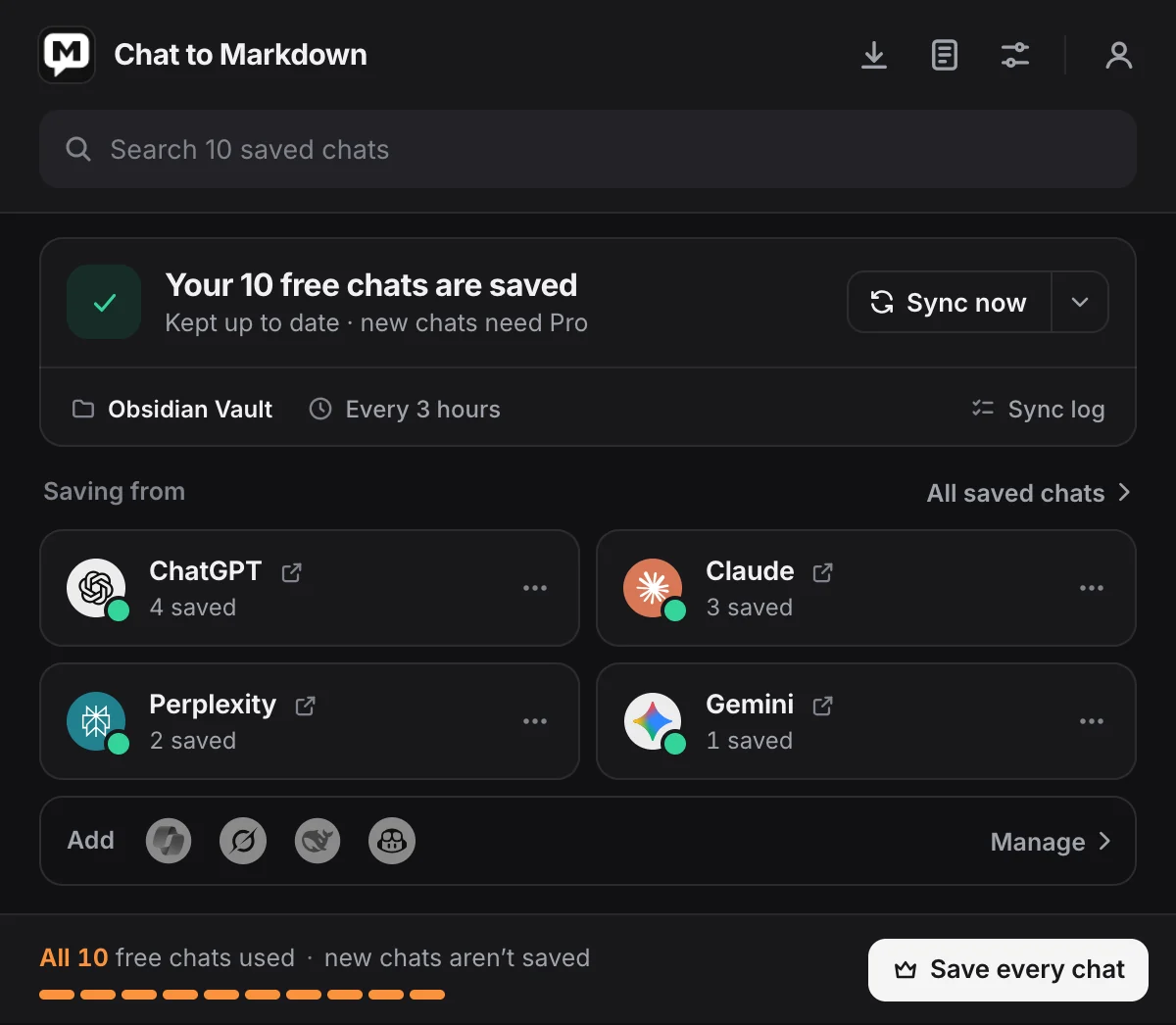
When all 10 are used, the status says Your 10 free chats are saved (“Kept up to date · new chats need Pro”), and the footer says “All 10 free chats used” with how many more chats your accounts have, and Save every chat. See Free and Pro.
Search from the popup
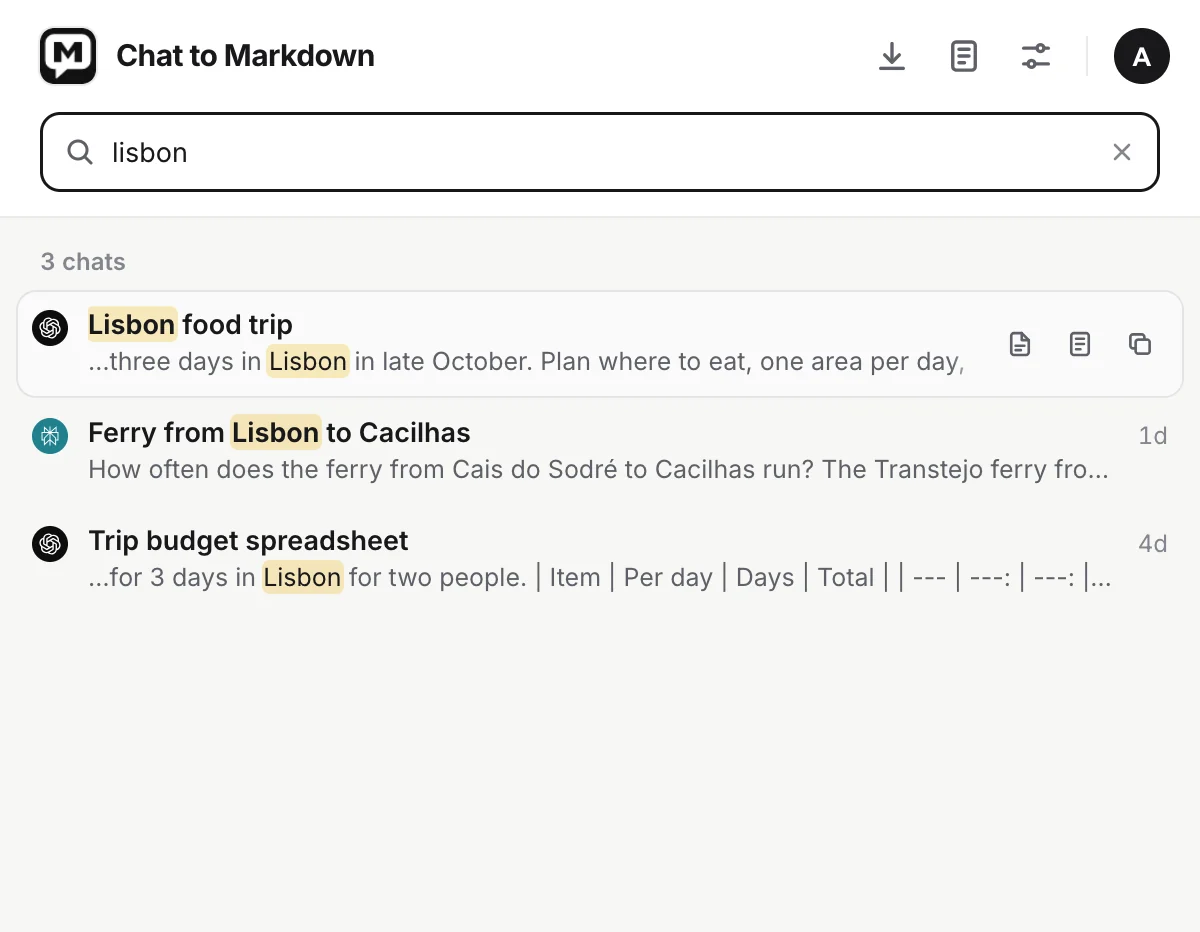
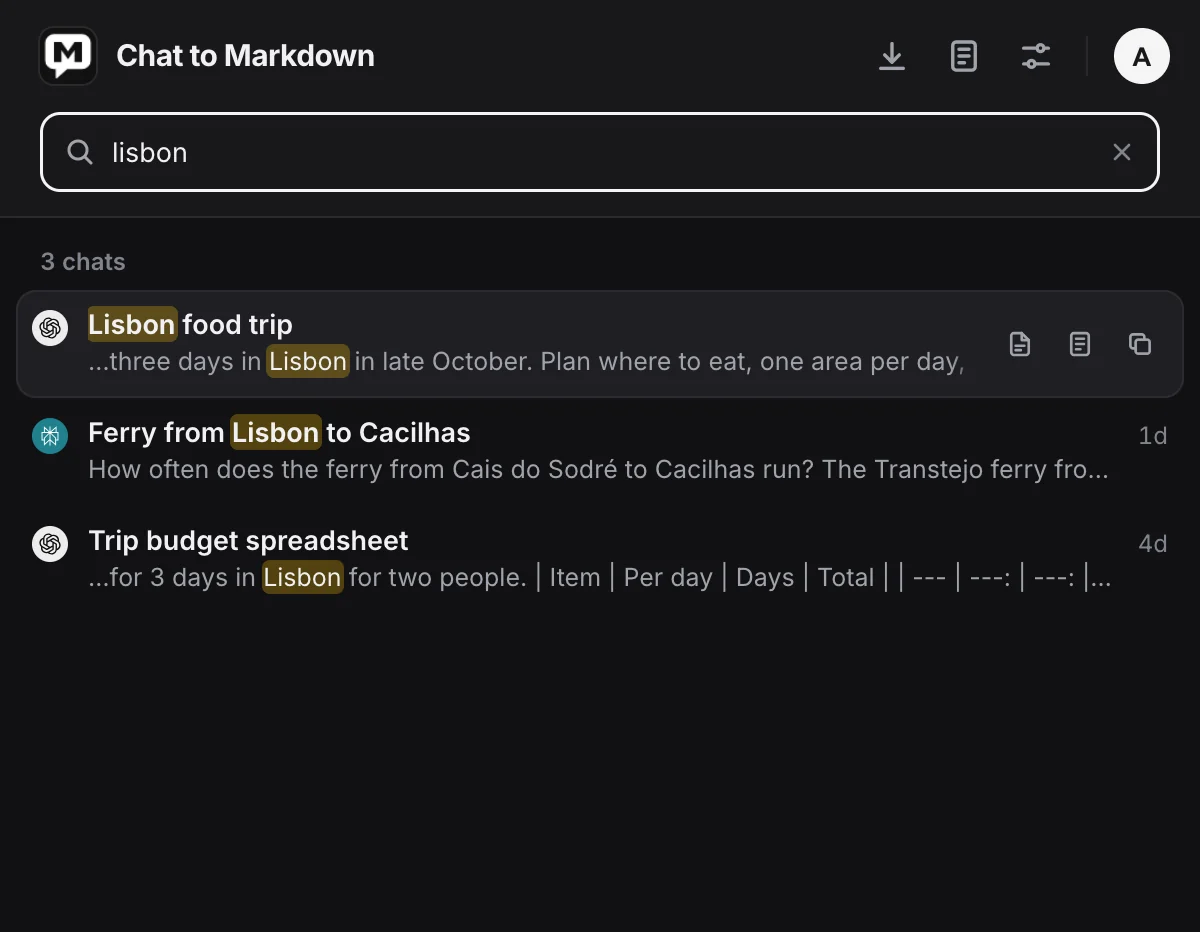
- Search: type any word. You can also just start typing when the popup opens, or press /.
- Results: titles match at once; words inside chats follow a moment later, with the matching words shown.
Click a result, or press Enter on the highlighted one, to open the chat on its site. A chat deleted on its site shows Deleted and opens in the reader instead. Use ↑ and ↓ to move, and Esc to clear the search.
Each result has three small buttons on hover: Read the saved file (the reader), Open in Obsidian (when your folder is in an Obsidian vault) and Copy path. Show all in Saved chats at the bottom opens every match in the reader.
The first search reads your saved files once (“Reading your chats · 120 of 1,204”); later searches are instant. If Chrome blocked access to the folder, only titles are searched and the popup offers Allow access to search inside chats. See Search your chats.
Questions
I can't see the Chat to Markdown icon in the toolbar.
Click the puzzle piece icon in Chrome's toolbar and pin Chat to Markdown. See Install the extension.
What does the red exclamation mark on the icon mean?
Something needs you. Chrome needs your OK for the folder, saving from a service stopped working, or a service's pictures wait for Chrome's permission. Open the popup to see which and fix it.
Does Pause stop the Save button too?
No. Pause stops only what is saved on its own. Sync now, the Save button and the shortcut still work.