Choose what to save
Every option in Settings → What to save: artifacts, thinking, tool calls, earlier versions, pictures, deleted chats, history, Hide secrets and usage events.
In short
Settings → What to save decides what goes into each chat's file besides the messages: Claude artifacts, model thinking, tool calls, earlier versions, pictures and uploads. It also keeps chats you delete on their site, keeps a history of changes, can hide API keys and passwords, and lets you turn off usage events.
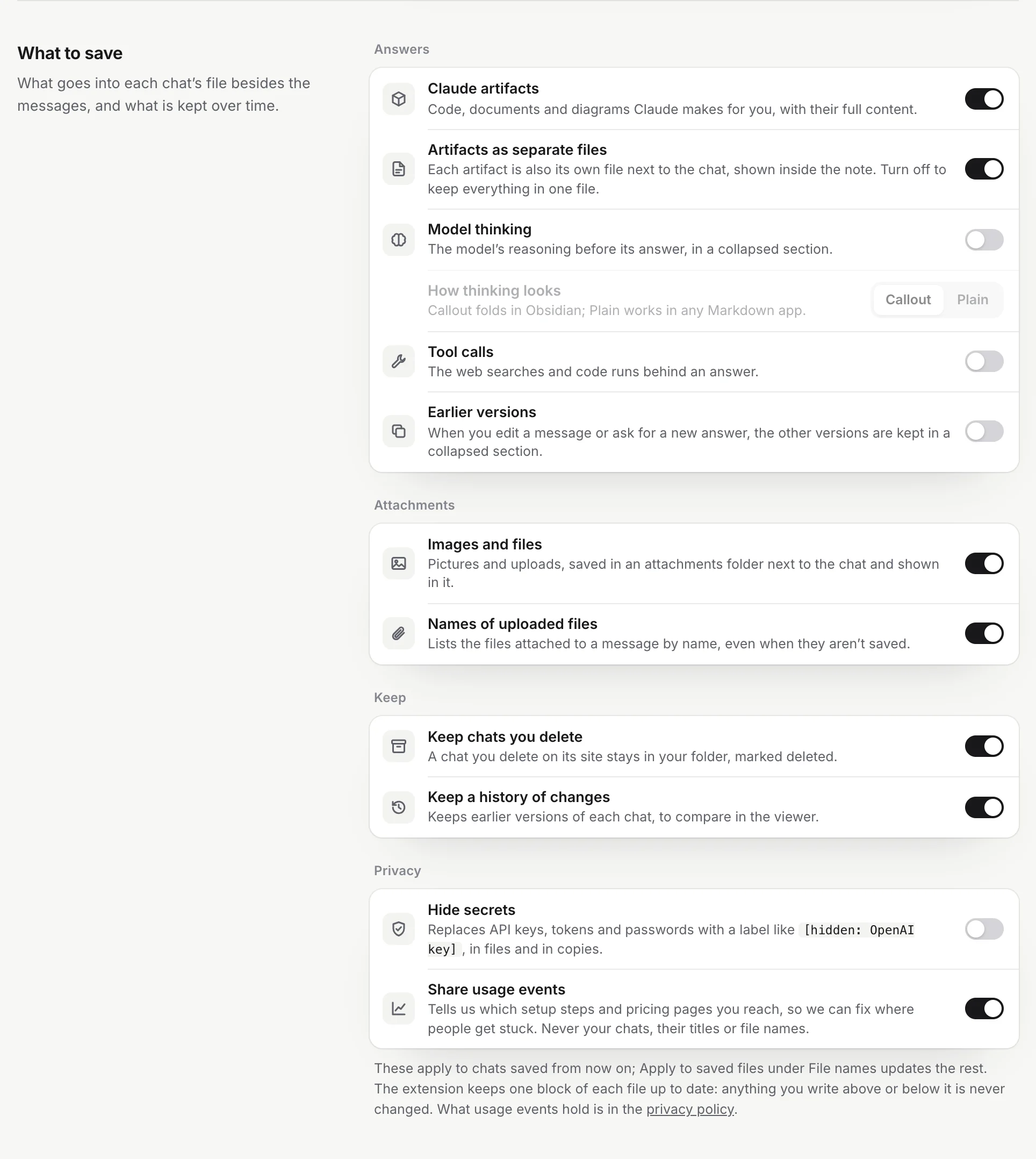
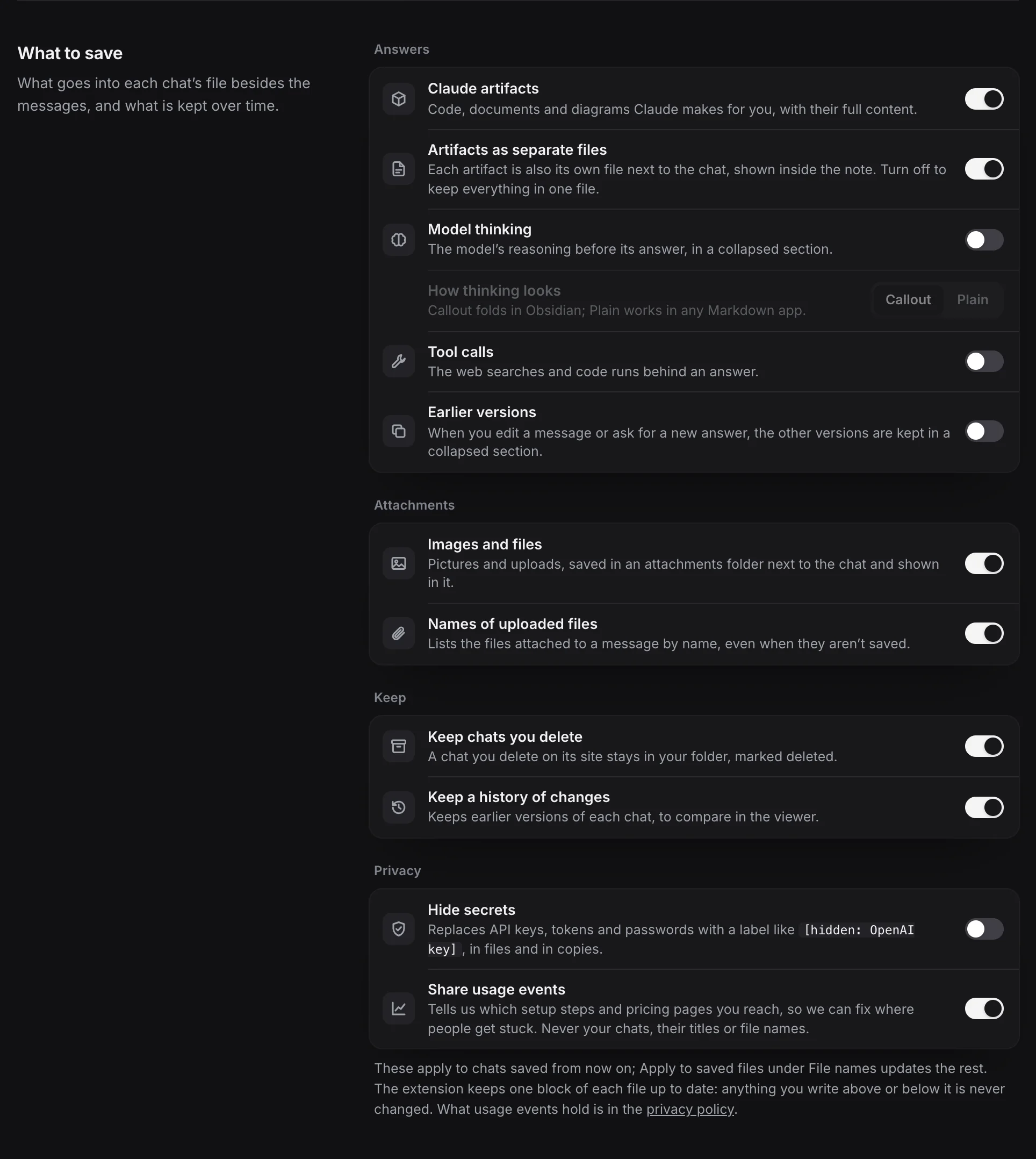
Settings → What to save decides what goes into each chat’s file besides the messages, and what is kept over time. Every option works on the Free plan too.
When changes take effect
Options here apply each time a chat is saved: new chats, and saved chats when they change on their site. A saved chat that doesn’t change keeps its file as it is.
To bring one saved chat up to date with new options, open it in the reader and click Re-sync. See The reader. Apply to saved files in Settings → File names does not read chats again; of the options on this page it only applies How thinking looks and Hide secrets.
Answers
| Option | Default | What it changes in the file |
|---|---|---|
| Claude artifacts | On | Code, documents and diagrams Claude makes are saved with their full content. Off: only the text of the answer. |
| Artifacts as separate files | On | Each artifact is also its own file in attachments, shown inside the note. Off: the content is written into the note. Greyed out while Claude artifacts is off. |
| Model thinking | Off | The model’s reasoning before its answer, in a folded section above the answer. |
| How thinking looks | Callout | Callout folds in Obsidian; Plain is a bold label and a quote that works in any Markdown app. Greyed out while Model thinking is off. |
| Tool calls | Off | The web searches and code runs behind an answer, each as a label and a code block. |
| Earlier versions | Off | When you edit a message or ask for a new answer, the other versions are kept in a folded Other versions section under it. |
Examples of each, taken from real files, are in What’s in a saved file.
Attachments
| Option | Default | What it changes in the file |
|---|---|---|
| Images and files | On | Pictures and uploads are saved in an attachments folder next to the chat and shown in it. Off: a picture shows as *[image]*. |
| Names of uploaded files | On | Files attached to a message that weren’t saved are listed by name, for example *Attachments: brief.pdf*. |
Images and files
Turning Images and files on starts a sync at once. Saved chats whose pictures are missing are read again and their pictures added, even if the chats didn’t change. Each chat is tried up to three times.
Some services keep pictures on servers Chrome has to allow separately. If the popup says, for example, Gemini pictures aren’t saved yet, click Allow there once. Settings → Chat services shows the same with a link to allow it.
Files larger than 25 MB are not saved. Files Claude made are always saved as files when Artifacts as separate files is on, whatever this option says.
Keep
Keep chats you delete
On by default. A chat you delete on its site stays in your folder, marked as deleted:
deleted: true
deleted_at: 2026-11-02T14:03:00
How it works:
- About once a day for each service, the extension compares your saved chats with the list on the site. A chat that is missing is checked on its own, and only a clear “not found” from the site marks it deleted. Archived chats are not marked.
- Only chats saved from the account you are signed in to now are checked, so switching accounts doesn’t mark the other account’s chats as deleted.
- While your history is first being saved, the check waits until that is done.
- If a chat comes back on the site, its file is updated and the marks are removed.
In the reader, a deleted chat shows This chat was deleted in ChatGPT. Your saved file is all that’s left of it. In popup search it has a Deleted tag, and clicking it opens the saved file.
Turning this off stops the check. Nothing is ever deleted from your folder either way: files of chats you delete simply aren’t marked.
Keep a history of changes
On by default. Each time a chat’s file changes, the version before is kept, up to 100 per chat, in the hidden .chattomarkdown/history folder. The reader shows them as Changes. Turning it off stops new versions from being kept; the versions you have stay. See Version history.
Privacy
Hide secrets
Off by default. When on, API keys, tokens and passwords are replaced with a label before a chat is written or copied. A real example:
Before: My key is sk-proj-AbC123dEf456GhI789jKl012MnO and password = "hunter2024!" and AKIAIOSFODNN7ABCDEFG
After:  My key is [hidden: OpenAI key] and password = "[hidden: password]" and [hidden: AWS key]
What it recognises, with the label each gets:
| Found | Label |
|---|---|
| Keys with a known shape: Anthropic, OpenAI, Stripe, AWS, GitHub, GitLab, Google, Slack | [hidden: OpenAI key], [hidden: GitHub token], [hidden: Slack webhook] and so on |
| JSON Web Tokens | [hidden: JWT] |
Private key blocks (-----BEGIN ... PRIVATE KEY-----) | [hidden: private key] |
Authorization: Bearer ... headers | [hidden: token] |
Passwords in addresses, like https://user:pass@host | [hidden: password] |
Assignments such as password = ..., api_key: ..., "client_secret": "..." | [hidden: password], [hidden: API key], [hidden: secret], [hidden: token] |
It leaves placeholders alone, such as YOUR_API_KEY, ${TOKEN}, os.environ["KEY"], changeme or ********, so examples in answers stay readable.
Where it applies:
- The chat in the file, its title and so its file name.
- Names and text of saved attachments, such as a pasted text file.
- What the reader and popup show, the table of contents and daily note links.
- Copies: Copy as Markdown and Copy for another AI from the Save button.
Things to know:
- It applies to chats saved from now on. To mask files you already have, use Apply to saved files in Settings → File names.
- Earlier versions in the version history keep the text as it was. To remove a secret from there, delete that chat’s file in
.chattomarkdown/history. - A masked secret can’t be recovered from the file. If you turn the option off, a chat shows its secrets again the next time it is saved.
- It errs on the side of leaving text alone, so an unusual secret may not be recognised. Don’t rely on it as your only protection.
Share usage events
On by default. It tells our server when you reach certain setup and pricing steps, so we can fix where people get stuck: the welcome page opened, a folder chosen, a service turned on (which one), the first sync started, Settings or the pricing page opened, a plan clicked, signing in, and steps of an import.
Each event carries a random id made at install and, when you are signed in, your account. Events never include chat content, chat titles, or folder or file names. They are deleted after 180 days. Turn the switch off to stop sending them. Details: Privacy and permissions and the privacy policy.
Problems
Thinking or tool calls don’t appear. Check that the option is on, then click Re-sync on the chat in the reader. Not every service shows thinking or tool calls for every answer; when the site has none for an answer, nothing is added.
Pictures still show as *[image]*. Look in the popup for a message asking to allow the service’s picture server, and allow it. Then wait for the next sync, or click Re-sync on the chat.
A chat I deleted isn’t marked deleted. The check runs about once a day per service and only after your whole history is saved. Make sure you are signed in to the same account the chat was saved from.
Hide secrets missed a key. Edit it out of the file by hand. Inside the block, your edit lasts until the chat is next saved, when the text comes back from the site; to remove it for good, delete or edit that message on the chat site too. Revoke the key with its provider as well.
Questions
I turned on Model thinking. Why don't my old chats have it?
Options here apply when a chat is saved. Old chats get it the next time they change on their site, or when you click Re-sync on them in the reader.
Does Hide secrets change anything on the chat site?
No. It only masks keys and passwords in what the extension writes and copies. The chat on its site is untouched.
Are my chats sent anywhere with Share usage events on?
No. Usage events say which setup steps and pricing pages you reach. They never include chats, their titles, or folder or file names.