Upgrade, sign in and manage your plan
How to buy Chat to Markdown Pro inside the extension, sign in with Google or email, pay with Stripe, use Pro on another computer, and cancel or manage it.
In short
Click Get Pro in the extension, pick Monthly, Yearly or Lifetime, sign in with Google or your email, and pay on Stripe's page. Pro turns on by itself a few seconds later. Manage or cancel it in Settings → Account and plan → Manage subscription.
You buy Pro inside the extension. It takes a minute: pick a plan, sign in, pay on Stripe’s page, and Pro turns on by itself. This page also covers signing in on another computer, managing or cancelling your plan, and signing out.
For what Pro adds, see Free and Pro. For prices, see /pricing/.
Where to start
Any of these opens the Pro offer:
- The popup: Get Pro at the bottom (on Free; Save every chat once all 10 free chats are used), or in the account menu at the top right.
- Settings: See Pro in Account and plan (Upgrade to Pro if you are signed in), or Get full history in the sidebar (Save every chat once all 10 are used).
- A chat page: Get Pro: save every chat in the Save button’s menu, or Get Pro when your free chats are used.
- The welcome page: See Pro, or Save all of them when older chats aren’t saved.
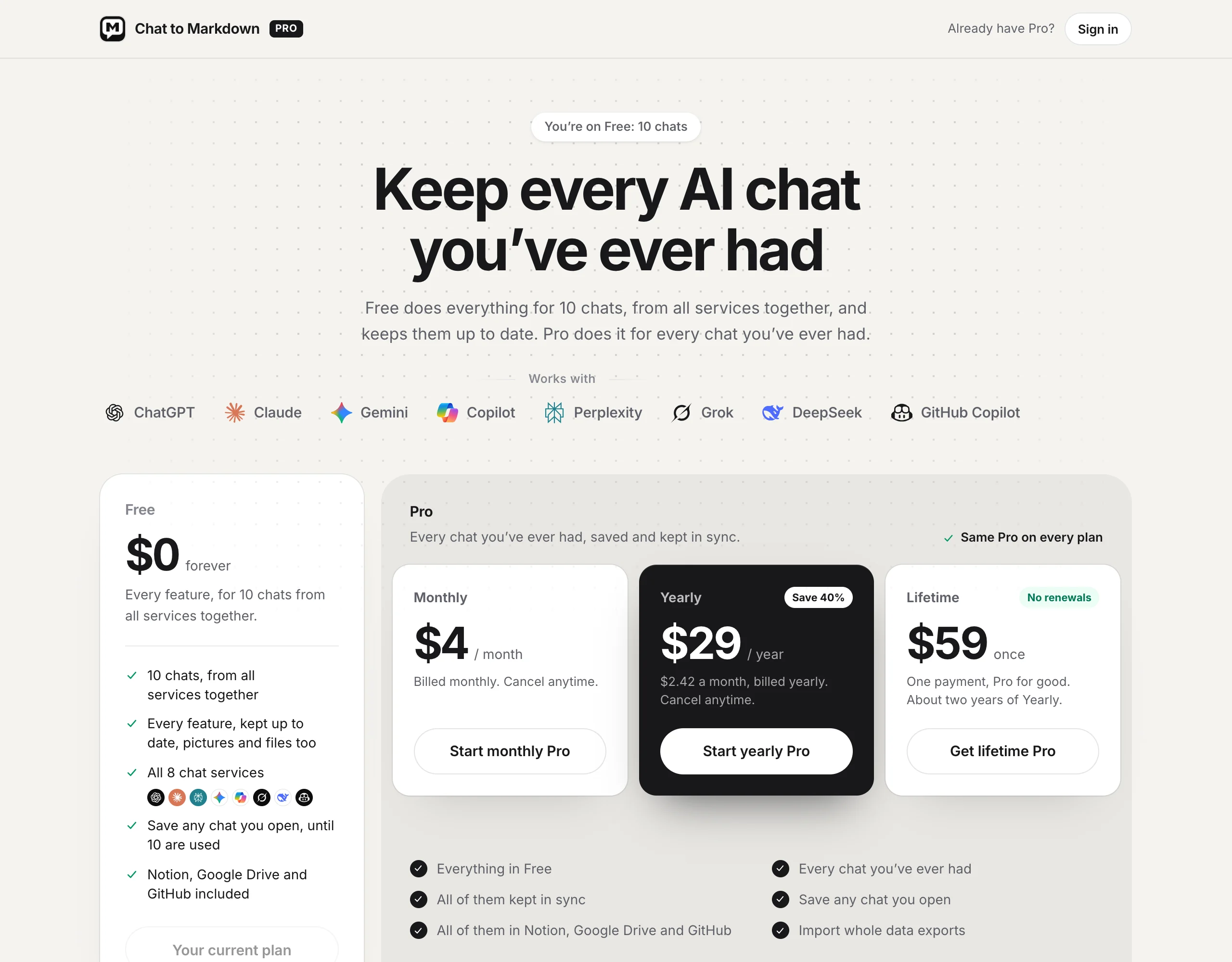
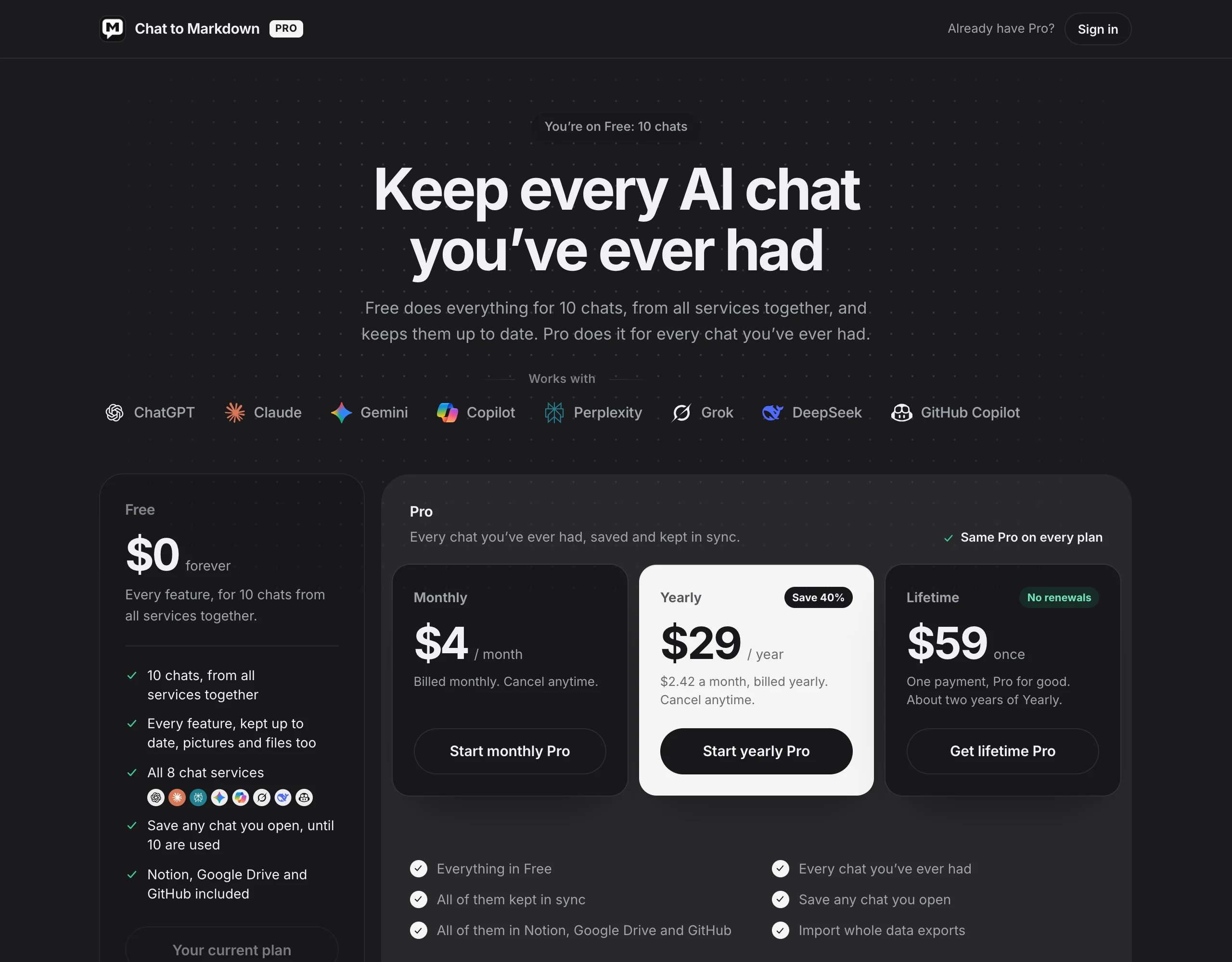
In Settings and on the welcome page, a window opens with the three plans. Pick one and click its button (for example Start yearly Pro); the upgrade page opens and takes you straight to the next step. The other buttons open the upgrade page directly.

Buy Pro
- Choose a plan. On the upgrade page, click Start monthly Pro, Start yearly Pro or Get lifetime Pro. All three are the same Pro. If the page offers a currency switch ($ USD or € EUR), pick yours first.
- Sign in. If you aren’t signed in, a sign-in window opens: “Sign in to continue”, with the plan you chose. See Sign in below.
- Pay on Stripe’s page. The window says Opening secure checkout… and Stripe’s checkout opens in a new tab. Pay with a card or a wallet Stripe offers in your country, such as Apple Pay or Google Pay.
- Come back to the extension. The upgrade page shows Finish in the Stripe tab and updates on its own once your payment goes through. When it does, it shows You’re on Pro. Click Done to close the tab.
After payment, Stripe’s tab lands on a chattomarkdown.com page that says Pro is on. Thank you. You can close it. Stripe emails you a receipt.
As soon as Pro is on, the extension starts saving the chats Free left out, newest first, in the background. A long history takes a while. You don’t need to keep any page open.
If checkout doesn’t finish
| You see | What to do |
|---|---|
| The page still says Finish in the Stripe tab after you paid | Click I’ve paid. If it says “Not yet. Try again in a moment.”, wait a few seconds and click again. |
| Checkout didn’t open | Click Try again. If it says it can’t reach Chat to Markdown, check your connection. |
| You closed the Stripe tab without paying | Nothing was charged. Click Choose a different plan, or a plan button again. |
| Stripe’s tab says No payment was made. | You left checkout before paying. Free keeps working. Open the extension and click Get Pro to try again. |
| The plans show prices in the wrong currency | Use the $ USD / € EUR switch above the plans, if it is shown. Your choice is remembered. |
Sign in
You only need an account for Pro. Your account holds your email and your plan, never your chats.
With Google
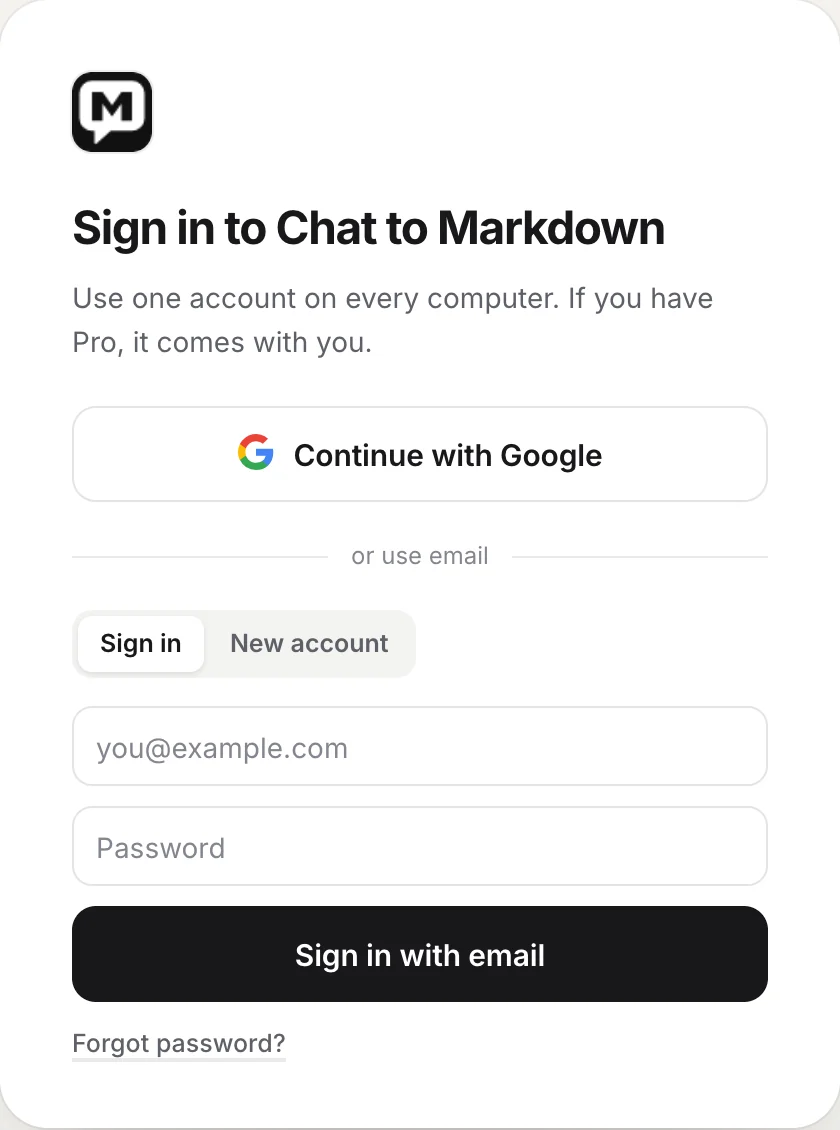
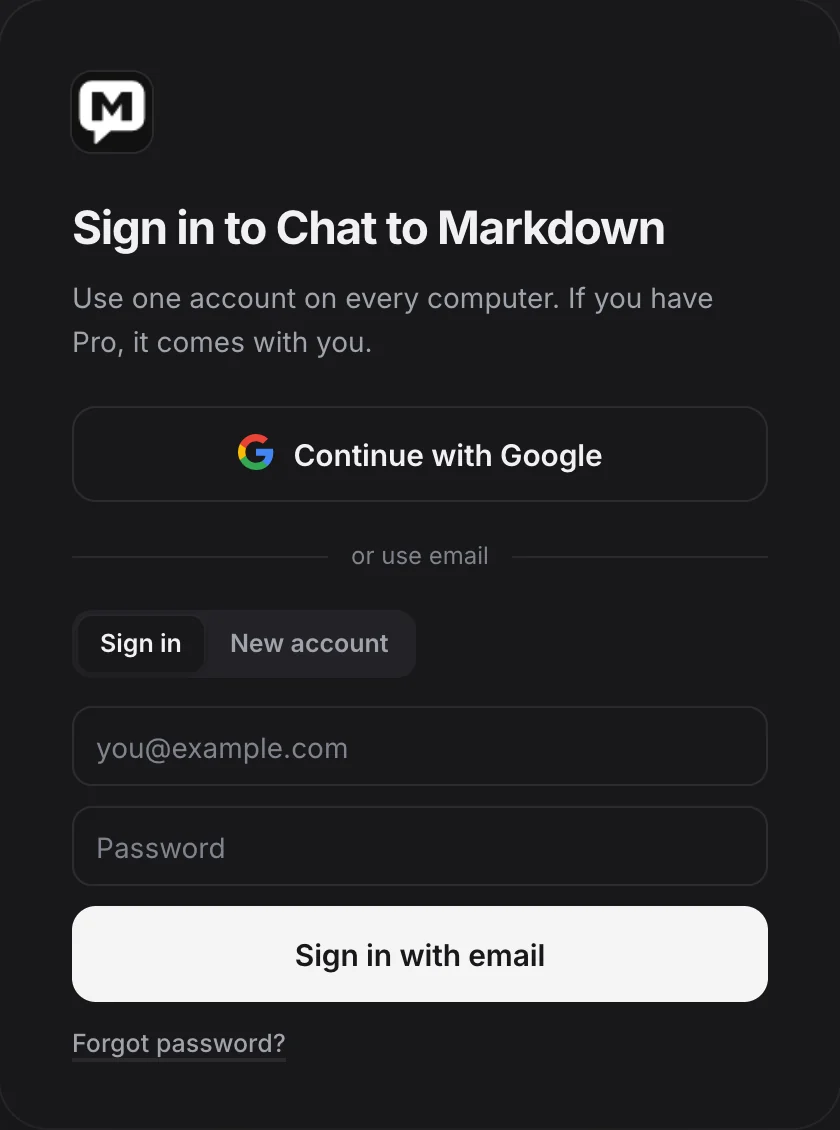
- Click Continue with Google. The button reads Waiting for Google… and Google’s window opens.
- Choose your Google account and allow it. The window closes and you are signed in.
If you close Google’s window, the page says “Sign-in was cancelled.” Click Continue with Google again.
With your email
There are two tabs above the email field: Sign in and New account.
- For a new account, click New account. Enter your email and a password of 8 or more characters, then click Create account.
- Enter the code. The window says Check your email: a 6-digit code was sent to your address. It’s valid for 15 minutes. Type or paste it; it is checked as soon as all six digits are in.
- Next time, use Sign in. Enter your email and password and click Sign in with email.
If the code doesn’t arrive, check your spam folder, or click send a new code (you can ask again after a minute). If you see “That code expired. Send a new one.”, ask for a new code.
Sign-in problems
| Message | What to do |
|---|---|
| “This email signs in with Google. Use the Google button, or set a password with “Forgot password?”.” | Your account was made with Google. Use Continue with Google. |
| “You already have an account. Sign in instead.” | Switch to the Sign in tab. |
| “Too many attempts. Wait a minute and try again.” | Wait a minute. |
| “Can’t reach Chat to Markdown right now. Check your connection.” | Check your internet connection, then try again. |
Forgot your password? Click Forgot password? under the sign-in form, enter your email and click Send reset code. Enter the 6-digit code from the email, choose a new password, and click Set password and sign in. This also works if you usually sign in with Google and want a password too.
Use Pro on another computer
Pro belongs to your account, not to one browser.
- Install the extension on the other computer. See Install the extension.
- Sign in. Open the popup, click the account button at the top right, then Sign in (“Already have Pro? Sign in to use it here”). Use the same Google account or email you paid with.
- Check that Pro is on. The sign-in page shows You’re signed in and “Pro is on for this browser. Every chat is saved.”
Each computer has its own folder and settings. Set up the folder and services on the new computer too, as in Set up in two minutes.
Tip
If your folder already syncs between your computers (for example an Obsidian vault with Obsidian Sync or iCloud), the chats saved on one computer reach the other through that sync. You only need the extension on one of them.
Restore Pro
If you reinstalled the extension, cleared its data, or are on a new browser profile, Pro comes back when you sign in. On the upgrade page, click Sign in next to “Already have Pro?”. If the account already has Pro, the window says Welcome back, Pro is on, and saving the rest of your history starts again.
If Pro doesn’t show after signing in, you may have signed in with a different account than the one you paid with. Sign out and sign in with the other one. If you’re not sure which one it was, look for Stripe’s receipt in your email.
See and manage your plan
Open Settings → Account and plan. It shows your name or email and your plan:
| The plan line | What it means |
|---|---|
| Pro, renews 19 Nov 2026 | Monthly or Yearly, renewing on that date. |
| Pro until 19 Nov 2026, then Free | Cancelled. Pro stays on until that date. |
| Pro, lifetime | Lifetime. Nothing renews. |
| Free plan, 10 chats | Signed in, without Pro. |
The date is shown in your browser’s date format.
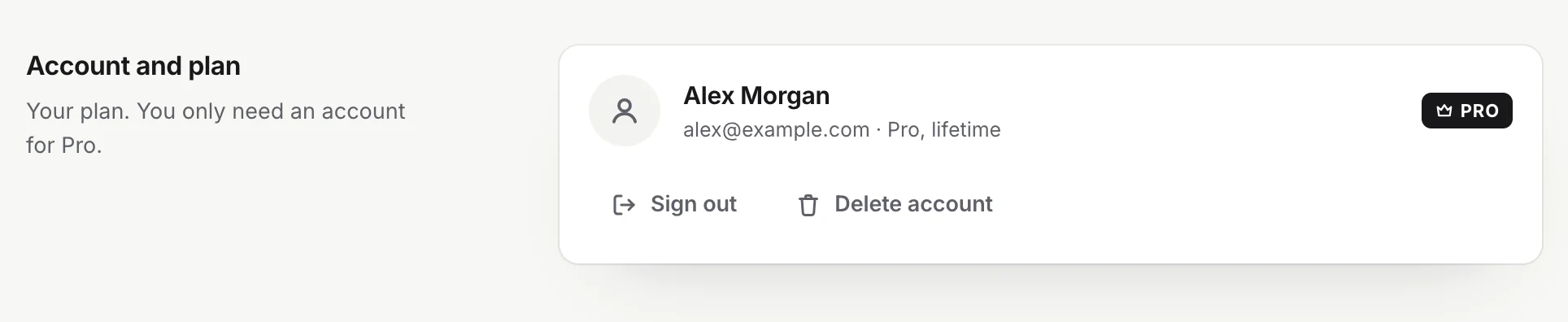
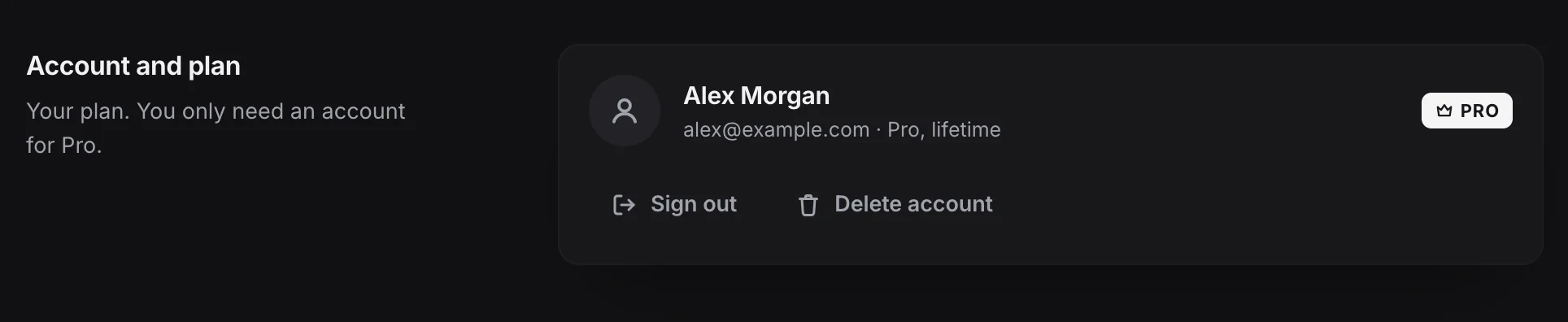
The extension checks your plan when you open the popup or Settings, and every 12 hours on its own.
Change your card, see invoices, or cancel
- Open Settings → Account and plan.
- Click Manage subscription. Stripe’s billing page opens in a new tab.
- Make your change there: update your card, download invoices, or cancel.
- Come back. Stripe returns you to a chattomarkdown.com page that says “You’re back from billing.” Open the extension to see the change right away.
When you cancel, Pro stays on until the end of the month or year you paid for, and you aren’t charged again. After that the extension goes back to Free and your files stay. See Free and Pro.
Manage subscription only shows for Monthly and Yearly. Lifetime has nothing to manage or cancel.
Sign out
Click Sign out in Settings → Account and plan, in the popup’s account menu, or at the top of the upgrade page.
Signing out removes Pro from this browser only. Your plan stays with your account, and your files stay in your folder. The extension goes back to Free until you sign in again.
Delete your account
In Settings → Account and plan, click Delete account. The extension says what will happen before anything is deleted:
- Monthly or Yearly that still renews: “Cancel your subscription first: Manage subscription, then Cancel. Then you can delete your account.”
- Cancelled Monthly or Yearly: your Pro plan ends now, not at the end of the period you paid for.
- Lifetime: “Your Lifetime plan ends with it and can’t be restored.”
In every case, your email and plan are deleted from our server, and your saved files stay in your folder. To remove the extension itself, see Uninstall and remove your data.
Refunds
Free has every feature, so you can try everything before you pay. The refund rules are in the terms. In short: within 14 days of paying, you can ask for a refund if you haven’t used Pro yet. “Using Pro” means saving more chats than the 10 Free keeps, or importing a whole export; the extension tells our server the first time that happens. If something went wrong with a payment, such as a double charge, write to contact@chattomarkdown.com.
Questions
Do I need an account to use Chat to Markdown?
No. Saving works without an account on Free. You only need one to buy Pro and to use it on your computers.
I paid but the extension still says Free. What do I do?
Open the extension's popup or Settings; both check your plan when they open. Make sure you are signed in with the same account you paid with. If it still says Free after a few minutes, write to contact@chattomarkdown.com.
How do I cancel?
Settings, Account and plan, Manage subscription. Stripe's billing page opens; choose Cancel there. Pro stays on until the end of the month or year you paid for, and you aren't charged again.
Do I lose my files if I cancel or sign out?
No. Your files are plain Markdown in your folder and stay there. The extension goes back to Free.
Can I use Pro on two computers?
Yes. Pro belongs to your account. Install the extension on the other computer and sign in with the same account.