Table of contents note
A note in your folder that links every saved chat, grouped by service, project and month. How to turn it on, where it is, write in it and open it in Obsidian.
In short
Turn on Settings → Obsidian → Table of contents and the extension keeps one note in your folder that links every saved chat, grouped by service, project and month. It is called AI Chats index.md, is rewritten when a sync finishes, and keeps anything you write above or below its block.
The table of contents is one Markdown note that links every chat you have saved. It is grouped by service, then project, then month, with counts, so you can see your whole archive on one page and click through to any chat. In Obsidian it also makes your chats show up connected in the graph.
It is off by default and free on every plan.
Turn it on
- Open Settings → Obsidian. Click the extension’s icon, then the settings icon, and choose Obsidian in the sidebar.
- Turn on Table of contents. It is under Linked notes. The extension writes the note at once and shows “Table of contents ready:” with its path.
- Check where it is. Below the switches you see the note’s path, a button to copy it, Open in reader, and, when your folder is the top of an Obsidian vault, Open in Obsidian.
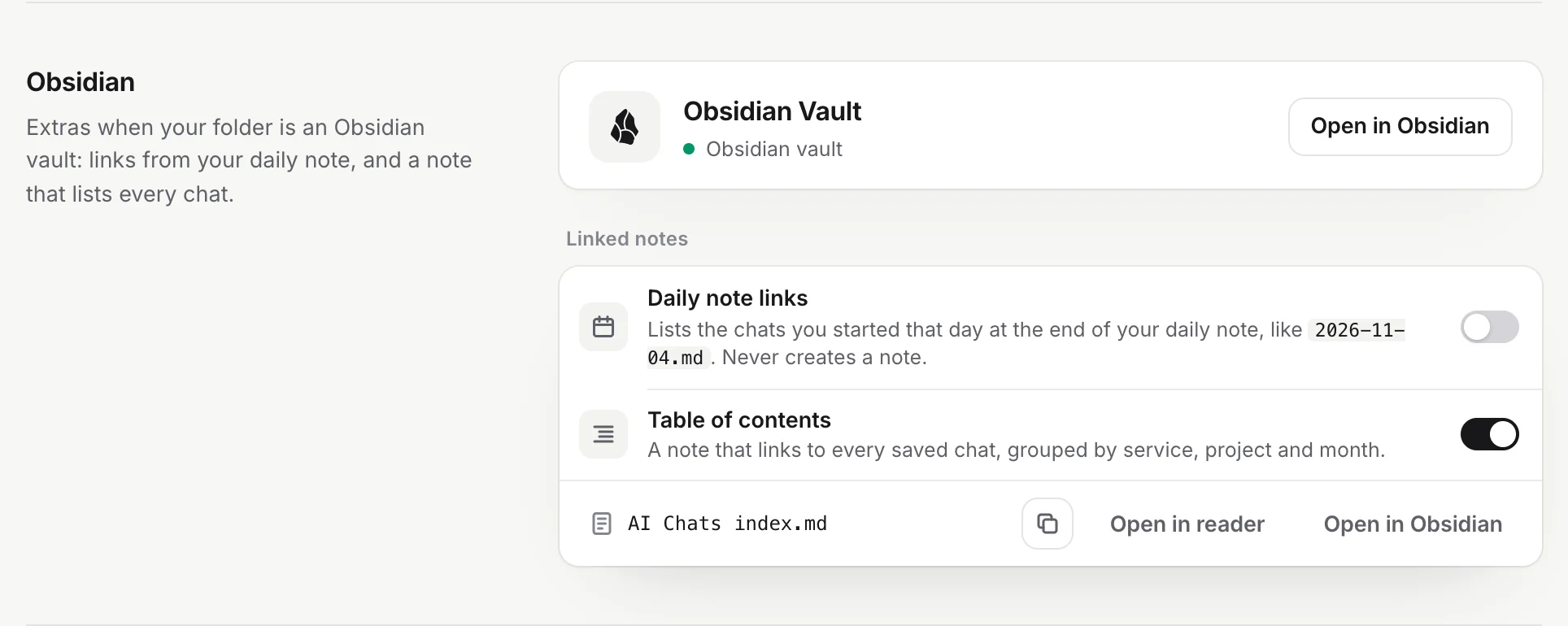
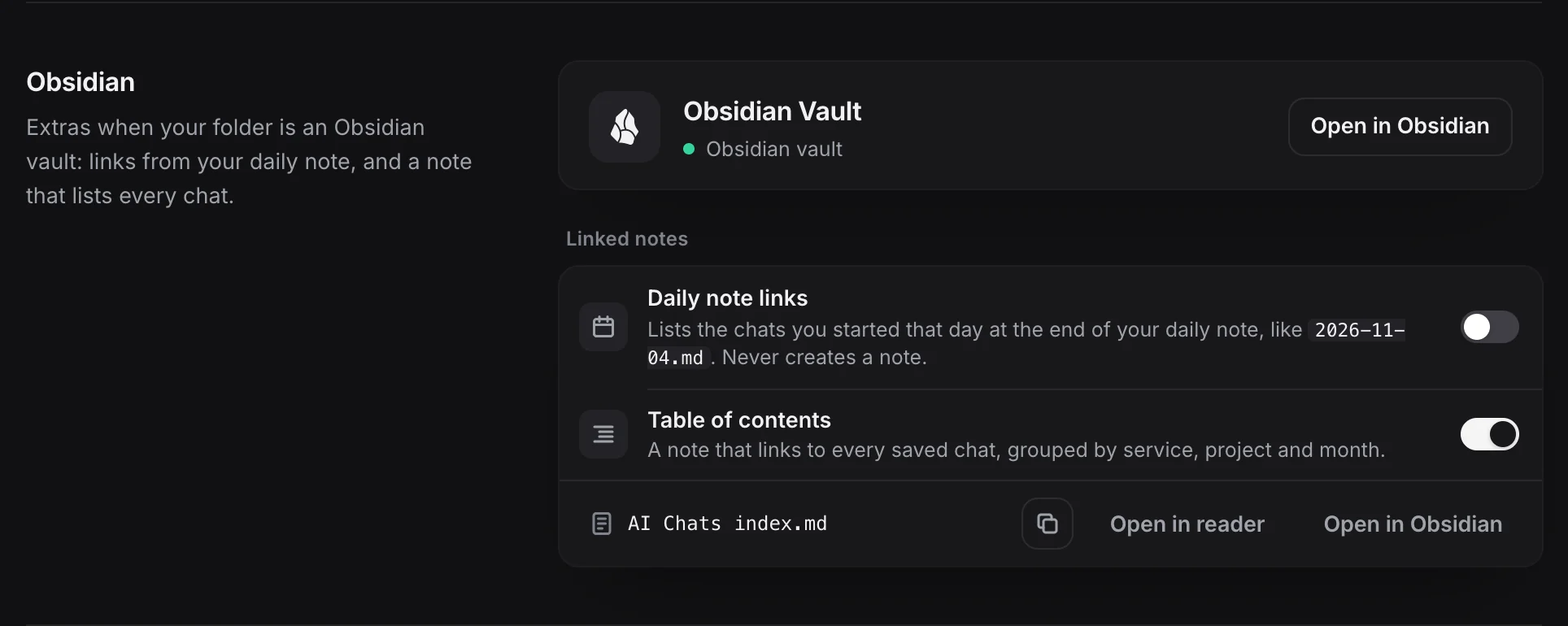
- Table of contents turns the note on or off.
- Open in Obsidian opens Obsidian.
If Chrome can’t open your folder right now (for example after a restart), you see “The table of contents will be made at the next sync”. Allow access again from the popup or Settings → Folder (see Choose your folder), and it is written at the next sync. If a sync is running when you turn it on, the note is written when that sync finishes.
Where the note is
The note is called AI Chats index.md. In version 1.0.0 you can’t change its name. It sits at the top of your chats:
- With a Subfolder set in Settings → Folders and filters (for example
AI Chats), it is in that subfolder:AI Chats/AI Chats index.md. - With no subfolder, it is at the top of the folder you chose.
- Obsidian Vault
- AI Chats
- AI Chats index.md
- ChatGPT
- Travel
- 2026-10-17 Lisbon food trip.md
- Travel
- Claude
- 2026-10-20 Postgres index tuning.md
- AI Chats
Warning
Known issue in 1.0.0: when you change the subfolder, the note stays behind in the old subfolder and a new one is made in the new subfolder. The old one is no longer updated. Copy anything you wrote in it to the new note, then delete the old one. Version 1.0.1 moves the note for you; see the release notes.
What it lists
The note starts with a total and a count per service. Then each service has a section, each project inside it a section, and each month a list of chats, newest first. Here is a real example:
<!-- chattomarkdown:index:start · updated automatically on sync; write your own notes above or below this block -->
# AI chats

4 chats · ChatGPT 3 · Claude 1

## ChatGPT · 3 chats

### Work · 1 chat

#### October 2026 · 1

- [[AI Chats/ChatGPT/Work/2026-10-21 Quarterly OKR draft|Quarterly OKR draft]]

### Other chats · 2 chats

#### October 2026 · 1

- [[AI Chats/ChatGPT/2026-10-17 Lisbon food trip|Lisbon food trip]]

#### September 2026 · 1

- [[AI Chats/ChatGPT/2026-09-30 Sourdough starter schedule|Sourdough starter schedule]]

## Claude · 1 chat

### October 2026 · 1

- [[AI Chats/Claude/2026-10-20 Postgres index tuning|Postgres index tuning]]
<!-- chattomarkdown:index:end -->
How it is grouped:
- Services each get a
##heading with their number of chats. - Projects (ChatGPT and Claude Projects, Perplexity Spaces) each get a
###heading, in alphabetical order. Chats that aren’t in a project come last, under Other chats. A service with no projects goes straight to its months. - Months are the month the chat was started, newest month first. A chat without a start date is listed by the date it was last updated.
- Chats are links to the notes, with the chat’s title as the link text. Chats deleted on their site that you keep are marked ”· deleted”.
- With Hide secrets on (Settings → What to save), keys and passwords in titles are masked here too.
The links use the full path from your folder, so they work in Obsidian and in any Markdown app that reads wiki links.
When it updates
The extension rewrites the list:
- When a sync finishes, or when you stop or pause it. Chats saved during the sync are added all at once at the end.
- When you save one chat by itself: with the Save button on a chat site, when you leave a chat, or with Re-sync in the reader.
- When you turn it on, and after Apply to saved files in Settings → File names.
Chats you import from a data export are added at the end of the next sync.
During a long first sync of your history, which can take hours, the note doesn’t change until the sync ends.
If nothing changed, the file isn’t touched, so a sync service has nothing to upload.
Note
Version 1.0.1 updates the note within seconds of each saved chat, also during a sync. See the release notes and update the extension to get it.
Write your own notes in it
The list sits between two HTML comments, chattomarkdown:index:start and chattomarkdown:index:end. Only the text between them is rewritten. Anything you write above or below the block stays, every time. For example, add a short intro at the top, or a list of your favourite chats at the bottom.
Warning
If you delete either marker comment, the extension stops updating the note and leaves it exactly as it is. When you turn the table of contents on, it then says “Table of contents left as it is: its start and end markers were removed”. To get an updated list again, delete the note (or rename it) and the extension writes a fresh one at the next save.
The note’s name
In version 1.0.0 the note is always called AI Chats index.md. There is no setting to change it.
Important
Don’t rename or move the note in Obsidian. The extension doesn’t know about it and writes a new AI Chats index.md at the next update. The renamed copy then stops updating. If you link to the note from your own notes, link to AI Chats index.
Version 1.0.1 adds Settings → Obsidian → Note name, which renames the note and moves what you wrote in it along.
Open it
- Open in reader shows the table of contents in the extension’s reader. You can switch between Contents (every chat by service, project and month; click a title to open the chat) and Markdown (the note as it is on disk). The reader’s table of contents button, at the top of its sidebar, opens the same view.
- Open in Obsidian opens the note in Obsidian. It shows when your folder is the top of an Obsidian vault. If the note isn’t in your folder yet, the extension writes it first. See Use with Obsidian if Obsidian doesn’t open.
Warning
Known issue in 1.0.0: while a long first sync is running, Open in Obsidian does nothing until the sync finishes. Use Open in reader meanwhile, or open the note in Obsidian yourself. Version 1.0.1 fixes this.
- The copy button next to the path copies the note’s path, for example to paste into an Obsidian link.
Turn it off
Turn off Settings → Obsidian → Table of contents. You see “Table of contents off. The note stays in your folder.” The note is no longer updated. Delete it in Obsidian or your file manager if you don’t want it.
Problems
- The note isn’t there. Check that Table of contents is on and look at the path under it. If Chrome lost access to your folder, allow it again; the note is written at the next save.
- The list is out of date. A sync may still be running: the note is rewritten when it finishes. The markers may also have been removed (see above), or you are looking at an old copy (renamed in Obsidian, or left behind after a subfolder change). Check the path in Settings.
- A chat is missing. The list shows chats the extension has saved. Chats skipped by your filters, or not saved yet, are not in it. See How saving works.
- A link opens an empty new note in Obsidian. Obsidian creates a new note when it can’t find a link’s target. The links start from the folder you chose, so if you chose a folder inside your vault rather than the vault itself, choose the vault itself and set a subfolder instead (see Use with Obsidian).
Questions
Is the table of contents a Pro feature?
No. It works on Free and Pro. On Free it lists the chats you have saved.
Will it overwrite what I write in the note?
No. Only the block between its two marker comments is rewritten. Text above or below the block stays.
Can I rename the note?
Not in version 1.0.0. The note is always AI Chats index.md. If you rename it in Obsidian, the extension makes a new AI Chats index.md at the next update. Version 1.0.1 adds a Note name setting.
Does it need an Obsidian vault?
No. It is a plain Markdown note and works in any folder. Only the Open in Obsidian button needs the folder to be the top of a vault.