Theme and Save button
Choose a light, dark or system theme for Chat to Markdown, show or hide the Save button on chat pages, and see or change the save shortcut.
In short
In Settings → Appearance, Theme sets light, dark or System (the default, which follows your computer) for the popup and every extension page. Save button on chat pages shows or hides the Save button. The save shortcut (Alt+Shift+S, or Option+Shift+S on a Mac) works either way.
The Appearance section of Settings has two options: how the extension looks, and whether its Save button shows on chat pages. It also shows the keyboard shortcut that saves the chat you have open.
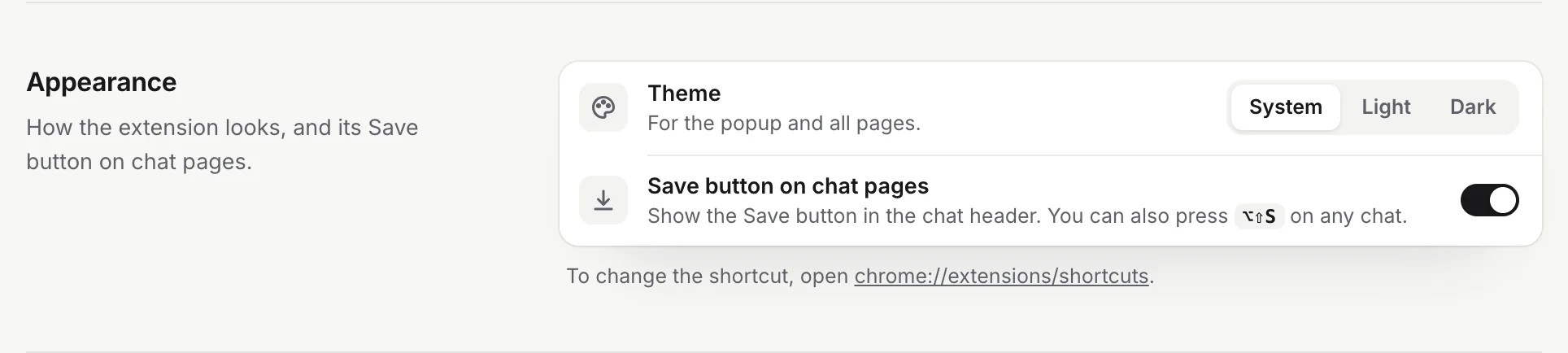
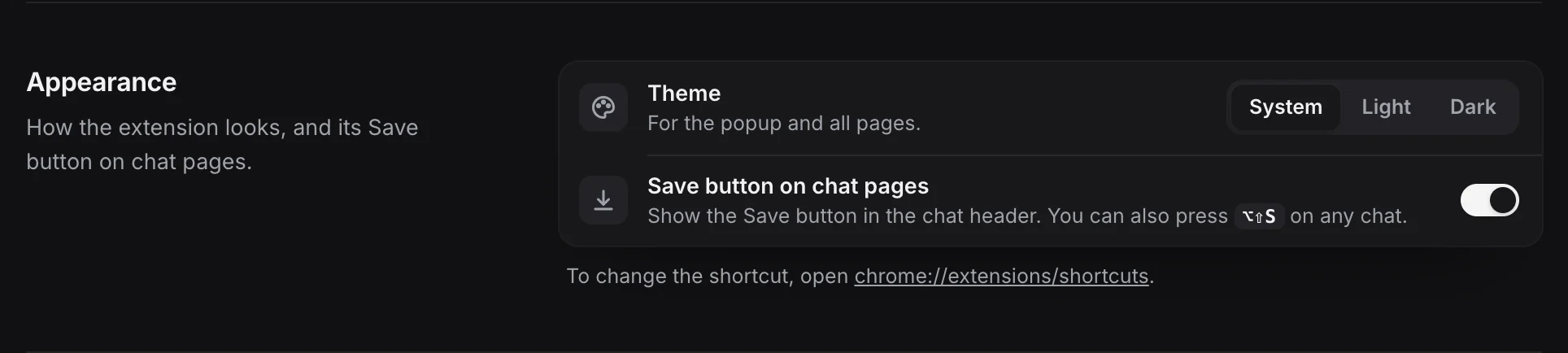
To get there, open Settings (the gear icon in the popup) and click Appearance in the sidebar, under More.
Theme
Theme has three choices:
| Choice | What you get |
|---|---|
| System | Light or dark, following your computer’s setting. This is the default. |
| Light | Always light. |
| Dark | Always dark. |
The theme applies to the toolbar popup and to every page of the extension: Settings, the reader (Saved chats), the sync log, the import page, the welcome page and the plans page. The change is saved at once, and pages that are already open switch straight away.
With System, the extension follows your computer’s light or dark mode. On a Mac that is System Settings → Appearance; on Windows, Settings → Personalization → Colors. If your computer changes mode at sunset, the extension changes with it.
Note
The theme does not change your saved files. They are plain Markdown; how they look in Obsidian or another app depends on that app’s theme.
The Save button follows the chat site
The Save button on chat pages is not affected by Theme. It reads the look of the site’s own Share button (its height, corners and colours) and the page’s light or dark mode, so it looks like part of the site. If you use ChatGPT in dark mode and the extension in light mode, the button on ChatGPT is still dark.
Save button on chat pages
Save button on chat pages shows the Save button in the header of every chat, directly to the left of the site’s Share button. It is on by default.
Turn it off if you prefer a clean header. With the button off:
- Auto-save keeps saving on your schedule.
- Save when you leave a chat keeps working.
- The keyboard shortcut still saves the chat you have open. Since there is no button to show progress, the toolbar icon shows a green check for a moment when the chat is saved.
- The popup still shows the chat in the open tab, with its own Save button.
The change takes effect on open chat pages at once; you don’t need to reload them.
Read more about what the button and its menu do in The Save button and shortcut.
When the button is on but you don’t see it
The button can be on and still hidden for a moment. It hides when:
- the page is not a chat with its own address (for example a new, empty chat before you send the first message);
- the window is too narrow for it next to Share;
- one of the site’s own menus or dialogs covers the header;
- the service is off in Settings, or Chrome hasn’t allowed its site.
If the page was open before you installed or updated the extension, reload it. After an update the button may say Chat to Markdown was updated. Reload this page to use it. More fixes are in Troubleshooting.
The save shortcut
The line under Save button on chat pages shows your shortcut, for example “You can also press Alt+Shift+S on any chat.” The default is Alt+Shift+S on Windows, Linux and ChromeOS, and Option+Shift+S on a Mac.
If the line says “a shortcut” instead of keys, Chrome has no shortcut set for the extension. This happens when another extension already uses the same keys, or when you cleared it.
Change the shortcut
- Click the chrome://extensions/shortcuts link under the Appearance section. Chrome opens its Keyboard shortcuts page. In Edge, open
edge://extensions/shortcutsyourself. - Find Chat to Markdown. Its command is Save the open chat to your folder.
- Click the pencil icon next to the field and press the keys you want. Chrome needs a modifier key in the combination, such as Ctrl or Alt (on a Mac, Command or Option).
- Leave the scope as In Chrome. Global shortcuts would fire in other apps too.
Settings shows the new keys the next time you open it. Every shortcut in the extension is listed in Keyboard shortcuts.
Problems
- The Save button doesn’t match my theme. That is expected: it follows the chat site’s look, not the Theme setting.
- Dark mode shows light pages. With System, check your computer’s appearance setting. Or choose Dark to keep it dark whatever the system does.
- The shortcut does nothing. See Troubleshooting.
Questions
Does the theme change the Save button on chat pages?
No. The Save button takes its look from the chat site, light or dark, so it matches the page it sits on. The Theme setting is for the popup and the extension's own pages.
If I hide the Save button, does saving still work?
Yes. Auto-save, saving when you leave a chat, the shortcut and the popup all keep working. Only the button in the chat header goes away.