Save as PDF or HTML
Turn a saved chat into a PDF or a single HTML file, from the reader or the Save button: what goes in, pictures from the web, charts, and printing tips.
In short
In the reader, open a chat and choose More → Print or save as PDF, or Download as HTML. On a chat page, the Save button's menu has Save as PDF and Save as HTML. Both are made from the saved file, with formulas, diagrams, charts and pictures drawn. The HTML file holds its pictures inside it, so it works offline.
A saved chat can become a PDF to print or archive, or a single HTML file to share or open in any browser. Both are made from the chat’s saved file, drawn the way the reader shows it: formulas, diagrams, charts and pictures included.
From the reader
- Open the chat in the reader.
- Click More (•••) at the right of the chat’s bar.
- Choose Print or save as PDF or Download as HTML. You can also press Cmd+P (Mac) or Ctrl+P to print.
A small window, Preparing your PDF or Preparing your HTML file, shows the steps: Pictures and files, then charts if the chat has any, then Opening the print preview or Putting the file together. Long chats can take a few seconds. Cancel stops it.
If you are in Markdown or Changes view, the reader switches to Preview first: the export is always the drawn chat.
From the Save button on a chat page
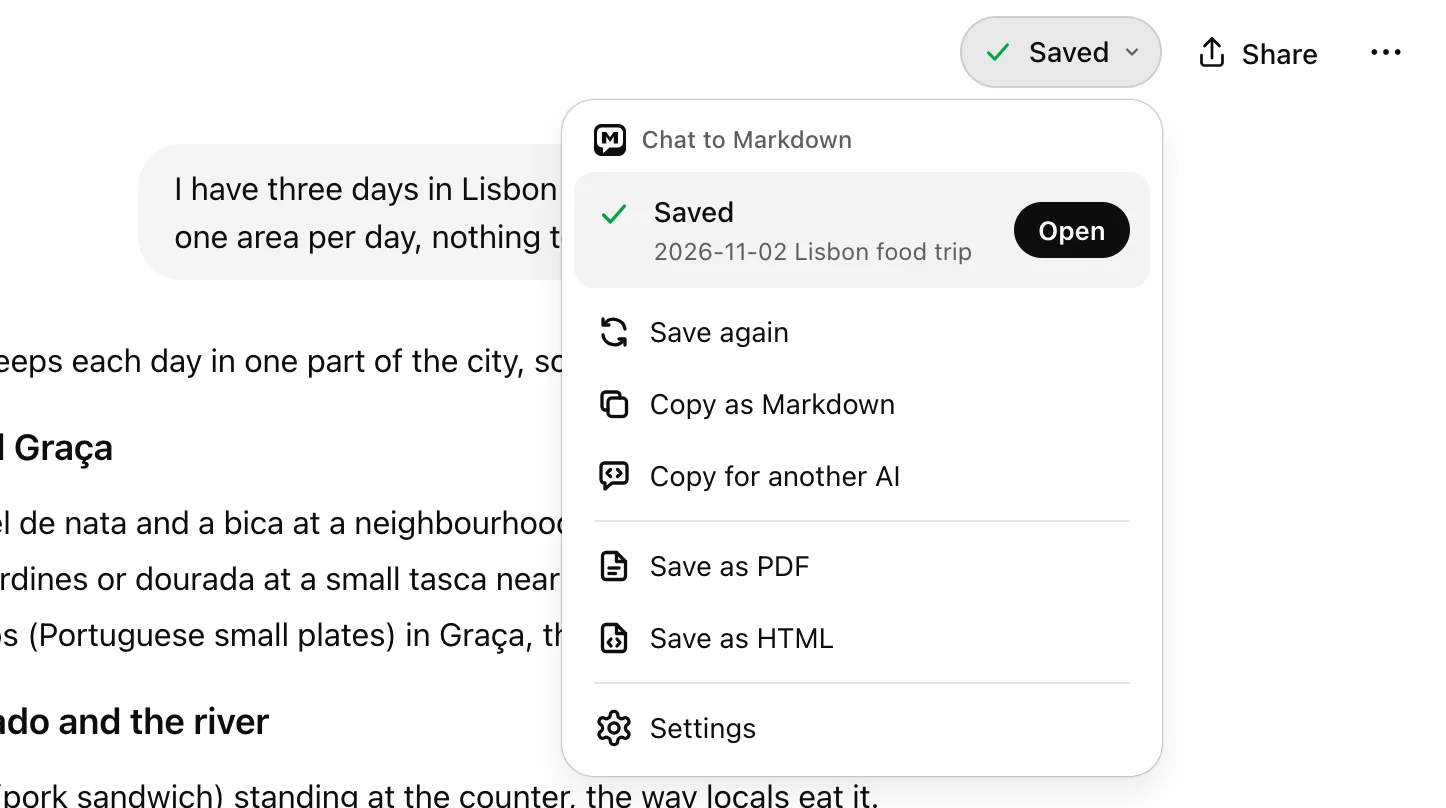
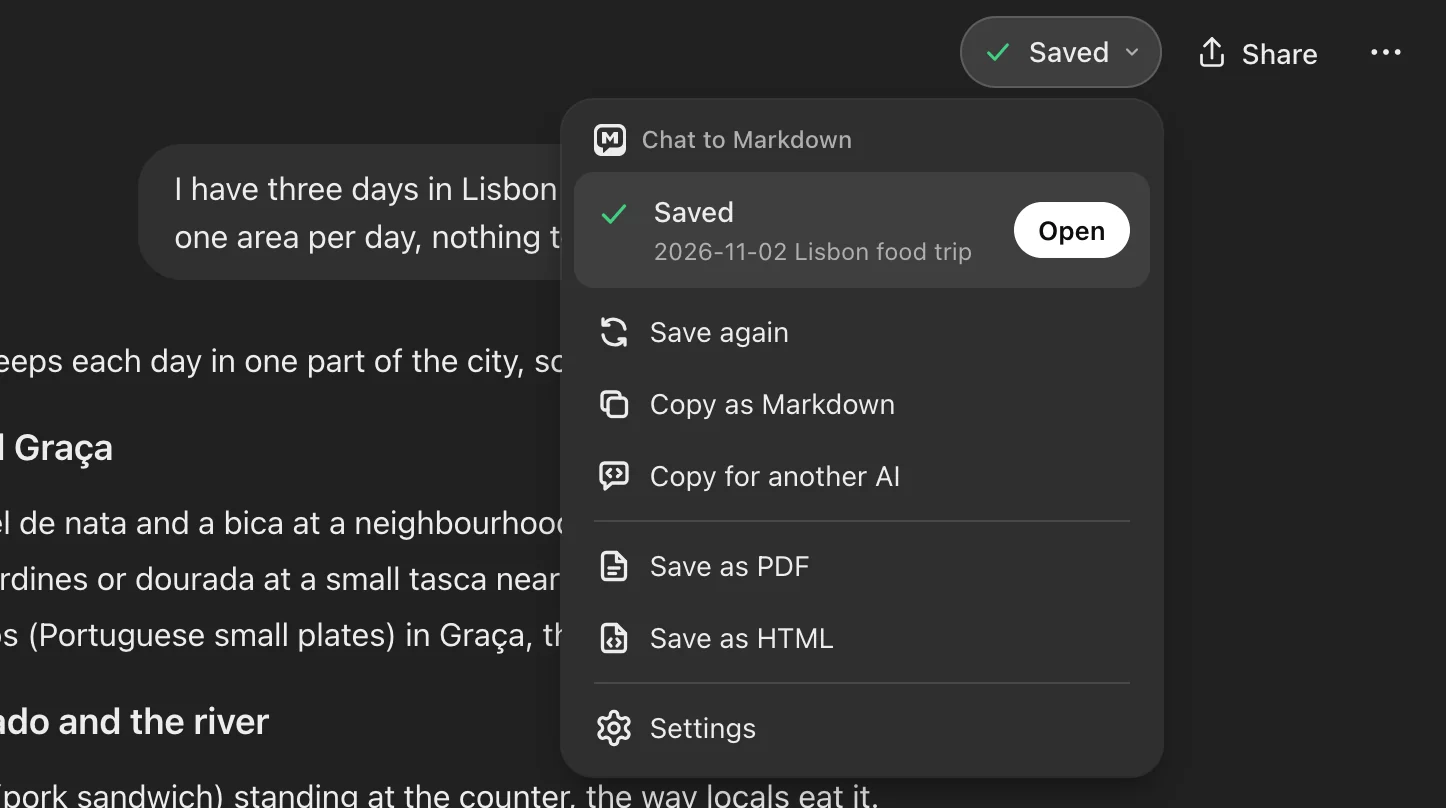
- Save as PDF saves the chat if needed, then opens the print preview.
- Save as HTML saves the chat if needed, then downloads the HTML file.
The chat is saved first if it isn’t saved yet or the file is behind the page, so the export has everything on screen. The reader then opens in a new tab beside the chat, draws it, and opens the print preview or downloads the file.
On the Free plan, this works for your 10 free chats. Exporting a chat outside them saves it first and uses one of them. When none are left, the rows show PRO and open the pricing page. See Free and Pro.
Save as PDF
The extension prepares the chat, then opens Chrome’s print preview. To get a PDF:
- Set Destination to Save as PDF in Chrome’s print dialog.
- Check the pages in the preview on the left.
- Click Save and choose where to put the file. The name Chrome suggests is the chat’s title.
What the PDF looks like:
- Always the light theme, whatever theme you use on screen.
- The chat only: the sidebar, the chat’s bar and the side panel are left out.
- The title and the line of details under it. The full list of properties is included only if you opened Details before printing.
- Code wraps instead of scrolling, so long lines are not cut off.
- Charts and interactive answers print as a still copy in the light theme. A chart taller than a page continues on the next one.
- Search highlights are not printed.
Printing tips
- Open the sections you want printed. Folded parts, such as Thinking or Other versions, print folded, as one line. Click them open first.
- Turn off Headers and footers under More settings in Chrome’s print dialog for a cleaner page without the date and the page address.
- Use Scale under More settings to fit wide tables or code.
- To print only some messages, use Copy → Select messages, copy them, and print from another app: the PDF always holds the whole chat.
Save as HTML
Chrome downloads the HTML file like any other download, named like the chat’s file: 2026-10-17 Lisbon food trip.html. A message says HTML file downloaded.
What’s in it:
- The chat as the reader draws it, with the reader’s styles inside the file. It uses your system’s fonts.
- Formulas, with their fonts inside the file, so they look right anywhere.
- Pictures saved in your folder, inside the file.
- Pictures from the web, inside the file once you allow their sites (see below).
- Charts, diagrams and interactive answers as still copies, in both light and dark versions. The browser shows the one that matches the reader’s system theme.
- A line at the end naming the service and the day it was exported, for example “A chat with ChatGPT. Exported with Chat to Markdown on …”.
What’s left out or changed:
- Uploaded files other than pictures: their names stay, but the files are not included.
- Links to other saved chats become plain text, since they only work inside the extension.
- Copy buttons and search highlights.
- The full list of properties, unless Details was open.
- A chart that couldn’t be copied is replaced by a line naming it: “Interactive visual: … (saved as a page next to this chat)”. A diagram that couldn’t be drawn shows its source.
The file runs no scripts, opens offline, and doesn’t depend on the chat site or the extension.
Pictures from other websites
Some answers show pictures straight from other websites, such as image results in Perplexity or ChatGPT. Websites don’t let other pages read their pictures, so the extension needs your OK for each site to put those pictures inside the file.
When you click Download as HTML in the reader, Chrome asks once for the sites those pictures come from, listing them. Then:
| You | Result |
|---|---|
| Allow | The pictures go into the file. Chrome remembers the sites, so it doesn’t ask again for them. |
| Decline | The file is still made. Those pictures stay links to their sites, and the message says how many: HTML file downloaded. 3 pictures from the web stay links: allow their sites when asked to keep them in the file. |
From the Save button’s Save as HTML, there is no click in the reader to ask with, so only sites you already allowed are used. If some pictures stay links, the message has Include them: click it, allow the sites, and the file is made again with them.
Allowing a site for pictures only lets the extension read pictures there. It doesn’t turn on a chat service. To take the permission back, open chrome://extensions, click Details under Chat to Markdown, and look under Site access.
Large pictures from the web are made smaller (at most 1,600 pixels on their longest side) to keep the file a reasonable size.
Problems
The Save button says “Couldn’t open the PDF. Try again.” Try again in a moment. If it keeps failing, open the chat in the reader and print from there.
A chart looks wrong in the PDF. Each chart is copied for paper first; one that can’t be copied within 15 seconds prints as it shows on screen. Close the preview, wait until the chart is drawn in the reader (click Try again on it if it shows an error), then print again.
“Couldn’t make the HTML file”. Try again. If it keeps failing, check that the chat opens in the reader and that Chrome can still access your folder.
Pictures are missing in the PDF. Pictures not saved in your folder show as Not in your folder yet. Use Re-sync on the chat, then export again. See The reader.
Questions
Why does Chrome ask for permission when I download HTML?
The chat has pictures from other websites. To put them inside the file, the extension has to read them from those sites, and Chrome asks you to allow each site once. Decline, and those pictures stay links.
Can I export several chats at once?
No. PDF and HTML are made one chat at a time. To share many chats, send them to Google Drive or GitHub, or copy them as context.
Does the HTML file run any code?
No. It is a static copy of the page. Charts and interactive answers are included as they looked, without their scripts.