Search your chats
Find any saved chat from the popup or the reader: what search matches, how results are ordered, filters, shortcuts, and why only titles are sometimes searched.
In short
Type in Search saved chats, in the popup or at the top of the reader. It finds chats whose title or text contains every word you type, ignoring capitals and accents. Title matches come first, then chats with the most matches inside. Everything runs on your computer.
You can search every saved chat from two places: the toolbar popup, for a quick look, and the reader, for longer searches and reading the results. Both search the same way. Everything happens on your computer; nothing is sent anywhere.
What search matches
Type one or more words. A chat matches when every word appears in its title or in its text. The words can be anywhere and in any order.
- Capitals and accents don’t matter.
lisbonfinds “Lisbon”, andcafefinds “café”. - Parts of words count.
tripfinds “trip” and “trips”, andindexfinds “indexes”. - Any language works, including scripts like Chinese, Japanese, Cyrillic or Arabic.
What is searched:
| Searched | Not searched |
|---|---|
| The chat’s title | Properties, such as tags, model or project |
| Your messages and the answers | Your own notes above or below the chat in the file |
| Code inside code blocks | Link addresses (their text is searched) |
| Thinking, tool calls and sources that were saved | The ## You and ## ChatGPT headings |
| File names of pictures and attachments | What’s inside attached files |
There is no phrase search, and no operators like OR, - or quotes. To narrow results, add a word.
Note
The first search after installing, or after many new chats, reads your files first. Results show at once for titles and fill in as the files are read: Reading your chats · 340 of 1,204. The text is kept in the browser afterwards, so later searches are instant and only new or changed chats are read again.
How results are ordered
- Title matches first, newest first.
- Then chats that match inside, the ones with the most matches first.
- Ties go to the chat that changed most recently.
Under each result you see a line of text around the first match, with your words highlighted.
Search in the reader

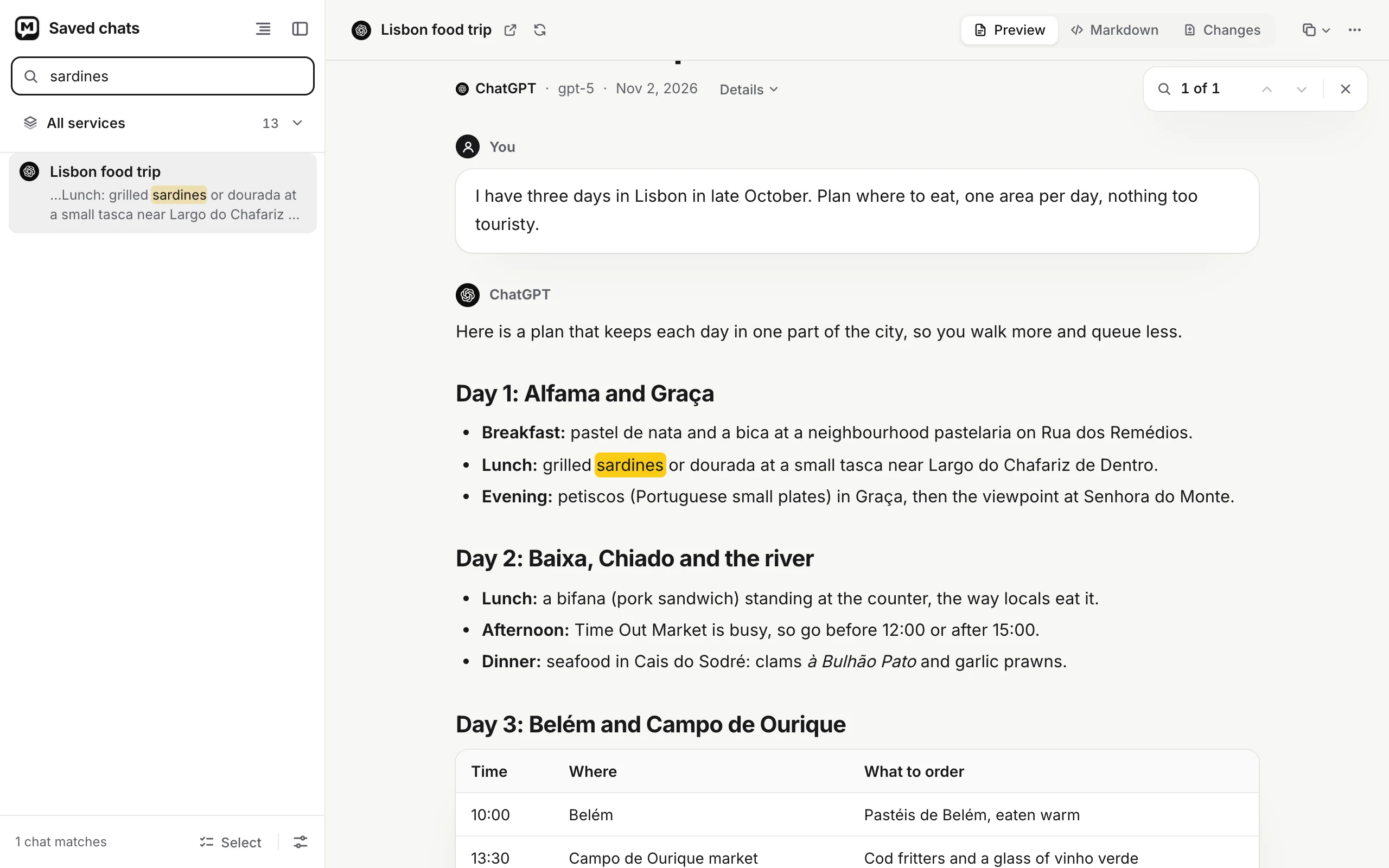
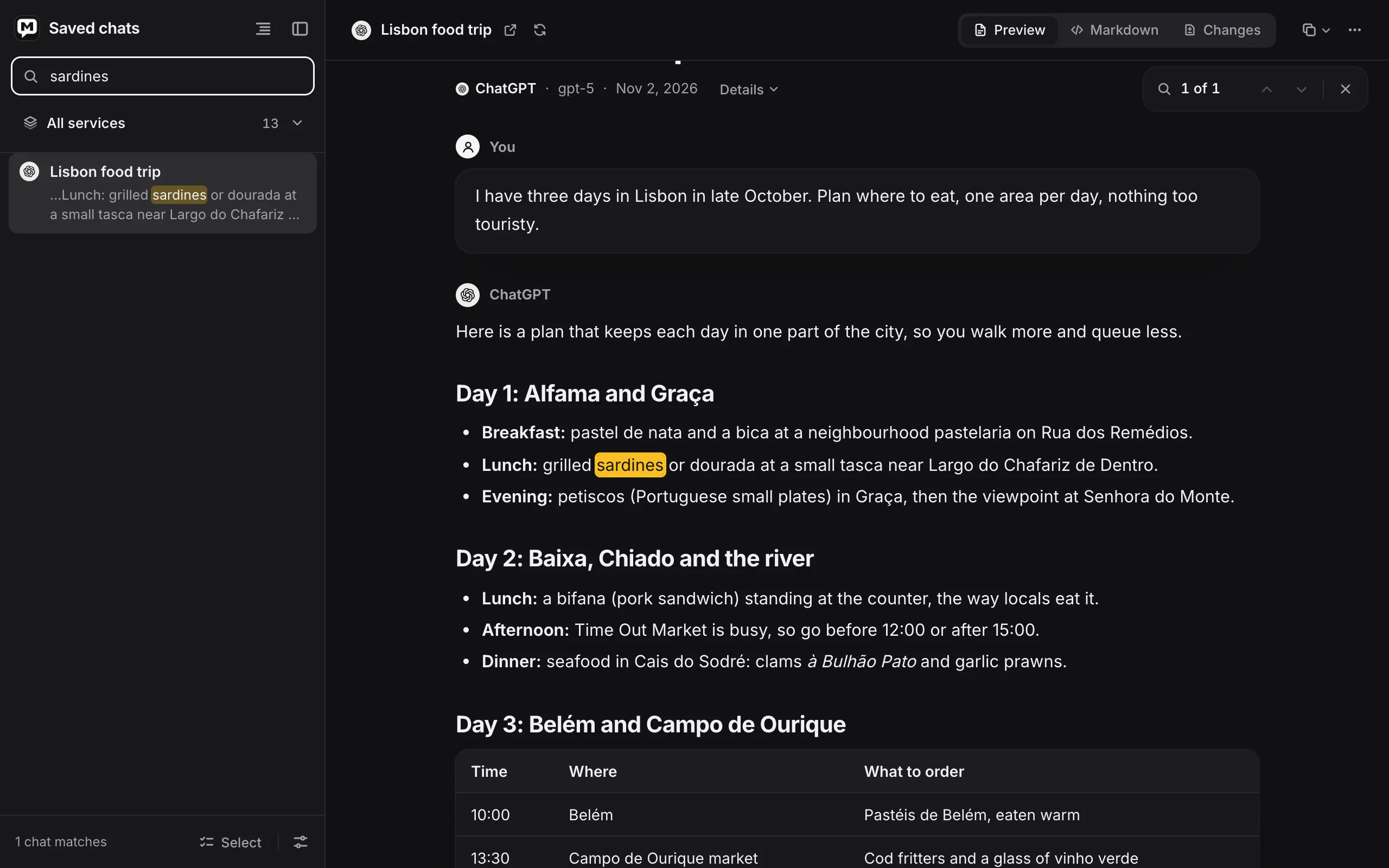
- Click Search saved chats at the top of the sidebar, or press /.
- Type your words. The list shows the matching chats, best first, instead of grouping them by day. The foot of the sidebar says how many match, for example 12 chats match.
- Narrow by service with Show chats from, if you like. The search then only looks in that service’s chats.
- Open a result. Press ↓ to move into the list and Enter to open, or click one.
In the open chat, every match is highlighted, and a bar at the top says 1 of 8:
| Keys | Action |
|---|---|
| Enter in the search field | Next match in the open chat (or, with none, open the first result) |
| Shift+Enter | Previous match |
| Cmd/Ctrl+G | Next match (Shift for the previous) |
| Esc in the search field | Clear the search |
A match inside a folded section, such as Thinking, opens it. No matches in this chat means the chat matched by its title only.
The reader lists up to 200 results. With more, it says Showing the first 200. Add a word to narrow it down.
Search in the popup
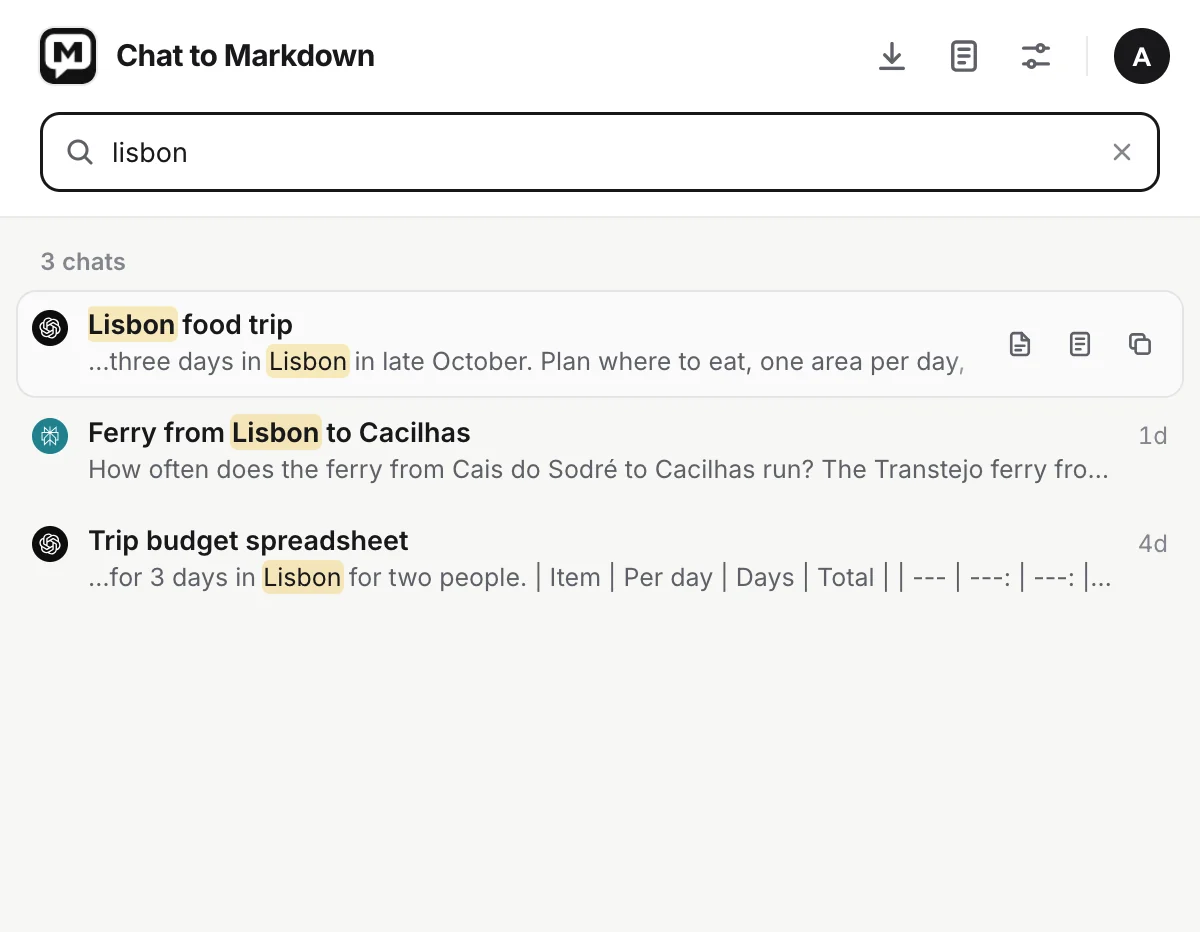
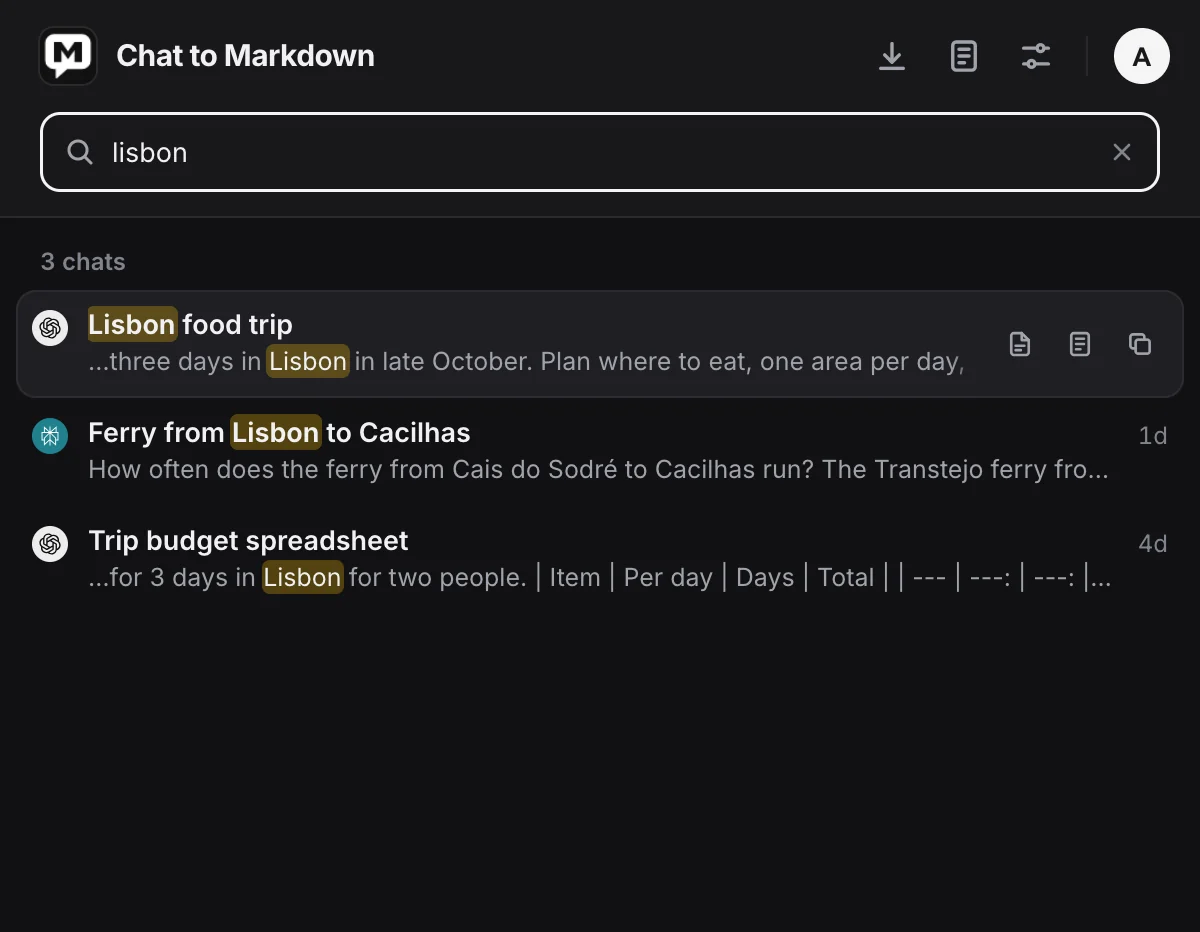
- Search saved chats at the top of the popup. You can also just start typing anywhere in the popup, or press /.
- Results, as many as fit in the popup, each with the service’s mark, the title, the project, a line around the match and the date.
What you can do with a result:
- Click it, or press Enter on it, to open the chat on its site. A chat deleted on its site opens in the reader instead, since your file is all that’s left.
- Hover it for three buttons: Read the saved file (opens it in the reader), Open in Obsidian (when your folder is a vault) and Copy path.
- Show all … in Saved chats at the bottom opens the reader with the same search, when there are more results than fit.
Use ↑ and ↓ to move between results. Esc clears the search; a second Esc closes the popup.
Tips
- Search for something distinctive that was in the chat: a name, a function, an error message, a place.
- Start short.
postgres indexfinds more thanpostgres index tuning for large tables, because every word has to be there. - Use the service filter in the reader when you remember where you asked.
- Search a project by opening the reader’s table of contents, which groups chats by project. Project names aren’t searched.
- Put notes inside the chat if you want them found. Notes you write above or below the chat in the file are not searched.
Problems
“Only titles were searched”. Chrome needs your OK to read the folder, usually after a restart. In the reader, click Allow access; in the popup, click Allow access to search inside chats. Then choose Allow on every visit. See Choose your folder.
“Only titles are searched. Chrome blocked access to the folder.” You chose Don’t allow when Chrome asked. Open Settings → Folder and click Allow access.
A chat I just saved isn’t found. It shows up as soon as its file is written. If it was saved a moment ago, wait for Reading your chats to finish.
A chat I know exists isn’t found. Check the spelling, remove a word, and set Show chats from to All services. If its file was moved or renamed outside the extension, search can’t read it. See How your files are organised.
“Nothing saved yet”. No chat has been saved yet. See How saving works.
Questions
Does search send my chats anywhere?
No. Search reads the files in your folder and keeps their text in the browser on your computer. Nothing is sent to a server.
Can I search for an exact phrase?
No. Each word is matched on its own, anywhere in the chat. Add more words to narrow the results.
Why does search say "Only titles were searched"?
Chrome needs your permission to read the folder again, usually after a restart. Click Allow access in the reader, or Allow access to search inside chats in the popup.