Send chats to Notion
Connect your Notion workspace and get a database with a page for each saved chat. Step by step setup, every option, what a page looks like, and fixes.
In short
In Settings → Notion, create a connection in Notion's Developer tools, give it a page, and paste its API token. Each saved chat then becomes a page in an "AI Chats" database, with service, project, model and dates as columns, and updates when the chat goes on. It works on Free and Pro.
Chat to Markdown can copy every chat it saves into a Notion database: one page per chat, with the service, project, model, link and dates as columns, and the conversation as Notion blocks. Your folder stays the source. Notion is an extra copy that follows it.
The connection is one you create in your own Notion workspace. It can reach only the page you give it, and its API token never leaves your browser.
Connect Notion
It takes about two minutes. Keep the extension’s Settings open in one tab and Notion in another.


- Open Settings → Notion and click Connect Notion. The five steps below appear in Settings.
- Make a page for your chats. In Notion, create a new page and name it AI Chats. Any page you already have works too, but a page of its own keeps the connection away from everything else.
- Create a connection. Open Developer tools → Connections in Notion (the link in Settings opens it) and click New connection. Name it Chat to Markdown, keep API token as the authentication method, and click Create connection.
- Give it the page. In the connection, open the Content access tab and click Edit access. In Manage page access, click Private to list your pages (or type the page’s name in Search pages), select AI Chats, and click Save. Leave System as it is.
- Copy its API token. Open the Configuration tab and copy the API token with its copy button.
- Paste it in Settings and click Connect. Chrome asks whether the extension may read and change data on api.notion.com. Click Allow. The extension needs this to send your chats.
- Check the result. Your workspace’s name appears at the top of the section, with “Connected to …” as a message. If you gave the connection one page, it is chosen for you under Where chats go.
- Send the chats you already have. New chats go to Notion as they are saved. To send the ones saved before, click Send all saved chats (it shows how many, such as Send 120 saved chats to Notion).
The first chat makes a database called AI Chats inside your page. You can open it from Settings with Open in Notion.
Note
Older Notion guides call this an “internal integration” and its token an “integration secret”, created at notion.so/my-integrations. Settings follows Notion’s current labels: a connection in Developer tools, and its API token. Both are the same thing.
Choose where chats go
Under Where chats go, the Database list shows every page and database the connection can see:
- A page: an “AI Chats” database is made in it with the first chat. This is the usual choice.
- A database you already have: each chat becomes a page in it. Missing columns (see below) are added to it. A column with the same name but another type is left alone and not filled.
Gave the connection a page a moment ago and it isn’t listed? Click Refresh the list (the circular arrow), or paste the page’s link (see Problems).
The options
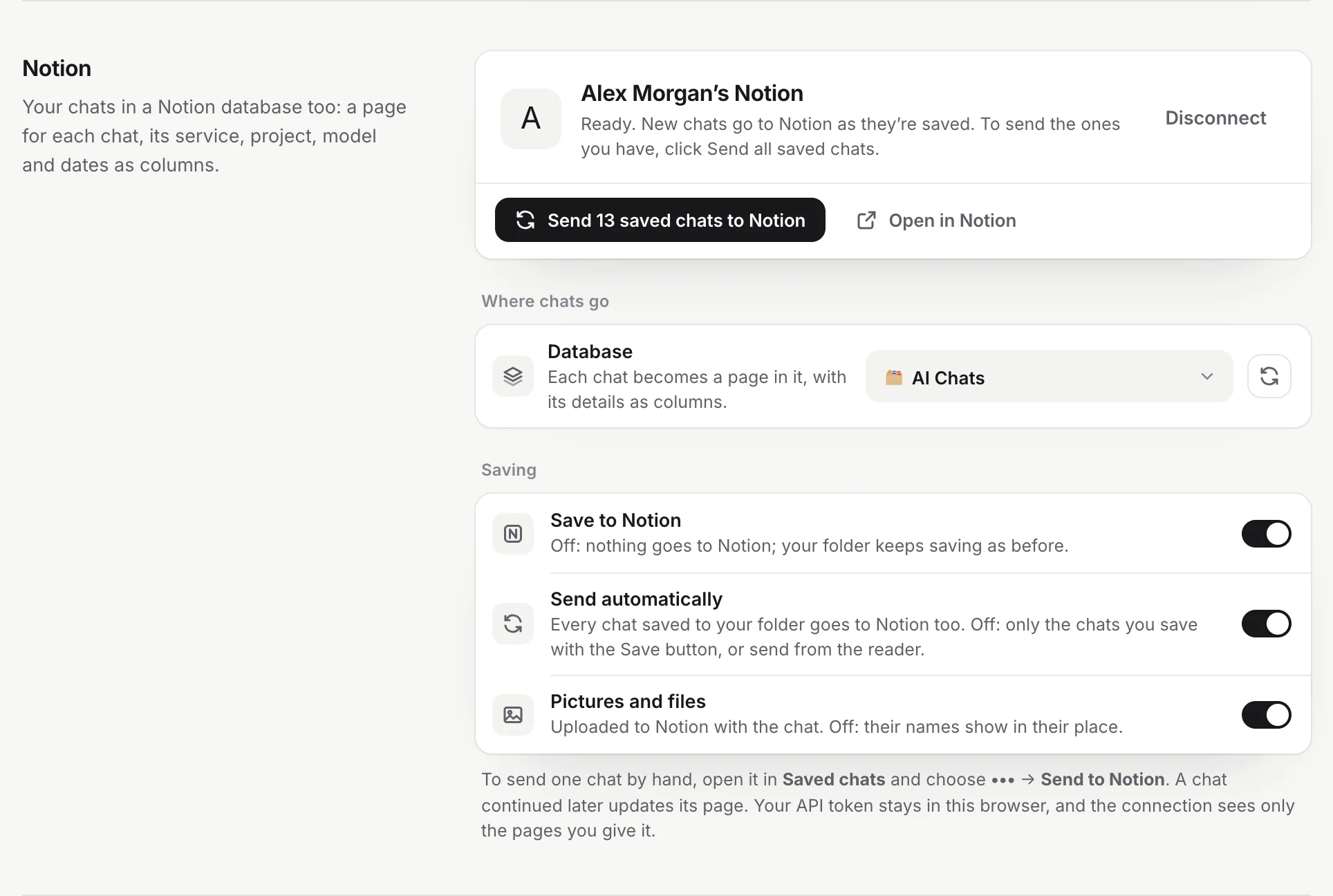
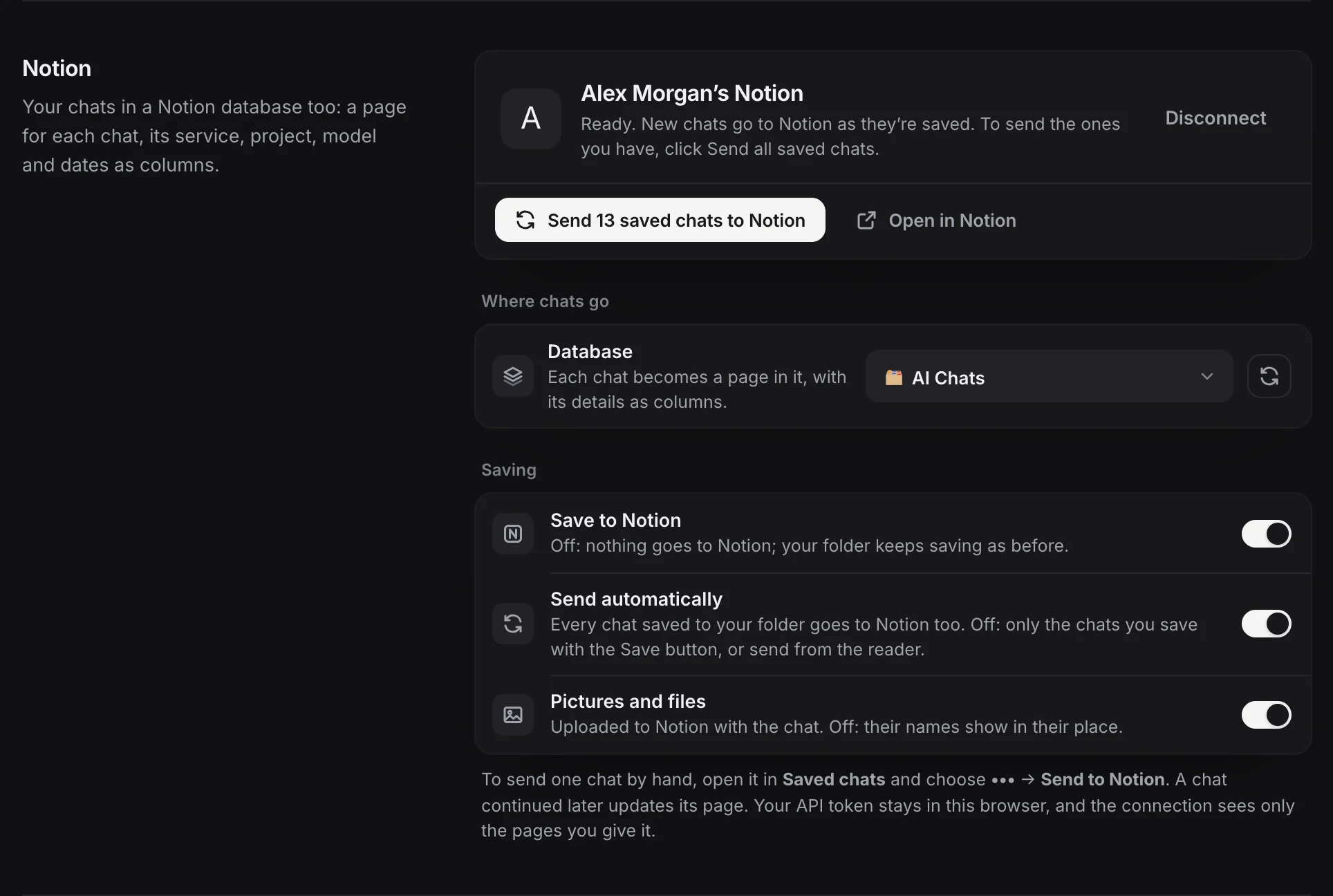
| Option | On | Off |
|---|---|---|
| Save to Notion | Chats go to Notion as set below. Turned on when you connect. | Nothing goes to Notion by itself; your folder keeps saving as before. You can still send a chat by hand from the reader. |
| Send automatically | Every chat saved to your folder goes to Notion too. On by default. | Only the chats you save with the Save button on a chat site, or send from the reader. |
| Pictures and files | Pictures and files in the chat are uploaded to Notion with it. On by default. | Their names show in their place. |
The line under your workspace’s name tells you how sending stands, for example “120 chats in Notion · last sent 2 min ago”, “Sending your chats · it goes on if you close this page”, or a problem to fix.
While chats are being sent, a progress bar shows how many are done and which chat is going. Pause holds sending after the current chat (new saves wait too) and Resume carries on. Stop ends the batch; what is in Notion stays, and you can send the rest any time.
Sending takes a while for a long history: Notion accepts about three requests a second, and a long chat needs several. It goes on in the background, even if you close Settings.
What a chat looks like in Notion
Each chat is a page in the database, with a speech bubble icon and the chat’s title as its name. The database has these columns:
| Column | Type | Holds |
|---|---|---|
| Name | Title | The chat’s title |
| Service | Select | ChatGPT, Claude, Gemini, Copilot, Perplexity, Grok, DeepSeek or GitHub Copilot, each in its own colour |
| Project | Select | The project or space, when the chat is in one |
| Model | Text | The model, when the service says |
| URL | URL | The link to the chat on its site |
| Created, Updated | Date | When the chat was started and last changed, with your time zone |
| Tags | Multi-select | The note’s tags, such as ai-chat and chatgpt |
| Chat ID | Text | The chat’s id, which links the page to its chat |
The values come from the note’s properties in your folder, so the properties you choose shape them. You can add columns of your own (a status, a rating): the extension only fills its own columns and leaves yours alone.
The page body is the conversation as Notion blocks, just as the reader shows it:
- Your messages under a You heading and the answers under the service’s name.
- Paragraphs with bold, italic, strikethrough, inline code and links.
- Code blocks with their language, tables, quotes, numbered, bulleted and task lists, and dividers.
- Thinking as a toggle, folded like in Obsidian. Other callouts as Notion callouts.
- Math as Notion equations.
- Pictures and files as uploaded images and file blocks.
Notion has limits, and the extension works within them:
- Pictures and files up to 20 MB are uploaded. A bigger one, one that isn’t in your folder, or any file when Pictures and files is off, shows as its name in grey.
- Equations can be up to 1,000 characters. A longer one is kept as a LaTeX code block.
- Very long text is split into pieces Notion accepts. A single code block longer than 200,000 characters is cut at that length.
- Deeply nested lists (more than three levels) are moved up to the deepest level Notion takes in one go, in order, so nothing is lost.
When a chat changes
When you continue a chat and it is saved again, its page is updated: the blocks up to the first change stay, and the rest are replaced. The page isn’t duplicated, even after you reinstall the extension, because each page is found by its Chat ID.
Warning
Don’t edit the conversation itself in Notion. When the chat changes, the blocks from the first change onward are replaced, and edits in them are lost. Add your thoughts in a column of your own, or in your folder above or below the chat (see What’s in a saved file).
Send or remove one chat
You can send any saved chat by hand, even with Send automatically or Save to Notion off:
- From the reader: open the chat, click More (the three dots) and choose Send to Notion. A chat already there shows Open in Notion and Update in Notion instead, and an In Notion label next to its name (with “older” when Notion has an earlier version).
- From a chat site: with Save to Notion on, clicking Save on the chat (see The Save button) also sends it to Notion.
To take one chat out of Notion, choose More → Remove from Notion in the reader. Its page goes to Notion’s Trash and the chat is no longer sent by itself. Sending it by hand brings it back.
Tip
Use Remove from Notion rather than deleting the page in Notion. A page you move to the Trash in Notion is brought back the next time its chat changes.
The reader also shows how Notion stands: the Notion icon at the bottom of its sidebar opens a card with what is waiting, a Send all button, and Pause and Stop while chats go. See The reader.
Remove all chats from Notion
Click Remove all in Settings → Notion, read what will happen, and confirm with Remove all:
- If the extension made the “AI Chats” database in your page, the whole database goes to Notion’s Trash.
- If you chose a database of your own, each chat’s page goes to Notion’s Trash. The database stays.
You can restore them from Notion’s Trash for 30 days. Saving to Notion stays on: new and changed chats keep going there. Your folder isn’t touched.
Disconnect
Click Disconnect in Settings → Notion. The API token is removed from your browser and Save to Notion is turned off. You see “Notion disconnected. Pages already there stay.” The extension remembers what it sent, so if you connect again, it carries on where it stopped.
To cut off access on Notion’s side too, open Developer tools → Connections in Notion and delete the Chat to Markdown connection there.
Problems
“One more step: give the connection a page”. The connection works, but it can’t see any page. Do step 4 above: in the connection’s Content access tab, click Edit access, pick your page and click Save. Then come back to Settings: the page shows up by itself. If it doesn’t, click Check again, or copy the page’s link in Notion (••• → Copy link), paste it into Or paste a link to the page or database and click Use this page.
“Your connection can’t see that page yet.” The link is right, but the page isn’t shared with the connection. Give it access in the Content access tab, then try again.
““AI Chats” isn’t shared with your connection anymore.” The page or database was removed from the connection’s access, deleted, or moved to the Trash. Give it access again, or choose another place under Where chats go. A deleted “AI Chats” database inside your page is made again with the next chat.
“Notion didn’t accept that token.” or “Notion refused the API token.” The token was copied incompletely, or the connection was deleted or its token refreshed. Copy the token again from the connection’s Configuration tab. If you are already connected, click Disconnect, then connect with the new token.
“Chrome needs your OK to reach api.notion.com.” You clicked Deny (or closed the prompt) when Chrome asked. Click Connect again and choose Allow. If Chrome’s access was removed later, the line says “Chrome needs your OK to reach Notion. Connect again in Settings.”
“Notion is busy. It tries again soon.” Notion asked the extension to slow down, or had a problem. Nothing is lost: the chats wait and sending carries on by itself a couple of minutes later. “Couldn’t reach Notion. It tries again soon.” means your connection was offline.
“3 chats couldn’t be sent. They’re tried again when they change.” Notion refused those chats (often a very unusual piece of content). The rest went on. They are tried again when the chat changes, or send them by hand from the reader.
You can’t create a connection in Notion. A workspace’s owners may allow only themselves to create connections. Ask an owner, or use a workspace of your own.
Chats are slow to appear. A long history takes time: about three requests a second, more for long chats with pictures. The progress bar in Settings shows how far it is.
For anything else, see Troubleshooting. What Notion receives is described in Privacy and permissions.
Questions
Does Notion replace my folder?
No. Your folder stays the source. Chats are saved there first, then copied to Notion. Turning Notion off never affects your folder.
Do chats go through your server?
No. They go from your browser straight to api.notion.com, with your own connection's API token, which stays in your browser.
Can the connection see the rest of my workspace?
Only the pages you give it in its Content access tab, and the pages inside them.
I continued a chat. Does its Notion page update?
Yes. The page is updated, not duplicated. Only the part from the first change onward is rewritten.
Is Notion a Pro feature?
No. Notion, Google Drive and GitHub work on Free and Pro. On Free, the chats you have saved are the ones that can be sent.