Daily note links
Link each day's AI chats from that day's Obsidian daily note. How the extension finds your daily note, what it adds, and how to turn it off or remove the links.
In short
Turn on Settings → Obsidian → Daily note links and the chats you started each day are listed at the end of that day's daily note, as links. The extension finds the note with your Daily notes settings in Obsidian, never creates a daily note, and only rewrites its own block.
If you keep a daily note in Obsidian, the extension can add the AI chats you started that day to it. Your journal then shows what you asked and where, and Obsidian’s backlinks and graph connect each chat to its day.
It is off by default and free on every plan.
Before you start
Daily note links need two things:
- The folder you chose is the top folder of your vault, the one with the
.obsidianfolder in it. The extension reads your daily note settings from there. A folder inside the vault isn’t enough. See Use with Obsidian. - Daily notes is on in Obsidian. It is a core plugin, on by default in a new vault. Check it in Obsidian under Settings → Core plugins → Daily notes. The community plugin Periodic Notes works too (see below).
Turn it on
- Open Settings → Obsidian. The card at the top should say Obsidian vault. If it says something else, follow Use with Obsidian first.
- Turn on Daily note links. It is under Linked notes. The line under it shows the path of today’s note, for example “Lists the chats you started that day at the end of your daily note, like
Daily/2026-11-04.md. Never creates a note.” - Read the message. The extension adds today’s chats straight away and tells you what happened (see the table below).
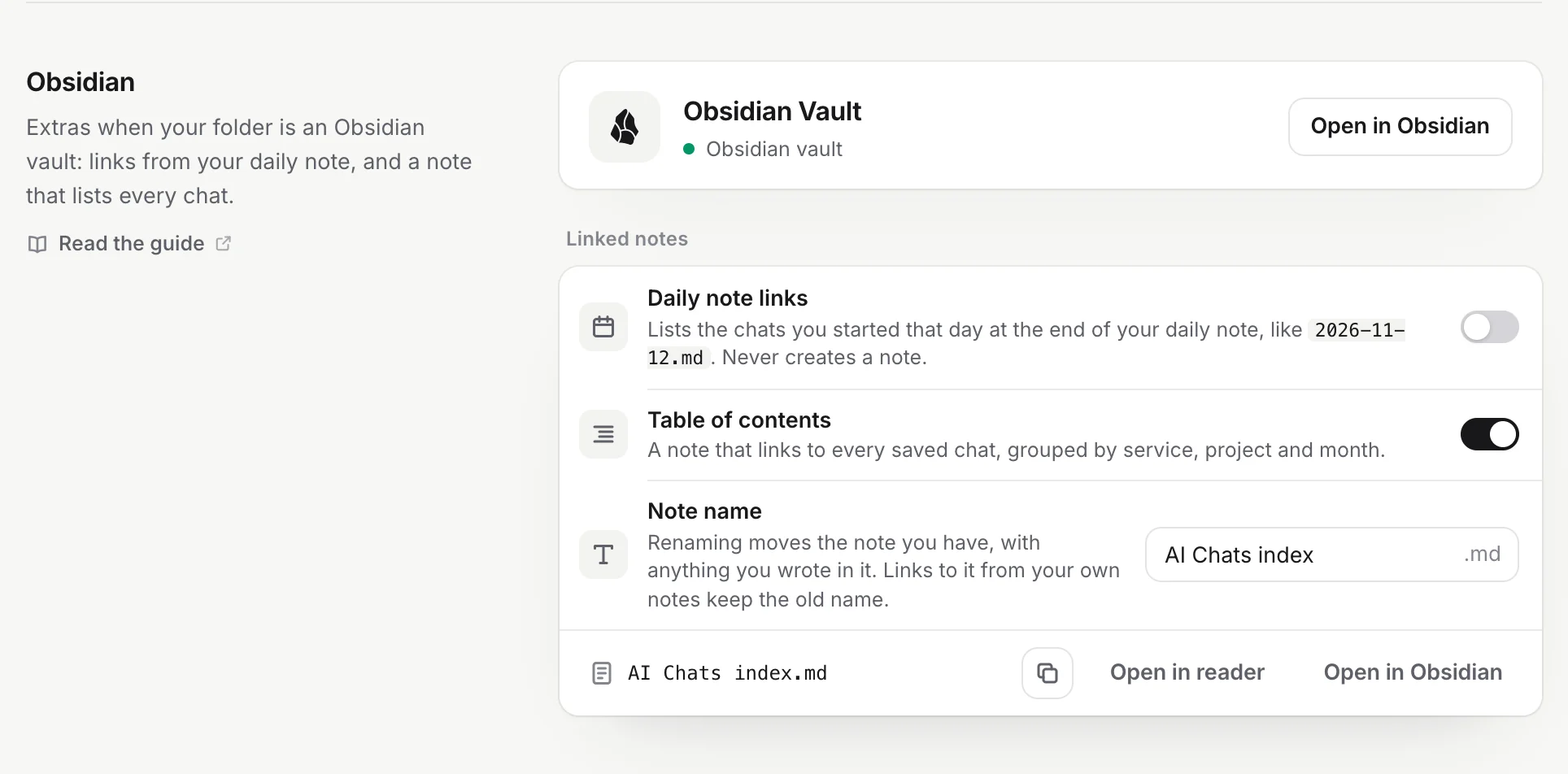
- Daily note links shows the path of today’s note when it can find it, or why it can’t.
| Message | What it means |
|---|---|
| Added 3 chats to today’s note | Today’s note had chats to link, and they are in it now. |
| On. Chats you start today will be added to today’s note. | Today’s note exists, but you haven’t started a saved chat today yet. |
| No daily note for today yet. Links are added once Daily/2026-11-04.md exists. | Create today’s note the way you usually do, and the links follow at the next save. |
| Today’s note wasn’t changed: its link block markers were edited | The link block in today’s note is broken (see Remove the links). |
| On. Links are added at the next sync. | The extension couldn’t check today’s note now. It does at the next save. |
How the extension finds your daily note
It finds the note the same way Obsidian does, from the vault’s own settings:
- Daily notes core plugin. The extension reads Obsidian’s Settings → Daily notes: the New file location (the folder) and the Date format. With nothing set, Obsidian’s defaults apply: the top of the vault and
YYYY-MM-DD, so today’s note is2026-11-04.md. - Periodic Notes. If the community plugin Periodic Notes is turned on and its daily notes are enabled, the extension uses its daily folder and format instead.
- Your template isn’t used, because the extension never creates a daily note.
The date format can contain folders (such as YYYY/MM/YYYY-MM-DD) and words in square brackets, as in Obsidian. A few rare format tokens can’t be reproduced exactly: eras, two-to-four-letter y years, fractions of a second and time zones. With one of those, the line under the switch says “Your daily note name format … isn’t supported”, and no links are added.
If you change these settings in Obsidian, the extension uses the new ones from the next save. Reopen Settings → Obsidian to see the new path under the switch.
What it adds to the note
At the end of the daily note, the extension adds a block like this:
<!-- chattomarkdown:daily:start -->
### AI chats

- [[AI Chats/ChatGPT/2026-10-17 Lisbon food trip|Lisbon food trip]] · ChatGPT
- [[AI Chats/Claude/2026-10-17 Weekend hike checklist|Weekend hike checklist]] · Claude
<!-- chattomarkdown:daily:end -->- Which chats: every saved chat you started that day, from all your services, in the order you started them. The day is your computer’s local date.
- Each line: a link to the chat’s note, with its title as the link text, then the service.
- Where: after everything else in the note, the first time. Later updates rewrite the block where it is, so you can move it (for example under a heading of your own) and it stays there.
- Your text: everything outside the two marker comments is left as it is.
- With Hide secrets on (Settings → What to save), keys and passwords in titles are masked here too.
When it updates
The extension updates a day’s note when it saves or updates a chat started on that day: during a sync, when you click Save on a chat site, and when you leave a chat. If the day’s list didn’t change, the note isn’t touched.
Because the day is the day a chat was started:
- A chat you continue today but started last week is linked from last week’s note, not today’s.
- When a sync saves older chats (for example the first sync of your whole history), the daily notes of those older days get links too, if those notes exist. Chats you import from a data export don’t add links by themselves.
Tip
If you don’t want links added to years of old daily notes, turn Daily note links on after your first sync has finished. From then on, only the days of chats that are saved or updated get links.
When there is no daily note that day
The extension never creates a daily note. If the note for a day doesn’t exist when a chat of that day is saved, it remembers the day and tries again at each later save, for up to seven days. Create the note within that time (in Obsidian, or on your phone and let it sync) and the links are added.
After seven days, that day is linked only if a chat started on it is saved or updated again.
Turn it off
Turn off Settings → Obsidian → Daily note links. You see “Daily note links off. Links already added stay.” No more links are added to any daily note.
Remove the links
To remove the links from one daily note, delete the whole block in Obsidian: from <!-- chattomarkdown:daily:start --> to <!-- chattomarkdown:daily:end -->, both lines included. While Daily note links is on, the block comes back if a chat started on that day is saved or updated again. Turn the setting off first if you want it gone for good.
Don’t delete just one of the two marker comments. A note with a start marker and no end marker (or two start markers) is left alone, because rewriting it could take your own text along. You see “Today’s note wasn’t changed: its link block markers were edited” for today’s note. Delete the rest of the block, or put the missing marker back, to fix it.
Start over and Delete all saved chats remove the link blocks from your daily notes and leave the notes themselves (see Start over or delete saved chats).
Problems
The line under the switch tells you what is wrong:
| The line says | Fix |
|---|---|
| Lists the chats you started that day at the end of your daily note. Needs the vault folder itself. | The switch is greyed out because the folder you chose isn’t the top of a vault. Choose the vault folder in Settings → Folder (or click Choose vault on the card above). |
| Daily notes is turned off in Obsidian (Settings → Core plugins). | Turn on Daily notes in Obsidian’s Settings → Core plugins, then reopen the extension’s settings. |
| Your daily note name format … isn’t supported. | Change Date format in Obsidian’s Settings → Daily notes to one without eras, y years, fractions of a second or time zones. |
| Paused until Chrome can open your folder again. | Chrome lost access to the folder after a restart. Allow it again from the popup or Settings → Folder (see Choose your folder). |
| Paused until your folder is the vault itself. | The setting is on, but the folder you chose is no longer the vault’s top folder. Choose the vault folder again. |
Other things to check:
- The links are in the wrong note. The date format or folder in Obsidian changed after the links were added. Old links stay where they were; new ones go to the note at the new path.
- A chat is missing from its day. It isn’t saved yet, was skipped by your filters, or was started on another day (in your computer’s time zone). Check the chat’s
createdproperty.
Questions
Does it create my daily note if there isn't one?
No. It never creates a daily note, so your template is always yours to apply. It adds the links once the note exists, if that happens within seven days.
Which chats are listed, the ones I started or the ones I used that day?
The ones you started that day. A chat you continue a week later stays in the note of the day you started it.
Does it work with the Periodic Notes plugin?
Yes. When Periodic Notes is on and handles daily notes, its folder and date format are used instead of the Daily notes core plugin's.
Why can't I turn it on?
The folder you chose must be the top folder of your vault, and Daily notes must be on in Obsidian. The line under the switch says which one is missing.