Use with Obsidian
Save your AI chats straight into an Obsidian vault: which folder to pick, what you see in Obsidian, search, Dataview, graph view, sync and Open in Obsidian.
In short
Choose your Obsidian vault (or a folder inside it) as the folder Chat to Markdown saves to. Every chat becomes an ordinary note with properties, tags and embedded pictures, so Obsidian shows, searches and links it like any other note. No Obsidian plugin is needed.
An Obsidian vault is a folder of Markdown files. Point Chat to Markdown at your vault and every saved chat becomes a note you can search, link, tag and query like the rest of your notes.
Pick your vault as the folder
You choose the folder on the welcome page when you install, or later in Settings → Folder. See Choose your folder for the folder picker itself.
You have two good choices:
| You pick | Chats go to | Daily note links and Open in Obsidian |
|---|---|---|
| The vault itself (recommended) | The top of the vault, or the Subfolder you set | Work |
| A folder inside the vault | That folder | Not available |
We recommend picking the vault itself and then typing a name such as AI Chats in Settings → Folders and filters → Subfolder. Your chats then sit together in one folder, and the extension can still see the vault’s own settings. It needs them for Daily note links, and to know the vault’s name for the Open in Obsidian buttons.
- Open Settings → Folder and click Choose folder. Chrome opens its folder picker.
- Select your vault’s top folder. It is the folder that contains the hidden
.obsidianfolder. On a Mac, press Cmd+Shift+. in the picker to show hidden folders if you want to check. - When Chrome asks whether the extension may keep editing files, choose Allow on every visit. Otherwise Chrome asks again after every restart (see Choose your folder).
- Set a subfolder. In Settings → Folders and filters, type
AI Chats(or any name) in Subfolder. - Open Settings → Obsidian. The card at the top shows your vault’s name with Obsidian vault under it.
Tip
Already saving to another folder? Changing the folder later is covered in Choose your folder.
What the Obsidian card says
The card at the top of Settings → Obsidian tells you how the extension sees your folder, and its button does the one thing that is next.
| The card says | What it means | The button |
|---|---|---|
| Obsidian vault | The folder is the top of a vault. Everything works. | Open in Obsidian opens the vault in Obsidian. |
| Not the top folder of a vault | The folder has no .obsidian folder. If it is inside a vault, chats still show up in Obsidian, but daily note links need the vault folder itself. | Choose vault opens the folder picker. |
| Chrome needs your permission again | Chrome lost access to the folder, usually after a restart. | Allow access asks Chrome again. |
| Uses your folder: choose your vault under Folder | No folder is chosen yet. | Choose folder opens the folder picker. |
What you see in Obsidian
Each chat is one note, named like 2026-10-17 Lisbon food trip.md by default, in a folder per service (and per project, when the chat is in one). How your files are organised has the full layout. A note looks like this in Obsidian’s source mode:
---
title: "Lisbon food trip"
source: "ChatGPT"
url: "https://chatgpt.com/c/6712ab90-1c2d-8000-9a3b-4e5f6a7b8c9d"
id: "6712ab90-1c2d-8000-9a3b-4e5f6a7b8c9d"
model: "gpt-5"
created: 2026-10-17T09:41:05
updated: 2026-10-17T10:02:44
tags: [ai-chat, chatgpt]
project: "Travel"
---

<!-- chattomarkdown:start · updated automatically on sync; write your own notes above or below this block -->
# Lisbon food trip

## You

Three days in Lisbon in November. Where should I eat?

## ChatGPT

> [!abstract]- Thinking
> Mix classic tascas with a market visit.

Start with **Time Out Market** for a first taste...

![[pasteis 3fa81c2e.jpg]]
<!-- chattomarkdown:end -->
Here is how Obsidian shows each part:
- Properties. The frontmatter shows in Obsidian’s properties panel at the top of the note:
title,source,url,id,model,created,updated,tags, andprojectwhen the chat is in a project.createdandupdatedare written as date and time, so Obsidian shows them as dates. You choose which properties are written in Settings → File names (see File names and properties);idis always written, because it links the note to its chat. - Tags. Every chat gets
ai-chatand its service:chatgpt,claude,gemini,copilot,perplexity,grok,deepseekorghcopilot. Click a tag in Obsidian to list every chat with it. You can add your own tags to every chat in Settings → File names. - Headings.
## Youand## ChatGPT(or the service’s name) start each turn, so Obsidian’s outline lists them. - Thinking. When you save model thinking (Settings → What to save → Model thinking), it is a folded
[!abstract]callout titled Thinking. Click it to open it. If you prefer plain text, set How thinking looks to Plain. - Pictures and files. Pictures you uploaded or the AI made are saved in an
attachmentsfolder next to the note and embedded with![[...]], so Obsidian shows them in place. PDFs, audio and video are embedded too; other file types get a plain[[...]]link. - Artifacts. With Artifacts as separate files on (Settings → What to save), each Claude artifact is its own file in
attachmentsand is embedded in the note, so it opens like any file in your vault. - Links. Web sources and other links are ordinary links. Click
urlin the properties panel to open the chat on its site.
What’s in a saved file explains every part of the note in detail.
Writing in a chat note
Write your own text above the chattomarkdown:start comment or below the chattomarkdown:end comment, and add any properties you like (such as rating). The extension keeps them on every update. What is between the two comments is replaced when the chat changes.
Warning
If you delete one of the two marker comments, the extension treats the note as yours and stops updating it. The chat is then no longer kept up to date in that note.
With Keep a history of changes on (the default), the extension keeps the version before each update in a hidden .chattomarkdown folder in the folder you chose. Obsidian does not list folders whose name starts with a dot, so it stays out of your way. You can see earlier versions in the reader (see Version history).
Obsidian settings worth knowing
You don’t need to change anything in Obsidian. These settings are useful, though:
- Settings → Editor → Properties in document. Choose whether the properties panel shows at the top of each note, is hidden, or shows as source.
- Settings → Files and links → Detect all file extensions. Turn it on to see every attachment in Obsidian’s file list, including files Obsidian can’t open itself, such as
.pyor.jsonartifacts. - Settings → Files and links → Excluded files. If you don’t want chats in search results or the graph, add the chats folder here.
- Default location for new attachments (also in Files and links) does not affect the extension. It always saves a chat’s files in an
attachmentsfolder next to the note, and gives each file a short code in its name (likepasteis 3fa81c2e.jpg) so the name is unique in your vault and the![[...]]embed finds it wherever you keep attachments. - Core plugins → Daily notes. Needed for Daily note links.
Search your chats in Obsidian
Obsidian’s own search finds text in your chats like in any note. A few search operators help narrow it down:
| Search for | Finds |
|---|---|
tag:#claude | Every Claude chat |
[source:Perplexity] | Chats whose source property is Perplexity |
[project:Travel] lisbon | Chats in the Travel project that mention Lisbon |
path:"AI Chats/ChatGPT" | Chats in the ChatGPT folder |
The extension’s own search, in the popup and the reader, works without Obsidian: see Search your chats.
Tables of your chats with Dataview
Dataview (opens in a new tab) is a community plugin that turns properties into tables and lists. Install it from Settings → Community plugins, then paste one of these blocks into any note. They use the property names the extension writes.
Every chat, newest first:
```dataview
TABLE source, model, updated
FROM #ai-chat
SORT updated DESC
```
How many chats you have per service:
```dataview
TABLE length(rows) AS Chats
FROM #ai-chat
GROUP BY source
```
Claude chats started in the last seven days:
```dataview
LIST
FROM #claude
WHERE created >= date(today) - dur(7 days)
SORT created DESC
```
Tip
Use FROM #ai-chat rather than a folder. A folder also holds attachments such as Claude documents saved as .md files, and the table of contents note. Only chat notes have the ai-chat tag.
Message and word counts are off by default. Turn on the messages and words properties in Settings → File names to sort or sum by them, for example TABLE messages, words FROM #ai-chat SORT words DESC.
Graph view
In Obsidian’s graph view, notes are dots and links are lines. Folders are not notes, so your service folders (ChatGPT, Claude and so on) never appear as dots, and a chat nothing links to is a lone dot.
To connect your chats in the graph:
- Turn on the table of contents. The table of contents note links every saved chat, grouped by service, project and month. In the graph it becomes a hub with all your chats around it.
- Turn on daily note links. Daily note links link each chat from the daily note of the day you started it, so chats sit next to your journal.
- Show tags. In the graph’s settings, under Filters, turn on Tags. Every chat then links to
#ai-chatand to its service tag, which groups chats by service. - Show attachments. Turn on Attachments under Filters to see a chat’s pictures and files as dots around it.
Syncing the vault with Obsidian Sync or iCloud
The extension writes ordinary files, so whatever syncs your vault syncs the chats too. You can read them in Obsidian on your phone once the vault has synced. Keep these points in mind:
- Save from one computer. The extension runs in Chrome or Edge on a computer. Set it up on one computer only. If two computers save the same chats into one synced vault, both write the same files and your sync service may make conflicting copies.
- Keep the files on disk. The extension reads and writes the real files in the folder. If your sync service can keep files only in the cloud (iCloud Drive can, to save space), make sure the vault folder stays downloaded on the computer that saves.
- Write your notes outside the markers. If you write in a chat note on your phone while the extension updates the same note on your computer, your sync service has to merge two versions. Writing above or below the markers keeps your text safe on the next update.
- Hidden folders. The version history lives in the hidden
.chattomarkdownfolder. Obsidian Sync does not sync hidden folders, so the history stays on the computer that saved it. Your chats are not affected. - Attachment types. Obsidian Sync lets you choose which file types sync. If pictures or artifact files are missing on another device, check that Sync includes those types.
- Daily notes made on your phone. If you create today’s daily note on your phone, links are added on the computer once the note has synced there (see Daily note links).
Open in Obsidian
The extension opens Obsidian with an obsidian:// link. You find Open in Obsidian in three places:
- Settings → Obsidian, on the vault card: opens your vault.
- Settings → Obsidian, under Table of contents (while it is on): opens the table of contents note. If the note isn’t in your folder yet, the extension writes it first.
- The reader: open a chat, click More (the three dots), and choose Open in Obsidian to open that chat’s note. The reader’s table of contents has the same button.
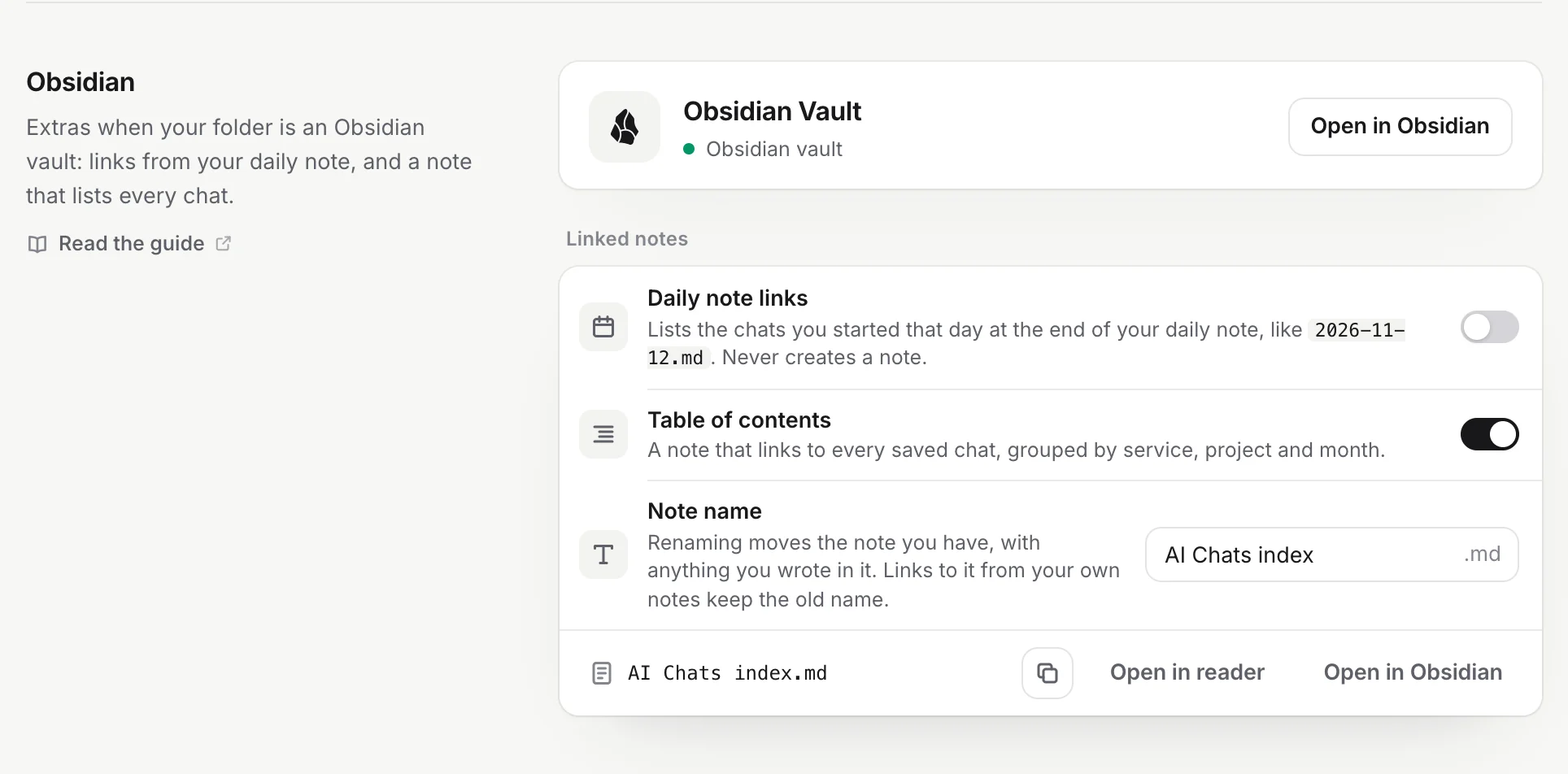
- Open in Obsidian opens the table of contents note in Obsidian.
The buttons show only when the folder you chose is the top folder of a vault, because the link needs the vault’s name. The first time, Chrome asks whether to open Obsidian; allow it. If nothing happens:
- Obsidian isn’t installed on this computer, or has never opened this folder. In Obsidian, open the folder as a vault once, then try again.
- Obsidian says it can’t find the vault. The link uses the folder’s name. If you have two vaults with the same folder name, or renamed the vault in Obsidian, open it once from Obsidian’s vault switcher, then try again.
- The note doesn’t open. The note may not be in your folder yet, for example right after you turned the table of contents on with no access to the folder. If the extension can’t write it, you see “Couldn’t write the table of contents to your folder. The next sync makes it.”
Note
In version 1.0.0, Open in Obsidian for the table of contents did nothing while a long first sync was running. Version 1.0.1 fixes this: the button opens the note straight away, and makes it first if it isn’t there yet.
Problems
- Chats don’t appear in Obsidian. Check that the folder in Settings → Folder is inside your vault, and that Chrome still has access (the popup says so after a restart, see Choose your folder). Then check the sync log for saved chats.
- Pictures show as broken embeds. The picture couldn’t be downloaded, or Images and files is off in Settings → What to save. Open the chat in the reader and click Re-sync to fetch it again with the files still missing.
- More fixes are in Troubleshooting.
Questions
Do I need an Obsidian plugin?
No. The extension writes plain .md files into your vault folder and Obsidian picks them up like any other note. Dataview is optional, for tables of your chats.
Does Obsidian have to be open while chats are saved?
No. The extension writes to the folder on disk. Obsidian shows the new and changed notes the next time you look, or at once if it is open.
Why does Open in Obsidian not appear?
It shows only when the folder you chose is the top folder of a vault (the one with the .obsidian folder in it). Choose the vault itself under Settings, Folder, and set a subfolder for your chats.
Can I edit a saved chat in Obsidian?
Yes. Write above or below the two chattomarkdown marker comments and add your own properties. Those are kept on every update. Text you change between the markers is replaced the next time the chat is saved.