Send chats to Google Drive
Copy your saved chats to a folder in Google Drive, as Google Docs or as the Markdown files themselves. How to connect, every option, and how to fix problems.
In short
In Settings → Google Drive, click Connect Google Drive and sign in with Google. The extension makes an "AI Chats" folder in My Drive and copies each saved chat there, as a Google Doc or as its Markdown file, and keeps it updated. It can see only the files it made, nothing else in your Drive.
Chat to Markdown can keep a copy of every chat it saves in your Google Drive, in a folder of its own. Choose Google Docs to read and share chats in Google’s apps, or Markdown files for an exact copy of your folder. Your folder stays the source; Drive is a copy that follows it.
The extension asks Google only for access to the files it creates. It can’t see or change anything else in your Drive.
Connect Google Drive


- Open Settings → Google Drive and click Connect Google Drive. Chrome first asks whether the extension may reach Google Drive (www.googleapis.com (opens in a new tab)). Click Allow.
- Choose your Google account. Google’s sign-in window opens. Pick the account whose Drive you want to use, or sign in to one. It doesn’t have to be the account you use for Chrome.
- Allow access. Google shows what the extension asks for: access to only the Drive files it creates. If Google shows a box to tick for Google Drive, tick it, then continue.
- Check the result. The window closes and Settings shows your account’s email and picture, with “Connected to …” as a message. Save to Google Drive is now on.
- Pick a format and a folder name (see below). Do this before the first chat goes, so the folder is made with the name you want.
- Send the chats you already have. New chats go to Drive as they are saved. To send the ones saved before, click Send all saved chats (it shows how many, such as Send 120 saved chats to Google Drive).
While Google’s window is open, the button says Waiting for Google…. If you close the window, Settings says “Connecting was cancelled. Nothing was changed.”
Format: Google Docs or Markdown files
Under Format, choose how each chat is stored in Drive:
| Google Docs (default) | Markdown files | |
|---|---|---|
| What you get | A Google Doc for each chat, to read, search and share | The .md file exactly as in your folder |
| Name | The file’s name without .md, such as 2026-10-17 Lisbon food trip | The file’s name, such as 2026-10-17 Lisbon food trip.md |
| Pictures and files | Uploaded to Drive and linked from the Doc | Uploaded next to the chat, as in your folder |
| Math | Kept as code, exactly as written | As in your folder |
| Thinking and callouts | A quote with its title in bold (Docs can’t fold) | As in your folder |
| Best for | Reading on any device, sharing a chat | A second copy of your vault, opening in Obsidian or any editor |
You can switch at any time. Chats already in Drive change format when they are sent again, and the old copy goes to Drive’s Trash, so Drive holds each chat once. After switching, Settings offers Send now to convert them all at once.
What a Google Doc looks like
Each Doc starts with the chat’s title as a heading, then one line with the service, model, project and the date and time it was started, and a link, Open the original chat. For example: ChatGPT · gpt-5 · Travel · 2026-10-17 09:41 · Open the original chat. Then comes the conversation, with your messages under You and the answers under the service’s name, with headings, lists, tables, code blocks and links as in the reader.
Pictures and files from the chat are uploaded to Drive and appear in the Doc as links (marked with a picture or paperclip sign) that open them. A chat deleted on its site that you keep says so under the title.
Folder name
Under Folder, Folder name is the name of the folder the extension makes in My Drive with the first chat. It is AI Chats unless you change it. Inside it, chats are arranged as in your folder: a folder per service, and per project.
- My Drive
- AI Chats
- ChatGPT
- Travel
- 2026-10-17 Lisbon food trip
- attachments
- pasteis 3fa81c2e.jpg
- Travel
- Claude
- 2026-10-20 Postgres index tuning
- ChatGPT
- AI Chats
A Subfolder you set in Settings → Folders and filters isn’t repeated: the Drive folder takes its place.
Once the folder is made, the row shows its current name and an Open button instead of the field. You can then move or rename the folder in Drive as you like; chats still find it. If you delete it in Drive, a new one is made with the next chat. If it is in Drive’s Trash, restore it there, or a new one is made with the next chat.
When you rename or move a chat’s file on your computer (for example when a chat moves into a project), its copy in Drive is renamed or moved too.
The options
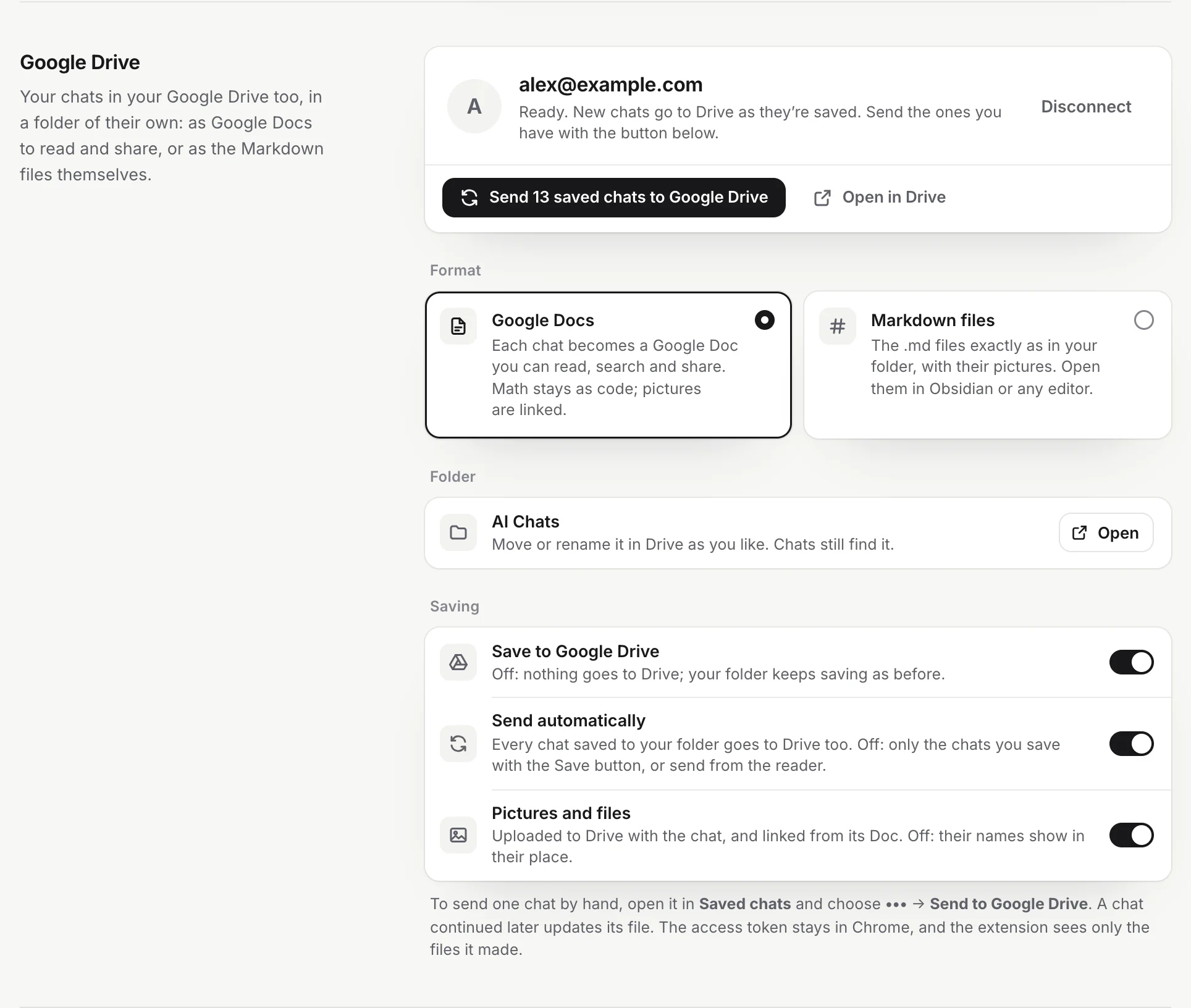
| Option | On | Off |
|---|---|---|
| Save to Google Drive | Chats go to Drive as set below. Turned on when you connect. | Nothing goes to Drive by itself; your folder keeps saving as before. You can still send a chat by hand from the reader. |
| Send automatically | Every chat saved to your folder goes to Drive too. On by default. | Only the chats you save with the Save button on a chat site, or send from the reader. |
| Pictures and files | Uploaded to Drive with the chat, and linked from its Doc (or shown as in your folder, for Markdown files). On by default. | Their names show in their place. |
Files over 100 MB aren’t uploaded; their names show instead.
The line under your email tells you how sending stands, for example “120 chats in Google Drive · last sent 2 min ago”. While chats go, a progress bar shows how far it is, with Pause (holds sending after the current chat; Resume carries on) and Stop (what is in Drive stays; send the rest any time). Sending goes on in the background if you close Settings. Open in Drive opens the folder.
Send or remove one chat
- From the reader: open the chat, click More (the three dots) and choose Send to Google Drive. A chat already there shows Open in Google Docs (or Open in Google Drive for Markdown files) and Update in Google Drive, and an In Docs or In Drive label next to its name.
- From a chat site: with Save to Google Drive on, clicking Save on the chat (see The Save button) sends it to Drive too.
- To take one out: in the reader, choose More → Remove from Google Drive. Its file (and pictures only it uses) go to Drive’s Trash, and it is no longer sent by itself. Sending it by hand brings it back.
A chat you continue is sent again and its file’s content is replaced; it isn’t duplicated.
Remove all chats from Google Drive
Click Remove all in Settings → Google Drive and confirm. The whole folder goes to Drive’s Trash with everything in it, and you can restore it for 30 days. Saving to Drive stays on: new and changed chats go to a new folder. Your folder on this computer isn’t touched.
Disconnect
Click Disconnect in Settings → Google Drive. The extension tells Google to end its access, removes the access from your browser and turns Save to Google Drive off. You see “Google Drive disconnected. Files already there stay.” The extension remembers what it sent, so connecting the same account again carries on where it stopped.
You can also remove the extension’s access from your Google Account, in its Security section, under your connections to third-party apps and services.
Problems
“Google Drive needs you to connect again. Chats wait until you do.” Google no longer accepts the extension’s access (for example you removed it in your Google Account, or Google wants you to sign in again). Click Connect again and go through Google’s window. Nothing is lost: the waiting chats go once you have.
“Google didn’t let the extension into your Drive.” Google’s box for Drive access wasn’t ticked. Connect again and tick the Google Drive box if Google shows one.
“Chrome needs your OK to reach Google Drive.” You clicked Deny when Chrome asked, or the extension’s access to the site was removed in Chrome’s extension settings. Click Connect Google Drive (or Connect again) and choose Allow. Turning Save to Google Drive back on asks too.
“Your Google Drive is full. Free up space and it goes on.” Drive has no room. Free up space in your Google account; sending carries on by itself.
“Google Drive is busy. It tries again soon.” or “Couldn’t reach Google Drive. It tries again soon.” Google asked to slow down, or you were offline. The chats wait and sending carries on by itself.
“3 chats couldn’t be sent. They’re tried again when they change.” Drive refused those chats. The rest went on. They are tried again when the chat changes, or send them by hand from the reader.
“It’s no longer in your Drive.” under the folder name. The folder was deleted in Drive. A new one is made with the next chat; click Send all saved chats to fill it.
Pictures don’t show inside the Doc. That is how Google Docs format works here: pictures are uploaded and linked, not placed in the page. Choose Markdown files if you want them shown as in your folder (in an app that reads Markdown).
For anything else, see Troubleshooting. What Google receives is described in Privacy and permissions.
Questions
Can the extension read the rest of my Drive?
No. It asks Google only for access to the files it creates itself (the drive.file permission). Everything else in your Drive is out of its reach.
Google Docs or Markdown files, which should I pick?
Google Docs to read, search and share chats in Google's apps. Markdown files for an exact copy of your folder, for example to open in Obsidian on another computer.
Can I move or rename the folder in Drive?
Yes. The extension remembers the folder itself, not its name or place, and keeps sending to it.
Do I need to be signed in to Chrome with the same Google account?
No. Google's sign-in window lets you pick any Google account for Drive.