Chat services
Turn on ChatGPT, Claude, Gemini, Microsoft Copilot, Perplexity, Grok, DeepSeek or GitHub Copilot, what Chrome's site prompt allows, and what is saved from each.
In short
Every service is off until you turn it on, on the welcome page, in the popup or in Settings → Chat services. Chrome then asks you to allow that site, and the extension reads your chats there with the sign-in you already have. Each service gets its own folder; projects and Spaces become folders inside it.
Chat to Markdown saves chats from eight services. Each one is off until you turn it on, because Chrome asks you to allow each site first. This page shows how to turn them on and off, and what is saved from each.
Turn a service on
You can turn a service on in three places. Each does the same thing.
- Welcome page: the list of services during setup. See Set up in two minutes.
- Popup: click a service’s logo in the Add row (or a tile, when none is on yet).
- Settings → Chat services: click the service’s row or its switch.
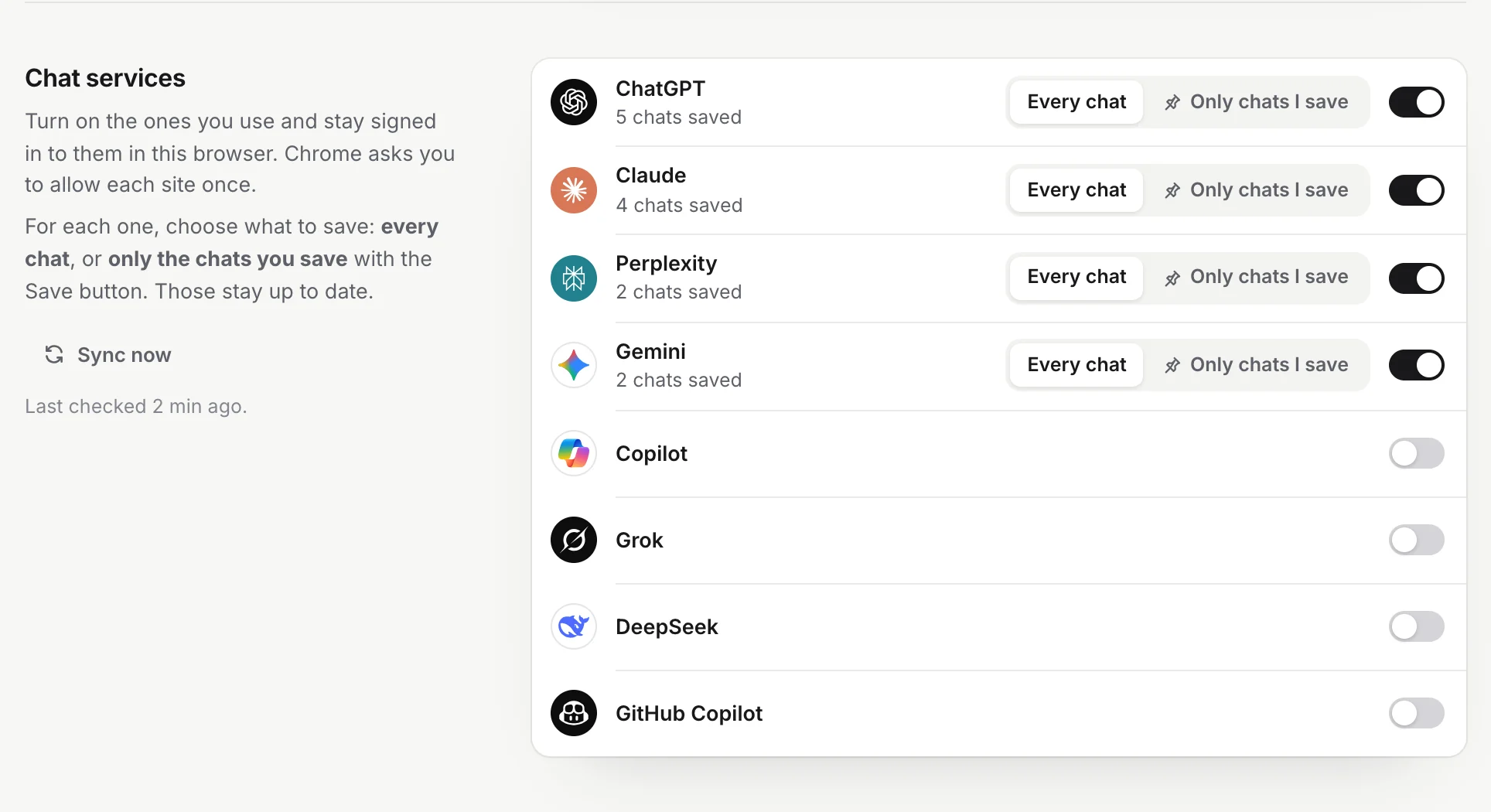
- Click the service. Chrome shows a prompt asking to allow Chat to Markdown on that service’s site.
- Click Allow in Chrome’s prompt. The service turns on and its first sync starts, if you already pressed Start saving.
- Stay signed in to the site in this browser. The extension reads your chats with that sign-in. If you are signed out, its card says “Not signed in”; open the site and sign in, and saving starts by itself.
If you close Chrome’s prompt or click Deny, the service stays off and a message says, for example, “ChatGPT stays off: Chrome needs access to chatgpt.com to read your chats there.”
What the site permission allows
Allowing a site lets the extension:
- read your chats on that site, with your sign-in there, the same way the site’s own page does,
- download the pictures and files in your chats from the servers the site keeps them on (they are part of the same prompt),
- show the Save button on that site’s chat pages.
It can’t reach any site you didn’t allow. Your chats go only to your folder on this computer. See Privacy and permissions.
For GitHub Copilot, Chrome asks for all of github.com, because a site permission can’t be narrower than a whole site. The extension still works only with github.com/copilot.
Note
Sometimes an update adds a server where a service keeps pictures. Its card then says “pictures wait” and the popup shows “Gemini pictures aren’t saved yet” with Allow. Click it once and the missing pictures are added.
Every chat, or only the ones you save
For each service that is on, choose what to save in Settings → Chat services (or under Saves in its card’s menu in the popup):
- Every chat: new and changed chats are saved on their own.
- Only chats I save (Picked only in the popup): only chats you save with the Save button or the shortcut are saved, and they stay up to date. The service’s other chats are never saved.
Switching back to Every chat looks for that service’s chats at once.
Turn a service off
- In the popup, open the service card’s ⋯ menu and click Turn off with the service’s name. The popup says “ChatGPT is off. Its saved chats stay in your folder.”
- In Settings → Chat services, click its switch.
A sync in progress leaves that service at once and goes on with the others. Its files stay in your folder. If you also remove the site’s access in Chrome (on chrome://extensions, in the extension’s Site access), the extension turns the service off by itself. While Chrome still allows the site, the Save button stays on its pages and saving by hand still works.
What is saved from every service
From every service, the extension saves your messages and the answers, with code in code blocks, as one Markdown file per chat in a folder named after the service. Depending on what the service gives and on Settings → What to save:
- Images and files (on by default): pictures and uploads, saved next to the chat and shown in it. Each file can be up to 25 MB.
- Model thinking and Tool calls (off by default): in a collapsed section.
- Earlier versions (off by default): the other versions of a message you edited or an answer you asked for again.
- Keep chats you delete (on by default): a chat deleted on the site stays on your disk, marked
deleted: true. - Web sources become footnotes with links.
- A temporary or incognito chat you save gets
private: true.
See Choose what to save and What’s in a saved file.
ChatGPT
Site: chatgpt.com. Folder and heading: ChatGPT.
- Projects become folders inside the ChatGPT folder. Chats with a custom GPT go with your other chats.
- Canvas: saved in the note under “Canvas:” and its name, with the edits you made yourself. A code canvas is a code block in its language.
- Deep Research reports, with their sources as footnotes.
- Pictures ChatGPT made and files you uploaded, as real files. Charts and images from code it ran are saved too.
- Voice chats: the text of what was said.
- Interactive answers: saved as a page next to the note, plus their text.
- Thinking and tool calls (the code it ran, searches) when you turn them on.
- The model each chat used.
- A temporary chat you save gets
private: true.
Limits:
- ChatGPT lets one account open only a limited number of chats in a short time. A long history takes a while; the popup says how fast it may go. Its data export is quicker: see Import a data export.
- Archived chats aren’t in ChatGPT’s chat list, so a sync doesn’t save them. Open one and click Save. A saved chat you archive isn’t marked deleted.
- Only the version of the chat on screen is saved, unless you turn on Earlier versions.
Claude
Site: claude.ai. Folder and heading: Claude.
- Projects become folders inside the Claude folder.
- Artifacts (code, documents, diagrams): with Claude artifacts and Artifacts as separate files on (both on by default), each artifact’s latest version is also its own file next to the chat, shown in the note. With Artifacts as separate files off, it is written inside the note.
- Docs Claude writes, and files Claude creates for you, as files.
- Research reports, with their sources.
- Interactive visuals are saved as a page next to the note.
- Dashboards Claude makes with its Artifact tool: a card with a link to open it in Claude, its page next to the note (shown inside it), and its data files. A dashboard claude.ai doesn’t hand over in time is read again on the next syncs; one saved before stays in the note.
- Uploads: images (as the largest preview Claude keeps), and documents as PDF. The text Claude read from a file is kept.
- Thinking and tool calls when you turn them on.
- An incognito chat you save gets
private: true.
Limits:
- If your account belongs to more than one organization, only one is saved: the first that can chat.
- A Claude Doc is saved as Claude wrote it, not with edits you made on claude.ai afterwards.
- At most 8 published artifacts are read per chat.
Gemini
Site: gemini.google.com. Folder and heading: Gemini.
- Canvas and Deep Research reports (with the research plan), with sources as footnotes.
- Pictures Gemini made, as files, and files you uploaded.
- Image search results as links. Videos and audio Gemini made are saved as links, as they expire.
- Other drafts of an answer, with Earlier versions on.
- Thinking when you turn it on.
- Chats with a Gem are saved with your other chats.
Limits:
- Only the first Google account signed in to this browser is saved. Chats of other accounts (addresses with
/u/1/and up) are left out, and the Save button doesn’t work there. - Gemini doesn’t say which model a chat used, so
modelstays empty. - When Gemini gives no title, the first words of your first message stand in.
Microsoft Copilot
Sites: copilot.com and copilot.cloud.microsoft. Folder and heading: Copilot.
- Answers with their sources as footnotes, and image galleries where they appeared.
- Think Deeper steps as thinking, and web searches as tool calls, when you turn them on.
- Pictures Copilot made and files you uploaded, as files.
- Code pages Copilot made, as a page next to the note.
- Pinned chats.
Limits:
- Only Microsoft Copilot for personal accounts. Microsoft 365 Copilot for work accounts (m365.cloud.microsoft) isn’t supported.
- Uploads come from Microsoft’s media servers. If Copilot doesn’t hand them over, the save says “Copilot didn’t hand them over. Check you’re signed in to copilot.com; the next sync tries again.”
- No model name and no projects.
Perplexity
Site: perplexity.ai. Folder and heading: Perplexity.
- Spaces become folders inside the Perplexity folder.
- Sources as footnotes; image and video results in their own sections.
- Deep Research reports.
- Files you uploaded.
- The plan steps as thinking, and searches as tool calls, when you turn them on.
- The model each thread used.
Limits:
- Perplexity checks visitors for bots. When it wants a check, its card says “Open Perplexity once”: open perplexity.ai in a tab and saving goes on.
- Earlier versions of answers aren’t saved.
Grok
Site: grok.com. Folder and heading: Grok.
- Projects (workspaces) become folders inside the Grok folder.
- Pictures Grok made, as files (once they are finished), and files you uploaded.
- Sources as footnotes; X posts as quotes; web images as links.
- Thinking and tool calls when you turn them on.
- The model, and earlier versions of answers when you turn them on.
Limits:
- Private chats aren’t in Grok’s chat list, so a sync doesn’t save them. Open one and click Save; its file gets
private: true. - Side threads on a quote are left out.
DeepSeek
Site: chat.deepseek.com. Folder and heading: DeepSeek.
- DeepThink reasoning as thinking, when you turn on Model thinking.
- Web searches as tool calls, and sources as footnotes.
- Files you uploaded, the model, and earlier versions when you turn them on.
Limits:
- DeepSeek signs in differently from the other sites: the extension needs a chat.deepseek.com tab to have been open since Chrome started. Without one, it opens the site in a background tab for a few seconds, at most once every five minutes. If you are signed out, the card says “Not signed in”.
- No projects.
GitHub Copilot
Site: github.com/copilot. Folder and heading: GitHub Copilot.
- Repository and file references become links to the repository, the file (with its lines) or the issue or pull request, under the answer. Under your message they are listed as the context you gave.
- Files you uploaded. Pictures in answers stay links.
- Thinking and tool calls when you turn them on.
- The model, and retried answers with Earlier versions on.
Limits:
- GitHub hands your chats only to its own page. Keep github.com/copilot open in a tab while it syncs. Without it, the card says “Needs its page open”; click Open.
- No projects.
Problems
| What you see | What to do |
|---|---|
| The service stays off after you click it | Chrome’s prompt was closed or denied. Click the service again and click Allow. |
| “Not signed in” | Open the site in this browser and sign in. Saving starts by itself. |
| “Needs your permission” | Chrome no longer allows the site. Click Allow on the card. |
| “Stopped working” | The site changed something. Click Check for an update in the popup. Your saved files are safe. |
| A service saves slowly | Its site limits how fast one account can open chats. See How saving works. |
More fixes: Troubleshooting.
Questions
Do I need an API key?
No. The extension reads your chats with the sign-in you already have in this browser. Stay signed in to each service you turned on.
Can it reach sites I didn't turn on?
No. Chrome lets it reach only the sites you allowed when you turned their services on.
What happens to my files if I turn a service off?
They stay in your folder as they are. Nothing new is saved from that service until you turn it on again.
Does it save chats from a work or school account?
For Microsoft Copilot, only the copilot.com app for personal accounts (and the same app at copilot.cloud.microsoft) is supported, not Microsoft 365 Copilot at m365.cloud.microsoft. For the other services, it saves the account you are signed in to in this browser.