Troubleshooting
Fixes for common Chat to Markdown problems: nothing saving, signed out, folder access, missing pictures, Obsidian, the Save button, sign-in and Pro.
In short
Open the toolbar popup first: it says what is wrong and offers the fix as a button. Most problems are a folder Chrome needs you to allow again, a chat site you are signed out of, or saving that was never started. For anything else, the sync log shows what each sync did and what went wrong.
On this page
- Saving
- Nothing is saving
- A service shows “Not signed in” or needs attention
- Saving from a service stopped working
- Chrome asks to allow folder access again
- Saving stopped after I moved or renamed the folder
- “Verify you are human” or a bot check on a chat site
- Sync is slow, or paused because the site asked to slow down
- The Free limit is reached
- Your files
- Files don’t appear in Obsidian
- Duplicate chats
- Missing chats
- A chat is saved without pictures
- A Claude dashboard is missing from a note
- The table of contents isn’t updating
- Open in Obsidian does nothing
- Chat pages
- The Save button is missing on a chat page
- The shortcut does nothing
- Notion, Google Drive and GitHub
- Chats don’t reach Notion, Google Drive or GitHub
- Account and Pro
- Pro isn’t showing after payment
- Google sign-in doesn’t work
- The extension
- The extension was turned off after an update
- Send a sync log to support
- Questions
Start with the toolbar popup. Click the Chat to Markdown icon: the top of the popup says whether auto-save is working, and each service’s card says how that service is doing, with a button for the fix. A red ! on the toolbar icon means something needs you: your folder, a service that stopped working, or pictures that wait for your permission.
If the popup doesn’t explain it, find your symptom below. Each entry says what you see, why it happens and how to fix it.
Saving
Nothing is saving
What you see. No new files appear in your folder, or the popup says No chats saved yet.
Why. Saving needs four things: a folder, at least one service turned on, saving started, and auto-save not paused. One of them is missing.
How to fix it. Open the popup and look at the top:
- A checklist (Choose where to save, Turn on the AI services you use, Start saving). Setup isn’t finished. Do the step that isn’t ticked. Nothing is saved on its own until you press Start saving. See Set up in two minutes.
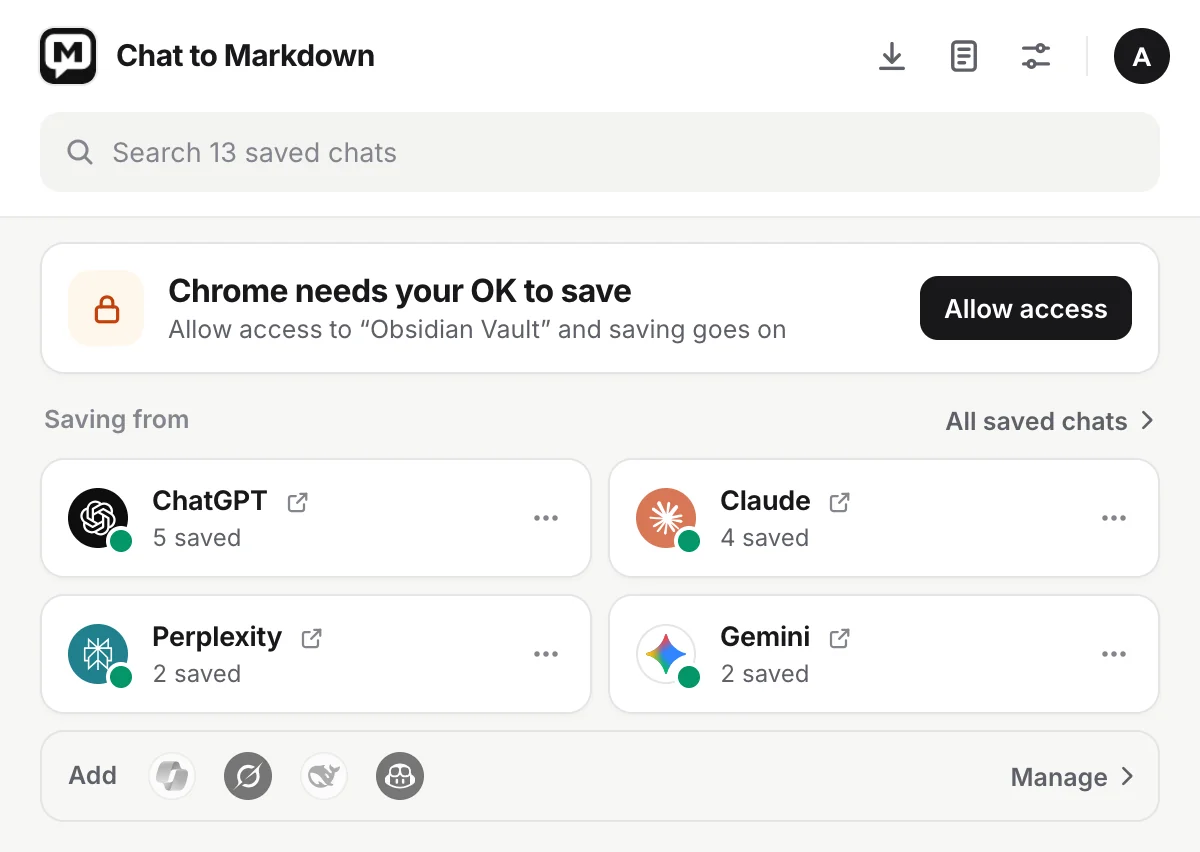
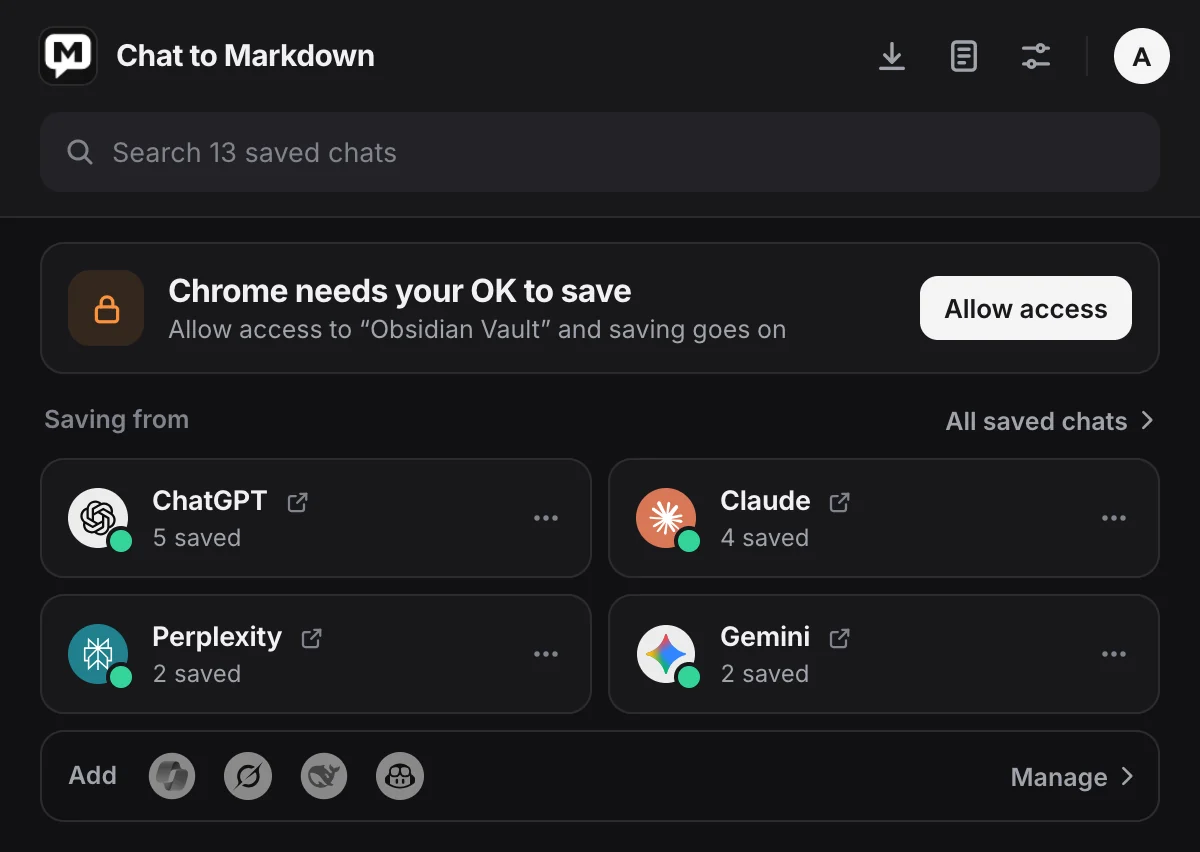
- Chrome needs your OK to save. Click Allow access. See Chrome asks to allow folder access again.
- Auto-save is paused. Click Resume, or Sync now to save once. While paused, nothing is saved on its own.
- No service is on. Click Services and turn on the ones you use.
- Saving only the chats you pick. Every service is set to Only chats I save, so only chats you save with the Save button are kept. To save all chats, open Settings → Chat services and choose Every chat.
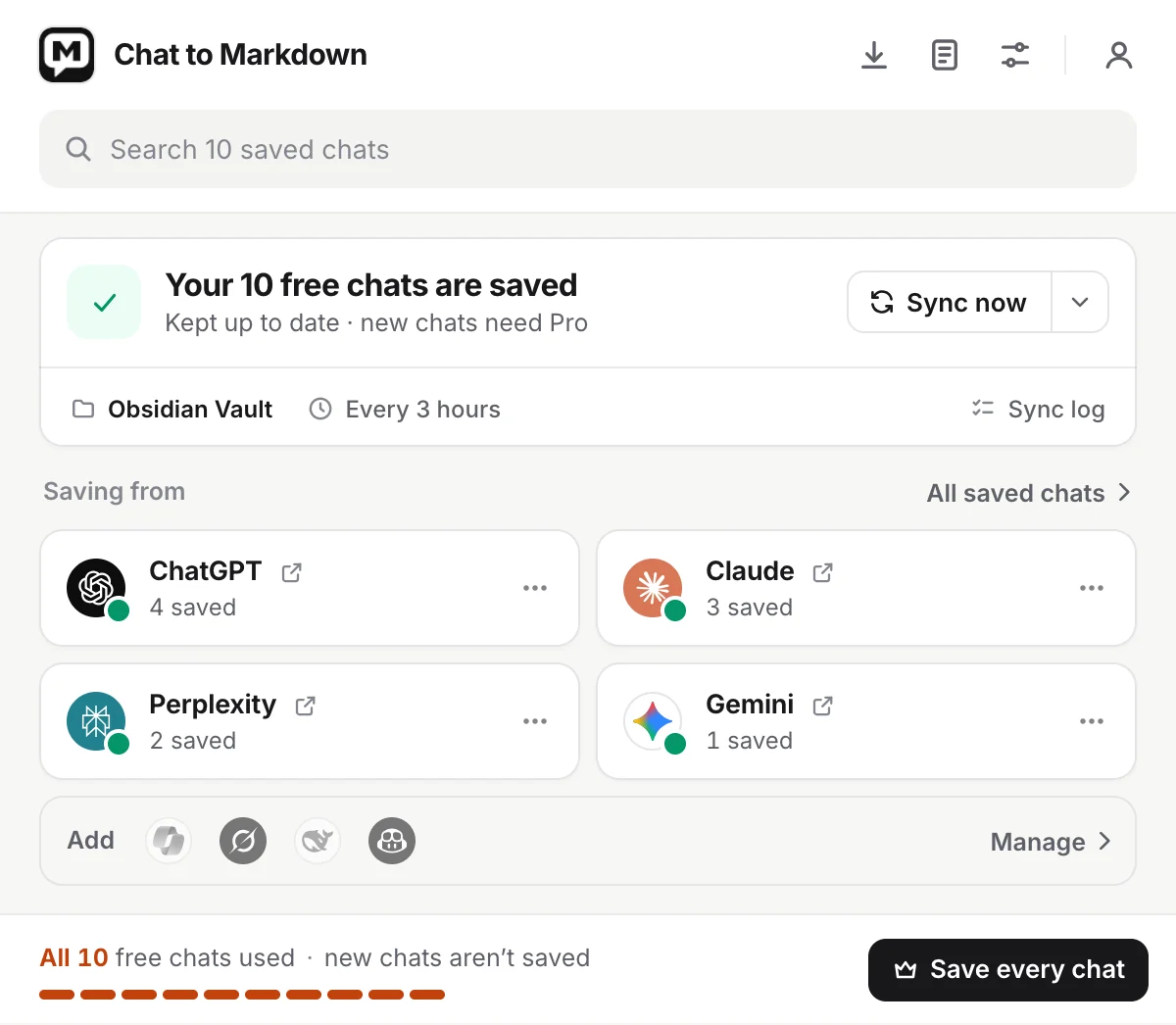
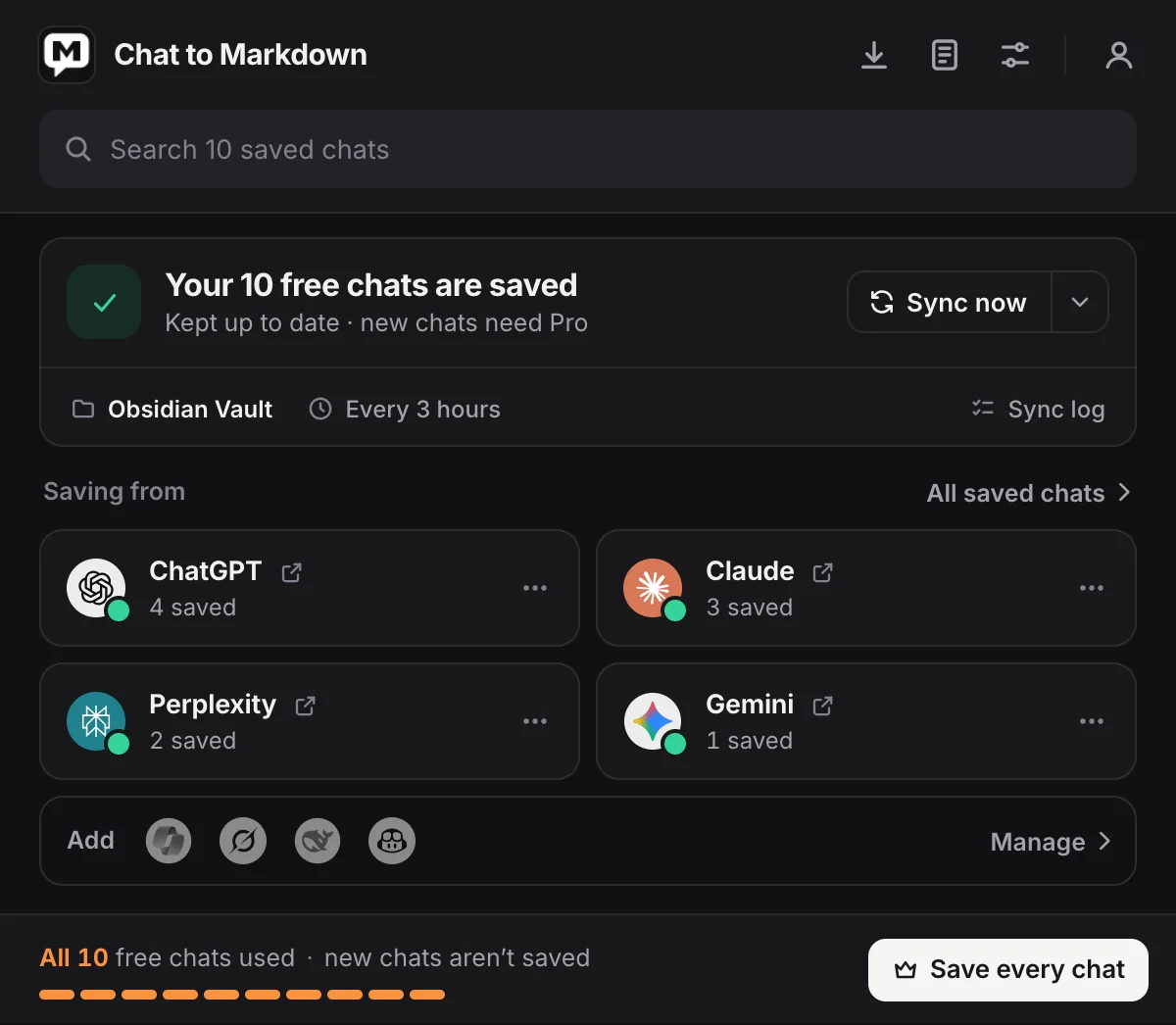
- Your 10 free chats are saved. The Free limit is reached. See The Free limit is reached.
- The last sync didn’t finish. The line under it gives the reason. Click Try again.
Also keep in mind that scheduled checks run only while Chrome is open, and that a chat whose title has a word from Settings → Folders and filters → Skip chats with these words is never saved.
A service shows “Not signed in” or needs attention
What you see. A service card in the popup, or its row in Settings → Chat services, shows a warning:
| It says | Why | Fix |
|---|---|---|
| Not signed in | The extension uses your sign-in on the chat site, and the site says you’re signed out. | Click Sign in, sign in on the site, and saving starts by itself. |
| Open ChatGPT once, Wants a quick check | The site showed a check page instead of your chats. | Click Open. If the site asks you to confirm you’re human, do it. Saving goes on by itself from there. |
| Needs its page open | GitHub Copilot hands over your chats only to its own page. | Keep github.com/copilot open in a tab while it syncs. |
| Needs your permission | Chrome no longer allows the extension on that site. | Click Allow and accept Chrome’s prompt. |
| No internet, Couldn’t connect | You are offline, or the site didn’t answer. | It tries again by itself. Click Retry to try now. |
| Last sync failed | Something else went wrong. Hover the line for the reason. | Click Retry. If it keeps failing, check the sync log. |
Opening a service’s site in a tab is often enough: when a service is waiting for you, the extension starts its sync as soon as the site has loaded.
Saving from a service stopped working
What you see. A red box in the popup: Saving from Claude stopped working. “Claude changed something on its side. We’re working on a fix; your saved files are safe.”
Why. None of the chat services offers a public way to read your history, so the extension reads it the way their own pages do. When a site changes, saving from it can stop until an update fixes it.
How to fix it. Click Check for an update. If it says Update ready, click Restart. If it says “You’re up to date. The fix will come in an update.”, wait for the next version. Meanwhile, the Save button on the chat page still works by hand. To tell us, click Report a problem: it copies a short report (never your chats) and opens an email to us.
Chrome asks to allow folder access again
What you see. The popup says Chrome needs your OK to save with Allow access. Settings says Chrome needs your permission to keep saving here. The toolbar icon shows a red !.
Why. Chrome gives websites and extensions access to a folder for the current session unless you choose to allow it permanently. After Chrome restarts, it asks again.
How to fix it.
- Click Allow access in the popup. Settings opens at the Folder section.
- Click Allow access there. Chrome shows its prompt.
- Choose Allow on every visit. This keeps access after a restart, so you aren’t asked again. Choosing Allow this time works only until Chrome closes.

Saving goes on as soon as access is allowed, and nothing is lost in between.
Saving stopped after I moved or renamed the folder
What you see. “The folder was moved or deleted. Choose it again.”
Why. Chrome’s access is tied to the folder itself. A moved, renamed or deleted folder can’t be found.
How to fix it. Open Settings → Folder, click Change and choose the folder in its new place. Your saved chats are found again by their place in it.
“Verify you are human” or a bot check on a chat site
What you see. The service’s card says Open … once or Wants a quick check, or the site shows a “Verify you are human” page when you open it.
Why. Some chat sites put a check page in front of requests they don’t recognise. The extension first tries from the background, then from inside an open tab of the site, where requests look like the site’s own. If the site still shows a check, only you can pass it.
How to fix it. Click Open on the card (or open the site yourself), complete the check if one appears, and leave the tab open for a moment. The sync starts by itself once the page has loaded. If it happens often, keep a tab of that site open while saving your history.
Sync is slow, or paused because the site asked to slow down
What you see. The popup says ChatGPT asked to slow down (“Too many requests · saving carries on in 20 min”), Waiting · back in …, a line that the site “allows only” so many chats in a while, or Saving your chat history with a number of older chats to go.
Why. Chat sites limit how many chats one account can open in a short time. If the extension went faster, the site would block your account for a while. So the first sync saves your history a batch at a time, at the pace each site allows, and waits when a site asks it to. Nothing is lost.
How to fix it. Nothing needs fixing: it carries on by itself, and new chats are saved as you go. You can use the chat sites as usual meanwhile. If you don’t want to wait for a long history, the popup may offer Import instead: load the service’s data export and every chat in it is saved at once. See Import a data export and How saving works.
The Free limit is reached
What you see. The popup says Your 10 free chats are saved (“Kept up to date · new chats need Pro”). The Save button says All 10 free chats are used. Settings shows “All 10 free chats are used. They stay up to date; new chats aren’t saved.”
Why. Free saves 10 chats, from all services together, and keeps them up to date. A chat counts the first time it is saved, by a sync, the Save button, saving when you leave a chat, or an import.
How to fix it. Your 10 chats keep updating. To save more, upgrade to Pro. Deleting files, or Start over, doesn’t free up any of the 10. See Free and Pro.
Your files
Files don’t appear in Obsidian
What you see. The popup says chats are saved, but Obsidian doesn’t show them.
Why and how to fix it. Check these in order:
- The folder isn’t in your vault. Open Settings → Obsidian. The card says Obsidian vault when your folder is a vault’s top folder. Chats saved in a folder inside a vault show up in Obsidian too. A folder outside the vault doesn’t. Choose the right folder in Settings → Folder.
- They are in a subfolder you didn’t expect. Look at Settings → Folders and filters: the Subfolder name, A folder for each service and A folder for each project decide where files go. See How your files are organised.
- Obsidian hides them. In Obsidian, check Settings → Files and links → Excluded files.
- A sync service hasn’t copied them yet. If the vault is synced (iCloud, Obsidian Sync, Dropbox), the files appear on other devices once it has copied them.
The hidden .chattomarkdown folder never shows in Obsidian. That is expected: it holds version history, not notes.
Duplicate chats
What you see. The same chat twice, or a file with (2) in its name.
Why and how to fix it.
- Two chats with the same title. Each chat gets its own file. When the name is taken, the second gets
(2). They are different chats; add{time}or{id}to Settings → File names → File name if you want different names, then Apply to saved files. - You moved or renamed a file by hand. The extension finds a chat’s file by the place it saved it. If the file isn’t there, it writes a new one the next time the chat changes. Rename files with Settings → File names and Apply to saved files instead, and keep them in the folder they were saved in. Delete the extra copy.
- You changed where files go. New chats follow Folders and filters; chats you already have stay and keep updating where they are. To save everything again in the new layout, use Start over.
Missing chats
What you see. A chat you had isn’t in your folder.
Why and how to fix it.
- The first sync is still going. Older chats are saved a batch at a time. The popup shows how many are left.
- The Free limit. Free keeps 10 chats; see The Free limit is reached.
- The service is set to Only chats I save, or is off. Check Settings → Chat services.
- A filter skipped it. Check Skip chats with these words and Skip these projects in Settings → Folders and filters.
- You deleted its file. A deleted file comes back only when the chat changes. To get it now, open the chat and click Save.
The sync log lists every chat saved or skipped. Search it for the chat’s title.
A chat is saved without pictures
What you see. Where a picture or upload should be, the note shows a placeholder or only the file’s name.
Why and how to fix it.
- Chrome hasn’t allowed the service’s image server. The popup asks to allow it (“Allow them once and the pictures and uploads in your saved chats are added”), and Settings shows Pictures aren’t saved yet with a link. Allow it; the missing pictures are fetched on the next sync.
- Images and files is off. Turn it on in Settings → What to save. The pictures of chats you already saved are fetched then.
- A download failed. The sync log says ”… images and files in ”…” couldn’t be downloaded”. Later syncs try again, up to three times for each version of the chat. Saving the chat again with the Save button tries at once.
For Notion, Google Drive and GitHub, their own Pictures and files switch decides whether pictures go there too.
A Claude dashboard is missing from a note
What you see. The note shows the dashboard’s card (Dashboard: … with Open in Claude) and “Interactive dashboard: … (open it in Claude to use it)” instead of the charts.
Why. Claude keeps a dashboard on claude.ai, not in the chat, and claude.ai didn’t hand it over when the chat was saved. The Sync log shows Files missing for that chat.
How to fix it. Nothing: the next syncs read it again, up to three times. To fix it at once, open the chat on claude.ai and click Save. Notes saved by 1.0.1 or earlier with only the dashboard’s title are found and saved again after the update.
The table of contents isn’t updating
What you see. A chat you saved isn’t listed in the table of contents note.
Why and how to fix it. The note updates within seconds of each saved chat. If it doesn’t:
- Check that Table of contents is on in Settings → Obsidian, and that its path there is the note you’re looking at.
- You removed its start and end markers. The extension then leaves the note alone (“Table of contents left as it is: its start and end markers were removed”). Put the markers back, or delete the note and turn the switch off and on to make a new one.
- You renamed the note in Obsidian. The extension keeps writing to the name in Settings. Use Settings → Obsidian → Note name to rename it; that moves your note with what you wrote in it.
Open in Obsidian does nothing
What you see. You click Open in Obsidian in Settings or the popup, and Obsidian doesn’t open the note.
Why and how to fix it.
- Your browser asks first. The first time, Chrome asks whether to open Obsidian. Allow it.
- Obsidian doesn’t know the vault. The link opens the vault by its folder’s name. Open the folder as a vault in Obsidian once.
- The table of contents isn’t written yet. The button makes the note first. If it can’t (“Couldn’t write the table of contents to your folder. The next sync makes it.”), allow folder access and try again.
Chat pages
The Save button is missing on a chat page
What you see. No Save button next to the site’s Share button.
Why and how to fix it.
- The page isn’t a chat yet. The button appears on a chat with its own address. Send the first message, or open a saved chat.
- The page was open before you installed or updated the extension. Reload it. After an update the button may say “Chat to Markdown was updated. Reload this page to use it.”
- The service is off, or Chrome doesn’t allow its site. Turn it on in Settings → Chat services.
- The button is turned off in Settings → Appearance → Save button on chat pages.
- The window is narrow, or a menu covers the header. The button hides then. Widen the window or close the menu.
On pages without a Share button it shows as a small button at the top right. The shortcut and the popup save the chat in all these cases. See The Save button and shortcut.
The shortcut does nothing
What you see. Alt+Shift+S (Mac: Option+Shift+S) doesn’t save the chat.
Why and how to fix it.
- No shortcut is set. If Settings → Appearance says “You can also press a shortcut”, Chrome gave the keys to another extension. Set one at
chrome://extensions/shortcuts. - The tab isn’t a chat of a service you turned on. The shortcut only works on a chat with its own address.
- No folder, or no folder access. Open the popup and fix what it says.
- The Free limit. If all 10 free chats are used and this chat isn’t one of them, it isn’t saved: the Save button says so, or the plans page opens.
With the Save button hidden, the shortcut still saves; the toolbar icon shows a green check for a moment when it’s done. See Keyboard shortcuts.
Notion, Google Drive and GitHub
Chats don’t reach Notion, Google Drive or GitHub
What you see. Chats are in your folder but not in Notion, Drive or your repository.
Why and how to fix it. Open that section of Settings and read the line under your account name:
- “Off. Your folder keeps saving as before.” Turn on Save to Notion (or Drive, GitHub).
- “Ready. Chats you save with the Save button go to …” Send automatically is off, so only chats you save by hand or send from the reader go. Turn it on.
- Chats saved before you connected aren’t sent on their own. Click Send all saved chats.
- “Paused · chats wait until you resume”. Resume it.
- “One more step: give the connection a page.” (Notion) or “give the token a repository” (GitHub). Follow the steps shown.
- “Your token has expired.” (GitHub) Click New token and paste a new one. “Google Drive needs you to connect again.” Click Connect again.
- “Chrome needs your OK to reach …” Connect again and choose Allow.
- “Something went wrong. It tries again soon.” Wait a few minutes.
On Free, only your 10 free chats are sent. See Notion, Google Drive, GitHub.
Account and Pro
Pro isn’t showing after payment
What you see. You paid, but the popup and Settings still say Free.
Why. The extension learns about your plan from your account. It checks when the payment page finishes, when you open the popup or Settings, and every 12 hours.
How to fix it.
- On the plans page, click I’ve paid. If it says “Not yet. Try again in a moment.”, wait a minute and click again.
- Open Settings → Account and plan. Check that you are signed in with the same email you paid with. If not, Sign out and sign in with that one.
- Close and open the popup. It checks your plan as it opens.
If Pro still doesn’t show, write to us from the contact page with the email you paid with.
Google sign-in doesn’t work
- “Sign-in was cancelled.” The Google window was closed before it finished. Try again and finish choosing your account.
- The wrong Google account was used. Sign out in Settings → Account and plan, then sign in again and pick the right account.
- “This email signs in with Google.” Your account was made with Google. Use Continue with Google, or set a password with Forgot password?.
- Use your email instead. Sign in with your email and a password. A new account confirms its email with a 6-digit code, valid for 15 minutes; if it doesn’t arrive, check spam or click send a new code. Forgot password? emails you a code to set a password, even if you usually sign in with Google.
- “Too many attempts. Wait a minute and try again.” Wait a minute.
See Upgrade, sign in and manage your plan.
The extension
The extension was turned off after an update
What you see. The icon is gone from the toolbar, or chrome://extensions shows Chat to Markdown switched off.
Why. Chrome turns an extension off after an update only when the new version needs a permission you haven’t accepted. Version 1.0.2 asks for nothing new, so another cause is more likely: it was switched off by hand, or Chrome marked it as possibly corrupted.
How to fix it. Open chrome://extensions (Edge: edge://extensions) and turn Chat to Markdown back on. If Chrome offers Repair, click it. Your settings and saved chats are still there. Reload open chat pages so their Save button works again. After an update, chats that failed before are tried again on their own.
Send a sync log to support
- Open the sync log. In Settings → Auto-save, click Sync log.
- Show what went wrong. Click Problems, or search for the chat or the service.
- Copy it. Click Copy above the list (or Download for a text file). Each sync also has its own Copy.
- Email it to us from the contact page, with what you expected and what happened.
Note
The log contains chat titles and file paths. Read it before you send it and remove anything you’d rather not share. It is kept on your computer only.
Questions
Where do I see what went wrong?
In the toolbar popup, which names the problem and its fix, and in the sync log (Settings → Auto-save → Sync log), which lists every sync, every chat saved or skipped and every error.
Will I lose chats while saving is stuck?
No. Your saved files stay as they are, and once the problem is fixed the next sync picks up every new and changed chat.