Install the extension
How to install Chat to Markdown from the Chrome Web Store in Chrome or Edge, what it needs, pinning it to the toolbar and checking which version you have.
In short
Install Chat to Markdown from the Chrome Web Store in Chrome 122 or newer, or in Microsoft Edge, on a computer. A welcome page opens right after, and Chrome keeps the extension up to date on its own.
Chat to Markdown is a browser extension for Chrome and Microsoft Edge on a computer. Installing it takes a few clicks; this page also covers what it needs, what Chrome asks during install, and how to check your version.
What you need
- Chrome 122 or newer, or Microsoft Edge, on Windows, macOS, Linux or ChromeOS.
- A folder on your computer for the chats, such as your Obsidian vault. You choose it after installing.
- An account on the chat services you use, signed in in the same browser. The extension uses that login; you don’t need API keys.
You don’t need a Chat to Markdown account. Saving works without one, and you only sign in for Pro.
Browsers it doesn’t work in
| Browser | Works? | Why |
|---|---|---|
| Chrome 122+ on a computer | Yes | |
| Microsoft Edge on a computer | Yes | |
| Firefox | No | It has no File System Access API, so an extension can’t write to a folder you pick. |
| Safari | No | Same reason. |
| Chrome or Edge on a phone or tablet | No | Mobile browsers don’t run extensions. |
| Older Chrome (before 122) | No | The Chrome Web Store won’t install it. Update Chrome first. |
Other browsers built on Chromium, such as Brave, Opera or Vivaldi, are not tested. They work only if they have the folder feature (the File System Access API) turned on, and some, such as Brave, turn it off by default.
Tip
To check your Chrome version, open chrome://settings/help. Chrome shows its version and installs any update waiting.
Install from the Chrome Web Store
- Open the listing. Go to Chat to Markdown in the Chrome Web Store (opens in a new tab) in Chrome.
- Click Add to Chrome. Chrome shows a small dialog with what the extension can do.
- Click Add extension. After a moment, Chrome confirms it was added and the welcome page opens in a new tab.
- Set it up. Follow the welcome page: choose a folder, turn on your services, then press Start saving. See Set up in two minutes.
The listing’s title in the store starts with “Chat to Markdown”, and the rest of it is shown in your browser’s language.
Install in Microsoft Edge
Edge installs extensions from the Chrome Web Store, and that is where Chat to Markdown is published.
- Open the listing in Edge. Use the same Chrome Web Store link (opens in a new tab).
- Allow extensions from other stores. The first time, Edge shows a bar at the top of the page. Click Allow extensions from other stores, then Allow.
- Click Add to Chrome, then Add extension. The welcome page opens, as in Chrome.
In Edge, extension pages are at edge://extensions instead of chrome://extensions; everything else in these docs works the same.
What Chrome asks when you install
The install dialog is short on purpose. It asks only for access to chattomarkdown.com, which the extension uses to notice when you finish paying for Pro so it can turn Pro on right away. It asks for no chat site at all.
Everything else is asked for later, one thing at a time, when you turn it on:
| When you… | Chrome asks to allow |
|---|---|
| Choose a folder | Viewing and saving files in that one folder |
| Turn on a chat service | That chat site, and the sites it keeps pictures and files on |
| Connect Notion, Google Drive or GitHub | That service’s website |
You can say no to any of these and turn them on later. What each permission is for, and what never leaves your computer, is in Privacy and permissions.
What happens right after install
The welcome page opens in a new tab with three steps: Choose a folder, Turn on the AI services you use, and Pin it to your toolbar. Nothing is saved until you choose a folder and press Start saving.

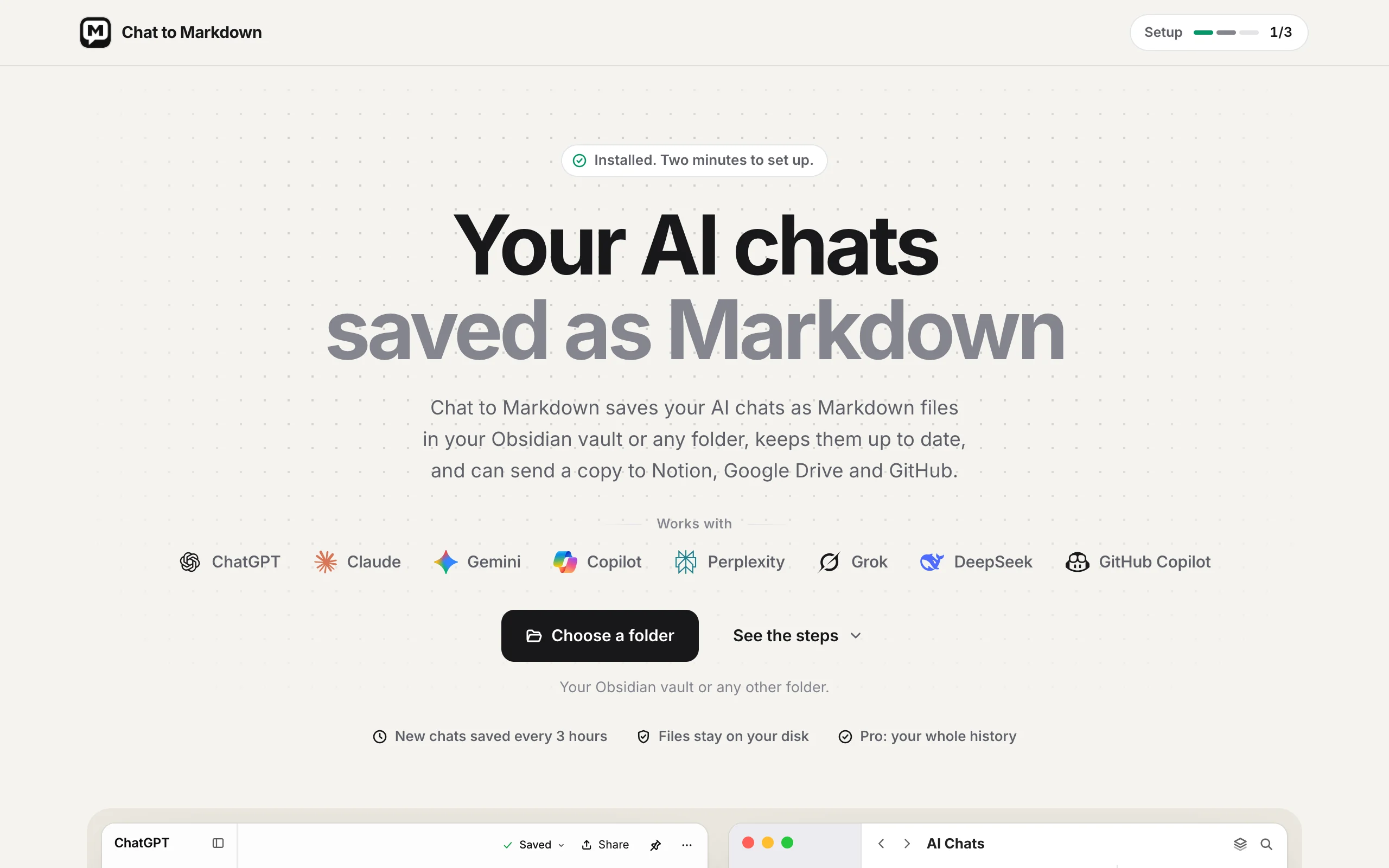

If you closed the welcome page by mistake, open the extension’s Settings and click Welcome tour at the bottom of the page. The toolbar popup also shows the steps left (see The toolbar popup).
Pin it to the toolbar
Chrome hides new extensions behind the puzzle icon. Pinning keeps Chat to Markdown one click away.
- Click the puzzle icon at the top right of Chrome, next to the address bar.
- Find Chat to Markdown in the list. It shows with its black and white icon, under its store name.
- Click the pin next to it. The icon now sits in the toolbar.
On the welcome page, step 3 turns to Pinned on its own once you do this. In Edge, the puzzle icon is called Extensions; click the eye icon next to the extension to show it in the toolbar.
Clicking the icon opens the popup: your services, search, and the state of saving. See A quick tour.
Check which version you have
There are two ways:
- In the extension. Open Settings (the gear in the popup). The version, such as
v1.0.2, is at the bottom of the page next to the name Chat to Markdown. - In Chrome. Open
chrome://extensions(Edge:edge://extensions), find the extension and click Details. The Version line shows the number.
These docs exist for each version. You are reading the docs for 1.0.2. The next version, 1.0.3, has its docs at chattomarkdown.com/docs. If you have an earlier version, use the 1.0.1 docs or the 1.0.0 docs, or update as below.
Updates
Chrome and Edge update extensions on their own, usually within a few hours of a new version reaching the store. You don’t need to do anything, and you don’t need to set anything up again: your folder, services, settings and saved chats stay as they are. After an update, the extension checks your services again and starts a sync.
To get an update sooner:
- Open
chrome://extensions. - Turn on Developer mode at the top right.
- Click Update. Chrome checks the store for every extension and installs what’s new. You can turn Developer mode off again afterwards.
What changed in each version is in What’s new in 1.0.2 and on the release notes page.
If something goes wrong
- The store says the item isn’t compatible with your browser. Your Chrome is older than 122, or you are on a phone. Update Chrome at
chrome://settings/help, or use a computer. - Add to Chrome is greyed out or missing. Your browser may be managed by your work or school, and its admin can block extensions. Ask them, or use a personal browser profile.
- Nothing opened after install. Open the popup from the puzzle icon, or go to
chrome://extensions, click Details on the extension, then Extension options to open Settings. The welcome page is under Welcome tour at the bottom of Settings. - You can’t find the icon. It is behind the puzzle icon until you pin it. See Pin it to the toolbar.
More fixes are in Troubleshooting. To remove the extension, see Uninstall and remove your data.
Questions
Does it work in Firefox or Safari?
No. It writes your chats to a folder with a browser feature called the File System Access API, which Firefox and Safari don't have.
Does it work on my phone or tablet?
No. Chrome and Edge on phones and tablets can't run extensions. Install it on a computer; if your folder syncs to your phone (for example an Obsidian vault), you can read the notes there.
Do I need to update it myself?
No. Chrome and Edge update extensions on their own. Your folder, settings and saved chats stay as they are.
Do I need an account to install it?
No. Saving works without an account. You only sign in to buy or use Pro.