Settings reference
Every section and option on the Chat to Markdown Settings page, in page order: what each one does, its default, and where to read more.
In short
Open Settings from the gear icon in the toolbar popup, or right-click the toolbar icon and choose Options. The page has one section per topic, from Account and plan to Start over, and every change is saved the moment you make it.
Settings is one long page with a sidebar. This reference walks through it from top to bottom: every section, every option, its default, and the page that explains it in detail.
Open Settings
Any of these opens the same page in a new tab:
- From the popup. Click the Chat to Markdown icon in the toolbar, then the gear icon (Settings) at the top right.
- From the toolbar icon. Right-click the Chat to Markdown icon and choose Options (in Edge: Extension options).
- From the extensions page. Open
chrome://extensions(Edge:edge://extensions), click Details under Chat to Markdown, then Extension options. - From a chat page. Open the Save button’s menu and choose Settings.
- From the reader or the sync log. Click Settings in the top bar.
Tip
If you don’t see the icon in the toolbar, click the puzzle piece icon and pin Chat to Markdown. See Install the extension.
The page at a glance

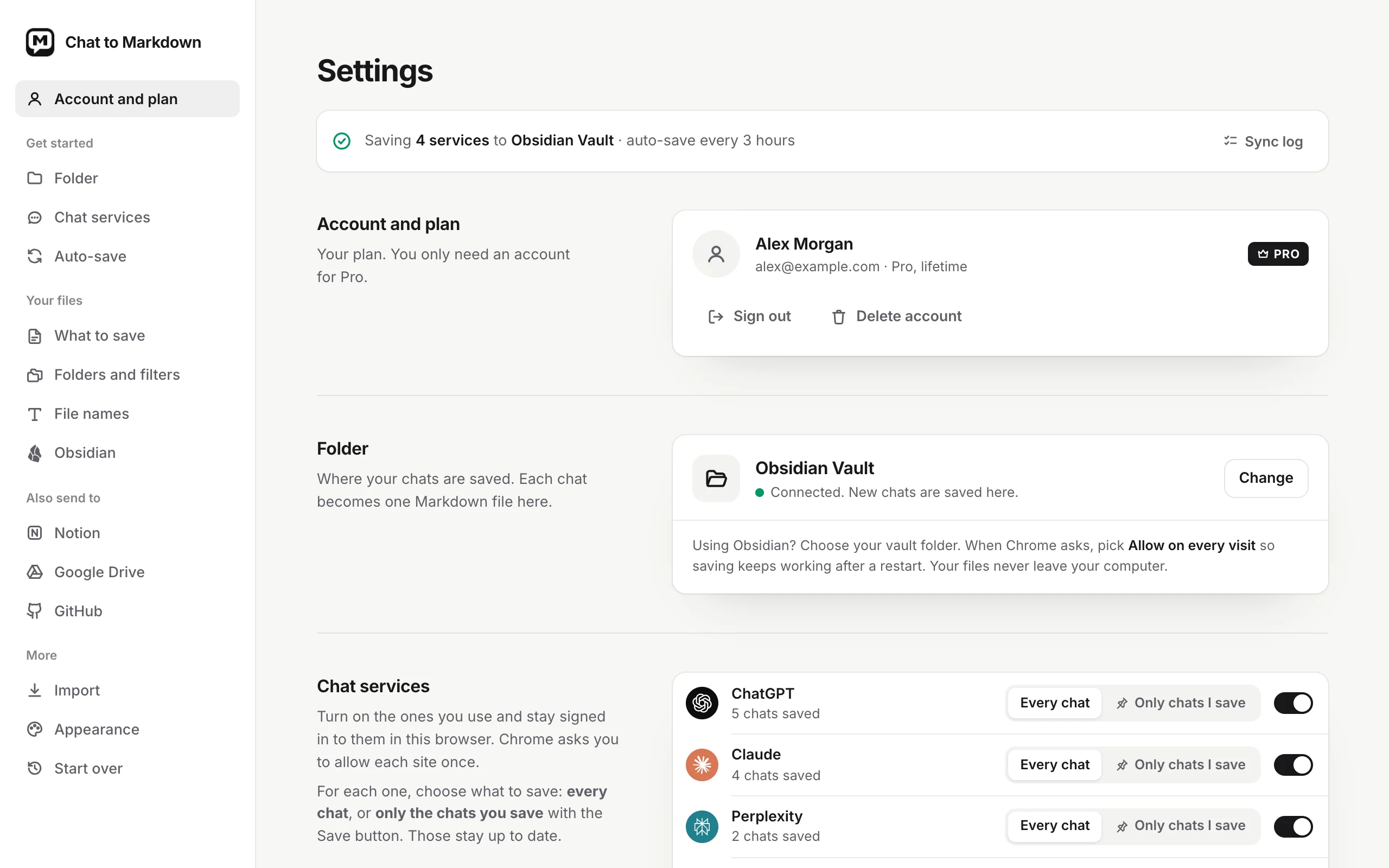
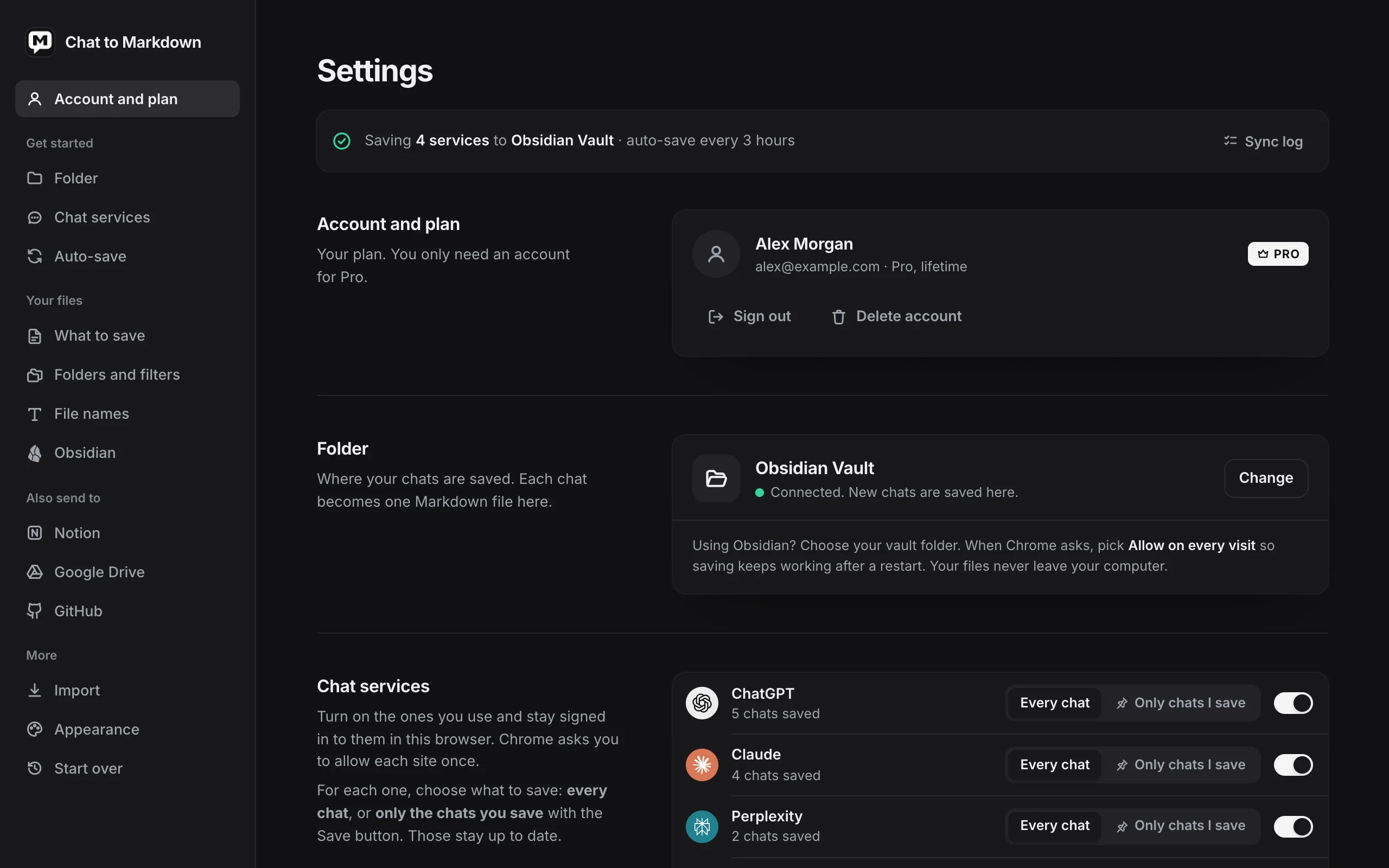
- Sidebar. One link per section. Click a section to jump to it; the link follows you as you scroll. On the Free plan, a card under the links shows how many of your 10 free chats are used.
- Summary line. Whether saving works, in one line.
- Account and plan. The first section.
The summary line under the Settings heading tells you what is happening, or the one step left:
| You see | What it means |
|---|---|
| Nothing | No folder is chosen yet, or Chrome needs your permission for it. The Folder card says what to do. |
| Turn on the AI services you use. with a Chat services button | The folder is fine but no service is on. |
| Saving ChatGPT and Claude to Obsidian Vault · auto-save every 3 hours | Everything works. With more than two services it says, for example, “Saving 4 services”. |
| … · auto-save paused until 9:00 AM | Everything is set up, but auto-save is paused. |
When saving works, a Sync log button at the end of the line opens the log.
At the bottom of the page you find the version number (for example v1.0.2), Contact support (copies our email address), Welcome tour (opens the setup page again), and links to the Privacy and Terms pages.
Account and plan
You only need an account for Pro. When you are not signed in, the card offers See Pro and, under it, Have an account? Sign in.
When you are signed in, it shows your name, email and plan (for example “Free plan, 10 chats”, “Pro, renews 4 Dec 2026”, “Pro until 4 Dec 2026, then Free” or “Pro, lifetime”), with these buttons:
| Button | What it does |
|---|---|
| Upgrade to Pro | Free plan only. Opens the plans. |
| Manage subscription | Monthly or Yearly Pro only. Opens Stripe’s billing page: invoices, card, cancel. |
| Sign out | Signs this browser out. Your files and settings stay. |
| Delete account | Deletes your account from our server, after a confirmation. |
Read more: Free and Pro, Upgrade, sign in and manage your plan, Uninstall and remove your data.
Folder
Where your chats are saved. Each chat becomes one Markdown file here.
- Choose folder (or Change once you have one) opens Chrome’s folder picker. When Chrome asks, choose Allow on every visit so saving keeps working after a restart.
- Allow access appears when Chrome needs your permission again. Click it and allow.
- The line under the folder name says Connected. New chats are saved here., or Chrome needs your permission to keep saving here.
There is no default: nothing is saved until you choose a folder. Read more: Choose your folder.
Chat services
One row per service: ChatGPT, Claude, Perplexity, Gemini, Copilot (Microsoft Copilot), Grok, DeepSeek and GitHub Copilot. All are off by default.
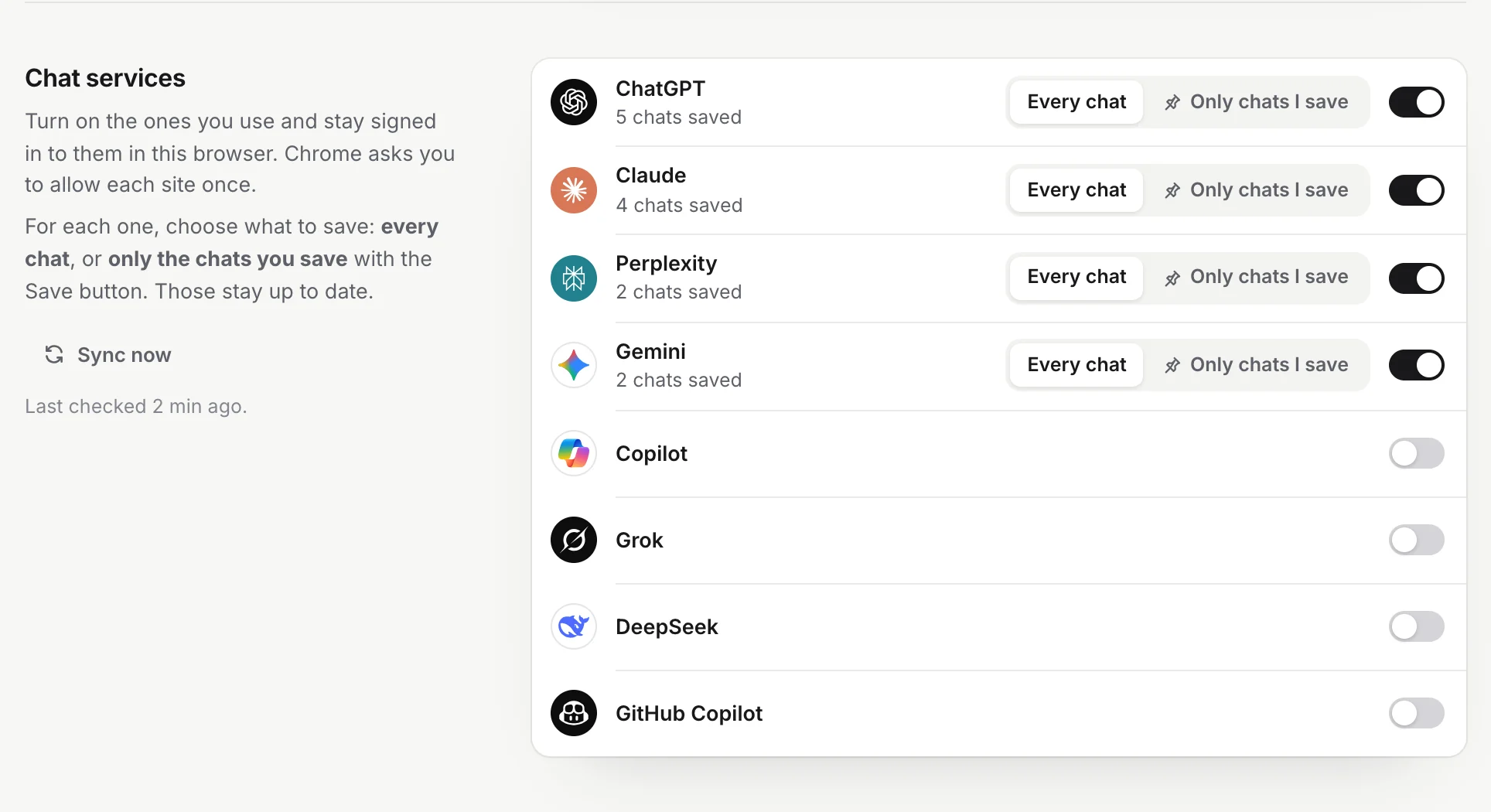
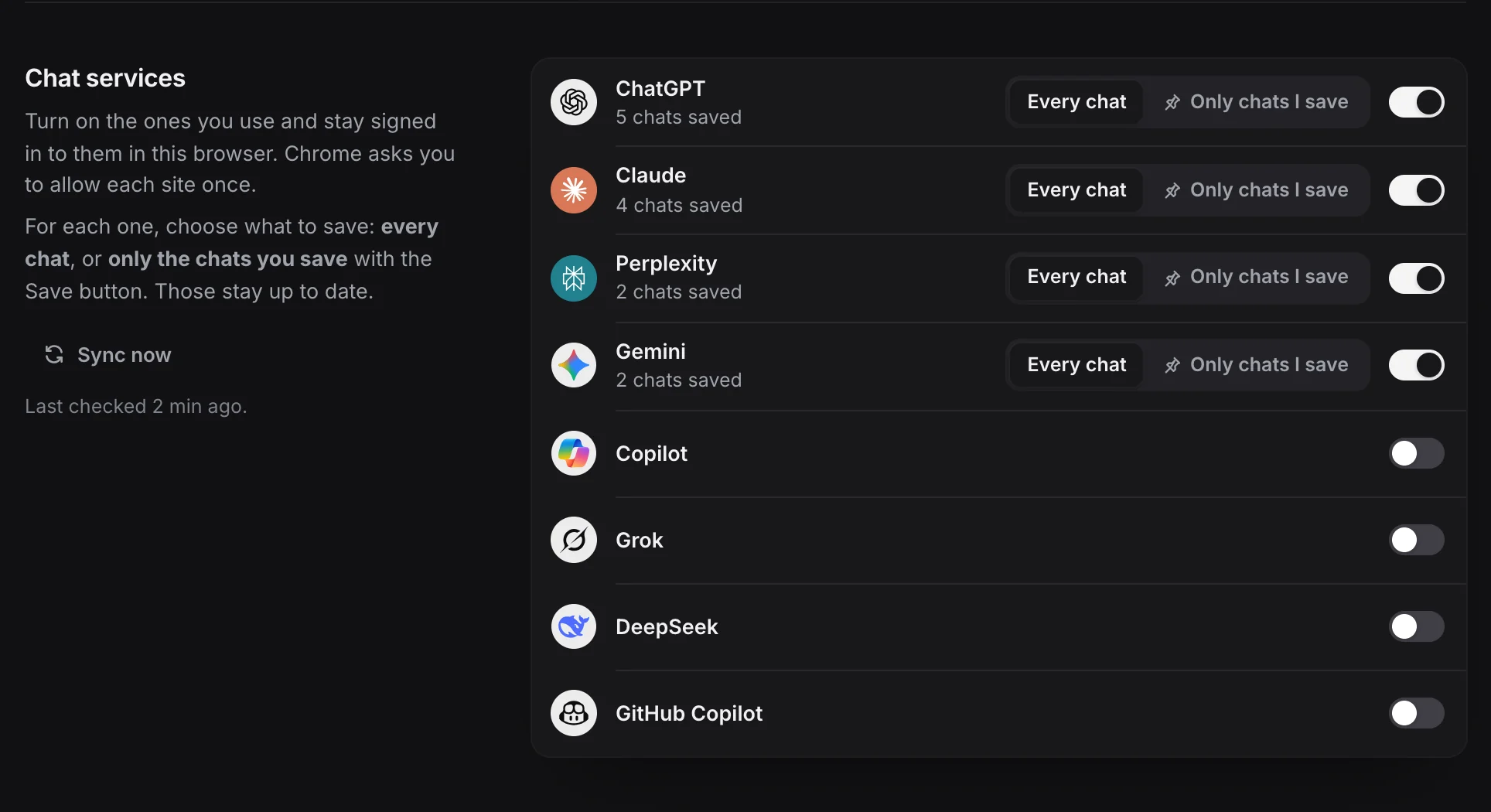
- The switch turns a service on. Chrome first asks you to allow its site (and the addresses where it keeps pictures and uploads). If you say no, the service stays off.
- Every chat or Only chats I save appears once a service is on. Every chat (the default) saves all its chats. Only chats I save keeps just the chats you save with the Save button, and keeps those up to date.
- The line under the name says how the service is doing: chats saved, Not signed in, Wants a quick check, or Pictures aren’t saved yet with a link to allow the image server.
- Sync now checks every service at once. Before you have started saving, this button reads Start saving. The note next to it says when the last check ran.
Read more: Chat services, How saving works.
Auto-save
When new and changed chats are saved on their own. Saving a chat yourself, with the Save button or its shortcut, works any time.
| Option | What it does | Default |
|---|---|---|
| Auto-save | On, or pause it For 1 hour, Until tomorrow (9:00) or Until I resume. While paused, nothing is saved on its own. | On |
| Check for new chats | How often: every 15 or 30 minutes, every hour, every 3, 6 or 12 hours, once a day, a Custom interval (15 minutes or more) or At set times. Under it, Hours and Days limit checks to certain hours or days. The line under the title shows the next check. | Every 3 hours |
| Save when you leave a chat | Saves a chat a few seconds after you switch away from it. | On |
| Sync log | Opens the log of every sync and every chat saved or skipped. |
Checks run only while Chrome is open. Read more: Auto-save and schedule, Sync log.
What to save
What goes into each chat’s file besides the messages, and what is kept over time.
| Option | What it does | Default |
|---|---|---|
| Claude artifacts | Code, documents and diagrams Claude makes, with their full content. | On |
| Artifacts as separate files | Each artifact is also its own file next to the chat, shown inside the note. Needs Claude artifacts on. | On |
| Model thinking | The model’s reasoning before its answer, in a collapsed section. | Off |
| How thinking looks | Callout (folds in Obsidian) or Plain (works in any Markdown app). | Callout |
| Tool calls | The web searches and code runs behind an answer. | Off |
| Earlier versions | When you edit a message or ask for a new answer, the other versions are kept in a collapsed section. | Off |
| Images and files | Pictures and uploads, saved in an attachments folder next to the chat. | On |
| Names of uploaded files | Lists the files attached to a message by name, even when they aren’t saved. | On |
| Keep chats you delete | A chat you delete on its site stays in your folder, marked deleted. | On |
| Keep a history of changes | Keeps earlier versions of each chat, to compare in the reader. | On |
| Hide secrets | Replaces API keys, tokens and passwords with a label like [hidden: OpenAI key], in files and in copies. | Off |
| Share usage events | Tells us which setup steps and pricing pages you reach. Never your chats, their titles or file names. | On |
These apply to chats saved from now on. Read more: Choose what to save, What’s in a saved file, Version history, Privacy and permissions.
Folders and filters
How chats are arranged in your folder, and which ones are never saved.
| Option | What it does | Default |
|---|---|---|
| Subfolder | A folder for your chats inside the one you chose. Empty: they go straight into it. | Empty |
| A folder for each service | ChatGPT, Claude, Gemini and the rest each get their own folder. | On |
| A folder for each project | Chats in a ChatGPT or Claude project, or a Perplexity Space, go into a folder with its name. | On |
| Skip chats with these words | A chat whose title has one of these words is never saved. Type a word and press Enter or a comma. | None |
| Skip these projects | Chats in these projects or Spaces are never saved. Suggests the projects you have. | None |
These apply to chats saved from now on; files you already have stay where they are. Read more: How your files are organised.
File names
How each file is named, and the details at its top.
| Option | What it does | Default |
|---|---|---|
| File name | A pattern built from parts: Date, Time, Title, Service, Project, ID. Click a part to add it; a preview shows the result. | {date} {title} |
| Date in the name | How {date} is written: four formats, shown with today’s date. | YYYY-MM-DD |
| Properties | Which details go in each file’s frontmatter: title, source, url, model, created, updated, tags, project, messages, words. id is always kept. | All on except messages and words |
| Extra tags | Tags added to every file, after ai-chat and the service. | None |
| Apply to saved files | Click Apply… to rename the files you already have and update their properties to match. It asks first and shows its progress. |
Read more: File names and properties.
Obsidian
Extras for when your folder is an Obsidian vault. The card at the top shows your folder as Obsidian sees it, with one button: Open in Obsidian (it is a vault), Choose vault (it is not the top folder of a vault), Allow access or Choose folder.
| Option | What it does | Default |
|---|---|---|
| Daily note links | Lists the chats you started that day at the end of your daily note. Never creates a note. Needs the vault folder itself. | Off |
| Table of contents | A note that links to every saved chat, grouped by service, project and month. | Off |
| Note name | Shown while Table of contents is on. Type a new name and click Rename (or press Enter); Cancel or Esc puts it back. Renaming moves the note you have, with anything you wrote in it. | AI Chats index |
While the table of contents is on, a line under it shows the note’s path, with buttons to copy it, Open in reader and Open in Obsidian. Read more: Use with Obsidian, Table of contents note, Daily note links.
Notion
Your chats in a Notion database too. Before you connect, the section shows Connect Notion and, once clicked, five steps that end with pasting your API token. After you connect:
- Disconnect, Send all saved chats, Open in Notion and Remove all.
- Database: where chats go. A database, or a page to make an “AI Chats” database in.
- Save to Notion (on once you connect), Send automatically (on: every chat saved to your folder goes to Notion too; off: only chats you save with the Save button or send from the reader) and Pictures and files (on).
Read more: Send chats to Notion.
Google Drive
Your chats in your Google Drive too. Connect Google Drive asks Google for access to only the files the extension makes. After you connect:
- Disconnect, and Connect again if Google needs you to sign in again. Send all saved chats, Open in Drive and Remove all.
- Format: Google Docs (default) or Markdown files.
- Folder name: the folder made in My Drive with the first chat. Default AI Chats.
- Save to Google Drive, Send automatically and Pictures and files, as for Notion.
Read more: Send chats to Google Drive.
GitHub
Your chats in a GitHub repository too. Connect GitHub shows four steps that end with pasting a fine-grained token. After you connect:
- Disconnect, New token (when yours runs out or is about to), Send all saved chats, Open on GitHub and Remove all.
- Repository, Branch (empty: the default branch) and Folder (empty: the top of the repository).
- Format: Readable on GitHub (default) or Exactly as in your folder.
- Save to GitHub, Send automatically (a few chats to a commit) and Pictures and files.
Read more: Send chats to GitHub.
Import
Import a data export opens the import page, where you load what a chat service gives you when you ask for your data: a ZIP, a CSV or a Markdown file. Read more: Import a data export.
Appearance
| Option | What it does | Default |
|---|---|---|
| Theme | System, Light or Dark, for the popup and all extension pages. | System |
| Save button on chat pages | Shows the Save button in the chat header. The line under it shows your save shortcut. | On |
The link chrome://extensions/shortcuts under the section opens Chrome’s page to change the shortcut. Read more: Theme and Save button, Keyboard shortcuts.
Start over
Two ways to delete what the extension saved in your folder. Each opens a dialog that lists exactly what will be deleted before anything is.
- Start over: delete every saved chat and its files, then save your chat history again from the beginning.
- Delete all saved chats: delete every chat and file the extension saved, and stop saving until you start again.
Notes you’ve written in, and chats deleted on their site, are kept unless you choose otherwise. Read more: Start over or delete saved chats.
Problems with Settings
- A switch looks grey and doesn’t change. It depends on another option. Artifacts as separate files needs Claude artifacts, How thinking looks needs Model thinking, and Daily note links needs your folder to be the vault folder itself.
- The page says Chrome needs your permission. Click Allow access in the Folder section and allow. See Troubleshooting.
- A change didn’t affect files I already have. Most options apply to chats saved from now on. Use File names → Apply to saved files to update existing files.
Questions
Is there a Save button on the Settings page?
No. Every switch, field and choice is saved as soon as you change it. Text fields are saved when you leave them or press Enter.
Do changes apply to chats I already saved?
Most options apply to chats saved from then on. To update the files you already have, use Settings → File names → Apply to saved files.
Can I reset Settings to the defaults?
There is no button for that. The defaults are listed on this page, so you can set any option back by hand.